Use a Mac with one hand
 InputConfig is completely free on the Mac App Store. You don't have to make an account, there are no subscriptions, and nothing is locked. Optimized for Apple silicon.
One working hand can run a Mac comfortably, left or right, whether that is after a stroke, with a limb difference, with an arm in a cast, or with a baby in the other arm. The mistake is trying to do a two-handed layout with one hand. This guide gives setups designed for one hand from the start: the one-handed typing features macOS already has, a mouse whose spare buttons carry the keys the other hand used to press, a controller beside the mouse, and a single Joy-Con as the whole mouse plus the keys you need most.
Every setup works for either hand, and each takes about fifteen minutes.
On this page: 14 sections
- Steps
- How to read this guide
- Type with one hand using what macOS has
- Give the mouse the other hand's keys
- Put a controller beside the mouse
- Run everything from a single Joy-Con
- Keep a stop within reach of one hand
- Use a full controller with one hand
- Let dictation do the writing
- Play games one-handed
- What it cannot do
- The short version
- Download
- Questions
Steps
- Turn on Sticky Keys in System Settings, Accessibility, Keyboard, so shortcuts are pressed one key at a time.
- Add Dvorak - Left or Dvorak - Right in System Settings, Keyboard, Text Input, Input Sources if you type a lot with one hand.
- Give spare mouse buttons and right-hand modifiers jobs in InputConfig, with Block the button's own action on side buttons.
- Put a controller beside the mouse with the built-in Easy Edit preset, or use a single Joy-Con with the Joy-Con One Hand preset from this page.
- Bind Start Dictation to an easy button and use Type Text for the phrases you type most.
How to read this guide
The setups run from no app at all to a controller that does everything. Start where you are:
- If you are mostly typing, start with what macOS has.
- If you are keeping the mouse, go to mouse buttons with jobs and Easy Edit.
- If you want one small device for everything, go to a single Joy-Con.
Type with one hand using what macOS has
For one-handed typing on the Mac's own keyboard, start with what macOS already has. Climb this ladder, smallest step first:
- Sticky Keys. System Settings, Accessibility, Keyboard. Press Command, then C, one after the other instead of together, and every shortcut becomes one-handed.
- A one-handed layout. macOS includes Dvorak - Left and Dvorak - Right, which put the common letters under one hand. Add one in System Settings, Keyboard, Text Input, Input Sources.
- Dictation. For anything longer than a few words, covered below.
A software half keyboard, where holding a key types its mirror from the other side, needs an app that can stop the original key from typing. InputConfig cannot do that: it listens to the keyboard and does not block or remap the key itself, so a key always types its own letter first.
What InputConfig can do is give spare keys a second job without changing what they type. The built-in Modifier Holds preset does nothing on a plain press and acts on a long hold of a right-hand modifier:
- Hold Right Option. Starts Dictation.
- Hold Right Command. Opens Spotlight. Double tap it for Launchpad.
- Hold Right Shift. Opens Mission Control.
Left and right modifiers are read separately, so a left hand can scan the left-hand keys into the same rows. On keyboards that have F13 to F19, those keys type nothing, so each can carry any shortcut. Sticky Keys makes every shortcut one-handed before you install anything.
Give the mouse the other hand's keys
Any mouse with side buttons can carry the keys the other hand would have pressed. These are Mouse inputs in InputConfig, which reads buttons up to 32 and a tilt wheel.
- You: Bind the two side buttons to Command and Shift in Toggle mode, and the middle button to Return. On a middle or side button row, turn on Block the button's own action in Options.
- InputConfig: Holds Command or Shift from one press until the next, and while the preset runs, a blocked button does only its new job, so a side button stops also going Back in a browser.
- Check: Command-click a link, Shift-select a few files, and confirm a dialog, all without a keyboard. The main and secondary clicks are never blocked.
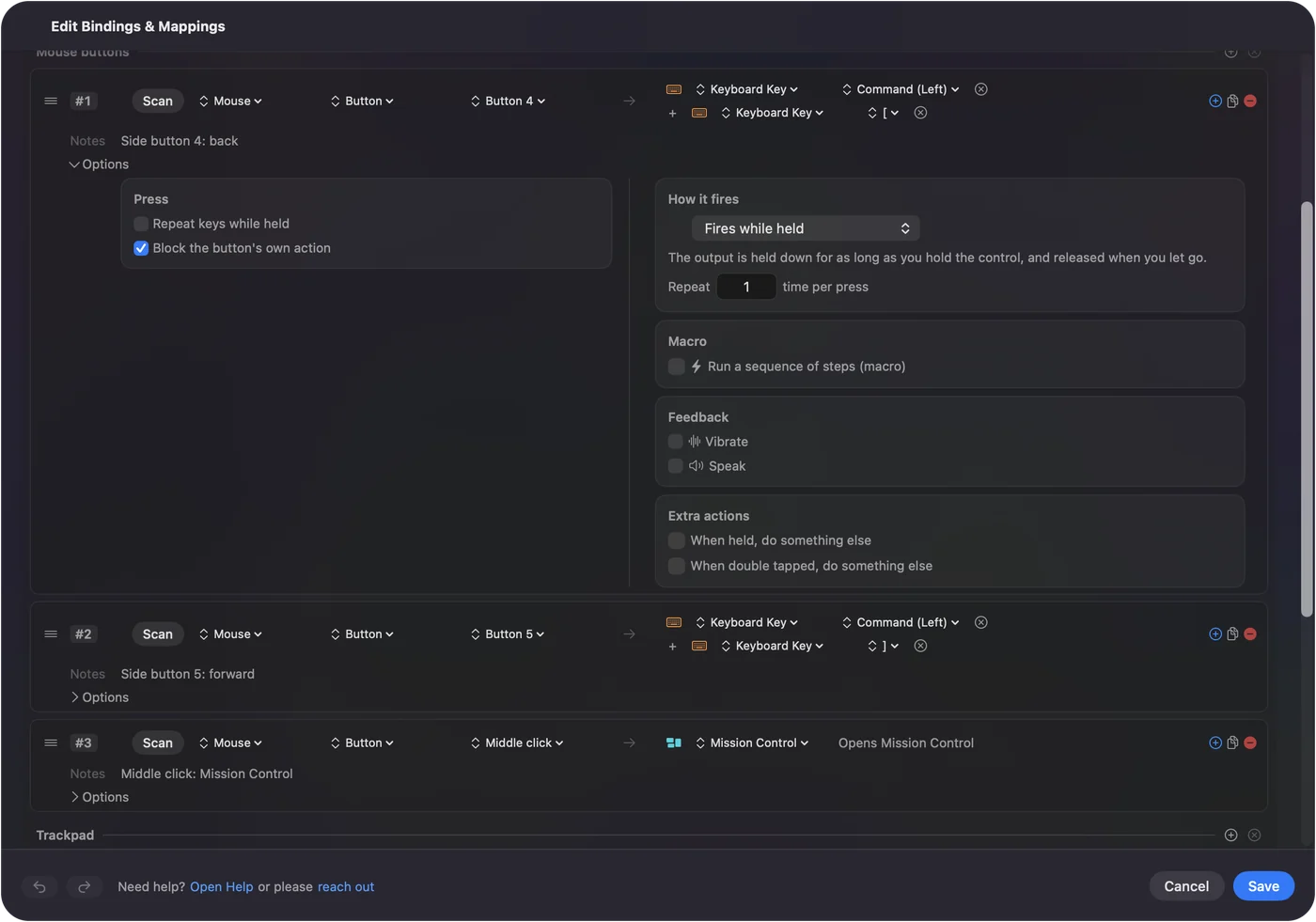
Scroll-wheel tilt, on mice that have it, makes a good back and forward. A double click on a side button is a separate input, so each spare button can carry two jobs. The built-in Double Click Deck preset shows it, and mouse side buttons on a Mac has the setup. Two side buttons in Toggle mode replace the modifier keys the other hand used to hold.
Put a controller beside the mouse
Easy Edit, built into InputConfig, is made for a mouse or trackpad in one hand and a controller in the other, or in the lap. The pointer stays on the mouse.
- The D-pad. Undo, Copy, Cut and Paste, the way they sit together on a keyboard. It counts one direction at a time, so a quick press cannot fire Cut in place of Copy.
- The face buttons. A deletes, B saves, X types a space, Y is Return.
- The sticks. The left stick reads the selection aloud or, pushed up firmly, starts Dictation. The right stick scrolls.
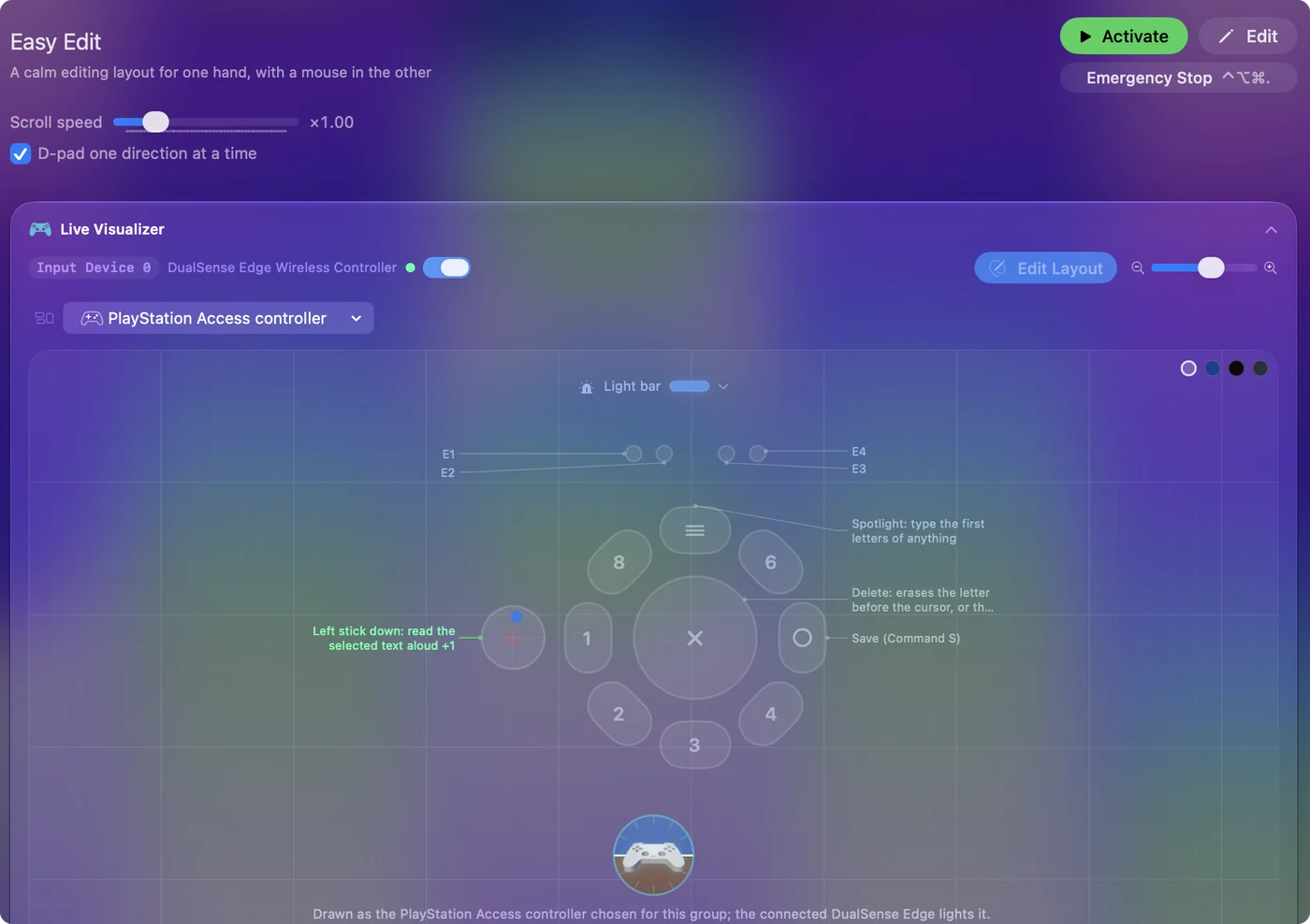
The face buttons and the D-pad say their job while you learn them. A controller and a mouse together has the full table.
Run everything from a single Joy-Con
Held sideways, a Joy-Con has a stick, four face buttons, two shoulder buttons on the rail, and a system button, all under one hand. Because it is so small, it can be held in the hand that is also resting on a chair arm or a lap, for hours.
Step 1: Pair it on its own
- You: Pair one Joy-Con over Bluetooth (how to pair a Joy-Con), and add the Joy-Con One Hand preset from this page.
- InputConfig: Reads it as one controller of its own.
- Check: It appears at the top of the sidebar.
Step 2: Learn the layout
- You: Activate the preset and try each button.
- InputConfig: The stick is the pointer; the four face buttons are click, right click, Escape and Return; the two rail buttons scroll up and down, with a hold for Page Up and Page Down; the small system button starts Dictation; the stick press toggles a drag.
- Check: Each face button does the job it should. If the face buttons fire the wrong rows on a Joy-Con set up before InputConfig 1.6, accept the update InputConfig offers when it first connects. 1.6 fixed Switch pads where pressing A fired the rows meant for B. Scanning the rows again works too.
A left Joy-Con and a right Joy-Con each hold a stick and four face buttons when turned sideways, so use the one that sits best in the working hand. A Joy-Con is limited, and for one hand that is the point: everything is under the thumb.
Keep a stop within reach of one hand
The emergency stop turns the preset off and lets go of every key and click. Out of the box it is a two-button hold on the controller, and that is the part to change when one hand does everything.
- One button, held. In Settings, General, Emergency Stop, pick a single controller button and turn off With Start (Menu / Options / Plus) held too. That one button, held for the time you choose from one to five seconds, stops the preset.
- A row of its own. Set a row's output type to App Action and choose Emergency Stop. The preset stops the moment that row fires.
- The keyboard. Control Option Command and the period key work from anywhere.
- The menu bar. Click the InputConfig icon and press Emergency Stop.
A single Joy-Con held sideways carries only Minus or only Plus, so the default hold of both is out of reach: give it a one-button hold or a row of its own before the first long session. The emergency stop page has every option.
Use a full controller with one hand
A full-size controller works too:
- The one-handed pointer preset. The one-handed pointer preset puts the pointer on the left stick, scrolling on the D-pad, and the clicks on the face buttons and both triggers. For a right hand, scan the pointer rows onto the right stick.
- Resting it in the lap. A controller can rest in a lap or on a cushion and be worked from above by one hand, which many people find steadier than holding it.
- The PlayStation Access Controller. Made to rest on a table, with swappable button and stick caps. InputConfig reads every socket, the stick, the PS and Profile buttons and its four switch ports by name. The built-in Access Controller preset puts the pointer on the stick, click on the center button, right click on socket 5 and Spotlight on socket 7, and Scan gives any other socket a job. The Access Controller guide covers it.
Let dictation do the writing
With one hand on a Joy-Con or a mouse, dictation carries the writing. Bind Start Dictation somewhere easy and use Type Text for the ten phrases you type most. The keyboard-free guide goes deeper on both. For dictation with cleanup that runs on the Mac itself, YapToText is free and starts from any single key. Speak the sentences, and keep the hand for pointing and shortcuts.
Play games one-handed
Most games can be played one-handed:
- A Joy-Con plus chords. Hold the rail button and the face buttons become four more commands.
- Driving games. One-stick driving is a one-handed scheme by design.
- Shooters. The Smart Preset Maker layouts can be trimmed to a Joy-Con: movement on the stick, fire and aim on the rail buttons, and the rest on chords.
What it cannot do
- Remap letter keys. A key always types its own letter, so a mirrored half keyboard is not possible in InputConfig.
- Block the main clicks. Only middle and side buttons can be kept from doing their own job.
The short version
- Typing. Use Sticky Keys, a Dvorak one-hand layout, and dictation.
- Keeping the mouse. Set the side buttons as Command and Shift in Toggle mode, and run Easy Edit on a controller beside it.
- One small device. Use a sideways Joy-Con with the Joy-Con One Hand preset.
Pick a layout made for one hand from the start, not a two-handed one squeezed into one.
Download
- Joy-Con One Hand presetPointer, click, Return, Escape, scroll with page holds, and dictation on a single sideways Joy-Con. 7 KB
To add a downloaded preset: drop the file on InputConfig's Dock icon, or click the … button next to any preset in the sidebar, choose Import Preset File, and pick the file. It lands in the sidebar, ready to activate or edit. Any launch target inside a preset file is cleared on import; add one yourself in the editor if you want it.
Questions
Can the Joy-Con be used with the mouse at the same time?
All inputs work together. Many people use the Joy-Con or a controller for keys and the mouse for pointing. Easy Edit is a ready layout for exactly that.
Can I use a Mac with only my left hand?
Every setup here works for either hand: a left Joy-Con held sideways, a controller resting in the lap with the one-handed pointer preset, Sticky Keys for shortcuts, and macOS's Dvorak - Left layout for typing.
Is there a one-handed keyboard app for Mac?
macOS has the pieces built in: Sticky Keys turns every shortcut into one key at a time, and the Dvorak - Left and Dvorak - Right layouts put the common letters under one hand. One-handed hardware keyboards also work on a Mac like any keyboard. InputConfig cannot remap letter keys, because a key always types its own letter, but it can give free keys and mouse buttons extra jobs.
Will a one-handed gaming keypad with a joystick work on a Mac?
Its keys type on a Mac like any keyboard. The stick depends on how the keypad reports it: if it shows up as a gamepad, InputConfig reads it like any controller stick and can make it the pointer. If it sends arrow keys or mouse movement, it already works without a mapper. Press it with the Live Visualizer open to see which.
Related
This page in other languages: العربية, Čeština, Dansk, Deutsch, Español, Suomi, Français, עברית, Magyar, Bahasa Indonesia, Italiano, 日本語, 한국어, Norsk, Nederlands, Polski, Português, Русский, Slovenčina, Svenska, ไทย, Türkçe, Українська, Tiếng Việt, 繁體中文, 简体中文
Completely free. You don't have to make an account, there are no subscriptions, and nothing is locked. Optimized for Apple silicon. Open source on GitHub.
Updated