Joy-Cons on a Mac
 InputConfig is completely free on the Mac App Store. You don't have to make an account, there are no subscriptions, and nothing is locked. Optimized for Apple silicon.
Joy-Cons work on a Mac: they connect one at a time over Bluetooth, each as its own controller, and macOS 13 and later can also combine them into a pair. Either way works; pick one and build the preset for it. The pairing steps, and what to do when one will not connect, are on how to connect Joy-Cons to a Mac.
On this page: 7 sections
Steps
- Detach the Joy-Cons from the Switch.
- Hold the small Sync button on the rail side until its LEDs run back and forth.
- Open System Settings, Bluetooth and click Connect on Joy-Con (L) or Joy-Con (R). Repeat for the other one.
Use one Joy-Con on its own
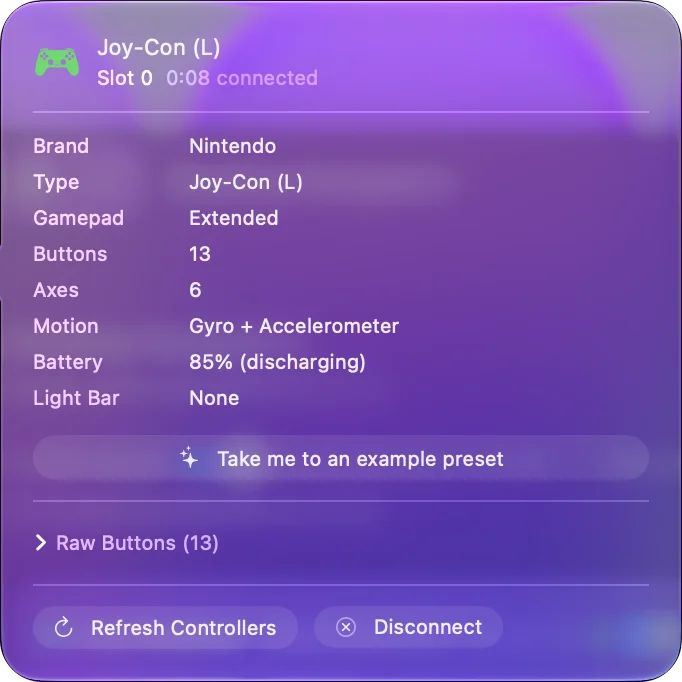
Held sideways, a single Joy-Con is a small gamepad: four face buttons, two shoulder buttons, a stick and a couple of system buttons. It is a good one-handed controller for reading, presentations and media.
- You: Bind each stick direction with Scan, pushing the stick the way you want it to go.
- InputConfig: Records the direction the stick really sends, so the quarter-turn offset of a sideways Joy-Con comes out right.
- Check: Push the stick and watch the pointer, or the Live Visualizer, move the way you pushed.
InputConfig 1.6 numbers a single Joy-Con's controls like other controllers, so rows made on one before 1.6 may need to be scanned again. Scan the directions instead of picking them, and sideways stops being a problem.
Use both as a pair
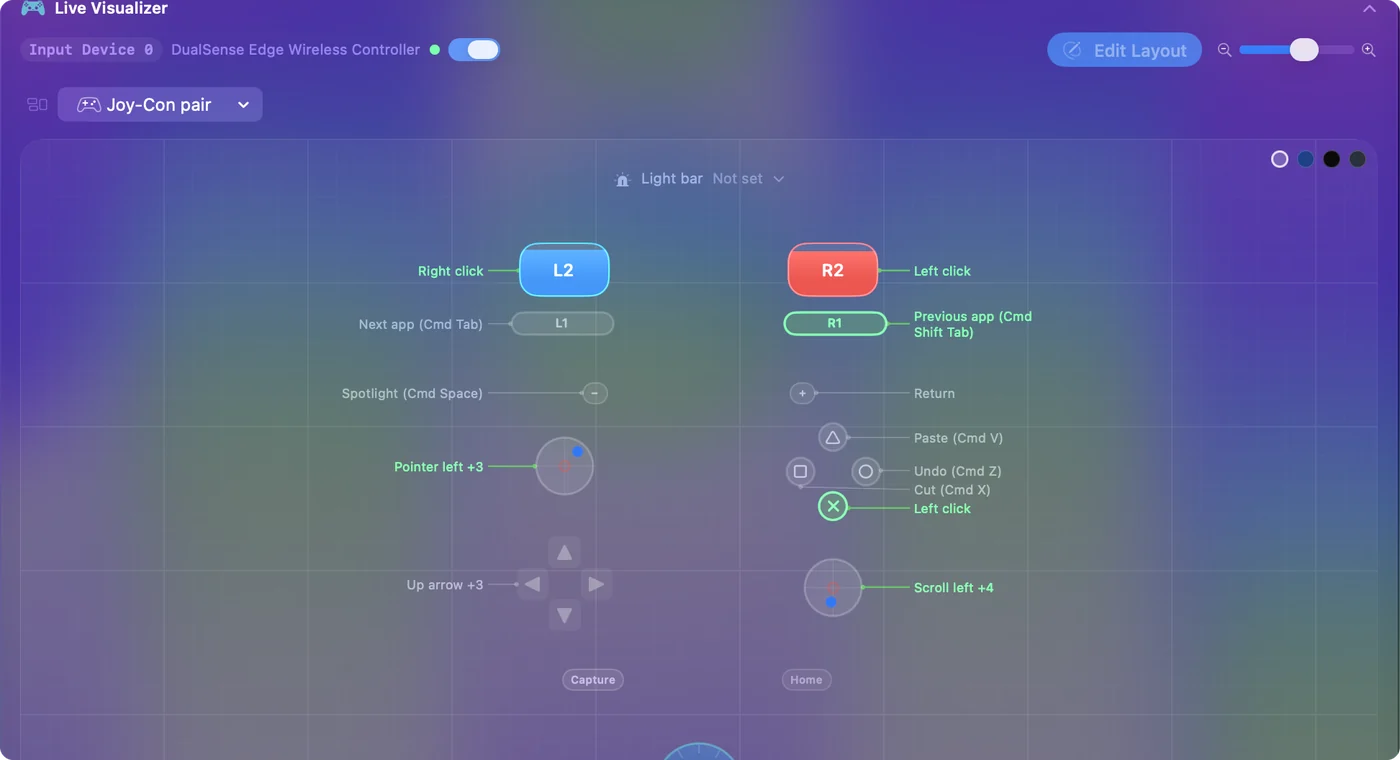
With both connected, macOS may also show a combined Joy-Con Pair that behaves like a full-size gamepad. Bindings made on the pair do not transfer to a single Joy-Con. Two people can also use one Joy-Con each: each is its own slot, so a preset can bind the two differently. Pick one mode per preset: a pair, or single Joy-Cons.
Make a Joy-Con a one-handed mouse
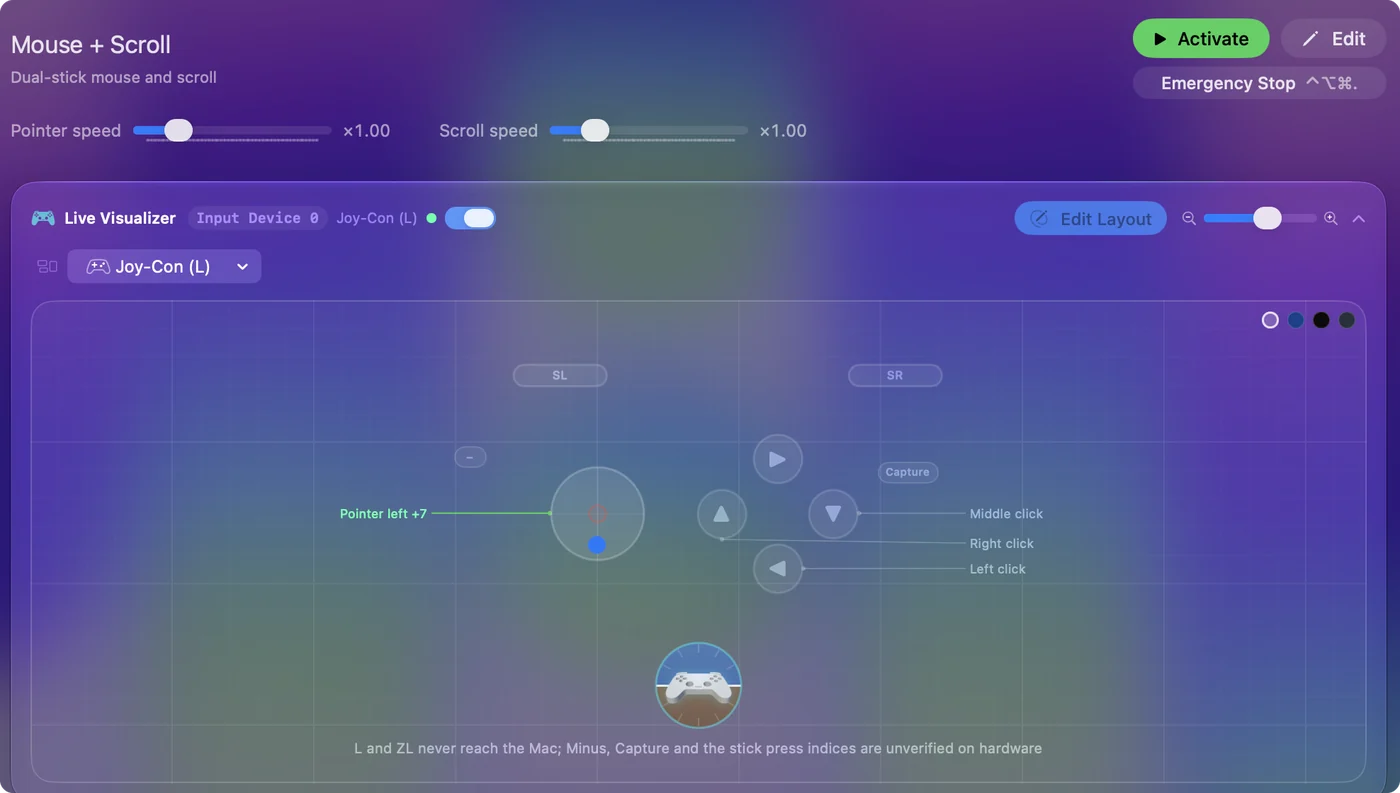
A single sideways Joy-Con has a stick and enough buttons for a whole pointer, and the one-handed Mac guide has a Joy-Con One Hand preset to download.
- Point. The stick moves the pointer.
- Click and confirm. The four face buttons are click, right click, Escape and Return.
- Scroll. The two rail buttons scroll, with a hold for Page Up and Page Down.
- Dictate and drag. Minus or Plus starts dictation, and a stick click toggles drag.
It suits reading on the sofa as much as one-handed work, and Anki reviews fit on one Joy-Con too. One Joy-Con is enough to run the whole Mac.
What it cannot do on a Mac
macOS does not pass through the IR camera or NFC. Buttons and sticks come through, and when macOS reports a Joy-Con's gyroscope and accelerometer, Motion rows read them.
The short version
- Pair each one. Hold Sync on the rail, then Connect in System Settings, Bluetooth.
- Choose single or pair. Bindings do not carry between the two.
- Scan the stick. Push it the way you want and the direction comes out right.
Start with the Joy-Con One Hand preset and change what you like.
Questions
Can two people use one Joy-Con each?
Each is its own slot, so a preset can bind the two differently.
Can I use a Joy-Con as a mouse on a Mac?
With InputConfig the stick moves the pointer and the buttons click. The one-handed Mac guide has a ready Joy-Con One Hand preset to download.
My Joy-Con stick drifts. Can the Mac fix it?
It can hide it for anything InputConfig drives. Open Options on the stick row, press Adjust live, let go of the stick and raise the deadzone until the dot rests inside it. A game that reads the Joy-Con itself needs its own deadzone setting. More in stick drift on a Mac.
Related
Completely free. You don't have to make an account, there are no subscriptions, and nothing is locked. Optimized for Apple silicon. Open source on GitHub.
Updated