How to connect a Switch Pro Controller to a Mac
 InputConfig is completely free on the Mac App Store. You don't have to make an account, there are no subscriptions, and nothing is locked. Optimized for Apple silicon.
Hold the small round Sync button on the top edge of the Pro Controller, beside the USB-C port, until the four player lights run back and forth, then click Connect next to Pro Controller in System Settings, Bluetooth. macOS 13 Ventura and later support the controller with no driver, and the steps are the same on a MacBook Air, MacBook Pro, iMac or Mac mini.
Joy-Cons pair one at a time and have their own page: how to connect Joy-Cons to a Mac. The newer Switch 2 Pro Controller is a different story: macOS does not read it at all, and InputConfig reads it instead, on a USB-C cable or, since 1.8, over Bluetooth with a setting, all experimental, as covered in Switch 2 Pro Controller on a Mac.
On this page
Steps
- Hold the Sync button beside the USB-C port until the player lights run.
- Open System Settings, Bluetooth, and click Connect next to Pro Controller.
- Open System Settings, Game Controllers, and press a button to check it is live.
Pair it over Bluetooth
- You: Open System Settings, Bluetooth, then hold the Sync button beside the USB-C port until the four player lights run back and forth.
- macOS: Lists Pro Controller under the nearby devices. Click Connect.
- Check: Game Controllers appears in the System Settings sidebar with the Pro Controller listed while it is connected, and each button lights as you press it. If Game Controllers itself is missing, see why Game Controllers can be missing from System Settings.
What works, and what does not
- Every button, both sticks and the D-pad. They work in every Mac game that reads controllers.
- Nintendo's button names. InputConfig names the buttons the Nintendo way, so A is the right-hand face button and B the bottom one, and reads them by position. That is what fixed a bug in earlier versions where pressing A fired the rows meant for B.
- The gyroscope, in InputConfig. Motion rows read its gyroscope and accelerometer, as on a PlayStation controller, so gyro aim works.
- No rumble or NFC. macOS does not pass the HD rumble or NFC through to apps.
- No buttons over the cable. A USB-C cable charges the Pro Controller, but macOS does not read its buttons over the cable, and InputConfig has no wired mode for it either. Guides that tell you to plug it in date from before macOS 13, or are about apps that talk to the controller themselves.
Pair it over Bluetooth and use the cable only to charge between sessions. If you need a controller that works over a cable on a Mac, a DualSense or DualShock 4 does. See what controllers work with a Mac. The Switch 2 Pro Controller is the opposite: InputConfig reads it on a cable, and over Bluetooth only with its own setting, because macOS reads it neither way.
If it will not connect
Climb this ladder, smallest step first:
- Take it off the Switch. A Pro Controller goes back to the last console it knew. Turn the Switch off, or on the Switch open System Settings, Controllers and Sensors, Disconnect Controllers, then hold Sync again.
- Charge it. A flat battery fails to pair. Give it a few minutes on the cable first.
- Forget it and pair fresh. If it worked once and now does nothing, click the info button next to Pro Controller in System Settings, Bluetooth, choose Forget This Device, and pair again from the Sync button.
- Check the macOS version. Support arrived in macOS 13 Ventura. Look in Apple menu, About This Mac.
If it connects and a game ignores it, that is a game problem, not a pairing one: see controller connected but not working.
Use it in games, and in Steam
Native Mac games that support controllers see the Pro Controller, though many label the buttons as Xbox ones. Games without controller support get it through InputConfig, a free Mac app I make: the Smart Preset Maker has ready layouts for more than 450 games and apps, and the built-in FPS layout for the Pro Controller places the shooter keys for Nintendo's button positions. The same app turns the pad into a mouse for the desktop: Desktop Navigation puts the pointer on the left stick, scrolling on the right, and clicks on the triggers.
Steam has its own controller layer. In Steam, Settings, Controller, turn on the support for Nintendo controllers, then open the game's page, click the controller icon, and set Steam Input for that game. If Steam sees the Pro Controller and a game still ignores it, the fixes are on controller works on a Mac but not in Steam.
Update presets you made on it before 1.6
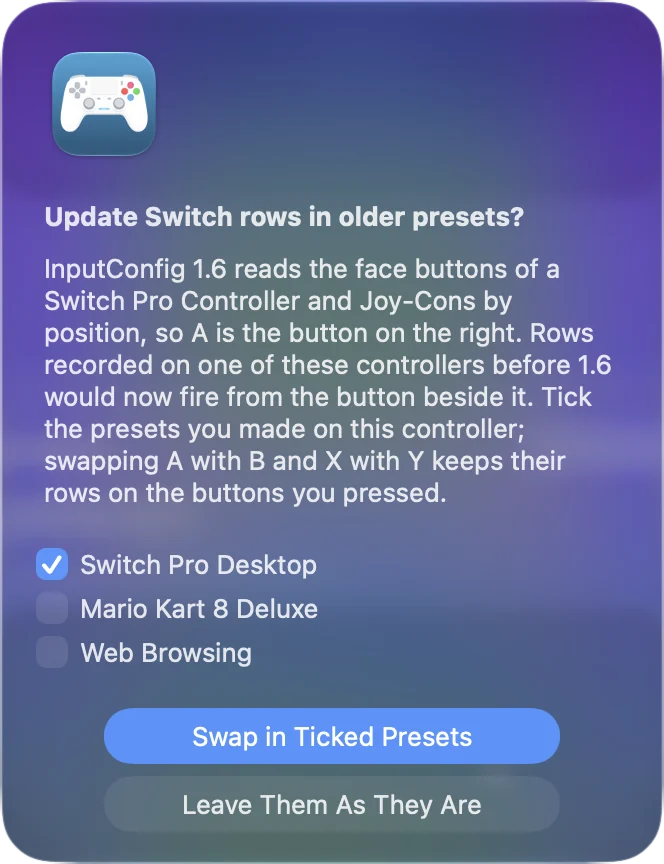
Because InputConfig reads the face buttons by position, a row recorded on a Pro Controller or Joy-Con in an earlier version would now fire from the button beside it. InputConfig fixes that once, with your say.
- You: Connect the controller. The first time, InputConfig asks Update Switch rows in older presets? Tick the presets you made on this controller.
- InputConfig: Swaps A with B and X with Y in those presets, so each row stays on the button you pressed.
- Check: Press A in one of those presets and the row you recorded on A fires. If you skipped the offer, Check Older Presets Again in Settings, Advanced brings it back.
If it lags
On a Mac the Pro Controller only talks over Bluetooth, so lag nearly always means a weak or crowded radio link. Climb this ladder, smallest step first:
- Move closer. Keep it within a few meters of the Mac with nothing metal in between.
- Clear the radio. Move USB 3 hubs and drives away from the Mac, and put the Wi-Fi on 5 GHz if your router allows it.
- Test outside the game. If it lags in only one game, a game or a streaming service can add its own delay.
Controller input lag on a Mac goes through the rest.
Disconnect it or give it back to the Switch
Click Pro Controller in the Bluetooth list in Control Center to disconnect it and keep the pairing, or click its entry at the top of InputConfig's sidebar and choose Disconnect. To give it back to the Switch, open Controllers, then Change Grip/Order on the console and press Sync on the controller. The turn off or disconnect page covers every brand.
The short version
- Pair over Bluetooth. Hold Sync until the lights run, then Connect next to Pro Controller.
- Use the cable to charge. A Mac does not read the Pro Controller's buttons over USB.
- Take the update offer. Older presets made on it keep their rows on the right buttons in 1.6 and later.
If it will not pair, the Switch nearby is the first suspect.
Questions
Does the Switch Pro Controller work on a Mac?
Yes. The Switch Pro Controller is compatible with a Mac over Bluetooth, on macOS 13 and later. Hold the Sync button to pair.
Can I use Joy-Cons on a Mac?
Yes, on macOS 13 and later. Pair each one separately. InputConfig can treat the pair as one controller. The Joy-Con page has the steps.
Why does the Pro Controller not work over USB on a Mac?
macOS only talks to it over Bluetooth, and InputConfig reads it the same way. The cable charges it.
Do I need a driver for the Switch Pro Controller on a Mac?
No. macOS 13 Ventura and later support it directly, so there is nothing to install to pair it. Driver downloads and helper apps for it date from before that.
Why is my Switch Pro Controller not connecting to my Mac?
Usually it is still paired to a Switch. Turn the console off or disconnect the controller on it, choose Forget This Device next to Pro Controller in the Mac's Bluetooth settings, then hold the Sync button until the lights run and click Connect again. The Mac needs macOS 13 or later.
Do the Switch Online SNES and N64 controllers work on a Mac?
Reports from October 2022 say Apple's updates that month added the Nintendo Switch Online SNES and N64 controllers to iPhone, iPad, Mac and Apple TV. I have not tested them. If one appears in System Settings, Game Controllers once paired, InputConfig reads it like any other controller, and the Live Visualizer shows which buttons arrive.
Related
This page in other languages: Deutsch, Español, Français, 日本語, Русский, 繁體中文, 简体中文
Updated