How to connect a controller to a Mac or MacBook
 InputConfig is completely free on the Mac App Store. You don't have to make an account, there are no subscriptions, and nothing is locked. Optimized for Apple silicon.
You connect a controller to a Mac in one of two ways: plug in a USB cable that carries data, or put the controller in pairing mode and click Connect in System Settings, Bluetooth. You do not have to download anything, and it works the same on every Mac. Then comes the step most guides skip: what to do when the Mac sees the controller and a game still ignores it. I make InputConfig, the free app for that last part, and I will tell you plainly when you do not need it.
Jump to your controller: PS5, PS4, Xbox, Switch Pro, Joy-Cons, Switch 2 Pro, GameCube, 8BitDo, a joystick or arcade stick, a racing wheel, a wired or USB pad, an Xbox 360 pad. If you are not sure yours works, see what controllers work with a Mac.
On this page
- Steps
- Pair it over Bluetooth
- Or plug it in with a cable
- Check that the Mac sees it
- If the controller does not show up
- If a game still ignores it
- Use controllers macOS does not read
- On a MacBook Air, MacBook Pro, iMac or Mac mini
- Check your macOS version
- Change buttons in macOS itself
- Disconnect it again
- The short version
- Questions
Steps
- Put the controller in pairing mode (the table lists the button for each one), or plug in a USB cable that carries data.
- Open System Settings, Bluetooth, and click Connect next to the controller.
- Open System Settings, Game Controllers, and press a button to check it is live.
- Open the game. If it ignores the controller, map the controller to keys with InputConfig.
Pair it over Bluetooth
Put the controller into pairing mode, then on the Mac open System Settings, Bluetooth, wait for it under Nearby Devices, and click Connect. Only the pairing button differs:
| Controller | Pairing mode |
|---|---|
| PS5 DualSense, DualSense Edge | Hold PS and Create together until the light bar flashes |
| PS4 DualShock 4 | Hold PS and Share together until the light bar flashes |
| Xbox Series, Xbox One (Bluetooth models), Elite 2 | Hold the small pairing button on the top edge until the Xbox button blinks fast |
| Switch Pro Controller | Hold the Sync button next to the USB-C port until the player lights run |
| Joy-Cons | Hold the Sync button on the rail, and pair each one on its own |
| 8BitDo | Set the mode switch to D (on an SN30 Pro, hold B and Start to turn it on), then hold Pair for three seconds |
| Amazon Luna Controller | Hold Action and B for about three seconds until the white light blinks |
| SteelSeries Nimbus+ | Press the Bluetooth button on the top edge |
The Switch 2 Pro Controller, the Joy-Con 2 and the GameCube controller for Switch 2 are missing from the table because macOS does not read them as game controllers. InputConfig reads all three itself, on a cable or, with a setting, over Bluetooth, as the next section says. A controller pairs with one device at a time, so unpair it from a console or a phone first, or it keeps jumping back.
Or plug it in with a cable
A cable needs no pairing, but each family has its own rule:
- PlayStation. A DualSense, DualSense Edge or DualShock 4 works the moment the cable is in, and charges while it is there.
- Xbox. Series, Xbox One and Elite controllers work over a cable only on macOS 15 Sequoia or later, where the Mac first asks whether to connect the Microsoft controller. On macOS 14 Sonoma, pair an Xbox pad over Bluetooth instead.
- Switch Pro Controller and Joy-Cons. Apple's steps for them are Bluetooth only, so pair them over Bluetooth and use the cable to charge.
- Switch 2 Pro Controller, Joy-Con 2 and the GameCube controller for Switch 2. macOS reads none of them, by cable or Bluetooth. InputConfig reads them on a USB-C cable, the Joy-Con 2 in their charging grip, and since 1.8 over Bluetooth once you turn on Connect Switch 2 Pro, GameCube and Joy-Con 2 controllers over Bluetooth in Settings, Devices and hold the controller's sync button. All of it is experimental, and the Bluetooth part is labeled not yet checked on a controller.
Plug into the Mac directly if you can, because some USB hubs drop controllers. 8BitDo pads, generic USB gamepads, arcade sticks and wheels have their own rules, all in how to connect a wired controller to a Mac. Use a cable that carries data: a charge-only cable is the most common reason a wired pad does nothing.
Check that the Mac sees it
One look tells you whether the Mac side is done.
- You: Open System Settings and click Game Controllers in the sidebar. You may need to scroll down.
- macOS: Lists every connected pad and lights each button on screen as you press it.
- Check: If your controller is listed and lights up, the Mac side is done. If it is not listed, the pairing did not finish: climb the ladder in if the controller does not show up.
If Game Controllers itself is missing, see why Game Controllers can be missing from System Settings.
If the controller does not show up
A controller missing from the Bluetooth list is nearly always a pairing problem, not a broken pad. Climb this ladder, smallest step first:
- Put it fully in pairing mode. Hold the pairing button until the light flashes fast. A slow pulse means it is looking for the last console it knew.
- Turn the console off. A PlayStation, Xbox or Switch nearby pulls the controller back to itself.
- Forget it and pair fresh. In System Settings, Bluetooth, forget the old entry, turn the controller off and on, and pair again.
- Try a data cable, straight into the Mac. If it works on the cable, the pad is fine and the Bluetooth pairing was the problem.
- Allow the accessory. On a Mac laptop with Apple silicon, click Allow when macOS asks whether a new accessory may connect.
- Check InputConfig, Devices. Some controllers are not game controllers to macOS at all. Controllers macOS does not read explains how InputConfig lists those.
If a game still ignores it
Native Mac games that use Apple's controller framework just work. Everything else sees nothing: older games, keyboard-only games, browser games, apps that were never games, and Windows games running through CrossOver or a streaming service that does not pass the pad through. The Mac seeing a controller does not mean a game will.
For those, InputConfig reads the controller and sends the keys and mouse movement the game expects, so the game thinks you are on a keyboard. It is free and open source, it ships with layouts for more than 450 games and apps, and it also turns the controller into a mouse for the desktop (using a controller as a mouse). Three games come up more than any other, and each has a different answer:
- Minecraft. Minecraft Java Edition, the Minecraft on the Mac, has no controller support. Connect the pad as above, then add a mod or a mapper: Minecraft with a controller on a Mac.
- Roblox. The Mac app reads controllers, but it is built around Xbox pads and many experiences ignore a controller: Roblox with a controller on a Mac.
- Steam. Steam puts its own layer, Steam Input, between the pad and the game, and a per-game setting decides what the game sees: controller works on the Mac but not in Steam.
Use controllers macOS does not read
Everything in the Bluetooth table is read by macOS, so it appears under Game Controllers and every game with controller support sees it. A second group connects to the Mac but is not a game controller to macOS: generic USB gamepads, arcade sticks in PC mode, wheels, flight sticks, an 8BitDo in X mode, and, as experimental features, the GameCube adapter and the Switch 2 Pro, GameCube and Joy-Con 2 controllers, on a cable or over Bluetooth. InputConfig reads those directly and turns them into keys and mouse, and names the buttons of many generic pads from the community SDL GameControllerDB. Three things help when one does not show up:
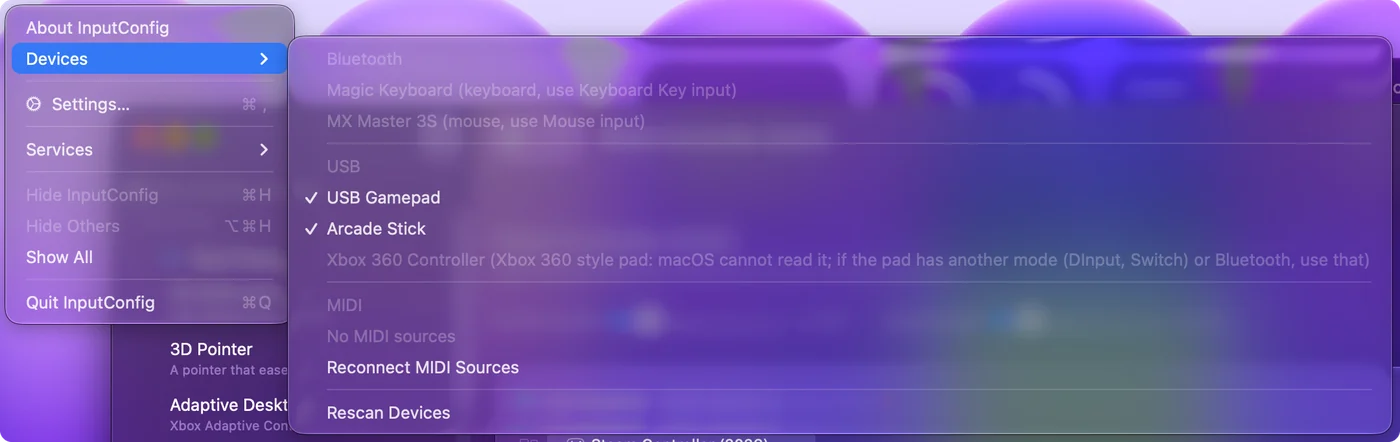
- InputConfig, Devices. This menu lists every Bluetooth and USB device the Mac sees, with a tick on the ones InputConfig is reading. Click one without a tick and the app opens it by hand and remembers it.
- Grayed-out entries say why. An Xbox 360 style pad is listed with the reason macOS cannot read it (more on the 360 pad), and on macOS 14 a wired Xbox One or Series pad is listed with a note to use Bluetooth or macOS 15. An 8BitDo pad in a mode macOS does not read gets a note in InputConfig's main window with the mode to use.
- Input Monitoring, for one kind of controller. A controller that also presents a keyboard, as some arcade sticks and macro pads do, needs it. Devices marks it (needs Input Monitoring), and why a controller needs Input Monitoring explains what to do.
On a MacBook Air, MacBook Pro, iMac or Mac mini
Pairing is a macOS step, not a hardware one, so it is identical on every Mac: MacBook Air, MacBook Pro, MacBook Neo, iMac, Mac mini, Mac Studio and Mac Pro, Apple silicon or Intel. What differs is the ports and the distance.
- MacBook Air and MacBook Pro. The ports are USB-C, so a controller with a USB-A cable needs a USB-C adapter or a different cable. The first time you plug in a new accessory, macOS can ask whether to allow it. Click Allow, or nothing reaches the Mac. The setting is in System Settings, Privacy & Security, under Allow accessories to connect. Bluetooth saves a port and is what most people use on a laptop.
- iMac, Mac mini and Mac Studio. The usual trouble is distance. A Mac under a desk or behind a monitor, with the sofa across the room, is at the edge of Bluetooth range, and input stutters or drops. Move closer, clear the line of sight, or use a cable. More in controller input lag on a Mac.
- Older Macs. They pair the same way, as long as the macOS version is new enough for your controller. The next section has the versions.
Check your macOS version
macOS added controllers in steps. If your Mac is on the version in the right-hand column or later, the controller is supported with no driver.
| Controller | Supported since |
|---|---|
| PS4 DualShock 4, Bluetooth Xbox One controller | macOS 10.15 Catalina |
| PS5 DualSense, Xbox Series X|S | macOS 11.3 Big Sur |
| Switch Pro Controller, Joy-Cons | macOS 13 Ventura |
| Xbox controllers over a USB cable | macOS 15 Sequoia |
macOS 26 Tahoe pairs controllers exactly the same way and adds the Games app, which you can move around with a controller. InputConfig needs macOS 14 Sonoma or later, and it is optimized for macOS 27. On any Mac that runs InputConfig, every row above is covered except Xbox over a cable, which needs Sequoia.
Change buttons in macOS itself
If your game already supports controllers, macOS may be all you need. On the Game Controllers page you can remap buttons to other buttons for games that read controllers, and set up Buddy Controller, which lets a second controller help drive the same player so a friend can take over a hard part. It cannot make a button type a key or move the pointer. The full list, and where it stops, is on macOS built-in controller settings.
Disconnect it again
- Keep the pairing. Click the controller's name in the Bluetooth list in Control Center. In InputConfig you can also click the controller's entry at the top of the sidebar and choose Disconnect. A Bluetooth controller drops its connection and stays paired.
- Remove it. Choose Forget This Device in System Settings, Bluetooth.
- Wired. A wired controller disconnects when you unplug it.
- Automatically. Since 1.8, InputConfig can do it for you. In Settings, Devices, Wireless controllers, Disconnect a wireless controller after it sits unused drops a Bluetooth controller after 5 to 60 minutes with no button, stick, trigger or D-pad input, and Try to reconnect paired controllers when InputConfig opens, when the Mac wakes and when a preset starts brings back one that is switched on and waiting. Both are off until you turn them on.
Turning each controller off, and moving it back to a console, is on how to turn off or disconnect a controller on a Mac.
The short version
- Pair or plug in. Pairing mode, then Connect in System Settings, Bluetooth, or a USB cable that carries data.
- Check Game Controllers. If the pad lights up there, the Mac side is finished.
- Map it if a game ignores it. InputConfig turns the controller into the keys and mouse the game already reads.
Connecting is free and built into the Mac, so an app only matters when a game will not listen.
Questions
Do I need a driver to use a controller on a Mac?
No. Every current PlayStation, Xbox, Switch and MFi controller is supported by macOS itself, and generic USB pads are read without one. The wired Xbox 360 pad uses a protocol macOS does not speak, and no driver fixes that on a current Mac. The Switch 2 Pro Controller needs no driver either: InputConfig starts it on a USB-C cable itself, or reads it over Bluetooth with a setting, as an experimental feature.
Why does my controller show up in Bluetooth but not in the game?
The game does not support controllers, or does not support yours. Check the game's settings first. If there is no option, map the controller to the keyboard with InputConfig.
Can I connect two controllers to one Mac?
Yes. Pair each one. The Mac and InputConfig number them from 0, and each preset can hold a layout per controller. Two of the same model work too: InputConfig numbers them so each player keeps their own pad. See two of the same controller on one Mac.
Is there a free app to use a controller on a Mac?
Yes. For games that read controllers, macOS itself is enough. For everything else, InputConfig is free and open source on the Mac App Store: it turns buttons and sticks into keys, mouse movement, clicks and scrolling, with ready layouts for more than 450 games and apps, no account and no subscription. Which app fits which job is in the best app for connecting a controller to a Mac.
My Mac is not in English. What are the settings called?
The steps are the same. Only the names change. System Settings is Ajustes del Sistema in Spanish, Systemeinstellungen in German, Réglages Système in French, Ajustes do Sistema in Brazilian Portuguese and システム設定 in Japanese. Bluetooth keeps its name in most languages, and is 蓝牙 or 藍牙 in Chinese. The Game Controllers page has the full list for eleven languages.
How do I disconnect a controller from my Mac?
Click its name in the Bluetooth list in Control Center. It disconnects and stays paired. In InputConfig you can also click the controller at the top of the sidebar and choose Disconnect. A wired controller disconnects when you unplug it.
Related
This page in other languages: Français, 日本語, 简体中文, ไทย
Updated