Play any Mac game with a controller
 InputConfig is completely free on the Mac App Store. You don't have to make an account, there are no subscriptions, and nothing is locked. Optimized for Apple silicon.
You can play Mac games that ignore controllers with a PS5, Xbox or Switch pad. A lot of Mac games, and nearly all browser games, indie games, strategy games, and older ports, have no controller support, and some have it badly. InputConfig sends keyboard and mouse events, so the game sees a keyboard and a mouse while you hold a controller.
I cover setting it up for one game in about five minutes, making aiming feel right, and the handful of problems that come up.
On this page: 11 sections
Steps
- Connect the controller and open InputConfig.
- Open the Smart Preset Maker, search for the game, and create its preset. If it is not listed, pick the closest genre and rename it.
- Activate the preset. It launches the game if a launch target is set, keeps the pointer off the screen edges, and the game sees a keyboard and mouse.
- In the game's settings, confirm the key bindings match the preset's outputs, or change one to match the other.
- Tune aim: right stick speed, deadzone, and the curve, in the row Options.
- Add the game to the preset's auto-switch list so it activates itself next time.
Start from a ready layout
The Smart Preset Maker knows more than 450 games and apps. Each layout was built for the game's default key bindings and includes the automation a game wants: launch on activate, and the pointer kept off the screen edges.
If your game is missing, climb this ladder:
- The closest genre. The FPS presets per controller family, Racing Game, Minecraft, and Fortnite cover most shapes of control. Create one and rename it.
- Re-scan what differs. Duplicate the closest preset and press Scan on the rows that do not match your game.
- Match the game's bindings. In the game's settings, confirm the key bindings match the preset's outputs, or change one to match the other.
Start from the closest layout and change only what differs, because building from empty is rarely faster.
Tune movement and aim
Movement is four rows: left stick up, down, left, right to W, S, A, D. Aim is four rows: right stick to mouse motion with Variable Sensitivity on. The feel lives in three numbers on the aim rows:
- Speed. The maximum at full deflection. Start around 12 to 20 for a shooter at 1080p and adjust in the game.
- Deadzone. 8 to 12 percent on a new stick.
- Curve. Smooth for precise aiming with a fast flick at the edge. Aggressive for games where turning speed matters more than precision.
- You: Open an aim row's Options, press Adjust live, and let go of the right stick.
- InputConfig: Shows where the stick really rests, inside or outside the deadzone ring.
- Check: If the dot rests outside the ring, aim drifts when you let go. Raise the deadzone until it sits inside.
The Sensitivity multiplier in the preset's automation section scales all of it at once, so a game that feels twice as fast as another is one slider. Set the deadzone first, then the speed, then the curve, because each one changes how the next feels.
Keep the pointer inside the game
A game that reads the mouse position rather than mouse movement will run out of screen when the stick pushes the pointer to the edge. Three toggles in the preset's automation section deal with the pointer, and game presets turn on only the first:
- Confine cursor away from screen edges. Keeps the pointer a set number of pixels from every edge, so a full-screen game never brings up the Dock or the menu bar.
- Auto-recenter cursor. Puts the pointer back in the middle every half second by default, for the rare game that follows the pointer and stops turning at the screen edge. Games that lock the mouse, as most do, do not need it, and it pulls the pointer out of their menus. The interval is a slider.
- Hide system cursor. Makes the system pointer disappear. Games hide it themselves while you play and show it in their menus, so game presets leave it off.
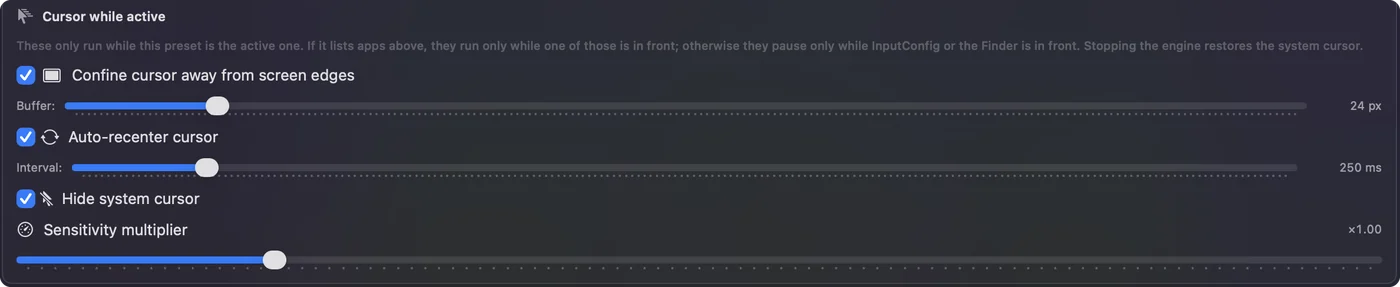
They pause while InputConfig or the Finder is in front, and if the preset lists apps, they work only in those apps. Starting a preset by hand that confines, recenters or hides the pointer first lists every way to stop it, and Don't show this again skips that for the preset.
Choose how the triggers act
Triggers are analog, and you can bind them two ways:
- As an axis. They fire past their deadzone and can scale an output. For fire and aim-down-sights, the axis with a 20 percent deadzone gives a light, consistent pull. For a racing game, the axis with Variable Sensitivity gives proportional throttle through pulsing.
- As a button. The digital LT / RT input is a simple press.
Add gyro aim
A DualSense, DualShock 4 or Switch Pro Controller can add gyro aim on top of the stick: fine aim from the wrist, coarse from the stick, exactly as on a console that supports it.
- You: Bind Gyro Y to mouse X and Gyro X to mouse Y with Variable Sensitivity on, and put Pause Motion While Held on a paddle or L1.
- InputConfig: Turns the controller's tilt into mouse movement, and stops it while the paddle is held so you can re-aim the controller.
- Check: Small wrist turns nudge the crosshair, and holding the paddle lets you reset your grip without the view moving.
Set Up Full Gyro, on any motion row, adds the gyro aim rows for you. The gyro page has the full recipe.
Raise the polling rate for shooters
Settings, Advanced sets the polling rate. Out of the box InputConfig polls at 120 Hz on the power adapter and 60 Hz on battery, which is fine for most games. Use 240 for competitive shooters. Drop back to the default if the app feels sluggish while a preset runs.
If something goes wrong
Climb this ladder, smallest step first:
- The controller does not show up at all. That is pairing, not the game. Connect the controller to the Mac first. Once the Mac has it, InputConfig picks it up within a few seconds. If it does not, click Refresh Controllers.
- Every input happens twice. The game has its own controller support. Either disable it in the game's settings and use InputConfig, or use the game's support and stop the preset. For Steam games, Steam Input may also be reading the controller. Turn off Steam's controller configuration for that game.
- Aim drifts when the stick is released. Raise the Deadzone on the aim rows.
- The pointer escapes the window. Switch on confine in the automation section, and Auto-recenter cursor only for a game that follows the pointer.
- A key does not do what the preset says. The game's binding differs from the default. Change the row's output or the game's setting.
- Everything stops responding mid-game. Hold Back and Start together for three seconds: the emergency stop releases every held key. Then check whether the controller disconnected.
Doubled input always means two things are reading the controller, so turn one of them off.
What it cannot do
- Help a gamepad-only game. A game that only accepts gamepads ignores the preset. It needs the real controller, which it already has. InputConfig is for games that take keyboard and mouse.
- Become a virtual controller. It sends keys and mouse, not gamepad input.
CrossOver and Whisky ports, browser games, and iPhone and iPad games on Apple silicon all see the same keyboard and mouse events as native apps.
The short version
- Use the Smart Preset Maker. It covers more than 450 games and apps, with the automation built in.
- Tune aim in three numbers. They are the deadzone, the speed and the curve.
- Never run two readers. If the game reads the pad itself, stop the preset.
- Let it switch itself on. Add the game to the preset's auto-switch list.
If a game plays with a keyboard and mouse, it plays with a controller.
Questions
Does it work with Steam games?
Steam Input may also be reading the controller. Turn off Steam's controller configuration for that game if inputs double up.
Can I use it in CrossOver or Whisky ports?
Those see the same keyboard and mouse events as native apps.
Browser games?
The browser is an app like any other. Roblox, Krunker, and every io game work with the keyboard and mouse the preset sends.
What about iPhone and iPad games on an Apple silicon Mac?
Games with controller support read your pad directly. Games made only for touch want taps, and on a Mac a click is a tap, so InputConfig can make a button click a fixed spot on the screen, such as the game's jump or attack button. The steps are in iPhone and iPad games on a Mac with a controller.
Related
This page in other languages: العربية, Čeština, Dansk, Deutsch, Español, Suomi, Français, עברית, Magyar, Bahasa Indonesia, Italiano, 日本語, 한국어, Norsk, Nederlands, Polski, Português, Русский, Slovenčina, Svenska, ไทย, Türkçe, Українська, Tiếng Việt, 繁體中文, 简体中文
Completely free. You don't have to make an account, there are no subscriptions, and nothing is locked. Optimized for Apple silicon. Open source on GitHub.
Updated