How to connect an 8BitDo controller to a Mac
 InputConfig is completely free on the Mac App Store. You don't have to make an account, there are no subscriptions, and nothing is locked. Optimized for Apple silicon.
Put the pad in the mode 8BitDo lists for Apple devices, hold Pair for three seconds until the light moves fast, then pick it in System Settings, Bluetooth, and click Connect. On the Pro 2, Lite 2, Lite SE and Ultimate 2.4G that mode is D on the switch. On the SN30 Pro, SN30 Pro+ and N30 Pro 2 you hold B and Start to turn it on. Use D, not A: 8BitDo's current manual lists D for Apple devices. Paired that way the Mac lists it under Game Controllers in the sidebar, and every game with controller support sees it. The steps are the same on a MacBook Air, MacBook Pro, iMac or Mac mini.
On this page
Steps
- Set the mode switch to D, or hold B and Start to turn on an SN30 Pro.
- Hold Pair for three seconds until the light blinks fast.
- Open System Settings, Bluetooth, and click Connect.
- Open System Settings, Game Controllers, and press a button to check it is live.
Pick the right mode
An 8BitDo pad pretends to be a different controller in each mode, and only one of them is the one 8BitDo supports on Apple devices.
- D. The mode 8BitDo lists for Apple devices on models with a switch. Use it.
- S. The pad becomes a Switch controller, which macOS 13 and later can also read, with A and B swapped.
- X. The Windows mode. macOS does not treat it as a game controller at all.
- A, on the Pro 2. 8BitDo's current manual does not list it for Apple devices. If a pad in A already works for you it can stay there. Otherwise use D.
The mode decides everything, so set it before you pair.
Find your model
These are the steps for each model as 8BitDo and my own model pages give them. Each model name that has its own page links to it.
| Model | Mode and pairing on a Mac |
|---|---|
| Pro 2, Lite SE, Ultimate 2.4G | Mode switch on D, then hold Pair for three seconds. The Ultimate 2.4G pairs over Bluetooth with its star button, and its 2.4G dongle is not supported on Apple devices |
| Pro 3 | Mode switch on D, then hold Pair for three seconds |
| Lite 2 | Mode switch on D, press Home to turn it on, then hold Pair for three seconds |
| Ultimate 2 Wireless | Mode switch on BT, press Home, then hold Pair for three seconds, on macOS 26 or later |
| Ultimate 2C | Not a game controller to macOS. InputConfig reads it directly |
| SN30 Pro, SN30 Pro+, N30 Pro 2 | Hold B and Start to turn it on, then hold Pair for three seconds |
| Micro | Switch on D for a gamepad, S for Switch mode or K for a keyboard, then hold Pair for three seconds |
| Zero 2 and M30 | No mode switch: hold A and Start to turn it on, then hold Select (Zero 2) or Pair (M30) to pair |
| USB Wireless Adapter 2 | Pair the controller, then hold its Select-type button and Right on the D-pad for three seconds to switch the adapter to its Mac mode |
If your model is not here, the rule is the same: pick the one mode 8BitDo lists for Apple devices before you pair. 8BitDo controllers on a Mac covers the families one by one.
If the Mac lists it but games ignore it
A pad paired in a mode macOS does not read can sit in the Bluetooth list while games ignore it. InputConfig spots this and shows a note at the top of its main window, 8BitDo controller detected in XInput mode for example, with the mode to use for that model.
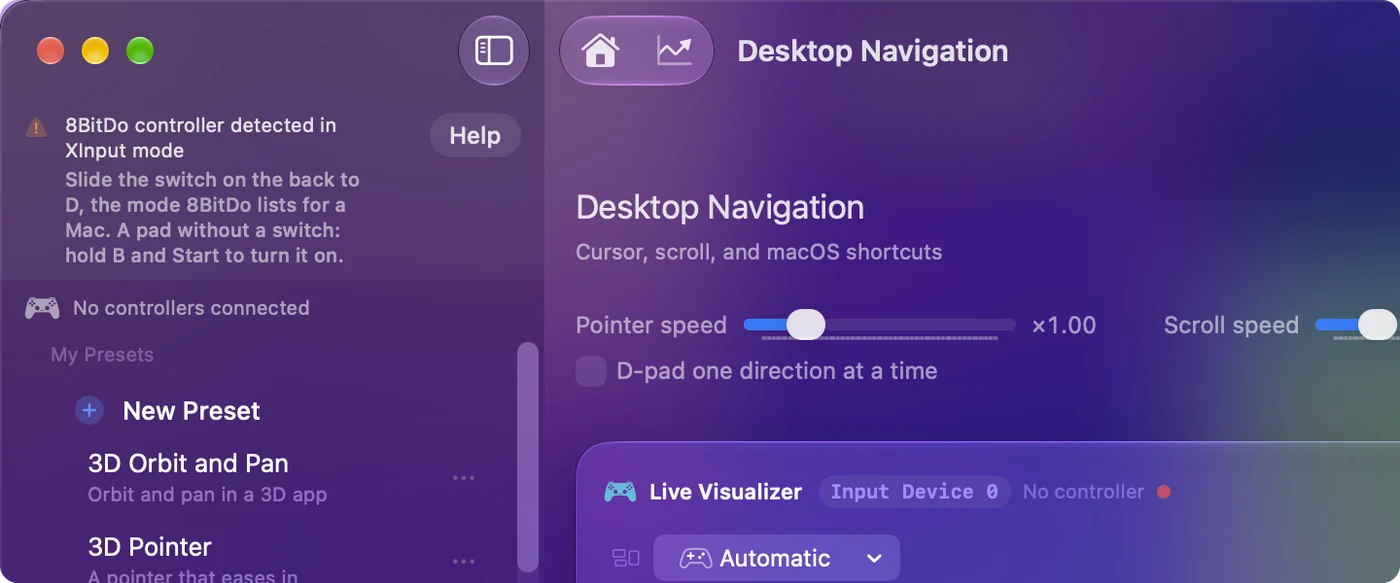
Climb this ladder, smallest step first:
- Forget the pad. Remove it in System Settings, Bluetooth.
- Move the switch. Set D, or turn an SN30 Pro on with B and Start.
- Pair it again. Hold Pair for three seconds and click Connect.
InputConfig also reads some 8BitDo pads in X mode over a USB cable, and then the note does not appear, because the pad already works in the app. For games to see it, use D.
Connect it with a cable
Most 8BitDo pads work over USB-C as well, with the same mode rules. The Ultimate 2C wired model has no Apple mode. Plugged in while you hold X it is in its Windows mode, and InputConfig reads it there with a profile written for it.
Use 8BitDo software on a Mac
Ultimate Software V2 runs on macOS 13 or later for 8BitDo's newer controllers, such as the Ultimate 2, the Ultimate 2C and the Pro 3. Older pads use the original Ultimate Software or the Upgrade Tool, depending on the model. 8BitDo software on a Mac shows which one your pad needs. Software changes the controller itself, and InputConfig changes what the Mac does with it, so I use the maker's software to free a back button and InputConfig to give it a job.
Use it in games
Paired in the mode above, native Mac games that support controllers see an 8BitDo pad as a normal gamepad. For games and apps without controller support, InputConfig maps it, with an 8BitDo FPS layout built in. Many 8BitDo pads print B on the bottom, Nintendo style: choose Nintendo under Face button names in InputConfig's Settings and the editor uses the letters printed on yours. Only the names change, never the presets. The 8BitDo page covers the models one by one.
Back buttons, and presets made before 1.6
InputConfig reads the back buttons of 8BitDo pads as back buttons. Earlier versions read them as a DualSense Edge's Fn buttons, so rows recorded on them then no longer fire.
- You: Connect the pad. When InputConfig asks Update 8BitDo back button rows in older presets? tick the presets you made on it.
- InputConfig: Moves those rows onto the back buttons.
- Check: Press a back button and its row fires. If you skipped the offer, Check Older Presets Again in Settings, Advanced brings it back.
A back button that copies another button, set up on the pad or in 8BitDo's software, arrives as that button instead. Back buttons and paddles on a Mac compares every controller.
Controller mode or keyboard mode
Small pads such as the Micro and Zero 2 have a keyboard mode, where each button types a letter. That is how most Anki remotes are set up, and it needs no app at all: the Mac sees a Bluetooth keyboard. The catch is that the letters are fixed unless you change them with 8BitDo's software. In a controller mode instead, the pad is a gamepad, and a mapper decides what each button does.
- Controller mode. InputConfig maps any button to any key, click, scroll or shortcut.
- Keyboard mode. InputConfig can listen to the keys the pad sends and add an action on top, but the pad's own letter still goes through, because InputConfig listens to keys rather than blocking or remapping them. Every keyboard also reaches InputConfig as one keyboard, so a row cannot tell the pad's letter from the same key on your Mac's keyboard.
For a clean remap, controller mode is the better choice. The Anki guide has a ready layout.
The short version
- Set D first. On the SN30 Pro family it is B and Start instead. Do not use A or X.
- Pair it. Hold Pair for three seconds, then Connect in System Settings, Bluetooth.
- Read the note. If InputConfig says the pad is in the wrong mode, forget it, move the switch, and pair again.
Almost every 8BitDo problem on a Mac is the mode switch.
Questions
Which 8BitDo controllers work on a Mac?
Most of the Bluetooth ones, once they are in the mode 8BitDo lists for Apple devices: the Pro 2, Pro 3, Lite 2, Lite SE, SN30 Pro family, Ultimate 2 Wireless and the Micro and Zero 2 in their own modes. The Ultimate 2C is not a game controller to macOS, though InputConfig reads it directly.
Which mode should an 8BitDo controller be in on a Mac?
D on a pad with a mode switch, which is the mode 8BitDo lists for Apple devices. On an SN30 Pro, SN30 Pro+ or N30 Pro 2, hold B and Start to turn it on. Switch mode also works on macOS 13 and later. X mode is not a game controller to macOS, though InputConfig reads some pads in X mode over a cable.
Does the 8BitDo Pro 2 work on a Mac?
Yes, in D mode over Bluetooth or USB. If yours already works in A, it can stay there.
How do I connect an 8BitDo controller to a MacBook Air?
The same way as any Mac: put the pad in D mode (or hold B and Start on an SN30 Pro), hold Pair for three seconds, then open System Settings, Bluetooth, and click Connect. For a cable, a MacBook Air needs a USB-C cable that carries data.
Can I use the 8BitDo 2.4G adapter with a Mac?
Not for the Ultimate 2.4G, according to 8BitDo: it is not supported on Apple devices through its 2.4G adapter. Pair it over Bluetooth in D mode with the star button, or use a USB cable in D mode.
Why does my 8BitDo show up in Bluetooth but not in games?
It is almost always the mode. A pad paired in X, or in A on a Pro 2, can appear in Bluetooth without being a game controller to macOS. Forget it in Bluetooth, set D (or B and Start), and pair again. If a game has no controller support at all, a mapper like InputConfig is the fix.
Is there 8BitDo software for Mac?
Yes for newer controllers: Ultimate Software V2 runs on macOS 13 or later, and 8BitDo's Upgrade Tool has a macOS version for firmware on older ones. You do not need either just to connect a pad.
Why is my 8BitDo not connecting to my Mac?
Almost always the mode. Forget the pad in System Settings, Bluetooth, set D (or hold B and Start on an SN30 Pro, or A and Start on a Zero 2), hold Pair for three seconds, and connect again. Also unpair it from any Switch or phone that remembers it.
Related
This page in other languages: Deutsch, Español, Français, Bahasa Indonesia, 日本語, 한국어, Nederlands, Polski, Português, Русский, ไทย, Türkçe, 繁體中文, 简体中文
Updated