How to fix controller stick drift on a Mac
 InputConfig is completely free on the Mac App Store. You don't have to make an account, there are no subscriptions, and nothing is locked. Optimized for Apple silicon.
You fix stick drift on a Mac by hiding it with a deadzone: the stick is told to ignore everything inside a small circle around its center. Drift is a stick that reports a small movement when you are not touching it, and it shows up as a camera that slowly turns or a pointer that creeps. The stick is not going to repair itself, but a deadzone set just above the drift hides it completely. On a Mac you can set one in three places, and which one works depends on what is reading the controller.
On this page
Steps
- Let go of the stick and watch where its dot rests in InputConfig's Live Visualizer or the browser deadzone tool.
- Open the preset's editor, then Options on that stick's row, and press Adjust live.
- Drag Deadzone until the resting dot sits inside the ring.
- Press Save.
Measure it first
Let the stick rest and look at where it sits. Two free ways:
- In the browser. The deadzone visualizer reads the controller's left stick: press a button on the pad, let go of the stick, press Record 3 seconds at rest, and it reports the largest drift it saw and suggests a Deadzone.
- In InputConfig. Click any preset and look at the Live Visualizer, which draws your controller. With your hands off, each stick's dot should sit on its crosshair. A dot that sits off center, or creeps, is drift. If a stick's line in the key beside the drawing glows green with nobody touching it, the stick is reading more than about a third of its travel, which is far past ordinary drift.
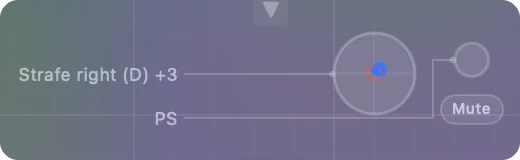
A stick resting at 8 percent needs a deadzone a little over 8 percent, not a blanket 25 percent, which makes a healthy stick feel dead. Every stick row shows its deadzone, and a row you have never changed uses 25 percent.
Pick the fix for what reads the controller
- A game that supports controllers. It reads the pad itself. Use the game's own deadzone setting, or Steam Input's, which has one per stick in its layout editor, if you launch the game from Steam. A mapper's deadzone never reaches such a game.
- A game or app that only takes keyboard and mouse. Played with a controller through InputConfig: set the deadzone on the stick row in InputConfig. The drift stops moving the pointer or holding the key, in every app.
- The controller as a mouse. The same, in InputConfig. The Deadzone Calibration preset shows a wide and a tight setting side by side.
- A DualSense or DualShock 4 whose center is simply off. You can rewrite the center the controller stores, which then holds on every device. It is a bigger step with no undo. How to calibrate a controller on a Mac covers it.
Set the deadzone in InputConfig
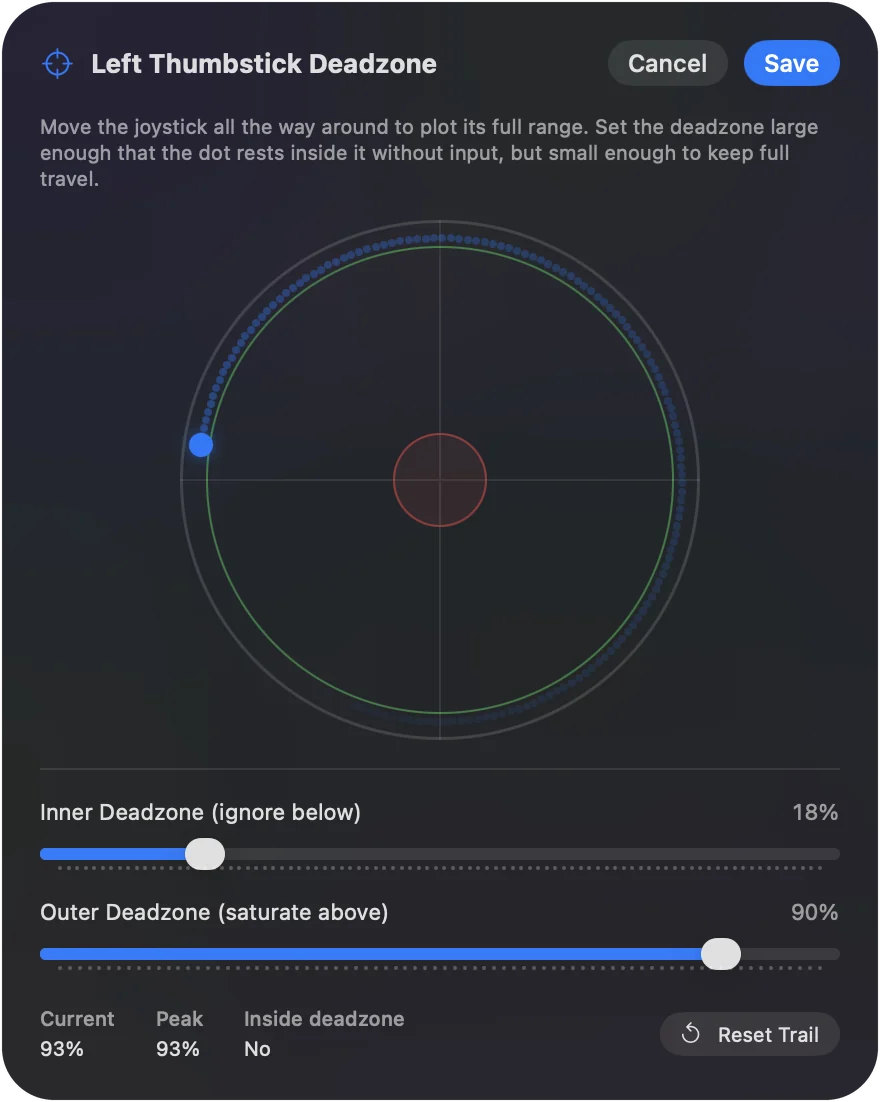
- You: In the preset's editor, open Options on the stick row and press Adjust live. Let go of the stick.
- InputConfig: Plots the stick with a trail and shows Current, Peak and Inside deadzone.
- Check: Drag Deadzone until the resting dot is inside the ring and Inside deadzone reads Yes. The slider takes effect as you move it. Save keeps it. Cancel puts the old value back.
Three more settings finish the job:
- Full push at. It is for a stick that no longer reaches full tilt, so its weaker push still counts as all the way.
- Response curve. Linear, Smooth or Aggressive makes the range that is left feel right.
- Stick settings. To set every axis on one controller at once, choose Stick settings from the input device's ⋯ menu in the editor.
The numbers are saved in the preset, so a game preset and a desktop preset can each have their own. The deadzones page explains each setting.
When it is not drift
- The pointer creeps with your hands off. In InputConfig the pointer stops the moment you let go of the stick, so that is the stick, not the app.
- The stick jumps rather than creeps. It is worn, and no deadzone fixes that. That is the one case for a repair, a new pad, or a Hall effect stick module.
- A gyro pointer drifts. That is the gyroscope's resting zero, not the stick. Calibrate Motion on the preset's page records it with the controller flat on a table, and a Re-zero Motion binding on a spare button resets it in a moment.
The short version
- Measure. Hands off, read where the stick rests.
- Set it just above. In the game for games that read the pad, in InputConfig for everything else.
- Replace a jumping stick. A deadzone hides creep, not wear.
Use the smallest deadzone that stops the movement, because a bigger one makes fine aiming worse.
Questions
Can stick drift be fixed in software on a Mac?
Hidden, yes; repaired, no. A deadzone ignores the resting offset. The free ways to set one are a game's own slider, Steam Input for Steam games, and InputConfig for the pointer, scrolling and keys a controller drives in any app. InputConfig is free on the Mac App Store and open source, with no account.
What deadzone should I use?
The smallest that stops the movement, usually 5 to 12 percent. A bigger deadzone makes fine aiming worse.
How do I test for stick drift on a Mac?
Open the deadzone visualizer in Safari or Chrome, press a button so the browser sees the controller, and let the sticks rest. The resting position shows as a number. Anything that is not near zero is drift. InputConfig's Live Visualizer shows both sticks on a drawing of your controller, and Adjust live gives the exact figure.
Can I fix PS5 controller stick drift on a Mac?
You can hide it. A DualSense that drifts gets the same fix as any pad: measure where the stick rests, then set a deadzone just above it in the game, in Steam, or for every app in InputConfig. If the stick jumps rather than creeps, it is worn and needs a repair.
Will InputConfig stop drift in a game that already supports my controller?
No. The game reads the controller directly and never sees InputConfig's deadzone. Use the game's deadzone setting, or Steam Input if the game runs through Steam.
My gyro pointer drifts. Is that stick drift?
No. That is the gyroscope's resting zero. In InputConfig, Calibrate Motion on the preset's page records it with the controller flat on a table, and a Re-zero Motion binding on a spare button resets it in a moment. Gyro works with the DualSense, DualSense Edge, DualShock 4 and Switch Pro Controller, with a Joy-Con when macOS reports its motion, and experimentally with both Steam Controllers.
Related
This page in other languages: Nederlands
Updated