Questions
How to stop all controller input on a Mac right away
If InputConfig is the app mapping the controller, press Control Option Command and the period key: its emergency stop ends everything at once, from the keyboard, the controller, or the menu bar. macOS on its own never turns a controller into a mouse, so something has to be mapping it.
If it is not InputConfig, the steps further down find the culprit, and turning the controller off always works.
On this page: 10 sections
Steps
- Press Control Option Command and the period key.
- Or hold Back and Start together on the controller for three seconds.
- Or click the InputConfig menu bar icon and press Emergency Stop.
- If the pointer still moves, quit Steam or any other mapper.
- If nothing else works, disconnect or switch off the controller.
Stop InputConfig in one move
Any of these three does the same thing:
- The keyboard. Control Option Command and the period key, from any app.
- The controller. Hold Back and Start together for three seconds. That is View and Menu on an Xbox pad, Create and Options on a DualSense, and Minus and Plus on a Switch pad. A buzz comes one second in, and it works whatever the preset maps those buttons to.
- The menu bar. Click the InputConfig icon and press Emergency Stop. The button is always there, running or not, and lists every way to stop the current preset.
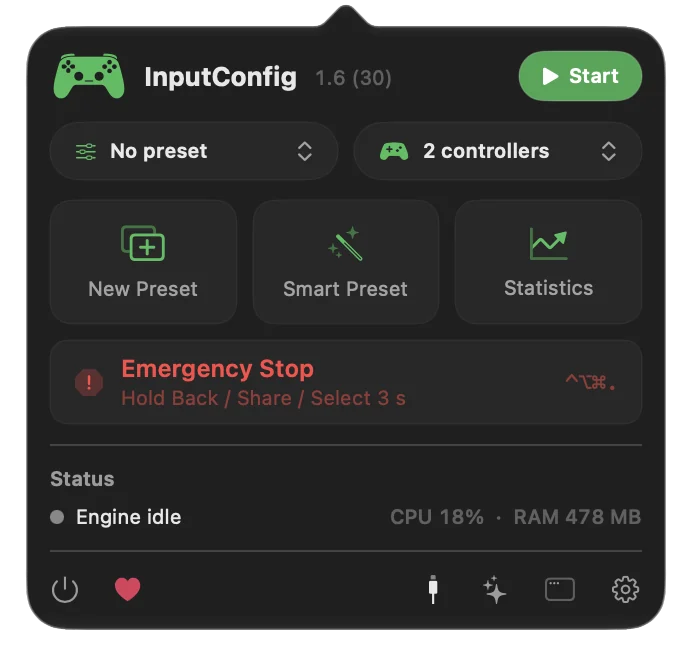
The stop turns the running preset off and lets go of every key, mouse button and MIDI note it was holding. It stops any rumble, shows the pointer again, and frees it if the preset was confining it. Automatic preset switching also waits until you start a preset yourself, so bringing the same game back to the front does not start it again. After a stop by the controller hold, letting go and holding the same buttons again starts the preset back up, for up to 10 minutes. It only ever stops: it never starts a preset and deletes nothing, so it is safe to press when you are not sure what is happening.
 InputConfig is free on the Mac App Store. macOS 14 or later, no account, no tracking, open source.
If a full-screen game eats the shortcut
Some full-screen games catch keyboard shortcuts before the Mac does. The controller hold and any control bound to Emergency Stop are read inside InputConfig itself, so they keep working when the shortcut cannot get through. The controller hold works even where the keyboard shortcut cannot, and the stop also works while the Mac is locked.
Pick a stop you can always reach
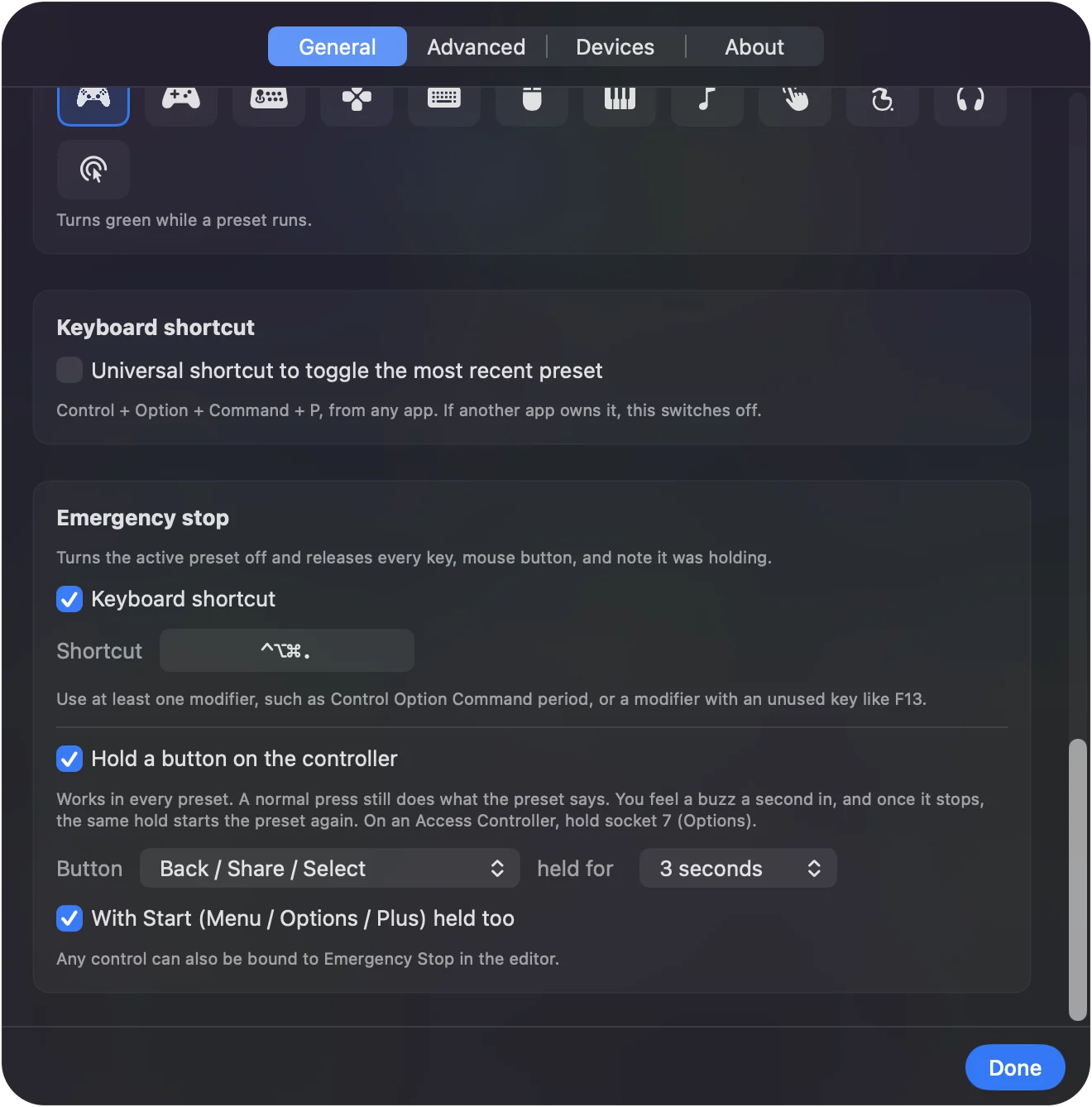
InputConfig Settings: Where every stop is set.
Settings, General, Emergency stopWhat happens: You see the keyboard shortcut, the controller button and the hold time.
- Keyboard shortcut. Can be turned off or recorded again. Use at least one modifier; a plain key would stop typing anywhere on the Mac, and the app warns you if you choose one.
- Hold a button on the controller. Choose the button and the hold: 1, 1.5, 2, 3, 4 or 5 seconds. The default is Back with Start held too; With Start (Menu / Options / Plus) held too turns the Start part off, and any other button you pick works on its own. Pick a button you can hold without thinking.
- Any control as a stop. In the editor, set a row's output to App Action, Emergency Stop. A back paddle, a spare button, or a switch on an adaptive controller all work.
On a PlayStation Access Controller with Sony's base profile, Create never reaches the Mac, so there the default hold is socket 7 (Options) alone. Or bind a socket to Emergency Stop. The PS button cannot be used at all: macOS keeps it. Choose a stop the person using the controller can reach without help.
If it is not InputConfig
Climb this ladder, smallest step first:
- Quit Steam. With Steam open, its controller settings can give a controller a desktop layout that moves the pointer. If quitting Steam stops it, that was the cause; change the layout in Steam's controller settings.
- Check for a Steam Controller. Either model moves the pointer by itself when nothing is reading it. InputConfig turns that off while one of its presets runs, and it comes back when the preset stops.
- Find another mapper. Look in the menu bar, and in the login items list in System Settings, General, for a controller app you forgot about, and quit it.
- Turn the controller off. The sure way, in the next section.
If quitting an app stops the pointer, that app was the one moving it.
Turn the controller off
- You: In InputConfig, right click the controller's entry at the top of the sidebar and choose Disconnect, or open it and press Disconnect.
- InputConfig: Disconnects the controller from the Mac.
- Check: The entry leaves the sidebar and the pointer stops.
A controller on a cable has to be unplugged. If macOS will not let go of a Bluetooth one, disconnect it in System Settings, Bluetooth, or switch the controller off.
If the pointer creeps on its own
A pointer that drifts slowly while nobody touches the controller is usually a stick that does not rest at center. Raise the deadzone on the pointer rows: open a row's Options, press Adjust live, and widen the ring until the resting dot sits inside it. Stick drift on a Mac goes further. Creep is a deadzone problem, not a reason to stop the preset.
Know what happens when the Mac sleeps or locks
- Asleep. InputConfig sends nothing.
- At the lock screen. It sends only pointer movement, clicks and scrolling, so a person who uses the controller as their mouse can still reach the screen, and no key or text can reach the password field.
- Held things. Anything held when the Mac locks, such as a toggled click or a turbo row, is let go.
A locked Mac never receives a key from InputConfig.
The short version
- Now. Control Option Command and the period key.
- From the controller. Hold Back and Start together for three seconds.
- Not InputConfig. Quit Steam or the other mapper, or turn the controller off.
Learn the shortcut once; it is the one thing worth knowing before you need it.
Questions
Does the emergency stop delete my preset or settings?
No. It only turns the running preset off and releases what it was holding. Start the preset again from the sidebar or the menu bar when you are ready.
A key seems stuck down after the app quit. What now?
Press and release that key on the keyboard, which lets go of it. InputConfig 1.6 fixed keys and mouse buttons left held after a crash or a forced quit, and the emergency stop releases everything it holds.
Can I pause a preset without the emergency stop?
Yes. Click the menu bar icon and stop it there, or turn on the universal shortcut in Settings, General, Keyboard shortcut, which turns the most recent preset on and off.
Why does the preset not start again when I switch apps?
After an emergency stop, automatic switching waits until you start a preset by hand, so the preset you stopped cannot restart itself.
Does it work without the Accessibility permission?
Without that permission InputConfig cannot send keys or clicks at all, so it cannot be the thing moving your pointer. The menu bar icon turns orange when a running preset needs it.
Related
Free. macOS 14 or later. No account, nothing leaves your Mac. Open source on GitHub.