The PlayStation Access Controller on a Mac
 InputConfig is completely free on the Mac App Store. You don't have to make an account, there are no subscriptions, and nothing is locked. Optimized for Apple silicon.
The PlayStation Access Controller works on a Mac. It pairs over Bluetooth or plugs in by USB-C with no driver, the same as a DualSense. What macOS does not do is turn it into a mouse or a keyboard: games with controller support see it, and everything else ignores it. InputConfig fills that gap. I built it because my hands do not work well, and it is free, with nothing locked.
Sony's Access Controller is a flat, round pad that rests on a table: a stick that takes caps of different shapes and lengths, a large center button, eight button sockets around it, and four 3.5 mm expansion ports for switches. Since 1.8, InputConfig reads the controller itself. Socket 1 to Socket 8, the center button, the stick and its press, the PS and Profile buttons, and whatever is plugged into E1 to E4 all arrive under their own names, over USB-C and Bluetooth, whatever the active profile assigns them. On a USB-C cable it also lists the three profiles stored on the controller, switches between them, and edits one with the PS5's own settings, so you do not need a PS5 to set it up. This guide gets the built-in preset working first, then shows what the Mac sees and how to change the profiles.
On this page: 16 sections
- Steps
- How to read this guide
- Step by step, from pairing to a working pointer
- What the Mac sees: every socket by name
- Know what the built-in preset does
- Switch and edit its three profiles
- Use the Desktop download for three jobs per socket
- Add switches in the expansion ports
- Drive with one stick
- Pair it with a second controller
- Keep it reliable
- What it cannot do
- The short version
- Sources
- Download
- Questions
Steps
- Pair the Access Controller over Bluetooth by holding the PS button and the profile button together until the light flashes, then connect it in System Settings, Bluetooth. Or connect it by USB-C.
- In InputConfig, open Built-in Presets, Desktop & Productivity, Access Controller, and press Activate. The stick is the pointer, the center button clicks, socket 5 right-clicks, and socket 7 opens Spotlight.
- Press Scan on any row and press the socket, the PS or Profile button, or a switch in E1 to E4. The row is bound by that name and keeps working whichever profile is active.
- To see or change the controller's own profiles, connect it by USB-C and open the Profile chip above the drawing in the Live Visualizer. Use switches to a profile, Edit changes it, and Save to Controller stores it.
- Learn the emergency stop you can reach: on an Access Controller the default controller hold is socket 7 (Options) alone for three seconds, or bind a socket or a switch to Emergency Stop.
- For driving games, try the built-in One-Stick Driving preset or the Access Controller Driving download on this page.
How to read this guide
Start where you are:
- If you have just unboxed it, do step by step. You will have a working pointer in a few minutes.
- If a socket does not do what you expect, read what the Mac sees, then switch and edit its profiles.
- If you use switches or play a driving game, go to the expansion ports or one-stick driving.
Step by step, from pairing to a working pointer
This part gets the base profile working as a mouse, then sets a stop you can reach.
Step 1: Pair or plug in
- You: Hold the PS button and the profile button together until the light flashes, then click Connect in System Settings, Bluetooth. Or connect a USB-C cable, which needs no pairing.
- macOS: Lists it in the DualSense family, so it may be named as a DualSense. The name is cosmetic.
- Check: InputConfig shows the controller at the top of the sidebar. Over USB-C the sidebar also names the active profile.
Step 2: Start the built-in preset
- You: Open Built-in Presets, Desktop & Productivity, Access Controller, and press Activate.
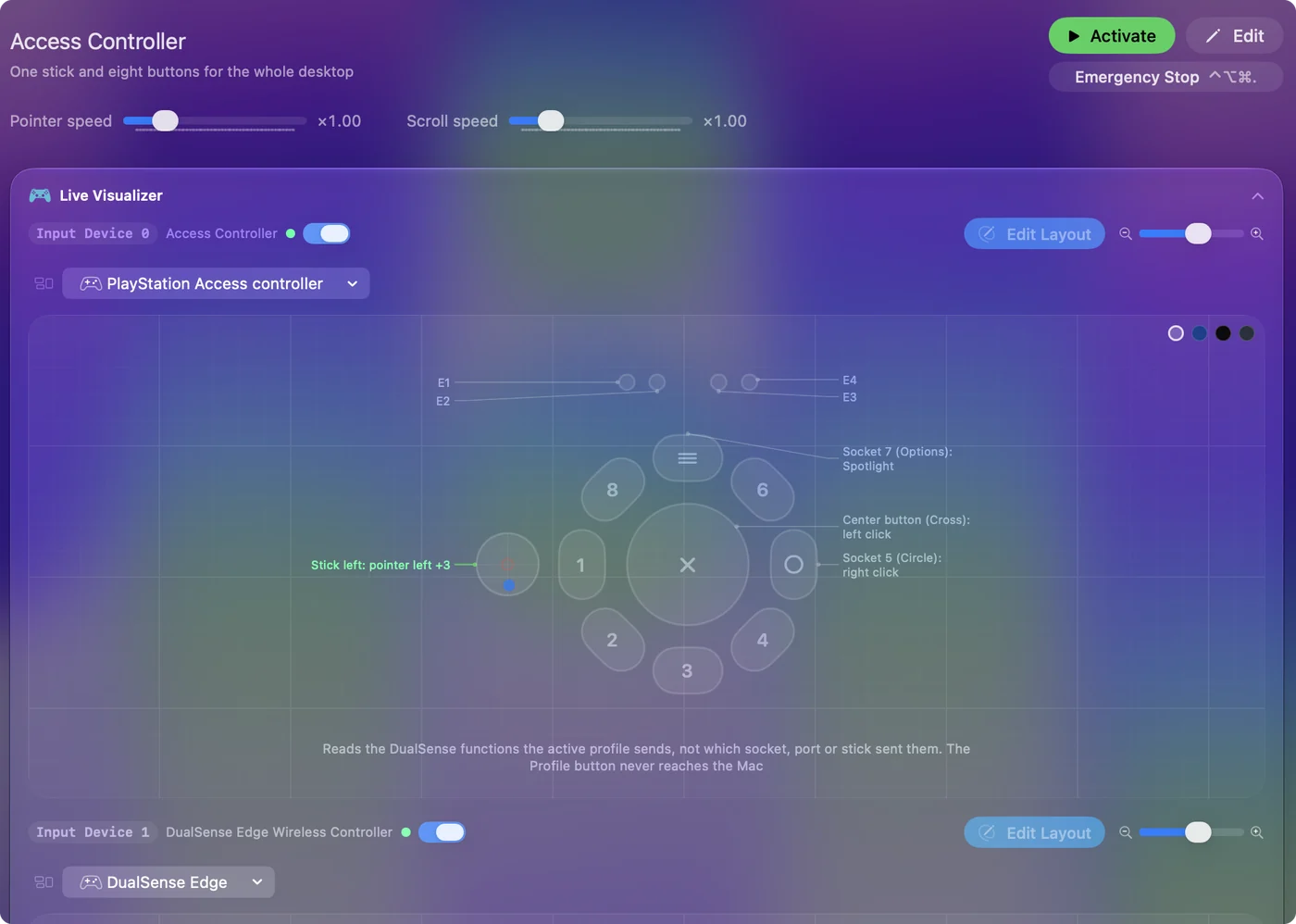
- InputConfig: The stick moves the pointer, the center button clicks, socket 5 right-clicks, and socket 7 opens Spotlight.
- Check: Push the stick and the pointer moves. If it drifts with nobody touching it, raise the deadzone in a stick row's Options. Adjust live shows the stick as you set it.
Step 3: Set a stop you can reach
- You: Leave Settings, General, Emergency stop as it is, with Hold a button on the controller on. On an Access Controller the default hold is socket 7 (Options) alone, for three seconds. The hold can be one to five seconds.
- InputConfig: Holding socket 7 for that long stops the preset, releases every held key and click, plays a sound and says the stop aloud.
- Check: Hold socket 7. Spotlight opens first, then the preset stops. Test it before relying on it.
On other controllers the default stop is Back and Start held together, which on a PlayStation pad is Create and Options. The base profile never sends Create, so on an Access Controller InputConfig takes socket 7 alone. After that stop, letting go and holding socket 7 again starts the preset back up, until a preset is started another way. Two more ways to stop:
- A socket or switch of its own. Scan a row onto any socket, the PS button or a switch in a port, and give it the output App Action, Emergency Stop. It stops the moment it is pressed, with no hold, which suits someone who cannot quickly grab a keyboard.
- The keyboard or the menu bar. Control Option Command and the period key, or Emergency Stop in the menu bar.
Set the stop before anything else, because it is the one binding that has to work when nothing else does.
What the Mac sees: every socket by name
InputConfig reads the controller itself, not only what its profile sends. Every control arrives under its own name, over USB-C and Bluetooth, whatever the active profile assigns it:
- Socket 1 to Socket 8. The eight sockets around the center, each by its number.
- Center button and Stick press. The large button in the middle, and a press on the stick.
- The stick. Its two axes, for the pointer, scrolling or one-stick driving.
- PS button and Profile button. Both are read on their own and can carry a row. The Profile button still switches profiles on the controller too.
- E1 to E4. Whatever is plugged into the four expansion ports, covered in the expansion ports.
The functions the profile sends arrive too, so a row made for Cross or Circle still works, and so does a function the pad has no control for, such as the touch pad button or a right stick, when a profile puts it on a socket. The difference shows when the profile changes. A row made for a socket fires from that socket whichever profile is lit. A row made for a function, such as Circle, fires only while the active profile sends Circle.
The Live Visualizer in InputConfig draws the Access Controller itself, socket by socket, and lights each control as you press it. Clicking a control there explains what it does and jumps to its row.
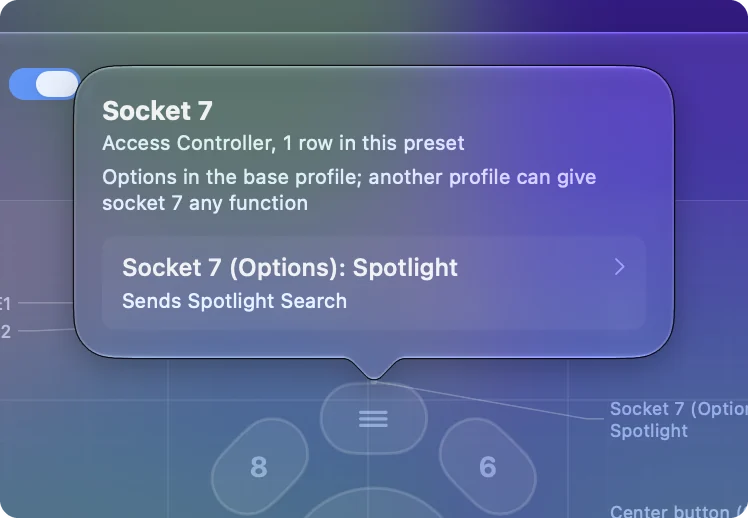
Bind the socket when a job should stay put, and bind the function when you want a profile to move it.
Know what the built-in preset does
The built-in preset is made for Sony's base profile, so the first four rows work the moment the controller pairs. Its other rows are made for functions, Square to Create, and fire once a profile gives those functions to sockets. You can make that profile on the Mac, or skip it: Scan a row and press the socket you mean, and the row is bound to that socket.
| Function | Where it comes from | Does |
|---|---|---|
| Stick | The stick (base profile) | Moves the pointer |
| Cross | Center button (base profile) | Left click |
| Circle | Socket 5 (base profile) | Right click |
| Options | Socket 7 (base profile) | Spotlight |
| Square | A socket, by profile or Scan | Double click |
| Triangle | A socket, by profile or Scan | Return |
| L1 and R1 | Sockets, by profile or Scan | Scroll up and down while held |
| L2 | A socket, by profile or Scan | Holds Command, for Command-click and shortcuts |
| R2 | A socket, by profile or Scan | Space |
| Create | A socket, by profile or Scan | Mission Control |
Change Speed on the stick rows, or Pointer speed on the preset's page, if the pointer feels too fast or slow. Scan is the quickest route to the other rows: one press per row, and no profile to make.
Switch and edit its three profiles
The controller stores three profiles and applies the active one itself, on a PS5 and on the Mac. A PS5 makes them in its accessibility settings, and InputConfig can now do the same job over USB-C. In the Live Visualizer, the Profile chip above the drawing names the active profile. On a cable it lists all three:
- Use. Makes a profile active, the same as pressing the controller's Profile button.
- Edit. Opens the profile beside the drawing, in the PS5's own terms: Button Assignments with Assign Button, Assign Simultaneous Press and Button Toggle for every socket, the center button and the stick press, then Controller Orientation and which stick the stick acts as, and each expansion port's device and assignment.
- Save to Controller. Stores the profile on the controller, which reads it back to check.
While you edit, click a row to ring its socket or port on the drawing, or click a control on the drawing to go to its row. A preset row can switch profiles too: the Controller Profile output, under Controller in the output menu, goes to the next or previous profile or straight to 1, 2 or 3.
Over Bluetooth the controller does not open its profiles to a computer, so the chip shows the active profile and the Profile button switches. That is how the controller works, not a limit of the app, and the Controller Profile output needs the cable for the same reason. The short version of this is on its own page. Plug in the cable once to set up the profiles, then go wireless if you like.
Use the Desktop download for three jobs per socket
The Access Controller Desktop download on this page gives every button more than one job, so eight are enough. It assumes the buttons are within reach of a hand, a fist, a chin, or a foot. It is built on Cross, Circle, Square, Triangle, L1, R1, L2, R2 and L3, so it needs a profile that puts those on sockets. Make one with Edit over USB-C or on a PS5, or Scan each row onto the socket you want. With the base profile and no changes, start from the built-in preset instead.
| Function | Press | Hold (about half a second) | Double press |
|---|---|---|---|
| Stick | Pointer, Smooth curve, wide deadzone | ||
| L3 | Toggle drag (holds the mouse button until pressed again) | ||
| Cross | Click | Right click | |
| Circle | Scroll down | Page Down | |
| Square | Return | Escape | |
| Triangle | Scroll up | Page Up | |
| L1 | Go back (Command bracket) | Go forward | |
| R1 | Start Dictation | Speak Selection | |
| L2 | Tab | Shift Tab | |
| R2 | Spotlight | Mission Control | Lock screen |
Hold thresholds are 600 ms and double-tap windows 400 ms, longer than the defaults, because the Access Controller's buttons are large and slow to press. Shorten them in the row's Options once you know the person's timing. The button rows already have Speak switched on, which is worth keeping for the first week. Long windows first, then shorten them to the person's real timing.
Add switches in the expansion ports
The four expansion ports take 3.5 mm switches, buttons and pedals, a sip-and-puff switch, and the parts in Logitech's Adaptive Gaming Kit for the Access Controller. InputConfig reads the ports themselves, E1 to E4, so a port no longer needs a profile before the Mac can hear it. An accessory is recognized the moment it is plugged in: the Live Visualizer draws it on the port strip as what it is, and the rows offer it as E1 stick, E1 button or E1 trigger. A stick in a port is E1 X and E1 Y, a trigger or pedal is E1 X from 0 to 1, and a switch is E1 button.
- You: Press Scan on a row, then press or push the accessory. Or pick E1 stick, E1 button or E1 trigger from the input menu.
- InputConfig: Binds the port by its name, such as E2 button, to that row.
- Check: Keep the Live Visualizer open. If the port strip shows nothing for a new accessory, push its four-contact 3.5 mm plug all the way in.
Nothing has to be set up on a PS5 first. Put click and Return on switches placed wherever they are easiest, and leave the pad's own buttons for everything else.
Drive with one stick
One-stick driving makes the stick the whole vehicle: left and right steer, forward accelerates, back brakes, and two quick snaps back shift into reverse. It outputs keyboard and mouse, so any driving game that can be played from the keyboard works, which is most of them.
Two starting points:
- The built-in One-Stick Driving preset. Steers with A and D and puts the extras on the buttons. With the base profile, Cross (the center button) is the handbrake, Circle (socket 5) the horn, and Options (socket 7) confirms with Return.
- The Access Controller Driving download. Steers with the mouse and adds camera, pause, reset and look back on sockets a profile assigns, or on the sockets you Scan them onto.
Adjust the reverse snaps and their window in the One-Stick Driving panel to the person's speed. The one-stick driving guide goes deeper. If double snaps are hard, a single snap with a long window is fine.
Pair it with a second controller
Two pads give two sticks and twice the sockets: one stick for the pointer, one for scrolling or for a second player.
- Two Access Controllers. A second one gets its own slot in InputConfig, and two identical controllers can go to two players.
- One Access Controller and a DualSense. A common setup for someone with one strong hand: the DualSense's stick and shoulder buttons on that side, the Access Controller's large buttons within reach of the other.
Every controller has its own slot in the same preset.
Keep it reliable
Once it works, these keep it working:
- Use a USB-C cable. It avoids Bluetooth sessions that go quiet after days of use, keeps the battery full, and keeps the three profiles in reach of the Profile chip.
- Hide the app. Launch at login and menu-bar-only mode make the setup invisible.
- Export Backup after any change. The file restores the whole setup on any Mac.
- Bind sockets, not functions. A row scanned to a socket keeps working when someone presses the Profile button by accident.
What it cannot do
- Reach the profiles over Bluetooth. The controller opens its profiles to a computer only over USB-C. Over Bluetooth the chip shows the active one, and the Profile button switches.
- List the PS5's other profiles. A PS5 can make up to thirty, but the controller stores three, and those three are what the Mac lists and edits.
- Change what a game reads. A game that reads the controller itself gets what the active profile sends, not InputConfig's rows. Set the profile up with Edit for that game.
The short version
- Pair it and press Activate. The built-in Access Controller preset gives you a pointer, click, right click and Spotlight on the base profile.
- Learn the stop on socket 7. Holding socket 7 for three seconds is the Access Controller's default stop.
- Scan the rest. Every socket, port and button arrives by name, so one Scan per row gives it a job, whatever profile is lit.
Every socket reaches the Mac by name, and on a cable InputConfig switches and edits the profiles too.
Sources
Every fact about the hardware on this page comes from its maker's own page, read on the date shown. What each socket sends on a Mac comes from InputConfig's own reading of the controller.
- Apple. Connect a PlayStation wireless game controller to your Apple device lists the Access controller, says it connects by itself over a USB cable, and gives the Bluetooth pairing hold of the PS button and the Profile button. Read October 7, 2026.
- Sony. Access controller gives the four 3.5 mm expansion ports, the swappable button and stick caps, and the profiles: up to thirty made in the PS5 console settings, three stored on the controller. Read October 7, 2026.
Download
- Access Controller Desktop presetThe three-jobs table above, for a profile that assigns Cross, Circle, Square, Triangle, L1, R1, L2, R2 and L3, or with its rows scanned onto your sockets: pointer on the stick, press, hold and double press on each button, long timing windows. 9 KB
- Access Controller Driving presetOne-stick driving on the stick with mouse steering. Handbrake and horn on Cross and Circle, the other jobs on sockets a profile assigns or that you Scan them onto. 4 KB
To add a downloaded preset: drop the file on InputConfig's Dock icon, or click the … button next to any preset in the sidebar, choose Import Preset File, and pick the file. It lands in the sidebar, ready to activate or edit. Any launch target inside a preset file is cleared on import; add one yourself in the editor if you want it.
Questions
Does the PlayStation Access Controller work on a Mac?
Yes. It connects by USB-C or Bluetooth with no driver, and Apple's own pairing steps name it. macOS does not make it a mouse or keyboard. InputConfig does, free, and reads every socket by name.
Why do only three of the buttons work?
With Sony's base profile only the center button (Cross), socket 5 (Circle) and socket 7 (Options) send a function, and the built-in preset starts with those. InputConfig reads every socket by name anyway, so Scan a row and press any socket to give it a job.
Does it work over Bluetooth on a Mac?
Yes. The sockets, the stick, the PS and Profile buttons and the expansion ports are read by name over Bluetooth and USB-C alike. Listing, switching and editing profiles from the Mac needs USB-C, because over Bluetooth the controller does not open its profiles to a computer.
Can I edit Access Controller profiles on a Mac?
Yes, over USB-C. The Profile chip in InputConfig's Live Visualizer lists the three stored profiles, Use makes one active, and Edit opens one with the PS5's own settings. Save to Controller stores it on the controller.
Does the PS button work on a Mac?
Yes. InputConfig reads the Access Controller's PS button and Profile button on their own, so either can carry a row. The Profile button still switches the controller's profiles as well.
Can the stick be the arrow keys instead of the pointer?
Bind the four stick directions to the arrow keys, or use stick regions for the diagonals as well.
Does the Xbox Adaptive Controller work the same way?
Mostly, and it has its own guide. Its ports send their Xbox button out of the box, with no console profile needed first.
Related
This page in other languages: العربية, Čeština, Dansk, Deutsch, Español, Suomi, Français, עברית, Magyar, Bahasa Indonesia, Italiano, 日本語, 한국어, Norsk, Nederlands, Polski, Português, Русский, Slovenčina, Svenska, ไทย, Türkçe, Українська, Tiếng Việt, 繁體中文, 简体中文
Completely free. You don't have to make an account, there are no subscriptions, and nothing is locked. Optimized for Apple silicon. Open source on GitHub.
Updated