Drive any racing game with one stick
 The One-Stick Racing layout is built into InputConfig, free on the Mac App Store. You don't have to make an account, there are no subscriptions, and nothing is locked. Optimized for Apple silicon.
On a Mac: Works in any racing game that can be driven from a keyboard. The layout switches on the app's One-Stick Driving mode: W and S for throttle and brake, mouse or A and D for steering. Nothing to enable.
Yes, you can drive any keyboard racing game on a Mac from a single stick: forward is the throttle, back is the brake, and left and right steer. This is the layout for people who have one stick, whether that is one hand, a wheelchair joystick, or a controller with one good thumbstick. Reverse is a quick snap back, which is how an automatic feels, and the handbrake, look back and camera sit on the buttons that are left.
On this page: 8 sections
The layout, control by control
How the layout thinks
- Throttle and brake. The stick's up and down: forward accelerates (W), back brakes (S).
- Reverse. Snap the stick fully back twice within the time window to shift into Reverse. Push fully forward to return to Drive.
- Steering. The stick's left and right, as analog mouse steering by default, or A and D if the game wants keys.
- Buttons. Handbrake on the bottom face button (Space), look back on the top (F), the camera on Back (Tab), pause on Start (Escape).
One stick does the gas, the brake and the wheel, the way an automatic does.
Make it yours
- Keys instead of mouse. Set Steering output to Keys (A / D) in One-Stick Driving for games that ignore mouse steering.
- Reverse taps. Back taps to engage sets two to four snaps, and Within window sets how quickly they must come.
- Check the axis. The editor's live readout shows the stick before you drive.
- Deadzone and feel. The deadzones and sensitivity page covers the rest.
Watch the live readout once before you drive, and you know the stick is the right one.
Check that it works
- You: Open One-Stick Driving on the preset, pick the stick that drives, and press Activate.
- InputConfig: Turns the stick's travel into throttle, brake and steering, and watches for the reverse snaps.
- Check: In the game, push forward gently and the car rolls. Snap back twice, and it reverses. Push fully forward, and it drives again.
For games that read the pad themselves, the one-stick driving help page covers the built-in mode in full. If forward rolls and two snaps reverse, the layout is ready for a race.
If your controller is not working in One-Stick Racing
When One-Stick Racing does not react to your controller on a Mac, climb this ladder, smallest step first:
- Check that the Mac sees the controller. Open the gamepad tester and press a button. If nothing lights up there, the problem is the connection, and a controller that is connected but not working covers that first.
- Play it from keys. If One-Stick Racing still ignores the pad, activate this layout. It sends the keyboard and mouse controls One-Stick Racing already reads. The layout works whether or not One-Stick Racing ever sees the controller.
Get it in two clicks
- Get InputConfig free on the Mac App Store, open it, and click Smart Preset Maker on the welcome screen.
- Search for One-Stick Racing and pick it. The layout is created as a preset in your sidebar, named and ready.
- Press Activate. Every row can be changed afterwards: the editor's Scan button rebinds any control the moment you touch it.
To check the controller itself first, the gamepad tester shows every button and stick live in your browser.
One-Stick Racing controls: every button and the key it sends
The Sends column is One-Stick Racing's default keyboard and mouse controls, as this layout expects them. If you changed a key in the game's settings, change the same row in InputConfig.
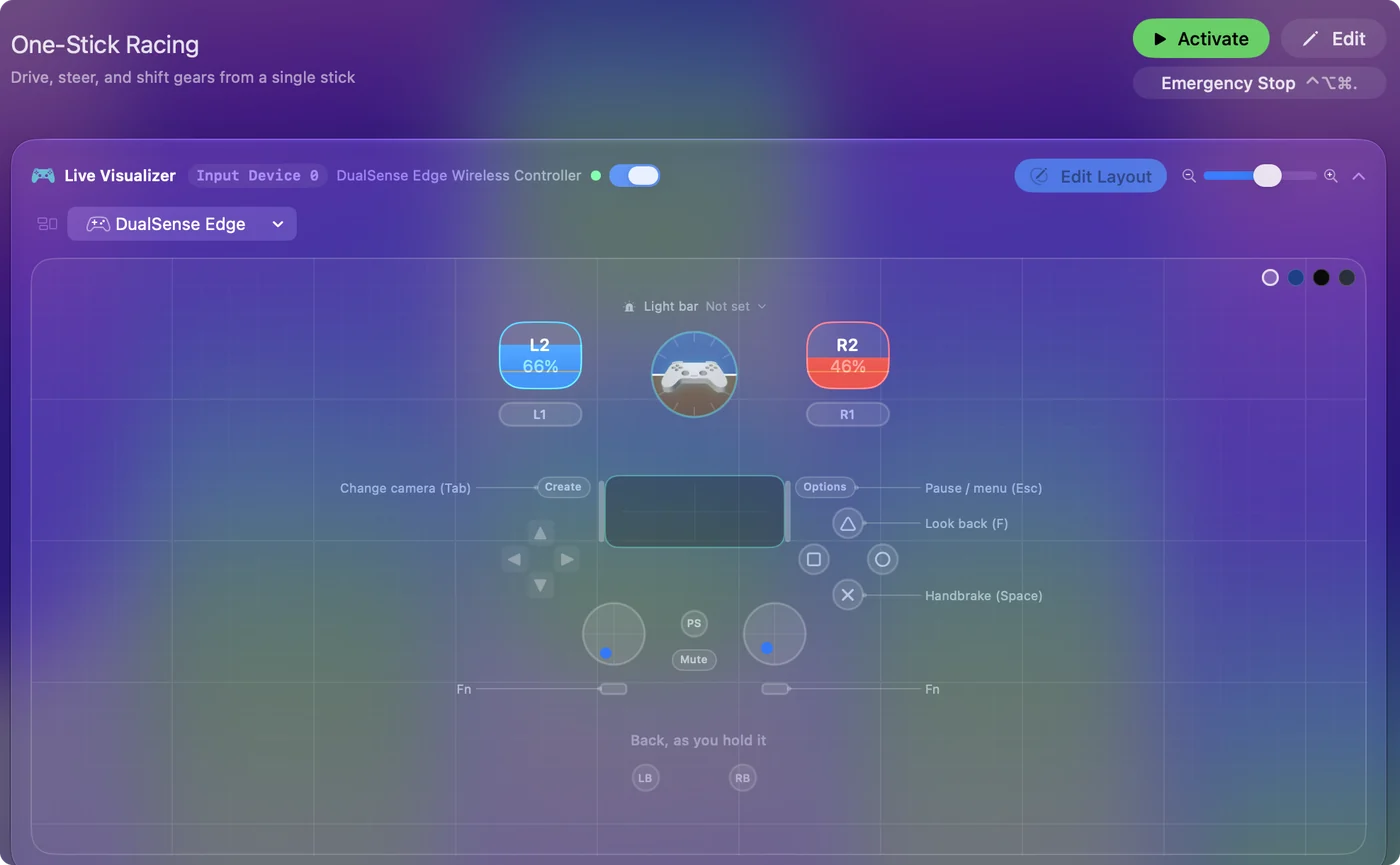
| Controller | Sends | What it does |
|---|---|---|
| A / Cross | Space | Handbrake (Space) |
| Y / Triangle | F | Look back (F) |
| Back / Share / Select | Tab | Change camera (Tab) |
| Start / Options | Escape | Pause / menu (Esc) |
Button names follow the Xbox / PlayStation pair shown in the editor, so A / Cross is the bottom face button on either pad. On a Switch Pro Controller the bottom button is labeled B; the mapping still fires on position.
Questions
Which games does this work with?
Any racer that takes a keyboard or mouse. For games that see the pad natively, the one-stick driving help page covers the app's built-in mode.
Does it work with the PlayStation Access Controller or an adaptive joystick?
Yes. In One-Stick Driving pick Left, Right, or Custom axes for an adaptive joystick, and watch the live readout as you move it. The Access Controller's stick is one of the setups it was built for.
Why is my controller not working in One-Stick Racing on a Mac?
First check the Mac itself sees the controller, with the gamepad tester. If it does and One-Stick Racing still ignores it, activate the One-Stick Racing layout in InputConfig, which sends the game's keyboard and mouse controls from the controller.
Related
Completely free. You don't have to make an account, there are no subscriptions, and nothing is locked. Optimized for Apple silicon. Open source on GitHub.
Updated