One-stick driving
 InputConfig is completely free on the Mac App Store. You don't have to make an account, there are no subscriptions, and nothing is locked. Optimized for Apple silicon.
One stick drives a whole vehicle, the way a power wheelchair joystick does: left and right steer, forward accelerates, back brakes, and snapping the stick back twice shifts into reverse. Switch it on in a preset's editor, under Accessibility Tools Suite. It works in any driving game that can be played from a keyboard.
On this page: 10 sections
Steps
- Open a preset and scroll to One-Stick Driving under Accessibility Tools Suite. Switch it on, or start from the One-Stick Racing layout in the Smart Preset Maker.
- Pick which stick drives: Left, Right, or Custom axes for an adaptive joystick. Move the stick and watch the readout.
- Set the accelerate and brake keys to match the game, and choose mouse or the A and D keys for steering.
Turn it on
- You: Open a preset, scroll to One-Stick Driving under Accessibility Tools Suite and switch it on. Pick which stick drives: Left, Right, or Custom axes for an adaptive joystick. Set the accelerate and brake keys to match the game, and choose mouse or the A and D keys for steering.
- InputConfig: Turns the stick into steering, throttle and brake, sent as keys and mouse movement.
- Check: Move the stick and watch the readout. Then try it in the game: forward speeds up, back brakes, and letting go slows the car.
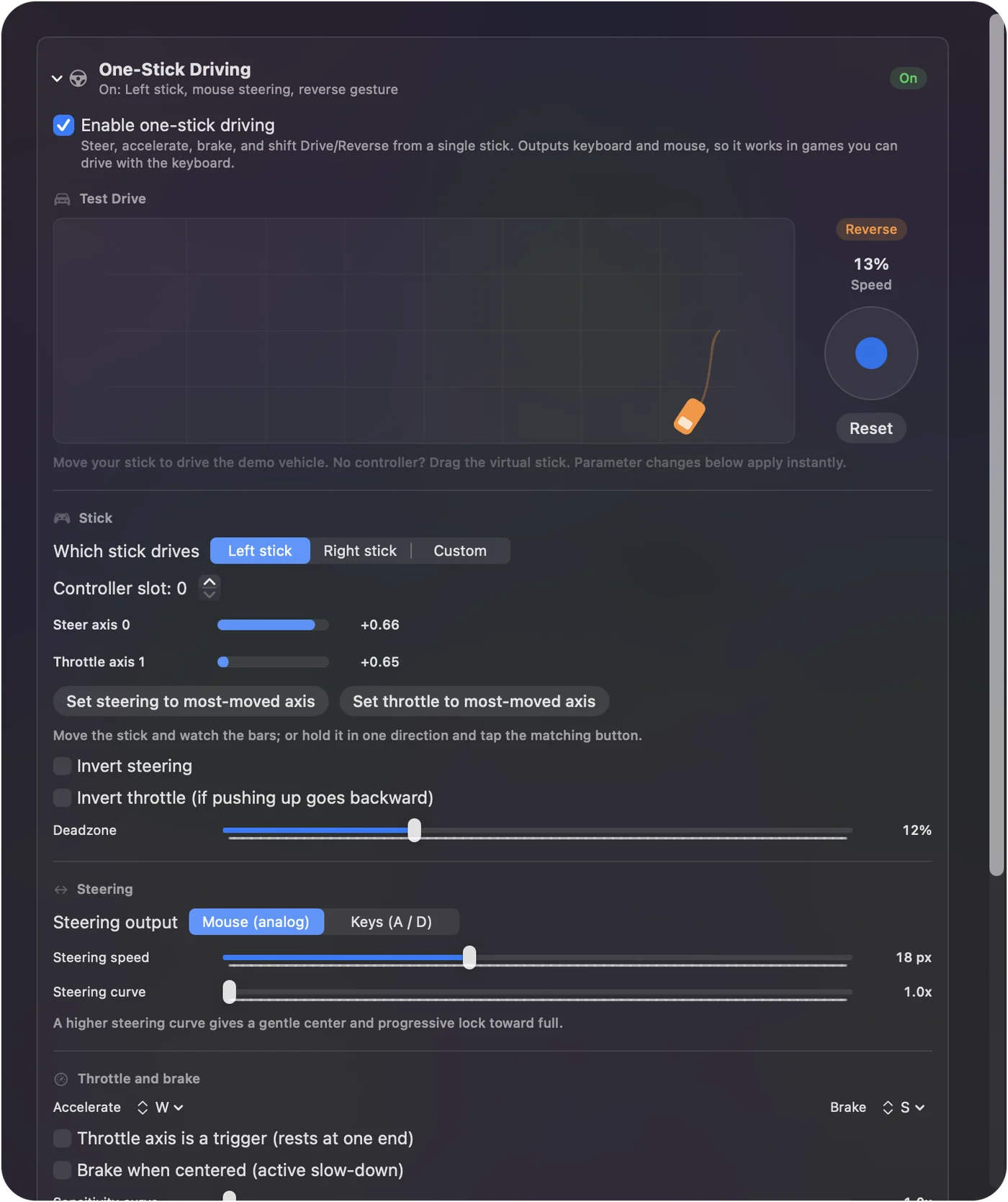
Match the accelerate and brake keys to the game's own controls first.
Start from the built-in preset
Feature Showcases has a One-Stick Driving preset with the drive already set up. The stick steers with A and D, forward presses W, back presses S, and letting go brakes gently, the way a power chair slows. Two quick snaps back shift into reverse. Its rows are named by button: handbrake, horn, boost, reset the car, gear down, gear up, camera and rewind. On an Access Controller the base profile sends Cross (the center button), Circle (socket 5) and Options (socket 7), and InputConfig reads every other socket by name, so Scan those rows onto the sockets you want. For a layout made for a particular game, see One-Stick Racing and the setup guide. The preset is a complete car on one stick; try it before you build your own.
Understand the throttle
Variable throttle from a key is done by pulsing: pushing further holds the accelerate key a larger share of each cycle, which most games read as speed. Push further, go faster, even though the game only sees a key.
Shift into reverse
Snap the stick fully back twice, quickly, to shift into Reverse, and push fully forward to return to Drive. The tap count, the window, and how far back counts as the wall are all adjustable, so a slow hand can use a longer window and one that overshoots can use fewer taps. Tune the reverse snap to your hand, not the other way round.
Drive with a racing wheel and pedals
The steering and throttle axes do not have to be on one stick.
- You: Choose Custom and set the controller slot to the wheel's. Step the Steer axis until its bar follows the wheel, then step the Throttle axis until its bar follows the gas pedal, and turn on Throttle axis is a trigger (rests at one end).
- InputConfig: Spreads a pedal that reads -1 to 1, as many non-Logitech wheels and pedal sets do, over its whole travel.
- Check: Press the pedal and watch the throttle bar fill. If it runs backward, turn on Invert throttle.
Put the brake pedal on an ordinary row sending the game's brake key. Reverse by snapping back is off in this mode, because a pedal has no backward pull. The full setup, and what macOS does with wheels, is on racing wheels on a Mac. Step each axis until its bar follows the part you move.
If the vehicle moves on its own
Climb this ladder, smallest step first:
- Turn on the trigger option. If the throttle axis is an analog trigger that rests at one end, turn on Throttle axis is a trigger in the Throttle section.
- Check Invert throttle. If the bar runs backward, turn it on; otherwise leave it off. InputConfig 1.6 fixed accelerating when the stick was pulled back, and turned off Invert throttle, the old workaround.
A car that launches by itself is almost always a trigger read as a stick.
Why it works like a wheelchair
I drive a power wheelchair every day, and its joystick is the one control my hand never has to think about: push to go, turn by leaning the stick, let go to stop. One-stick driving brings that shape to driving games, so someone who already drives a chair can drive a car without learning a two-stick layout. The setup guide walks through the game settings that help. If you can drive a chair, you can drive this.
The short version
- Switch it on. Accessibility Tools Suite, One-Stick Driving, in the editor.
- Match the keys. Accelerate, brake and steering to the game.
- Reverse. Two quick snaps back; fully forward for Drive.
One stick, the whole car.
Questions
Does it work with the Access Controller's stick?
That is one of the setups it was built for.
Related
Completely free. You don't have to make an account, there are no subscriptions, and nothing is locked. Optimized for Apple silicon. Open source on GitHub.
Updated