One-stick driving, set up properly
 InputConfig is completely free on the Mac App Store. You don't have to make an account, there are no subscriptions, and nothing is locked. Optimized for Apple silicon.
You can drive in almost any Mac racing game from a single joystick: push forward to go, pull back to brake, left and right to steer, and a quick double snap back to shift into reverse, the way a power wheelchair's joystick works. InputConfig's one-stick driving sends keyboard and mouse, so it works in any driving game that has keyboard controls, which is most of them, including the ones that never imagined an adaptive setup.
This guide is the full setup, from the stick to the game's own settings. Allow twenty minutes, most of it in the test drive.
On this page: 12 sections
Steps
- Activate the built-in One-Stick Driving preset, or add the One-Stick Racing preset from this page.
- Open the One-Stick Driving panel and choose which stick drives, or set the axes with the most-moved axis buttons.
- Set the accelerate and brake keys to match the game. W and S are the defaults.
- Choose mouse steering or Keys (A / D), and raise the steering curve for a gentler center.
- Tune the reverse snaps and their window in the test drive until they suit the hand.
- Bind handbrake, horn and the other extras to the buttons you can reach, and set the game to automatic transmission.
Choose the stick that drives
Any analog stick works:
- A controller stick. The left or right stick of any gamepad.
- An adaptive stick. The PlayStation Access Controller's stick, a USB joystick on the Xbox Adaptive Controller, or a wheelchair-style joystick that presents as a game controller.
- A racing wheel. The gas pedal becomes the throttle. Racing wheels on a Mac has that setup.
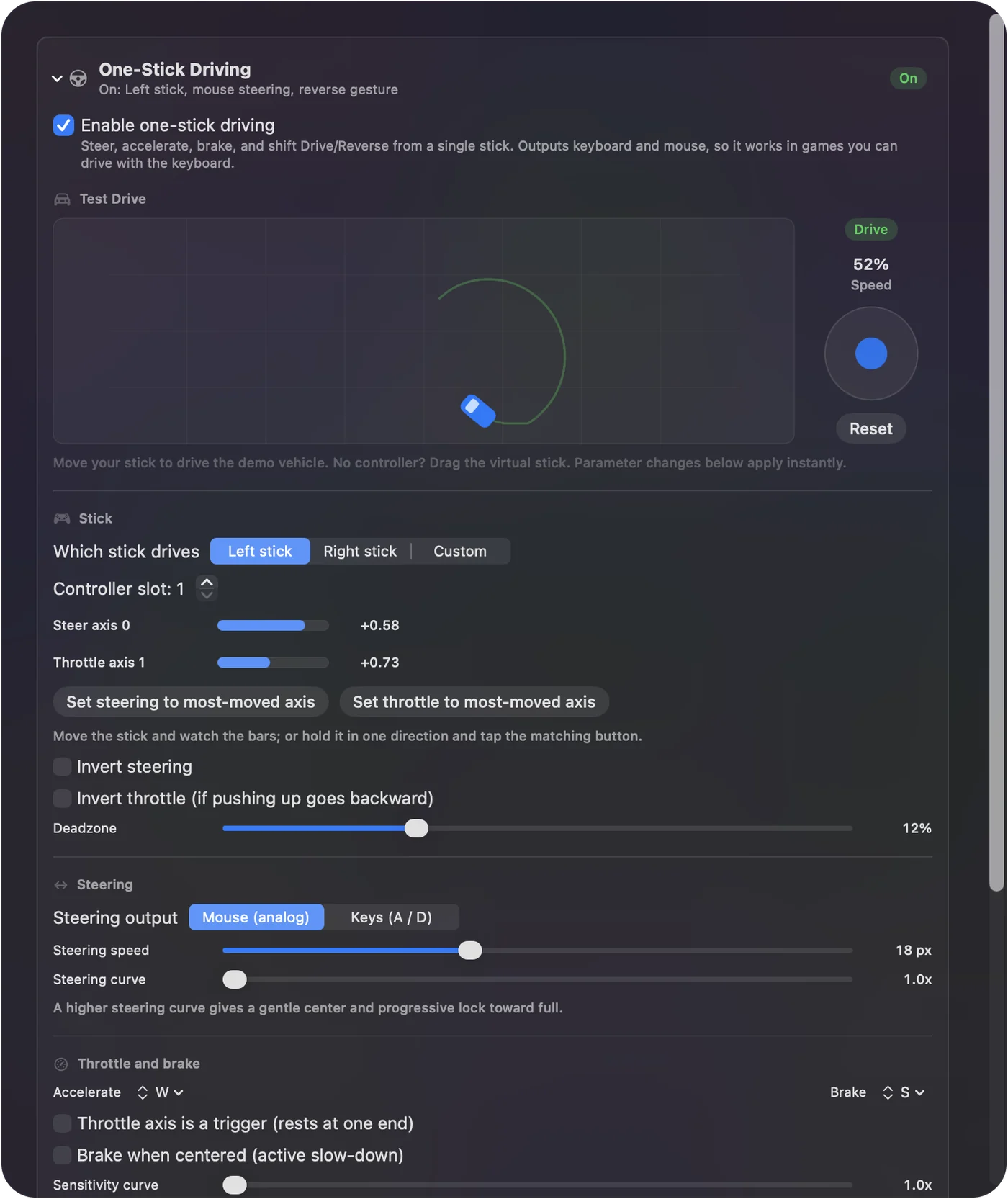
- You: In the One-Stick Driving panel, choose which stick drives. For a joystick that reports on unusual axis numbers, hold it in one direction and press Set steering to most-moved axis or Set throttle to most-moved axis.
- InputConfig: Shows a bar for each axis as you move the stick.
- Check: Left and right move the steering bar, and forward and back move the throttle bar.
InputConfig reads Logitech wheels in full, with the pedals reading 0 to 1. Most other wheels and pedal sets read -1 to 1: for those, turn on Throttle axis is a trigger (rests at one end) and the whole travel of the gas pedal is used. The Logitech G920 and G923 for Xbox are read with their own button names, and their drawing in the Live Visualizer is hidden as experimental. If it reaches the Mac as a stick, it can drive.
Set the throttle keys
A keyboard key is either down or up, so InputConfig pulses it: the further forward the stick, the larger share of each cycle the accelerate key is held. Most games read this as proportional throttle.
- You: Set the accelerate and brake keys to match the game. W and S are the defaults and the most common. Turn on Brake when centered (active slow-down) if you want the car to slow when you let go.
- InputConfig: Pulses the accelerate key in proportion to the push, and with Brake when centered on, slows the car when the stick returns to center, the way a power chair stops when you release the stick.
- Check: A gentle push creeps and a full push drives at full speed. If the game has an analog throttle option for keyboards, turn it off. The pulsing works best when the game treats the key as a simple on and off.
Before 1.6, pulling the stick back could accelerate, and turning on Invert throttle was the workaround. That is fixed, and 1.6 turns Invert throttle off for you.
Pick mouse or key steering
Two ways to steer:
- Mouse steering. A new setup steers with the mouse: the stick's left and right becomes smooth mouse movement. Games that support mouse steering, many arcade racers and most simulators with a mouse option, feel close to a wheel.
- Keys (A / D). If the game only steers from keys, choose this and InputConfig pulses them too. The built-in One-Stick Driving preset starts on keys, because nearly every racer that can be driven from a keyboard takes A and D.
Raise the steering curve for a gentler center, which matters most at speed.
Tune reverse in the test drive
Snap the stick fully back to the wall twice, quickly, and the scheme shifts into Reverse: forward on the stick now drives backward. Push fully forward to return to Drive.
- You: Set how many snaps, how quickly they must follow each other, and how far back counts as the wall. Then move your stick, or drag the virtual one, in the test drive.
- InputConfig: Drives a demo vehicle, shows the current gear live, and applies every change at once.
- Check: Reverse engages when meant and never by accident. For a hand that moves slowly, one snap with a long window works. For a hand that overshoots, require three.
The reverse gesture is unavailable while the throttle is a trigger, which has no backward pull. Feel a setting in the test drive before you take it into a race.
Put everything else on the buttons
Handbrake, horn, look behind, camera, pause, reset car: bind them to whatever buttons or switches are available, with holds and double taps if there are few. The built-in One-Stick Driving and Racing Game presets both have a sensible set. On a PlayStation Access Controller, every socket and expansion port is read by name, so Scan each job onto the socket or switch that is easiest to reach.
Change these settings in the game
A few settings on both sides make it feel right:
- Steering assists. Turn off any assist that fights direct input, and turn on any that smooths keyboard steering if you are using A and D.
- Automatic transmission, always. The stick handles Drive and Reverse. The game handles gears.
- Keep the pointer off the screen edges. In the preset's Automation & Gaming Utilities panel, under Cursor while active, turn on Confine cursor away from screen edges, so mouse steering never reaches the screen edge. Most games hide the pointer themselves while you drive, so Hide system cursor can stay off. These settings pause while InputConfig or the Finder is in front, and if the preset lists apps, they work only in those apps.
- Mouse sensitivity. Lower the game's mouse sensitivity rather than InputConfig's if steering is too twitchy. The two multiply.
If the car does something odd
Climb this ladder, smallest step first:
- Full speed the moment driving starts. The throttle axis is an analog trigger or pedal that rests at one end. Turn on Throttle axis is a trigger (rests at one end) in the panel, or pick a different axis.
- Throttle jerky or ignored. Turn off the game's analog throttle option for keyboards.
- Steering too twitchy. Lower the game's mouse sensitivity, then raise the steering curve.
- Reverse by accident. Require more snaps, or a shorter window.
Which games work, and which do not
Anything with keyboard driving works: kart racers, open-world games with vehicles, rally and track simulators with a mouse or keyboard option, and every browser racing game. The presets index lists the driving titles the Smart Preset Maker knows.
- Gamepad-only games. InputConfig does not emulate a controller, so play those with the real pad.
- Flight games. Steering and throttle map the same way, so simple ones work. Pitch on the same stick is not available, because forward and back are throttle.
- A power wheelchair's own joystick. Only if it reaches the Mac as a joystick. A chair in Bluetooth mouse mode sends pointer movement, not stick axes, so one-stick driving cannot read it.
The short version
- Pick the stick. Use the most-moved axis buttons for an unusual joystick.
- Match the keys. Use W and S for throttle, and the mouse or A and D for steering.
- Tune reverse in the test drive. Snaps and window to suit the hand.
- Set the game to automatic. Lower its mouse sensitivity as well if steering twitches.
If a game drives from the keyboard, one stick can drive it.
Download
- One-Stick Racing presetOne-stick driving on the left stick with W / S throttle and mouse steering, and the extras on the buttons. 4 KB
To add a downloaded preset: drop the file on InputConfig's Dock icon, or click the … button next to any preset in the sidebar, choose Import Preset File, and pick the file. It lands in the sidebar, ready to activate or edit. Any launch target inside a preset file is cleared on import; add one yourself in the editor if you want it.
Questions
The car goes at full speed the moment I enable driving.
The throttle axis is an analog trigger or pedal that rests at one end. Turn on Throttle axis is a trigger (rests at one end) in the panel, or pick a different axis.
Can I use the other stick for the camera?
Bind it to mouse motion or the camera keys as normal rows. One-stick driving only takes the axes you give it.
Does it work in flight games?
Steering and throttle map the same way, so simple flight games work. Pitch on the same stick is not available, because forward and back are throttle.
Can my power wheelchair's own joystick drive in games?
Only if it reaches the Mac as a joystick. A chair in Bluetooth mouse mode sends pointer movement, not stick axes, so one-stick driving cannot read it. A separate joystick, or the PlayStation Access Controller's stick mounted where your hand rests, works.
Related
This page in other languages: العربية, Čeština, Dansk, Deutsch, Español, Suomi, Français, עברית, Magyar, Bahasa Indonesia, Italiano, 日本語, 한국어, Norsk, Nederlands, Polski, Português, Русский, Slovenčina, Svenska, ไทย, Türkçe, Українська, Tiếng Việt, 繁體中文, 简体中文
Completely free. You don't have to make an account, there are no subscriptions, and nothing is locked. Optimized for Apple silicon. Open source on GitHub.
Updated