Questions
How to use a controller and a mouse together on a Mac
Yes, a Mac takes input from a mouse and a game controller at the same time, and InputConfig, the free mapper I make, never switches the mouse off: it only adds what the controller does. That makes a good one-handed setup, or a lighter one for anyone whose hands tire: the mouse or trackpad points in one hand, and a controller in the other hand or in your lap carries the shortcuts you would otherwise reach across the keyboard for.
InputConfig 1.6 ships a layout for exactly this, Easy Edit.
On this page: 9 sections
Steps
- Connect the controller; the mouse keeps working as it is.
- In InputConfig, find Easy Edit under Built-in Presets, Desktop & Productivity.
- Press Activate.
- Point with the mouse and press the D-pad for Undo, Copy, Cut and Paste.
Start Easy Edit: one job per button
- You: Find Easy Edit under Built-in Presets, Desktop & Productivity, and press Activate.
- InputConfig: Leaves the pointer on the mouse and gives the controller the shortcuts below.
- Check: Select some text with the mouse and press D-pad down, then D-pad right. The text is copied and pasted.
| Control | Does |
|---|---|
| D-pad up | Undo (Command Z) |
| D-pad down | Copy (Command C) |
| D-pad left | Cut (Command X) |
| D-pad right | Paste (Command V) |
| A / Cross | Delete |
| B / Circle | Save (Command S) |
| X / Square | Space |
| Y / Triangle | Return |
| Left stick down | Reads the selected text aloud |
| Left stick up, pushed firmly | Start Dictation; push up again to stop |
| Right stick | Scrolls |
| LT and LB | Back and forward one web page |
| RT and RB | Previous and next tab |
| Back / Share | The browser's address bar (Command L) |
| Start / Options | Spotlight |
| Left stick press or touchpad press | Mission Control, with a firm buzz |
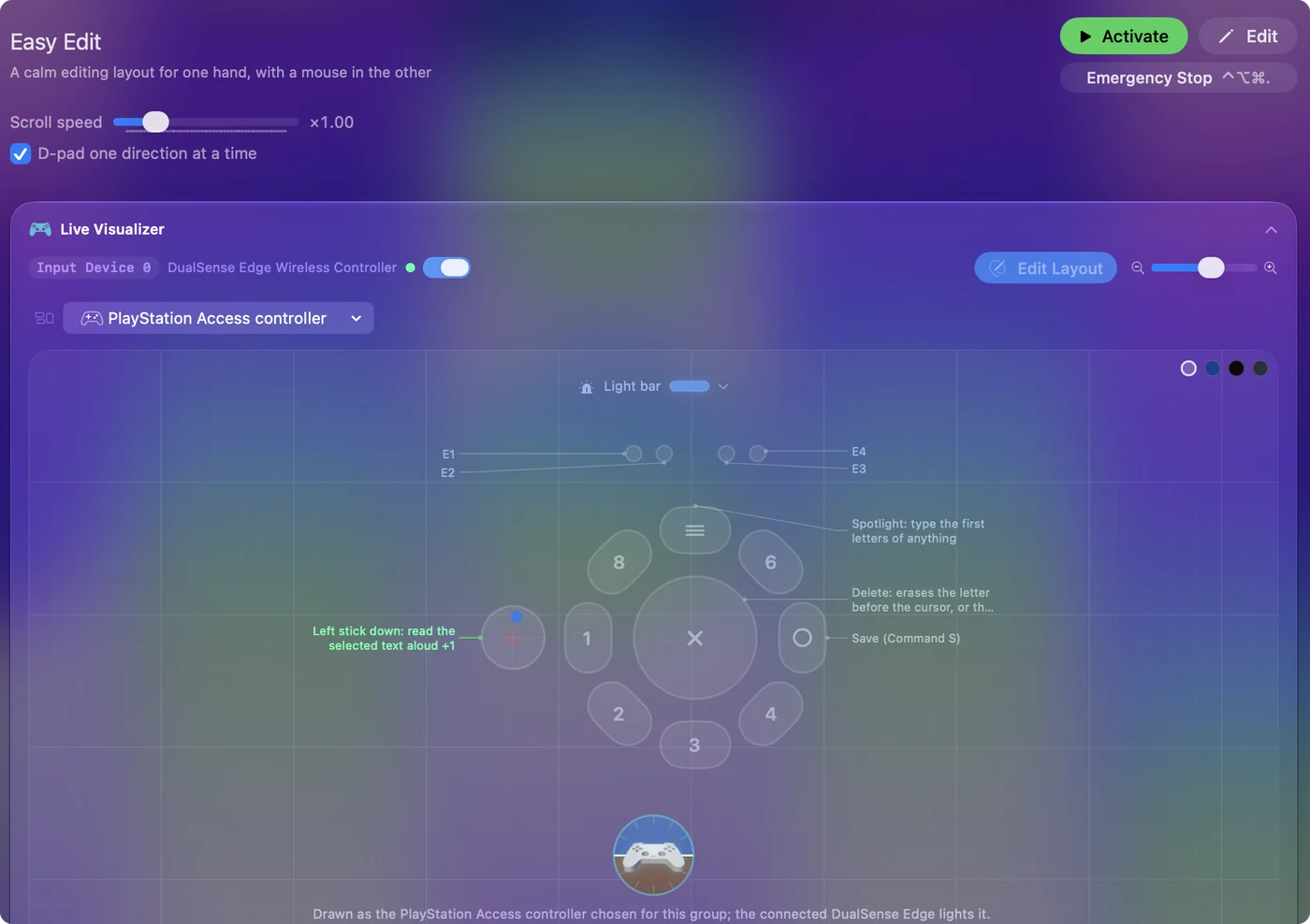
- The D-pad. The four editing shortcuts sit together the way they sit together on a keyboard, and the D-pad counts one direction at a time, so a quick press cannot fire Cut in place of Copy.
- Spoken jobs. The face buttons and the D-pad say their job out loud while you learn them; switch that off in each row's Options.
- Two Mac settings. Dictation needs to be on in System Settings, Keyboard, and reading aloud needs Speak selection on in System Settings, Accessibility, Spoken Content.
Easy Edit has no pointer rows, so the controller never fights the mouse.
 InputConfig is free on the Mac App Store. macOS 14 or later, no account, no tracking, open source.
Decide which hand does what
Put the mouse or trackpad in the hand that aims best, because aiming is the harder job. The controller can sit in the other hand, rest in your lap, or lie on the desk, and only the D-pad and face buttons need a thumb.
- Pointing with the controller instead. Use Easy Browse, which puts the pointer on the left stick.
- One hand from the start. See using a Mac with one hand.
Aim with your best hand; press with the other.
Give the mouse's own buttons jobs too
InputConfig reads mouse buttons, up to 32 of them, and a tilt wheel as inputs, so a mouse with side buttons can carry shortcuts as well.
- You: On a middle or side button row, turn on Block the button's own action in Options.
- InputConfig: While the preset runs, that button does only what the row says; a side button stops also going Back in a browser.
- Check: Press the side button in a browser. Only the row's job happens.
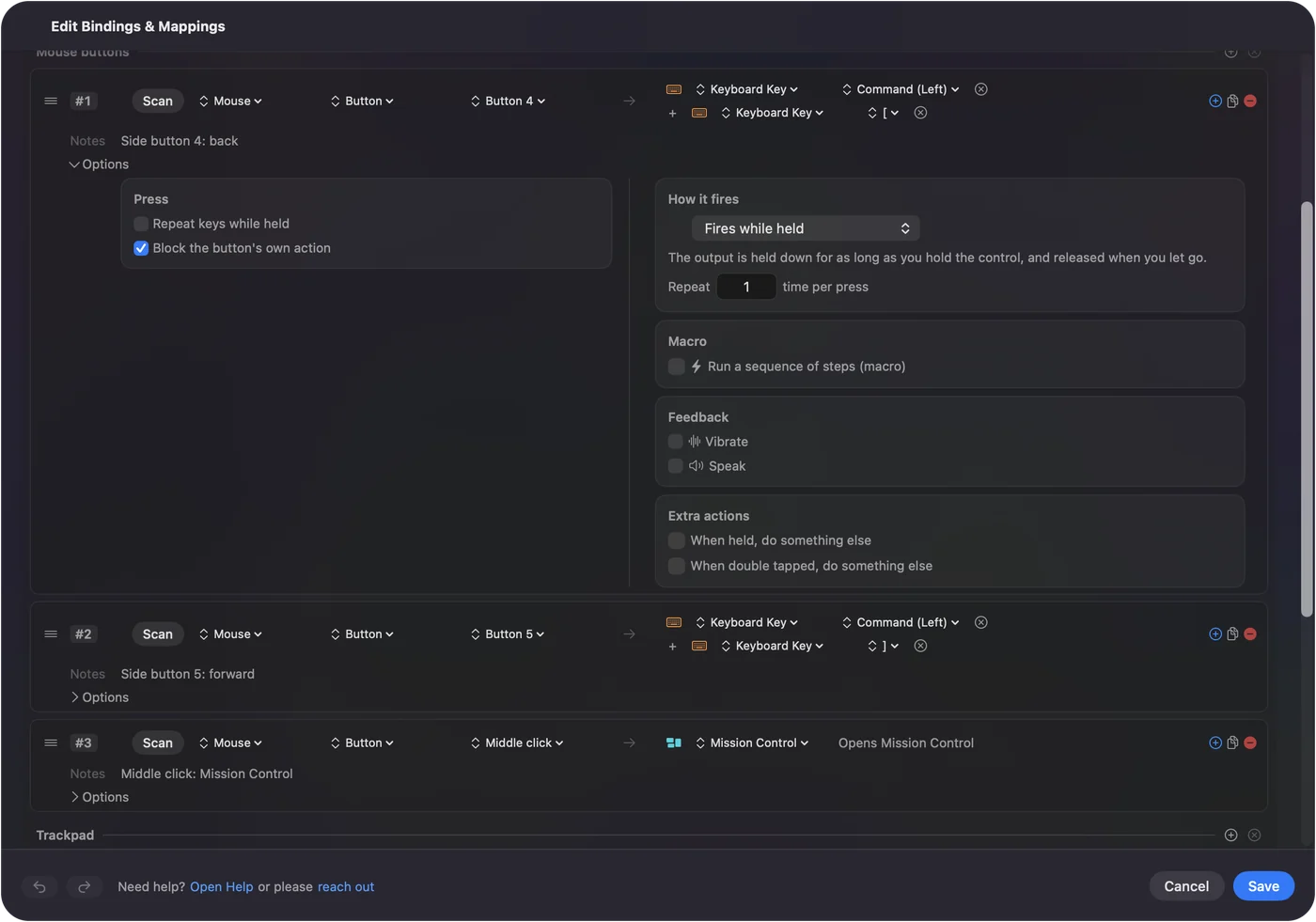
See mouse side buttons on a Mac. The main and secondary clicks are never blocked, so a click cannot be lost.
Walk with the stick and aim with the mouse in games
The same idea works in games that take a keyboard and mouse. Start from the game's layout in the Smart Preset Maker, delete the right stick rows that turn the camera, and the mouse aims while the left stick sends the movement keys. Games that support controllers natively may switch their on-screen button hints back and forth when you use both; that is the game, not the Mac.
If something does not respond
Climb this ladder, smallest step first:
- Check the preset is running. Easy Edit has to be active for the controller to do anything outside games.
- Check the Mac settings. Dictation and reading aloud need the two settings above turned on.
- Change the row. If a shortcut does something else in your app, open the preset in the editor, pick a different output on the row, or press Scan on a row and press the button you want for that job.
Back, forward, tabs and the address bar are browser shortcuts; other apps may use those keys for something else.
Know what macOS does on its own
Every mouse, trackpad and controller works at once with no setup, and a game with controller support reads the pad directly. What macOS does not do is turn controller buttons into shortcuts outside games; that is the part InputConfig adds. Sticky Keys, in System Settings, Accessibility, Keyboard, is the built-in way to press shortcuts one key at a time with one hand on the keyboard.
The short version
- Mouse. Points, as always.
- Controller. Easy Edit puts Undo, Copy, Cut and Paste on the D-pad, plus Save, Delete, Dictation and tabs.
- Side buttons. Block their own action and give them shortcuts too.
A mouse in one hand and a controller in the other spares you every reach across the keyboard.
Questions
Will the controller interfere with the mouse?
No. Easy Edit has no pointer rows, so the controller never moves the pointer, and the mouse keeps working whether a preset runs or not.
Can I change what a button does?
Yes. Open the preset in the editor, pick a different output on the row, or press Scan on a row and press the button you want for that job.
Does Easy Edit work in Word, Pages and Google Docs?
The editing shortcuts are the Mac's standard ones, so Undo, Copy, Cut, Paste, Save, Delete, Space and Return work in nearly every app. Back, forward, tabs and the address bar are browser shortcuts, and other apps may use those keys for something else.
Is it free?
Yes. InputConfig is free on the Mac App Store, needs macOS 14 or later, and has no account.
Related
Free. macOS 14 or later. No account, nothing leaves your Mac. Open source on GitHub.