Questions
How to browse the web on a Mac with a game controller
Yes, with a controller and a mapper: the easiest way I know to browse with no keyboard and no mouse is a controller with InputConfig and its built-in Easy Browse preset. A stick moves the pointer, a second stick scrolls, one button clicks, one goes back, the D-pad changes pages and tabs, and a bumper starts Dictation so you can say a search instead of typing it.
Safari and Chrome do not move the pointer or follow links from a game controller, and macOS will not do it for them: on its own, a controller only works in games. I made Easy Browse for the way my own hands work, and it is free.
On this page: 9 sections
Steps
- Install InputConfig and allow the Accessibility permission when it asks.
- Connect the controller by cable, or pair it in System Settings, Bluetooth.
- Click Start with Easy Browse on the welcome screen, or find it under Built-in Presets, Desktop & Productivity.
- Press Activate, then open a browser and push the left stick.
Set it up in five minutes
Step 1: Install and allow
- You: Install InputConfig from the Mac App Store and allow the Accessibility permission when it asks.
- InputConfig: Can now click and press keys. That permission is what lets it.
- Check: The permission is on in System Settings, Privacy & Security, Accessibility.
Step 2: Connect and start
- You: Connect the controller. A DualSense or Xbox controller on a USB cable needs no pairing; over Bluetooth, pair it in System Settings, Bluetooth. On InputConfig's welcome screen, click Start with Easy Browse, then press Activate.
- InputConfig: Turns the menu bar icon green while the preset runs.
- Check: Open Safari or any browser and push the left stick. The pointer moves.
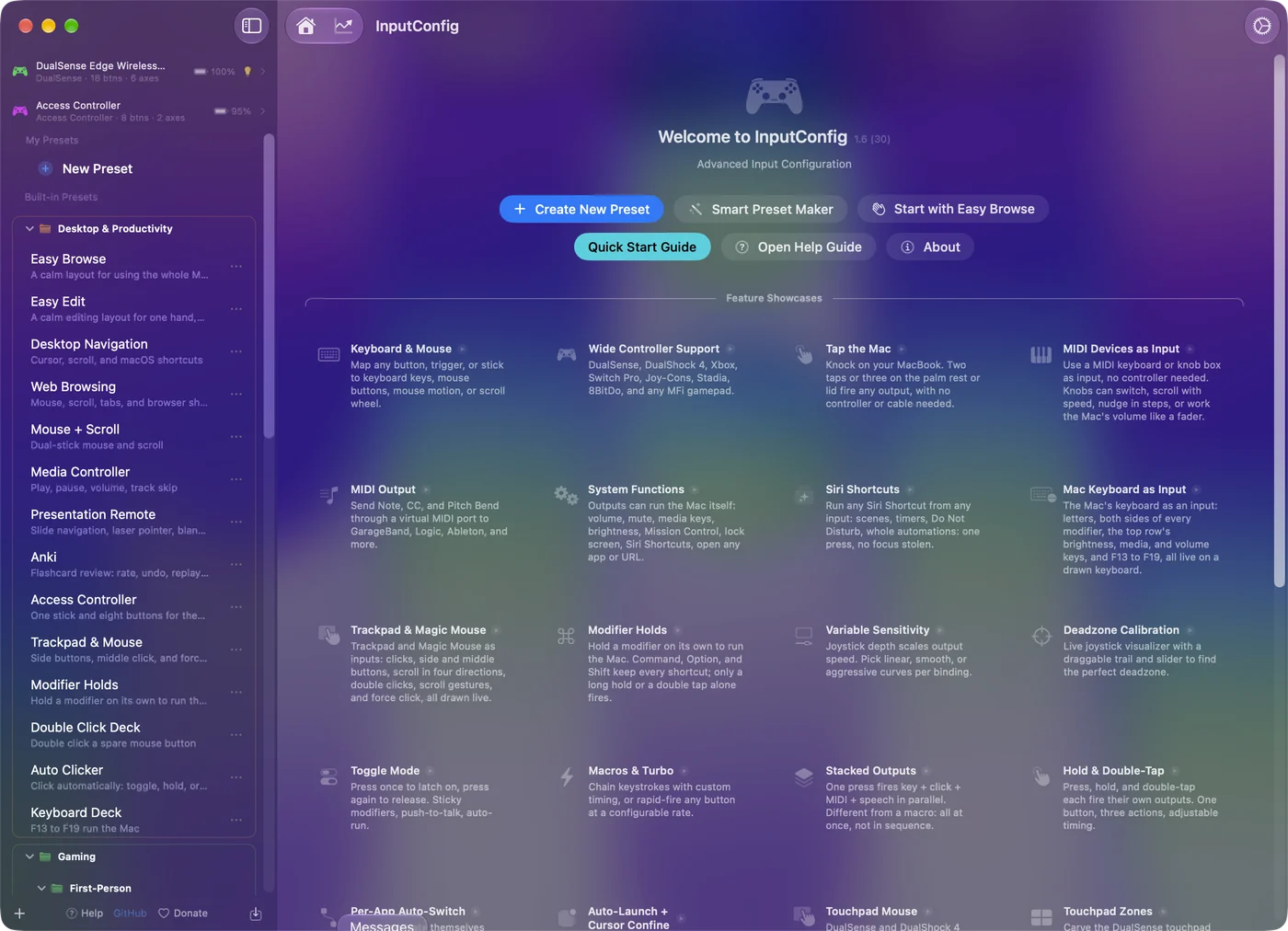
Easy Browse is also in the sidebar under Built-in Presets, Desktop & Productivity. Two Mac settings make the rest work:
- Dictation. On in System Settings, Keyboard.
- Speak selection. On in System Settings, Accessibility, Spoken Content, for reading pages aloud.
A green menu bar icon means the controller is driving the Mac.
 InputConfig is free on the Mac App Store. macOS 14 or later, no account, no tracking, open source.
Learn what each button does
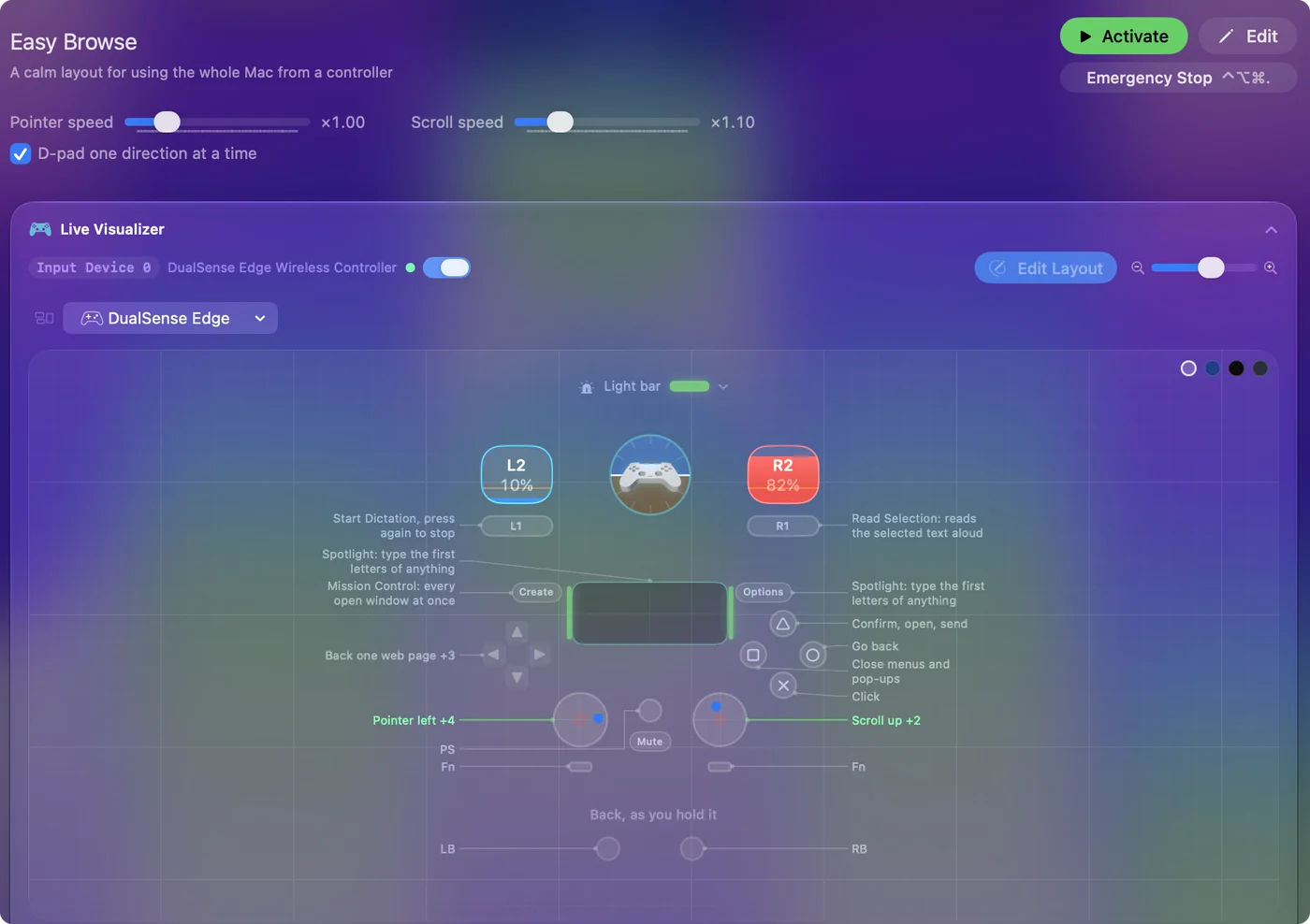
| Control | Does |
|---|---|
| Left stick | Moves the pointer. It starts slow and eases up to speed, so small links are easy to land on, and it stops the moment you let go. |
| Right stick up and down | Scrolls the page. |
| A / Cross | Click, with a short buzz on a controller that can rumble. |
| B / Circle | Back (Command and left bracket). |
| X / Square | Escape: closes menus and pop-ups. |
| Y / Triangle | Return: confirms, opens, sends a search. |
| Left stick press | Grab and drop: press once to hold the click, move to select text or drag, press again to let go. |
| Right stick press | Double click. |
| LB / L1 | Start Dictation; press again to stop. |
| RB / R1 | Reads the selected text aloud. |
| Start / Options, or the touchpad press | Spotlight. |
| Back / Share (View on Xbox, Create on a DualSense) | Mission Control, for finding a window that went missing. |
| D-pad left and right | Back and forward one page. |
| D-pad down and up | Previous and next tab. |
- One direction at a time. The D-pad counts one direction at a time, so a quick press that brushes the next direction does not also switch tabs.
- Spoken jobs. The four face buttons say their job out loud (click, back, close, open) while you learn them. Switch that off in each row's Options when you no longer need it.
The Live Visualizer draws this table on your own controller, so you never have to memorize it.
Type a search without a keyboard
- You: Click the address bar or the search box with A, press LB, say what you are looking for, press LB again, then press Y.
- macOS: Types what you said, with punctuation where you say it.
- Check: The search runs.
- Passwords. Use the Passwords app or Touch ID where you can.
- Anything else short. The Mac's Accessibility Keyboard puts a keyboard on screen that the stick can click (System Settings, Accessibility, Keyboard).
Typing with a controller covers every way to do it. LB, speak, LB, Y: that is a search with no keyboard.
Know what the Mac and the browser do without any app
- Browser games. Many read a controller directly through the browser, with no mapper at all. See browser games with a controller.
- Voice Control. In System Settings, Accessibility, Voice Control, it browses by speech: say "click" and a link's name, or "show numbers". If your voice is reliable and the room is quiet, try it first.
- Game Controllers. In System Settings it remaps buttons for games that support controllers. It does nothing in a browser.
If your voice is reliable, Voice Control needs no controller at all.
Make it fit your hands
- Speed. The preset's page has Pointer speed and Scroll speed sliders that change every pointer and scroll row at once.
- Drift. If the pointer creeps on its own, open a pointer row's Options and press Adjust live, then widen the deadzone until the resting dot sits inside it. Every stick row shows its deadzone.
- Right click. Easy Browse leaves it off on purpose, because a stray right click opens a menu nobody wanted. Add it as one row on a spare button, such as LT or RT.
- A mouse in the other hand. Try Easy Edit, also built in, which keeps the pointer on the mouse and puts Undo, Copy, Cut and Paste on the D-pad. See a controller and a mouse together.
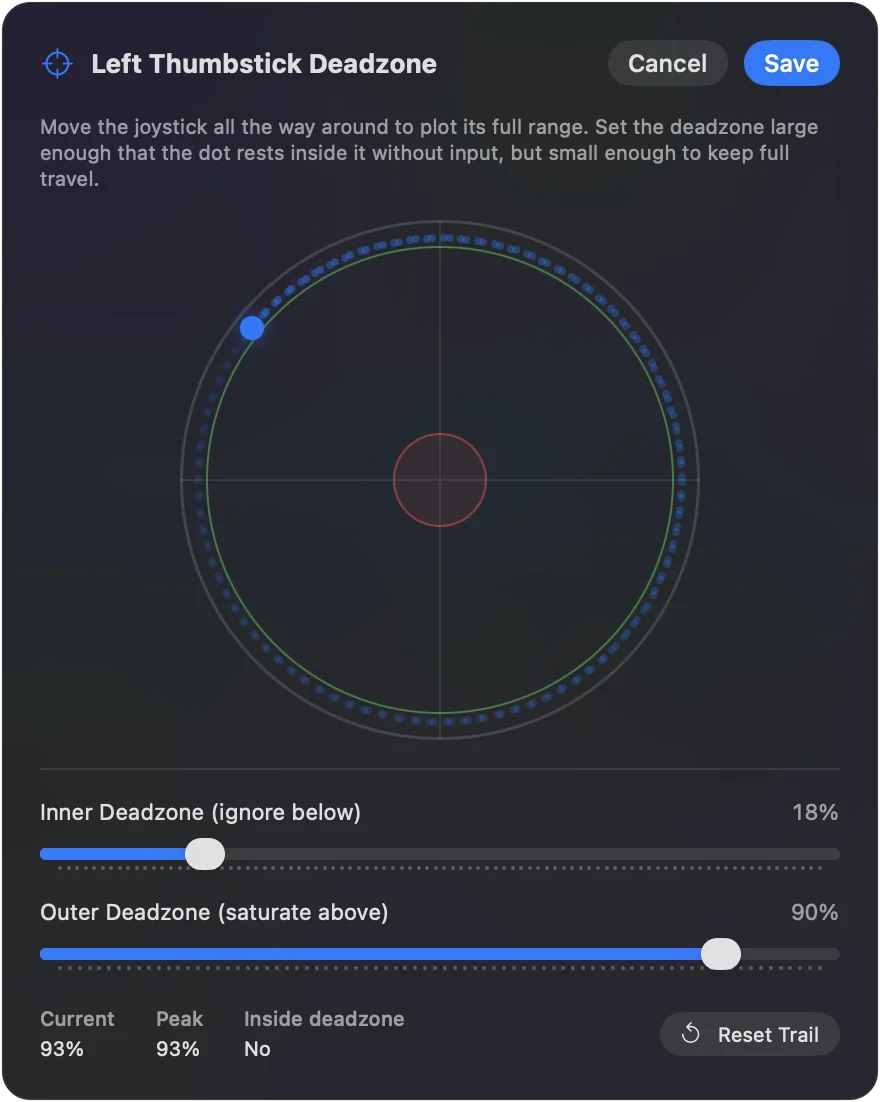
Set the speed and the deadzone with the person who will use it, not for them.
If something goes wrong
Climb this ladder, smallest step first:
- Look at the menu bar icon. Nothing happens: green means the preset is running; orange means it needs the Accessibility permission, and rows start working the moment it is granted.
- Back out. A page went somewhere strange: B goes back, X closes the pop-up, and D-pad left goes back a page.
- Stop everything. The pointer runs away or a click seems stuck: press Control Option Command and the period key, or click Emergency Stop in the menu bar.
The controller stop is Back and Start held together for three seconds, so a slow press of Back for Mission Control never stops Easy Browse by accident. If two buttons at once is hard, pick LT / L2 in Settings, General, Emergency stop; Easy Browse leaves that trigger free, and a button picked there works on its own. Stopping a controller right away has the details. The emergency stop only ever stops, so it is always safe to press.
The short version
- Start. Install InputConfig, allow Accessibility, click Start with Easy Browse, Activate.
- Browse. Left stick points, right stick scrolls, A clicks, B goes back, the D-pad changes pages and tabs.
- Search. LB to dictate, Y to go.
Five minutes of setup, and the whole web is reachable from a controller.
Questions
Does Easy Browse work in Chrome and Firefox?
It sends ordinary clicks and keys, so the pointer, scrolling, clicks, Spotlight and Dictation work in any browser. Back and forward use Command and a bracket, and tabs use Command Shift and a bracket, which are Safari's shortcuts; if a browser uses different keys for tabs, change the keys on those two D-pad rows.
Can I still use the mouse and trackpad?
Yes. InputConfig adds to the mouse and keyboard and never turns them off, so both work at the same time.
Is Easy Browse the same as the layout in the elderly parent guide?
Yes. It started as that guide's download, and the built-in version in InputConfig 1.6 adds the slow start on the pointer and a short buzz on the two stick presses.
Which controllers work?
Any controller InputConfig reads. The button names above are Xbox and PlayStation; on a Switch Pro Controller the same positions do the same jobs, and a controller without a touchpad simply uses Start for Spotlight.
Is it free?
Yes. InputConfig is free on the Mac App Store, with no account and no network access. It needs macOS 14 or later.
Related
Free. macOS 14 or later. No account, nothing leaves your Mac. Open source on GitHub.