Setting up a Mac for an elderly parent
 InputConfig is completely free on the Mac App Store. You don't have to make an account, there are no subscriptions, and nothing is locked. Optimized for Apple silicon.
You can make a Mac much easier for an older parent in about half an hour, most of it spent with them rather than with the software. Start with the settings macOS already has: a bigger pointer, bigger text, a slower mouse and a slower double click help everyone and need no app. If the mouse itself is the problem, a game controller set up with InputConfig takes its place: it rests in two hands, the thumbs do the work, and a stick pushed gently moves the pointer gently.
This guide is for the person setting it up. At the end they will have a layout that does the same thing every day, speaks its buttons while they learn it, and always has a way out.
On this page: 12 sections
Steps
- Set a bigger pointer, bigger text, a slower mouse and a slower double click in System Settings first. Stop there if that is enough.
- Choose a controller that fits their hands: a DualSense for most people, an Xbox controller for larger hands, a single Joy-Con held sideways for a hand that tires quickly.
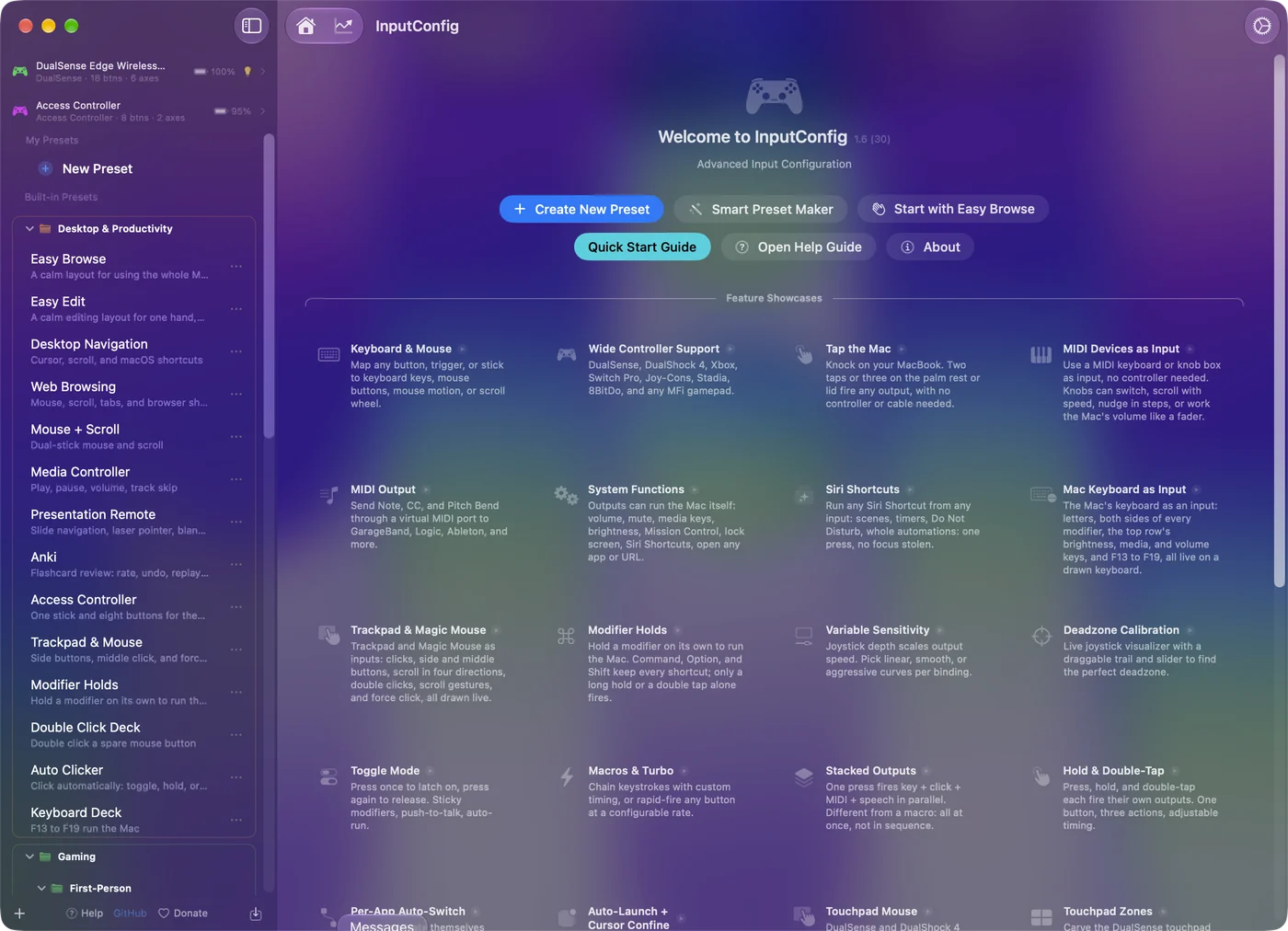
- Install InputConfig from the Mac App Store, grant Accessibility when asked, click Start with Easy Browse on the welcome screen, and press Activate.
- Sit with them, find any stick drift in the Live Visualizer, widen the deadzone with Adjust live, and set Pointer speed while they move the pointer.
- Leave the spoken names on the face buttons for the first week, then switch Speak off row by row.
- Turn on Launch at login, turn off Show Dock icon, list their apps under Activate when these apps are in front, and export a backup.
- Teach the emergency stop once and write it on a card: hold Back and Start together for three seconds, or press Control Option Command and the period key.
How to read this guide
Start where you are:
- If only the mouse is hard, do the Mac's own settings first. They take ten minutes and may be all they need.
- If you are setting up the controller today, read which controller, then work straight down step by step.
- If it is already set up, go to make it start by itself and the way out.
Easy Browse is built into InputConfig. The download on this page is the same layout for 1.5 and earlier: drop the file on InputConfig's Dock icon to add it. Fix the Mac first, and add a controller only if the mouse is still the problem.
Start with the Mac's own settings
Do these with them sitting beside you. None of them needs an app, and they help with every app, not only this one. Climb this ladder, smallest step first, and stop when it is enough:
- A bigger pointer. System Settings, Accessibility, Display, Pointer: drag Pointer size up. Leave Shake mouse pointer to locate switched on, so a lost pointer grows when they wiggle the mouse. For controller pointing too, this is the single most useful change.
- Bigger text. System Settings, Displays: choose Larger Text if the screen offers it. System Settings, Accessibility, Display, Text size makes the text bigger in several of Apple's own apps, and Increase contrast is on the same page.
- A slower mouse and an easier double click. System Settings, Mouse (or Trackpad): lower the tracking speed. System Settings, Accessibility, Pointer Control: slow the double-click speed so two clicks do not have to be quick.
- A shorter Dock. Drag every app they do not use out of the Dock. Five icons they know beat twenty they do not.
- Dictation. System Settings, Keyboard, Dictation. Saying a message is easier than typing it for most people. If they take to it, YapToText, the free dictation app I make, is another way to get voice to text on a Mac, on an Apple silicon Mac with macOS 14 or later.
InputConfig has its own text size up to Largest, bold text, reduced transparency and reduced motion, but those reach only InputConfig. It also comes in 26 languages: it follows the language set for it in System Settings, or pick one in Settings, General, Language. For choosing a different mouse instead of a controller, see the easiest mouse for an elderly person on a Mac. If the mouse works once these are set, stop here.
Choose a controller that fits their hands
Any controller works. Three suit this job particularly well:
- PlayStation DualSense. Comfortable, with a light bar that can show which layout is running and haptics that confirm a press. Bluetooth or cable.
- Xbox Wireless Controller. Slightly larger grips and a firmer D-pad, which some people with bigger hands or less finger strength prefer. It has no light bar.
- A single Joy-Con. Tiny, held sideways in one hand, with a stick and four buttons. Right for someone who can only use one hand, or who tires holding a full controller. It is limited, and that is the point: fewer things to learn.
Avoid controllers that need a mode switch or an extra step before they work. It should work the day it comes out of the box and every day after.
Know what each button does
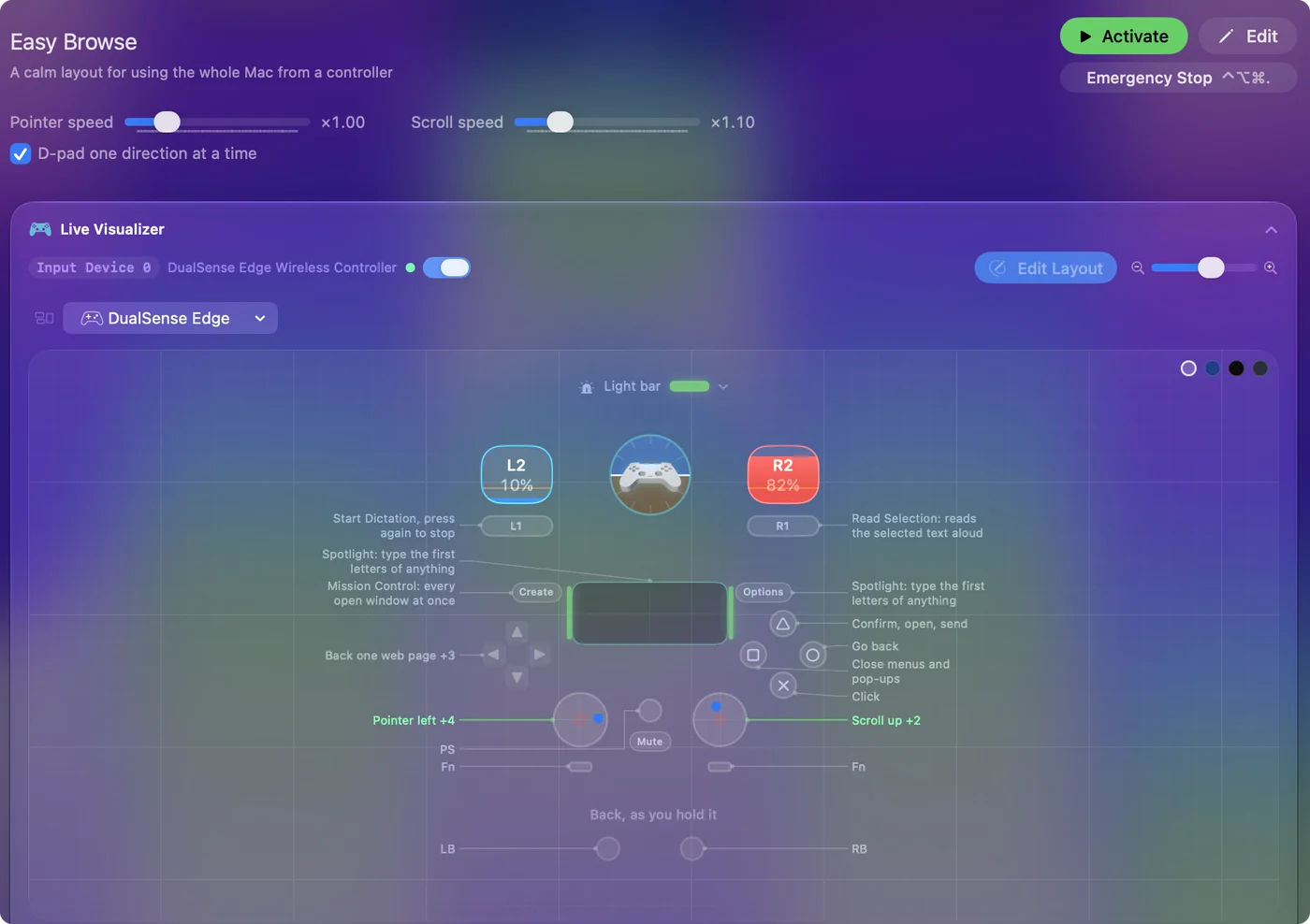
Easy Browse uses a small part of the controller on purpose. The jobs used most sit on the bumpers and the D-pad, which small hands reach without lifting a thumb, and everything else is left unbound so an accidental press does nothing.
| Control | Does | Why |
|---|---|---|
| Left stick | Moves the pointer, slowly near the center, faster when pushed | The Smooth curve and a generous deadzone stop a resting thumb from drifting the pointer, and the built-in version starts each push slowly and eases up to speed. |
| Right stick up and down | Scrolls | Scrolling with a separate stick means the pointer never wanders while reading. |
| A / Cross | Click, with a light buzz | The bottom button is the easiest to find by touch. |
| Right stick press (R3) | Double click, sent as two clicks | For a thumb that cannot press twice quickly. Pressing A twice works too. |
| Left stick press (L3) | Grab and drop | Press once to hold the click, move the pointer to select text or drag a file, press again to let go. Nothing has to be held down. |
| B / Circle | Go back (Command and left bracket) | In Safari, Mail, and Finder, one button that undoes a wrong turn. |
| X / Square | Escape | Closes pop-ups and menus. |
| Y / Triangle | Return | Confirms, opens, sends. |
| LB / L1 | Start Dictation | Press once to speak, press again to stop. On a bumper, so the thumbs never leave the grips. |
| RB / R1 | Read Selection | Reads the selected text aloud. Turn on Speak selection in System Settings, Accessibility, Spoken Content. |
| D-pad left and right | Back and forward one web page (Command and a bracket) | Browsing without aiming at the toolbar. |
| D-pad down and up | Previous and next tab (Command Shift and a bracket) | The same finger fixes a wrong press: just press the other way. The D-pad counts one direction at a time, so a press that brushes the next direction does not fire it too. |
| Start / Options or touchpad press | Spotlight | Type the first letters of anything to open it. Used less often, so it can sit further from the thumbs. |
| Back / Share | Mission Control | Every open window at once, for finding the one that went missing. |
Right click is left off the controller on purpose. Most of the trouble older people have with a mouse comes from the wrong button opening a menu they did not want, and if they need it later, it is one row in the editor. For browsing step by step, see browsing the web with a controller. A button that does nothing is a button they cannot press by mistake.
Step by step, with them beside you
Set these with them, not for them. The deadzone stops a resting thumb from moving the pointer, Pointer speed decides how far one push goes, and the spoken names teach the buttons in the first week.
Step 1: Find the drift
- You: Open the preset's Live Visualizer and ask them to rest their thumbs on the sticks and do nothing.
- InputConfig: Shows the left-stick dot where the stick really rests.
- Check: If the dot sits away from the center, that is drift. Open a pointer row's Options, press Adjust live, and drag the deadzone ring past the resting dot.
Step 2: Set the speed
- You: Ask them to move the pointer to a button on screen.
- InputConfig: Pointer speed on the preset's page changes all four pointer rows at once, and the pointer stops the moment they let go of the stick.
- Check: If they overshoot, lower Pointer speed. If they run out of patience crossing the screen, raise it.
Every stick row shows its deadzone, so you can read the number back later.
Step 3: Let the buttons say their names
- You: Ask them to press each face button once.
- InputConfig: The built-in Easy Browse speaks as they press: A says click, B back, X close, and Y open. A light pulse on click confirms the press on a controller that can rumble.
- Check: They hear each word through the Mac's sound output. If the voice is hard to follow, pick another in Settings, General, Spoken feedback voice.
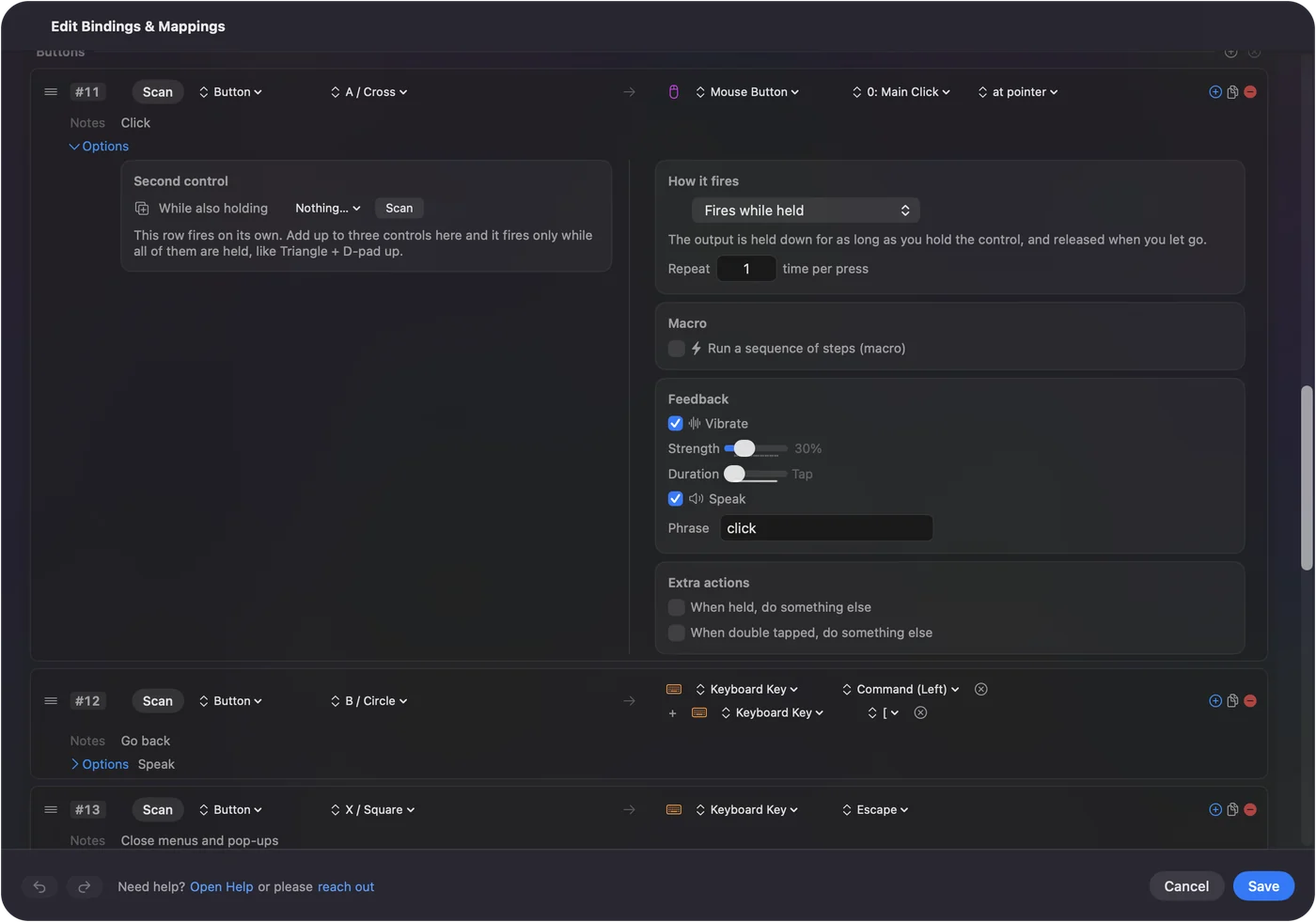
The default voice is the system voice from System Settings, Accessibility, Spoken Content, so a clearer premium voice installed there is the one you hear. After a week, when the buttons are in muscle memory, switch Speak off in each row's Options.
Step 4: Put dictation on a button
- You: Turn on Dictation in System Settings, Keyboard.
- InputConfig: The left bumper, LB, starts dictation and the next press stops it.
- Check: Press LB in Mail or Messages, say a sentence, press LB again, and the words appear.
For someone who speaks clearly, this replaces the keyboard for email and messages. If their MacBook sits on a desk, the built-in Tap the Mac preset starts dictation from three quick taps on the palm rest, which is one fewer thing to hold. Tap the Mac was tested on M4 MacBooks and did not work on an M1 Pro in our testing; the calibrator's status chip tells you whether yours listens. Five minutes of this beats any default.
Make it start by itself every morning
InputConfig starts with no preset running each time it opens, so after a restart the controller does nothing until the layout is switched on. These steps make it simply be there.
Step 5: Launch at login, out of the way
- You: In Settings, General, turn on Launch at login and turn off Show Dock icon.
- InputConfig: Opens at login and lives quietly in the menu bar.
- Check: Restart the Mac. The InputConfig icon is in the menu bar and nothing new is in the Dock.
Step 6: Let the layout switch itself on
- You: Open the Easy Browse preset's Automation & Gaming Utilities panel and add Finder, Safari, Mail, Photos and FaceTime under Activate when these apps are in front. Then turn on Switch presets when the front app changes in Settings, Advanced.
- InputConfig: Starts Easy Browse when one of those apps comes to the front, and steps aside in an app that is not on the list.
- Check: After a restart, push the stick. If nothing moves, click the app once with the mouse or start the preset from the menu bar, and add any app they use that is missing.
Step 7: Give it a color and a backup
- You: Click the light bar strip on the controller drawing in the Live Visualizer and pick a color. Then use Export Backup in Settings, Advanced, Data & storage, and keep the file.
- InputConfig: A DualSense glows that color whenever the layout runs. Restore from Backup brings the whole setup back in one step.
- Check: The light bar shows the color while Easy Browse runs, and the backup file is somewhere you can find it.
Settings, General also has a keyboard shortcut that turns the most recent preset on or off, and the menu bar icon lists every preset. You will use these. They never need to. The icon turns green while a preset runs, which is the quick check over a video call, and orange if the Accessibility permission has been switched off.
When the Mac locks, the controller keeps moving the pointer and clicking but sends no keys, so nothing can type into the password field by accident. Touch ID or an Apple Watch is the easiest way in. For the password, the lock screen can show an on-screen keyboard. See getting into a locked Mac without a keyboard. The same color every day tells them the right layout is running.
Teach the way out once
If the pointer ever runs away or the controller does something odd, there is always a way back. Climb this ladder, smallest step first:
- Press X or B. Almost always they opened a menu or Mission Control. X / Square closes most things, and B / Circle goes back.
- Hold the two stop buttons for three seconds. Holding Back and Start together (View and Menu on an Xbox pad, Create and Options on a DualSense) stops everything and releases any held key. A buzz one second in says the stop is coming, and a voice says when it has happened.
- Press the keyboard stop. Control Option Command and the period key does the same, and so does Emergency Stop in the menu bar.
- Deactivate the preset. From the menu bar or the main window, when you want the controller to do nothing at all.
In Easy Browse, Back / Share opens Mission Control and Start opens Spotlight, so the hold opens both before it stops. A slow press of Back alone never stops anything, because the stop needs Start held too. If two buttons at once is hard for their hands, open Settings, General, Emergency stop and pick LT / L2 as the button, which then works on its own: Easy Browse leaves that trigger unbound, and it is easy to find by touch. The stop itself never turns anything on and deletes nothing, so it is safe to press when confused, and the preset does not restart by itself afterward. Holding the same buttons again, after letting go, starts it back up, for up to 10 minutes after the stop.
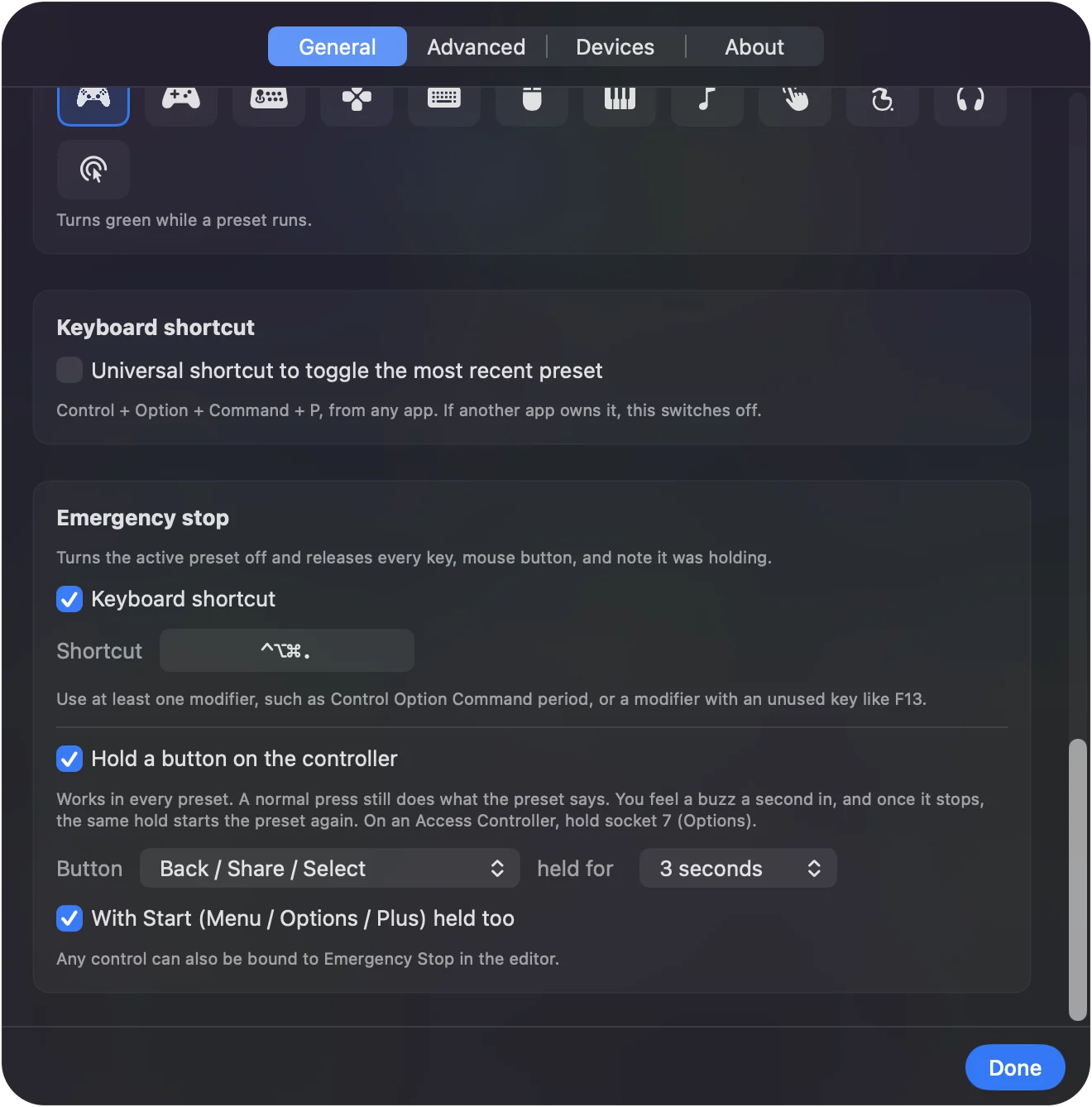
Write it on a card by the Mac. It is rarely needed, but knowing it exists is what makes people confident enough to try things.
What it cannot do
- It needs macOS 14 or later. On a Mac that can run that, it runs fine. There is nothing heavy in it.
- It types nothing at the lock screen. That is on purpose. Pointer, clicks and scrolling still work there, and while the Mac sleeps it sends nothing.
- It starts no preset when it opens. Automatic switching, a shortcut or the menu bar starts one, which is why the morning steps matter.
- It may not suit every memory. A controller can confuse someone with memory problems, so try it with them before deciding. If a mouse still works, keep the mouse and fix its settings first.
What to try after a month
Once the buttons are in muscle memory, add one thing at a time:
- A second preset. One for FaceTime or Photos, switched on automatically when that app opens.
- Their name and email on a hold. A hold on Y / Triangle that types them with Type Text, for forms.
- Read aloud on a spare button. Speak Selection, so any article can be read to them.
- A layout for a game or call app. If one turns out to matter, the Smart Preset Maker probably has one.
If they keep the mouse after all, Easy Edit, also built in, leaves pointing to the mouse and puts the editing shortcuts on the controller. Keep it small, keep it the same every day, and add one thing only when they ask for it.
Download
- Easy Browse presetThe layout in the table above, for InputConfig 1.5 and earlier: slow Smooth pointer, dictation and read aloud on the bumpers, the browser on the D-pad, grab and drop on the stick press. From 1.6 on it is built in. 11 KB
To add a downloaded preset: drop the file on InputConfig's Dock icon, or click the … button next to any preset in the sidebar, choose Import Preset File, and pick the file. It lands in the sidebar, ready to activate or edit. Any launch target inside a preset file is cleared on import; add one yourself in the editor if you want it.
Questions
Does it work on an older Mac?
InputConfig needs macOS 14 or later. On a Mac that can run that, it runs fine. There is nothing heavy in it.
Can they still use the mouse too?
The controller adds to the mouse and keyboard, it does not replace them. Both work at the same time.
What if they press something and the screen goes strange?
Almost always they opened a menu or Mission Control. X / Square closes most things, B goes back, and the emergency stop releases anything stuck.
Can I set this up remotely?
Set it up on your own Mac, Export Backup, send the file, and have them Restore from Backup. Presets carry every setting.
My parent has memory problems. Will a controller confuse them?
It might, and it is worth trying with them before deciding. What helps is keeping it small: the Easy Browse layout leaves most buttons doing nothing, so a wrong press is harmless, each face button can say its job aloud, and the light bar is the same color every day. If a mouse still works for them, keep the mouse and fix its settings first.
What is the easiest mouse for an elderly person on a Mac?
Often the one they already have, with a bigger pointer, a slower tracking speed, and a slower double click set in System Settings. If the wrist or the clicking is the problem, a trackball or a trackpad can help. If no mouse works, a game controller with InputConfig turns two thumbs into the pointer and a few big buttons into clicks, free. The options compared.
Does the controller work when the Mac is locked?
Partly, on purpose. At the lock screen the controller still moves the pointer, clicks and scrolls, but sends no keys, so nothing can type into the password field by itself. While the Mac sleeps it sends nothing.
Is there a version for someone who keeps the mouse?
Easy Edit, also built in, leaves pointing to the mouse and puts Undo, Copy, Cut and Paste on the D-pad, with Delete, Save, Space and Return on the face buttons.
Related
This page in other languages: العربية, Čeština, Dansk, Deutsch, Español, Suomi, Français, עברית, Magyar, Bahasa Indonesia, Italiano, 日本語, 한국어, Norsk, Nederlands, Polski, Português, Русский, Slovenčina, Svenska, ไทย, Türkçe, Українська, Tiếng Việt, 繁體中文, 简体中文
Completely free. You don't have to make an account, there are no subscriptions, and nothing is locked. Optimized for Apple silicon. Open source on GitHub.
Updated