Accessibility
 InputConfig is completely free on the Mac App Store. You don't have to make an account, there are no subscriptions, and nothing is locked. Optimized for Apple silicon.
This is every accessibility feature in InputConfig in one place, and none of it is paid. I built InputConfig because my hands do not work well, so most of the app started here. Each item links to the page that explains it, and the guides at the end walk through whole setups.
On this page: 8 sections
Input from whatever works
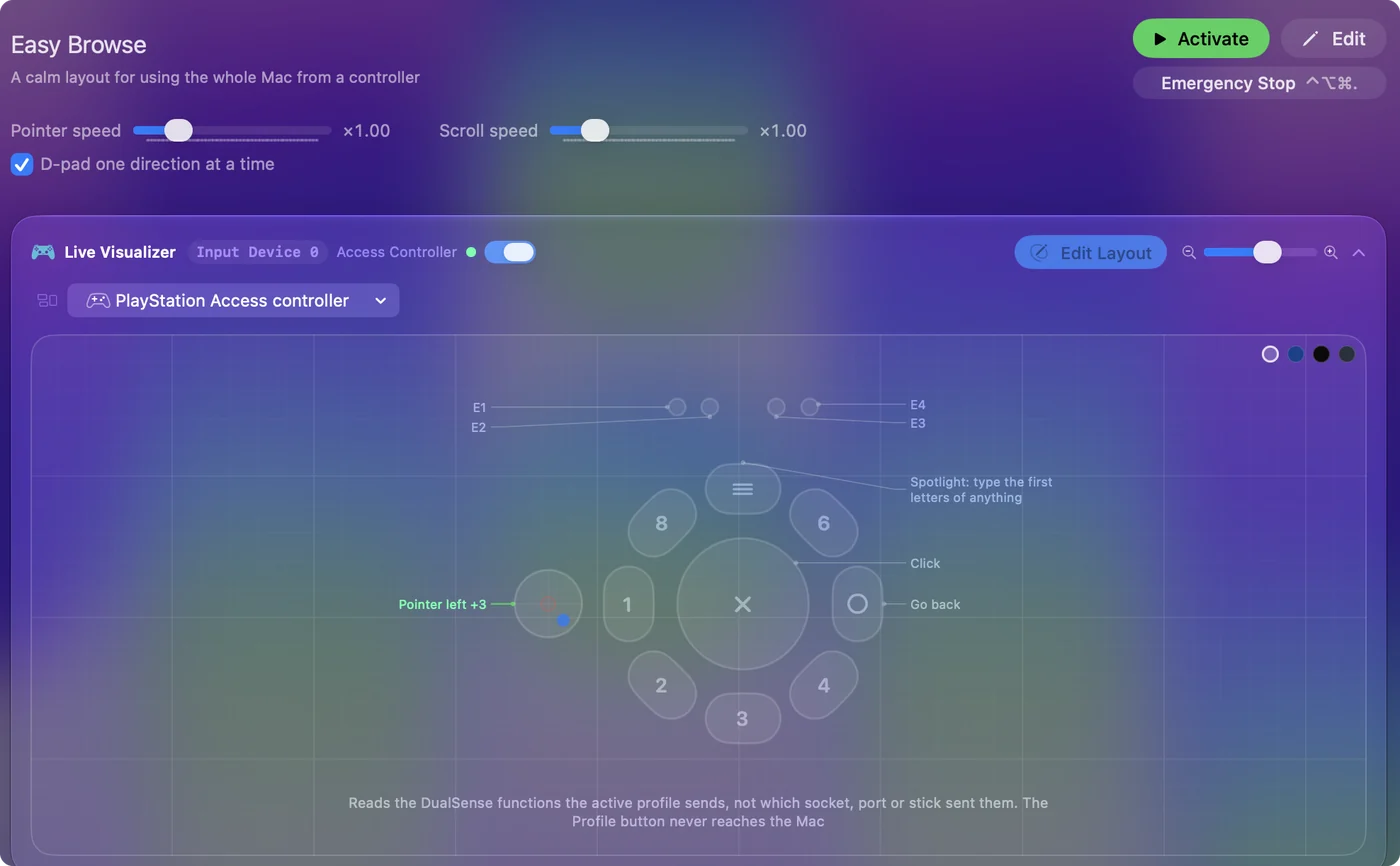
- Adaptive controllers. The PlayStation Access Controller and the Xbox Adaptive Controller, with switches on their ports as buttons. See adaptive controllers on a Mac.
- Anything the Mac can see. Any gamepad, joystick, wheel or arcade stick, MIDI pads and knobs, the Mac's own keyboard, mouse and trackpad, and headset or hearing aid buttons.
- A knock on the laptop. Tap the Mac needs no hardware: a knuckle or the side of a hand works as a button for someone who cannot reach one. Tap the Mac was tested on M4 MacBooks and did not work on an M1 Pro in our testing; the calibrator's status chip tells you whether yours listens. See which MacBooks have the sensor.
- Screen regions. Areas of a display that act as inputs, for anyone who can move the pointer but has few buttons. See screen regions.
- Motion. A pointer moved by tilting the controller, for hands that cannot work a stick. See gyro aim.
Start from the control that works best for your body, and map everything to it.
Do a lot with a few controls
- Automatic layout. A row for every control the device has, in one press.
- One-stick driving. A whole vehicle on one stick. See one-stick driving.
- Hold, double tap and chords. Three or more outputs per control. See hold and double tap.
- Toggle. Sticky keys, and held mouse buttons for one-handed dragging.
- Macros and Type Text. A sequence or a whole phrase from one press.
- Auto-switch by app. The right layout appears with the app.
One switch can do three jobs, and a second switch can double that.
Put the Mac's own accessibility on a button
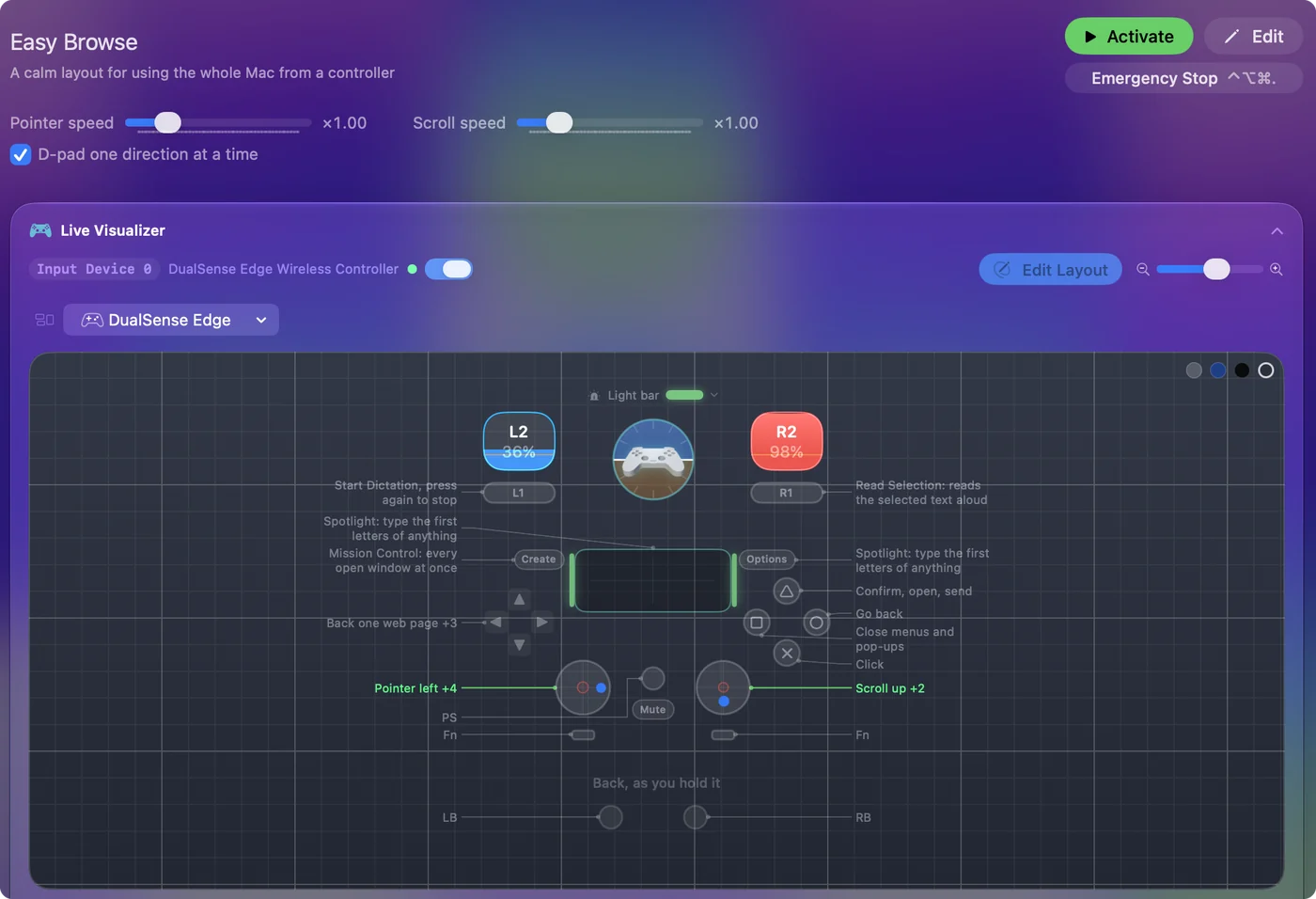
Dictation, Zoom, Speak Selection, VoiceOver commands and Siri Shortcuts can all be outputs. Start Dictation presses the Mac's own dictation key, so it works from a mouse button, a switch or a knock, even on a keyboard with no microphone key. See dictation, zoom and speak selection and starting dictation from any button. Dictation on a big button is often the single most useful thing to set up.
Tune it for the hand
- Deadzones with a live plot. Deadzone and Full push at, set while you watch the stick. See deadzones.
- Curves. Smooth for precision near the center.
- Timing. Adjustable hold thresholds and double-tap windows.
- Speed. Pointer speed and Scroll speed for a whole preset, and Ramp-up for small targets.
A larger Deadzone and the Smooth curve calm most tremors.
Get feedback that is not visual
- Speech. A phrase per row, or the input's name. See spoken feedback.
- Rumble. A buzz per row. See vibration.
- Light. A light bar color per preset. See light bar.
Hear or feel every press, and you never have to look to check.
Use the app itself comfortably
- Text and display. Text size from Small to Largest, bold text, higher contrast text, and reduced transparency and motion, for the app itself.
- Typed places. A screen region or touchpad region can be placed with typed Left, Top, Width and Height fields in percent, a stick region with Inner, Outer, From and To, and a fixed click point with X and Y fields, instead of dragging.
- Time to press. Scan waits as long as you set in Settings, General, Scan, up to until canceled, and says aloud when it times out.
- VoiceOver. Every field in the binding editor and the visualizers is named, and the keyboard focus ring is there.
- No keyboard needed. A Cancel button on the scanner, and a preset that is on keeps working while the editor is open, so the controller still moves the pointer and clicks.
- A way out. An emergency stop that always works, from the controller alone.
- Nothing to sign up for. No account, no network, nothing locked.
You can set up InputConfig with the controller you will use it with.
What to do next
Pick the guide closest to your situation:
- Tremor, arthritis or limited range. A mouse alternative for tremor and arthritis.
- One hand. Using a Mac with one hand.
- One or two switches. A single switch or a few buttons.
- Setting it up for someone else. The occupational therapist setup. Export Backup makes the whole setup one file.
Start with the guide, then tune the details with the pages above.
Questions
Is any of this paid?
No. The tip jar unlocks nothing.
Can an occupational therapist set it up for a client?
Export Backup makes the whole setup one file.
Does the Xbox Adaptive Controller work with a Mac?
It works with no setup. Switches plugged into its ports arrive as buttons, and each one binds like any other button.
Is there a setup for tremor, arthritis, or one hand?
Each has a guide: a mouse alternative for tremor and arthritis, using a Mac with one hand, and, for wrist and finger pain, a mouse alternative for carpal tunnel and RSI.
Related
Completely free. You don't have to make an account, there are no subscriptions, and nothing is locked. Optimized for Apple silicon. Open source on GitHub.
Updated