Spoken feedback
 InputConfig is completely free on the Mac App Store. You don't have to make an account, there are no subscriptions, and nothing is locked. Optimized for Apple silicon.
Each row in InputConfig can speak a phrase when it fires. Switch on Speak in the Feedback box of a row's Options. Leave the phrase empty and it says the input's name, which is a quick way to learn a layout by ear and a real help to anyone who cannot see the controller.
Turn it on
- You: In a row's Options, under Feedback, switch on Speak. Type the phrase, or leave it blank.
- InputConfig: Speaks the phrase each time the row fires, alongside whatever the row sends.
- Check: Press the control and hear the phrase, or the input's name if you left it blank.
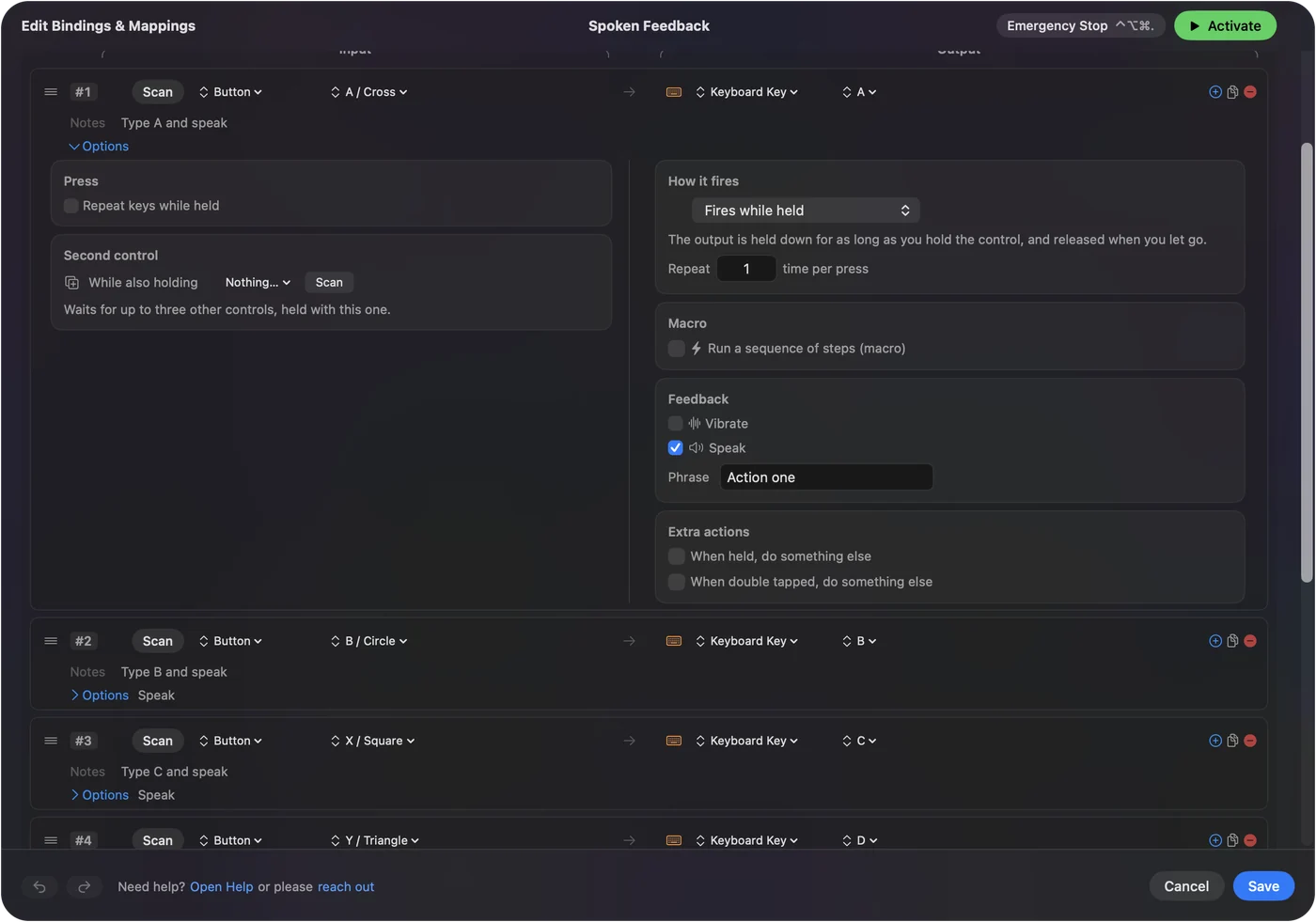
The Spoken Feedback preset gives each face button a phrase. A blank phrase is the fastest way to learn which button is which.
Choose the voice
Settings, General, Spoken Feedback Voice. The default is the Mac's system voice from Accessibility, Spoken Content, so a premium voice installed there is the one you hear. Pick any installed voice instead; Preview speaks a sample. More voices install in System Settings, Accessibility, Spoken Content, Manage Voices. Install a premium voice in Spoken Content and InputConfig uses it.
Play it through the controller
Speech always plays through the Mac's sound output. There is no separate speech output to pick in a row, so to hear it from the controller, make the controller the Mac's output.
- You: Open System Settings, Sound, and under Output pick the controller, if it is listed there.
- macOS: Plays everything the Mac plays through that output, InputConfig's speech included.
- Check: Press a control with Speak on and hear the phrase from the controller. Set the output back to hear the Mac's speakers again.
Speech goes where the Mac's sound goes.
The short version
- Switch on Speak. In the row's Feedback box, with a phrase or blank.
- Pick a voice. Settings, General, Spoken Feedback Voice.
- Route the sound. System Settings, Sound, Output.
Spoken feedback lets a layout explain itself out loud.
Questions
Can speech and a key press be on the same row?
The output still fires and the phrase plays alongside it.
Is this the same as Speak Selection?
No. Spoken feedback speaks a phrase you type when a button fires. Speak Selection is a macOS feature that reads the text you have selected; InputConfig can put it on a button too, see dictation, zoom, and speak selection.
Related
Completely free. You don't have to make an account, there are no subscriptions, and nothing is locked. Optimized for Apple silicon. Open source on GitHub.
Updated