Drive VoiceOver from a game controller
 The VoiceOver Navigation layout is built into InputConfig, free on the Mac App Store. You don't have to make an account, there are no subscriptions, and nothing is locked. Optimized for Apple silicon.
On a Mac: Sends VoiceOver's own keyboard commands with Control and Option as the VO keys. VoiceOver reads everything as usual. The controller replaces the chords.
Yes, you can drive VoiceOver on a Mac from a game controller: the D-pad is VO plus the arrows, the big button is VO plus Space, and the rotor sits on the bumpers. VoiceOver's keyboard commands are chords, and chords are hard for a lot of hands. Everything VoiceOver reads is still read. The controller replaces only the chords.
The layout, control by control
How the layout thinks
- Move. The D-pad moves the VoiceOver cursor up, down, left and right (Control Option and the arrows).
- Act. Activate (Control Option Space) on the bottom face button and the right trigger, Escape on the right face button and Start.
- Go in and out. Interact (Control Option Shift Down Arrow) on the left face button, stop interacting (Control Option Shift Up Arrow) on the top.
- Rotor. The bumpers and the left trigger send Control Option Command with the arrows, which this layout uses for rotor settings and items.
- On and off. Command F5 on Back, Share or View turns VoiceOver on and off. The left stick is a pointer.
Check the rotor rows
- You: Open VoiceOver Utility and read the commands for your version of macOS.
- InputConfig: Sends Control Option Command with the arrows on the bumpers and the left trigger.
- Check: Press each bumper and listen. If VoiceOver does something other than change the rotor setting, change that row's output to the command VoiceOver Utility lists.
VoiceOver Utility is the reference, and every row can follow it.
Set up InputConfig itself with VoiceOver
- The app is readable. VoiceOver names every field in InputConfig's binding editor and Live Visualizer, reaches every region in the Regions card, and the keyboard focus ring is there too, so setting this up does not need sighted help.
- Spoken button names. InputConfig's spoken feedback can say what each button does, on top of VoiceOver, while you learn the layout.
- Switches. The Xbox Adaptive Controller guide covers big buttons and switches.
The chords move to your thumbs, and VoiceOver stays exactly as you know it.
Get it in two clicks
- Get InputConfig free on the Mac App Store, open it, and click Smart Preset Maker on the welcome screen.
- Search for VoiceOver Navigation and pick it. The layout is created as a preset in your sidebar, named and ready.
- Press Activate. Every row can be changed afterwards: the editor's Scan button rebinds any control the moment you touch it.
Every binding, as a table
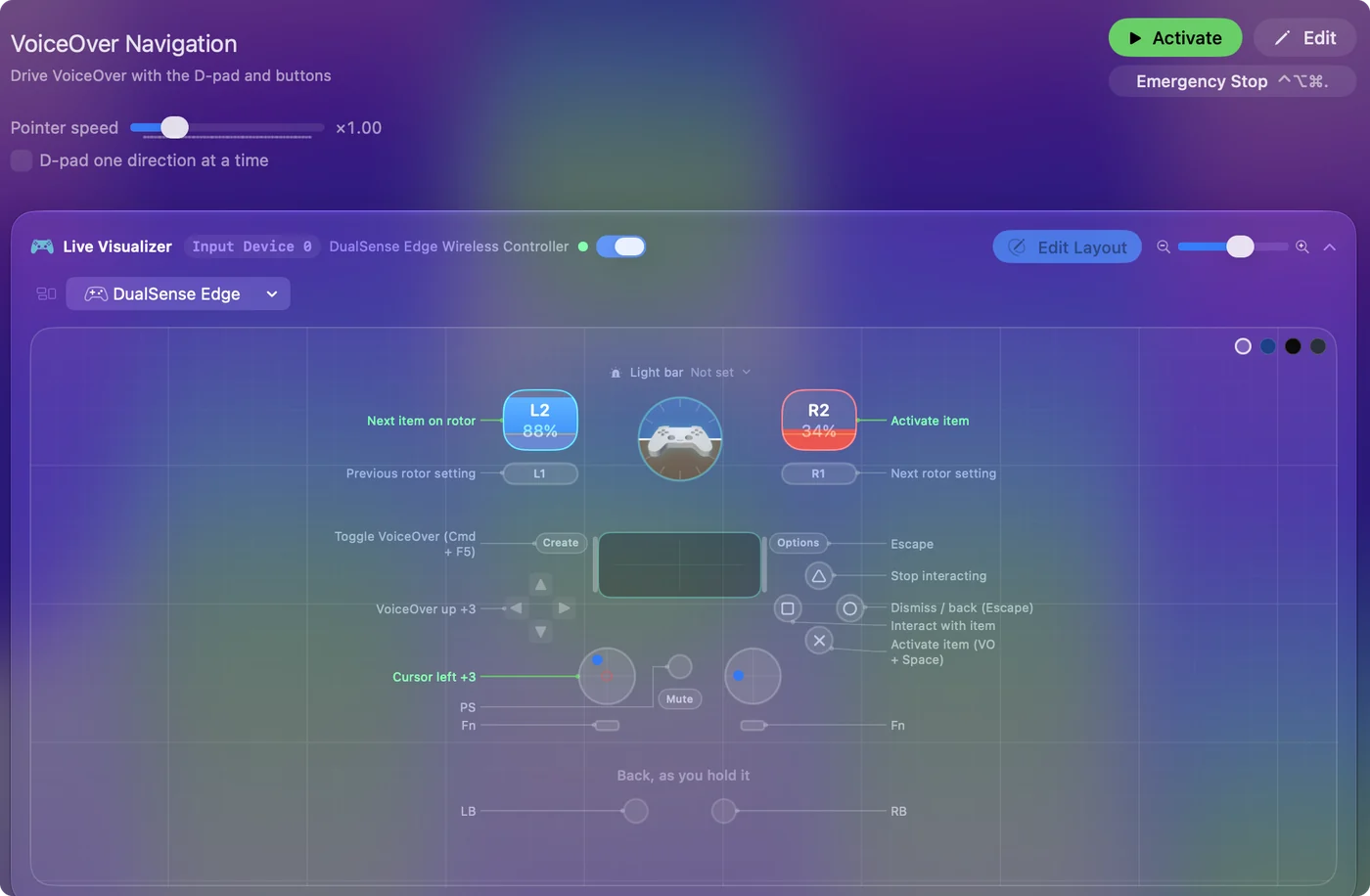
| Controller | Sends | What it does |
|---|---|---|
| Left stick left | Mouse motion left (speed 16) | Cursor left |
| Left stick right | Mouse motion right (speed 16) | Cursor right |
| Left stick up | Mouse motion up (speed 16) | Cursor up |
| Left stick down | Mouse motion down (speed 16) | Cursor down |
| D-pad up | Ctrl (Left), Alt / Option (Left), Up | VoiceOver up |
| D-pad down | Ctrl (Left), Alt / Option (Left), Down | VoiceOver down |
| D-pad left | Ctrl (Left), Alt / Option (Left), Left | VoiceOver left |
| D-pad right | Ctrl (Left), Alt / Option (Left), Right | VoiceOver right |
| A / Cross | Ctrl (Left), Alt / Option (Left), Space | Activate item (VO + Space) |
| B / Circle | Escape | Dismiss / back (Escape) |
| X / Square | Ctrl (Left), Alt / Option (Left), Shift (Left), Down | Interact with item |
| Y / Triangle | Ctrl (Left), Alt / Option (Left), Shift (Left), Up | Stop interacting |
| LB / L1 | Ctrl (Left), Alt / Option (Left), Command (Left), Left | Previous rotor setting |
| RB / R1 | Ctrl (Left), Alt / Option (Left), Command (Left), Right | Next rotor setting |
| Right trigger | Ctrl (Left), Alt / Option (Left), Space | Activate item |
| Left trigger | Ctrl (Left), Alt / Option (Left), Command (Left), Down | Next item on rotor |
| Back / Share / Select | Command (Left), F5 | Toggle VoiceOver (Cmd + F5) |
| Start / Options | Escape | Escape |
Button names follow the Xbox / PlayStation pair shown in the editor, so A / Cross is the bottom face button on either pad. On a Switch Pro Controller the bottom button is labeled B; the mapping still fires on position.
Questions
Does this replace VoiceOver's keyboard commands?
It sends them. Everything else about VoiceOver is unchanged.
Is InputConfig itself accessible with VoiceOver?
Yes. InputConfig names every field in the binding editor and the visualizers for VoiceOver, and VoiceOver reaches every region in the Regions card.
Related
Completely free. You don't have to make an account, there are no subscriptions, and nothing is locked. Optimized for Apple silicon. Open source on GitHub.
Updated