How to use a Mac without a mouse or keyboard
 InputConfig is completely free on the Mac App Store. You don't have to make an account, there are no subscriptions, and nothing is locked. Optimized for Apple silicon.
A Mac can run with no mouse and no keyboard, but not from one trick. macOS already has good pieces built in: Voice Control, Mouse Keys, the head pointer, and an on-screen keyboard. What they leave out is a way to point, click, and press the twenty keys that matter from whatever your body can press. That gap is why I built InputConfig: my own hands do not work well.
This guide puts the two together in layers: the built-ins first, then a game controller or switch for the pointer and keys, dictation for sentences, Type Text for the phrases you type every day, and the keyboard kept in a drawer for the rare moment it is still needed. Allow an hour for the first setup, and have a helper for the one click at the start.
On this page: 13 sections
- Steps
- How to read this guide
- Start with what macOS already does
- Set it up once, while someone can still click
- Put the twenty keys on the controller
- Write with dictation
- Put the things you type every day on a button
- Handle passwords without dictation
- Plan for restarts and the lock screen
- How to go back
- The short version
- Download
- Questions
Steps
- Turn on the macOS built-ins you can use: Voice Control, the head pointer, Full Keyboard Access, and the Accessibility Keyboard.
- Install InputConfig from the Mac App Store and allow the Accessibility permission. A helper or Voice Control can make that one click.
- Connect a DualSense by USB-C, which needs no Bluetooth pairing, and activate Easy Browse or the No Keyboard preset from this page.
- Turn on Dictation in System Settings, Keyboard, and press the dictation button to speak into any text field.
- Fill the Type Text slots with your email, name, address and sign-off.
- Turn on Launch at login and list your apps under Activate when these apps are in front, so the preset starts after a restart.
- Turn on the Accessibility Keyboard at the lock screen, and learn the emergency stop.
How to read this guide
Start where you are:
- If your mouse just stopped working, use the macOS built-ins right now, starting with Mouse Keys.
- If you are setting up a controller, do the one-time setup, then add the layers in order.
- If you are worried about restarts and passwords, read restarts and the lock screen.
Start with what macOS already does
These are free, built in, and some of them work at the login window, which no app can. Use them alongside InputConfig, not instead of it:
- Voice Control. System Settings, Accessibility, Voice Control. Say "click Send" or "scroll down", "show numbers" to click anything by its number, or "show grid" to reach a spot with no label. When your voice is clear and the room is quiet, it is the most complete hands-free option there is.
- Head pointer. System Settings, Accessibility, Pointer Control. The Mac's camera moves the pointer as you turn your head. Clicks come from Mouse Keys, a switch, a facial expression, or Voice Control.
- Mouse Keys. The same Pointer Control pane. The keyboard moves the pointer and clicks, which helps when the mouse is gone but the keyboard is not. The keys, and the shortcuts that replace most clicks.
- Full Keyboard Access. System Settings, Accessibility, Keyboard. Tab reaches every button and control on screen, not only text fields.
- Accessibility Keyboard. System Settings, Accessibility, Keyboard. A full keyboard on screen, clicked with whatever moves the pointer.
- Accessibility Shortcuts. Press Option Command F5, or press Touch ID three times quickly, to switch these on and off from one panel.
Where they stop: Mouse Keys needs a keyboard, Voice Control needs a voice, and the head pointer needs a way to click. If you can press anything at all, a thumb on a controller, a switch, a foot on a pedal, InputConfig turns that press into the clicks, keys and commands the rest of this guide sets up. If you have no reliable hand movement at all, read how to use a Mac hands-free. If you can press one thing reliably, that press can be the mouse.
Set it up once, while someone can still click
InputConfig needs one permission, and that step needs a click. Everything after it can be done from the controller.
Step 1: Allow Accessibility
- You: Install InputConfig from the Mac App Store and switch it on in System Settings, Privacy & Security, Accessibility.
- macOS: Asks for the click. With no mouse at all, a helper can do it in a minute, or Voice Control can reach the switch with "show numbers".
- Check: The InputConfig switch in that list is on.
Step 2: Connect the controller by cable
- You: Plug a DualSense in with a USB-C cable.
- macOS: Reads it with no Bluetooth pairing, which matters when there is nothing yet to click the Bluetooth settings with.
- Check: The controller appears at the top of InputConfig's sidebar.
Step 3: Start a layout
- You: Click Start with Easy Browse on the welcome screen and press Activate, or open the No Keyboard preset from this page and activate it.
- InputConfig: A stick moves the pointer, starting slow and easing up to speed, a stick scrolls, a button clicks, another goes back, and a bumper starts Dictation.
- Check: Push the stick and click something. A preset that is on keeps working while the preset editor is open, so the controller still moves the pointer and clicks, and Save and Cancel are in reach without a mouse.
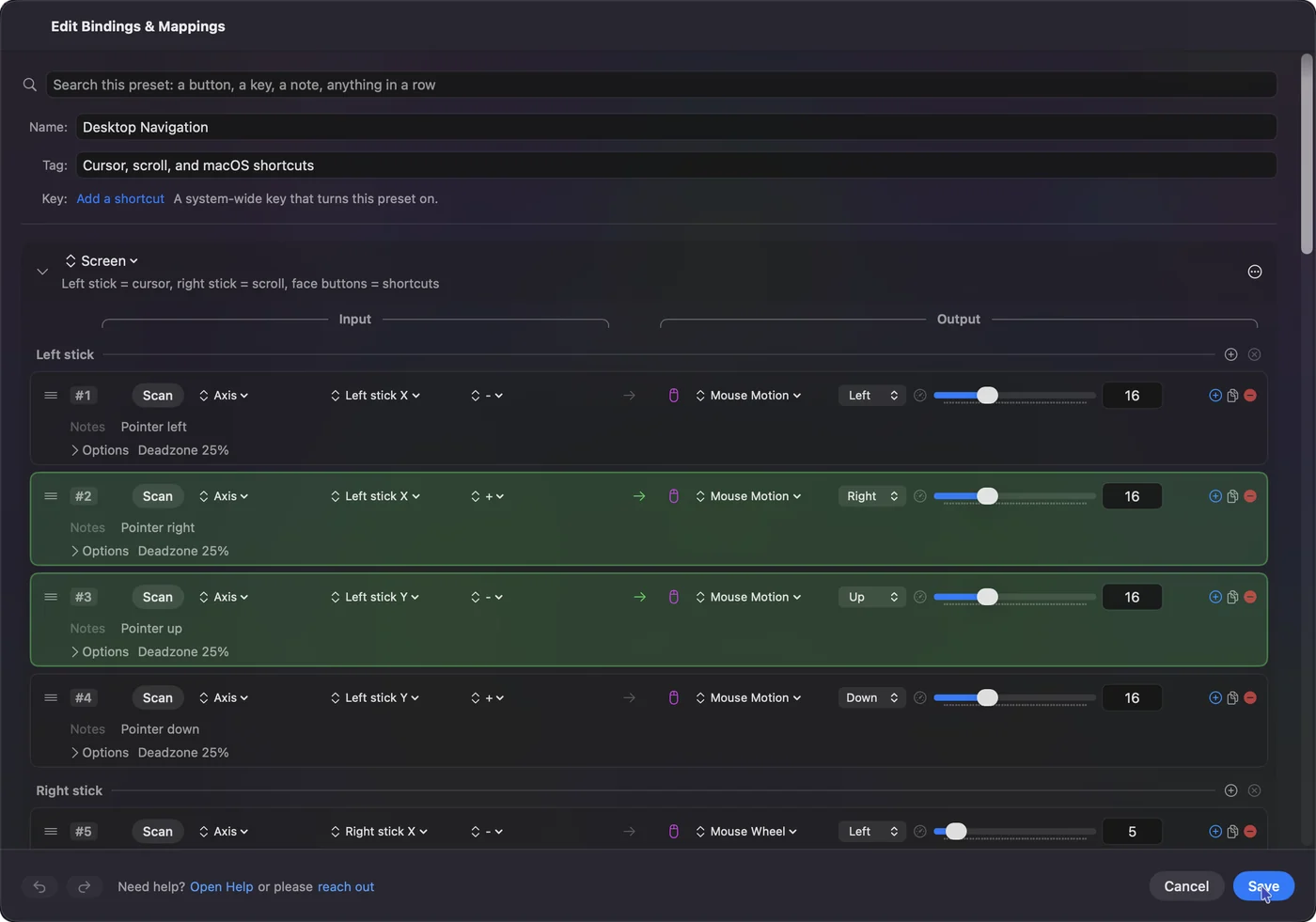
Browsing the web with a controller goes through Easy Browse button by button. One helper click at the start is the only time you need anyone else.
Put the twenty keys on the controller
A Mac cannot live without a few keys: Return, Escape, Tab and Shift Tab, the arrows, Delete, Space, Command Tab, Command Q, Command W, Command Z. The No Keyboard preset on this page has all of them on the controller.
Two ways to add more:
- Chords, a second layer on every button. With sixteen buttons and one chord modifier you have thirty-two commands. Hold LB and the face buttons become Cut, Copy, Paste, Undo. Hold RB and they become the four apps you use most, through Open App. The work guide builds a complete office layout this way.
- Modifier keys. A row can send a whole chord, such as Command Shift 4, as one output, so shortcuts do not need the modifier held. When a real held modifier is needed, for example Shift while clicking to extend a selection, bind Shift to a button with Toggle mode: press once to hold it, press again to release. The built-in Toggle Mode preset shows this.
If you keep a mouse or trackpad in one hand, Easy Edit, also built in, puts Undo, Copy, Cut and Paste on the D-pad instead. Twenty rows cover most of the day without a keyboard.

Write with dictation
macOS dictation is good now, and it types into any text field. For long writing, it is faster than most people type.
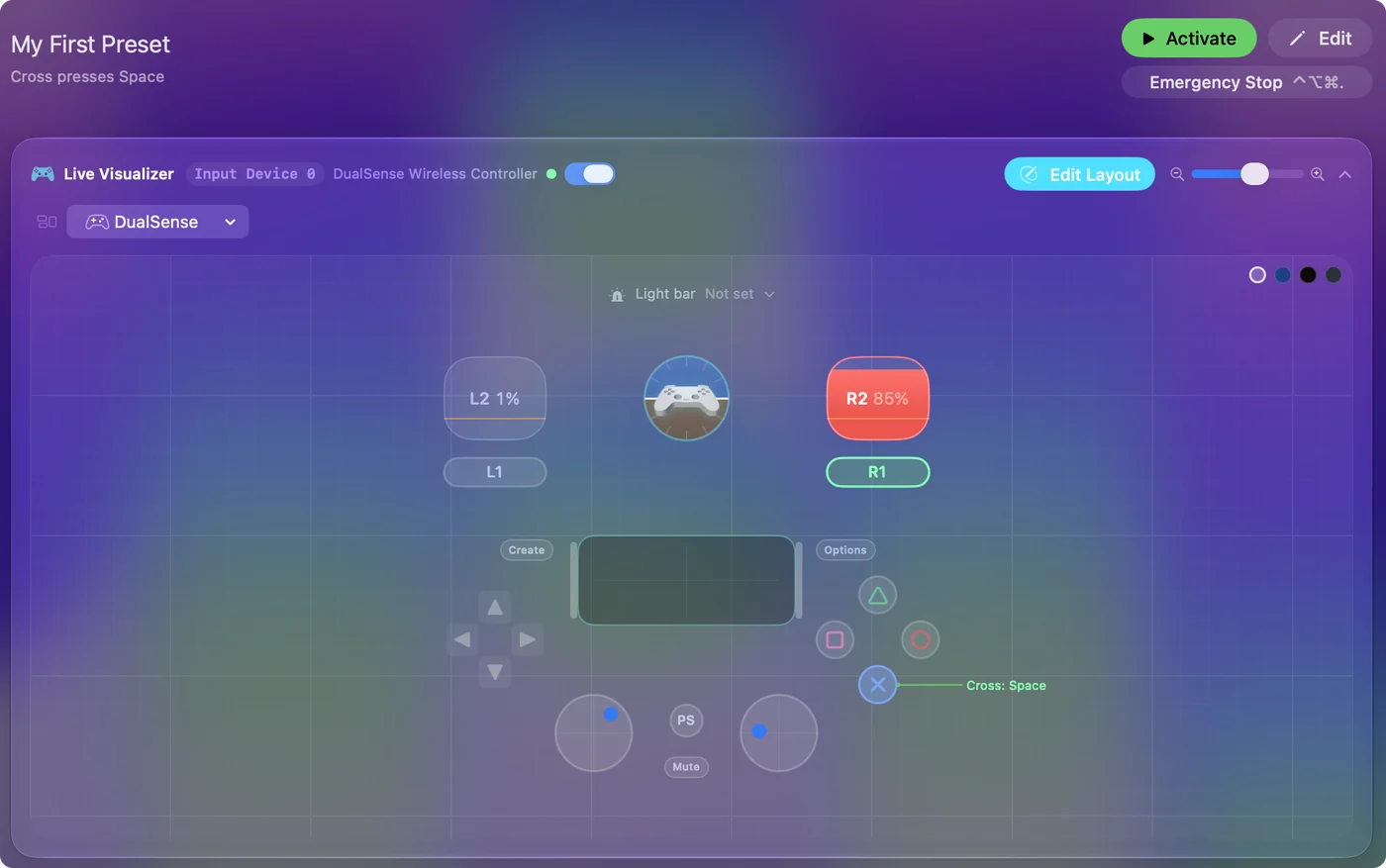
- You: Turn on Dictation in System Settings, Keyboard, then bind Start Dictation to a button. The No Keyboard preset puts it on Start / Options.
- InputConfig: Presses the Mac's own dictation key: one press starts it, the next stops it.
- Check: Press it in a text field and say a sentence. Punctuation is spoken: comma, period, new line.
On a MacBook, the Tap the Mac preset starts dictation from three knocks on the palm rest, so a hand that can make a fist can write an email with nothing held at all. It was tested on M4 MacBooks and did not work on an M1 Pro in our testing; the calibrator's status chip tells you whether yours listens.
Apple's Dictation is one option. YapToText is my free, open-source dictation app that runs on the Mac itself and cleans up what you said. Its dictation key can be any single key, so a control that presses one key starts it, and its keys and shortcuts page covers tap to start and stop and hold to talk.
Put the things you type every day on a button
Type Text is an output that types a whole string from one press. Give a hold or a double tap on spare buttons your email address, your name, your street address, a greeting, a sign-off. A chord layer (hold LB, press a face button) adds four more. The No Keyboard preset has Type Text slots ready to fill in.
Ten phrases cover most of what a person types into forms and messages, and they come out spelled right every time.
Handle passwords without dictation
Passwords are the one thing dictation must not be used for. Two answers:
- Passwords and Touch ID. The Mac's Passwords app and Touch ID fill almost all of them without typing.
- The Accessibility Keyboard. System Settings, Accessibility, Keyboard, Accessibility Keyboard puts a full keyboard on screen that a controller-driven pointer can click. Open it once and it stays available from the menu bar.
Plan for restarts and the lock screen
When InputConfig launches it starts with no preset running, so after the Mac restarts something has to activate the preset: a click on the menu bar icon, the global shortcut from Settings, General, or Voice Control. To have it switch on by itself:
- You: In Settings, General, turn on Launch at login. Open the preset in the editor, add the apps you use under Automation & Gaming Utilities, Activate when these apps are in front, and turn on Switch presets when the front app changes in Settings, Advanced.
- InputConfig: Starts the preset whenever one of those apps comes to the front. In an app that is not on the list, it goes back to whatever was running before, which after a restart is nothing.
- Check: After a restart, the menu bar icon turns green once one of your apps is in front. List every app you use.
Passwords at the lock screen and after a restart are their own problem:
- Waking the Mac. Touch ID and Apple Watch cover it.
- The password at the lock screen. System Settings, Lock Screen, Accessibility Options can show the Accessibility Keyboard, Switch Control, VoiceOver, or Zoom. A running preset can click that keyboard there.
- The login window after a restart. InputConfig has not started yet, so it needs a mouse, a trackpad, or a helper.
Getting into a locked Mac without a keyboard has the details. Turn on the lock screen keyboard while you can still type.
How to go back
If anything runs away, there is a way out with no keyboard. Climb this ladder, smallest step first:
- Hold the stop buttons. Holding Back and Start together for three seconds stops everything, and it still works while the Mac is locked. A buzz comes one second in, and after the stop the same hold starts the preset back up, for up to 10 minutes. The buttons and the length of the hold, one to five seconds, are in Settings, General, Emergency stop.
- Use a cleaner stop button. In Easy Browse, Back / Share opens Mission Control and Start opens Spotlight, so LT / L2, which Easy Browse leaves free, makes a cleaner stop. A button picked in Settings works on its own.
- Keep a fallback input. If a controller ever disconnects, a preset that uses only Tap the Mac or a screen region keeps working, which is one reason to have a knock bound to dictation.
Give the preset a light bar color so you can see it is running. When the Mac locks, InputConfig keeps the pointer, clicks and scrolling working and blocks every key, so the controller can reach the screen but nothing can type into the password field by itself. While the Mac sleeps it sends nothing.
The short version
- Built-ins first. Voice Control, the head pointer and the Accessibility Keyboard cost nothing and some work at the login window.
- A controller for the pointer and twenty keys. Easy Browse or the No Keyboard preset, set up after one helper click.
- Dictation and Type Text for words. Sentences come by voice, and everyday phrases come from one press.
- Plan for the restart. Set up Launch at login, automatic switching, and the lock screen keyboard.
Keep the keyboard in a drawer, not on the desk: after the first setup, the login window after a restart is the one place you still need the keyboard, a trackpad or a helper.
Download
- No Keyboard presetPointer and scroll on the sticks, the twenty essential keys, dictation, and a chord layer with Type Text slots ready to fill in. 19 KB
To add a downloaded preset: drop the file on InputConfig's Dock icon, or click the … button next to any preset in the sidebar, choose Import Preset File, and pick the file. It lands in the sidebar, ready to activate or edit. Any launch target inside a preset file is cleared on import; add one yourself in the editor if you want it.
Questions
Can I use the MacBook's trackpad and the controller together?
The trackpad keeps working, and InputConfig can even use its Force Touch pressure as an input.
Does dictation work offline?
On Apple silicon Macs, yes, for the languages macOS supports on-device. The Keyboard settings say which. For a dictation app with its own offline speech model, see offline dictation on a Mac.
What about the lock screen and the login window?
At the lock screen, a running preset still moves the pointer and clicks, so it can click the Accessibility Keyboard if you turned it on in System Settings, Lock Screen, Accessibility Options. It sends no keys there. After a restart, the login window comes before InputConfig starts, so Touch ID cannot help and a mouse, a trackpad, or a helper handles that one password.
My mouse just stopped working. What can I do right now?
Press Option Command F5, or press Touch ID three times, to open the Accessibility Shortcuts panel, and turn on Mouse Keys if it is listed. Otherwise it is in System Settings, Accessibility, Pointer Control. The keyboard then moves the pointer and clicks. If InputConfig is already installed, a game controller with Easy Browse active is a full mouse. The step by step is in how to use a Mac without a mouse.
Can I use an iMac or Mac mini with no mouse or keyboard?
It can, once it is set up. Plug a DualSense in over USB-C, allow InputConfig's Accessibility permission once (a helper or Voice Control can make that click), and the controller becomes the pointer and the keys. Setup Assistant, the password after a restart, and starting the preset after a restart still need a helper, Voice Control, or the auto-activate setting described above.
Related
This page in other languages: العربية, Čeština, Dansk, Deutsch, Español, Suomi, Français, עברית, Magyar, Bahasa Indonesia, Italiano, 日本語, 한국어, Norsk, Nederlands, Polski, Português, Русский, Slovenčina, Svenska, ไทย, Türkçe, Українська, Tiếng Việt, 繁體中文, 简体中文
Completely free. You don't have to make an account, there are no subscriptions, and nothing is locked. Optimized for Apple silicon. Open source on GitHub.
Updated