Working from a controller
 InputConfig is completely free on the Mac App Store. You don't have to make an account, there are no subscriptions, and nothing is locked. Optimized for Apple silicon.
You can do office work on a Mac from a game controller: email, a word processor, a spreadsheet, a browser, and a calendar can all be driven from one controller with two chord layers and dictation. For someone who types well it is not faster than a keyboard. For someone who cannot type well, or cannot type for long, it is a complete replacement that does not hurt.
I build the layout in the Office Controller preset on this page, explain the thinking, and show where to put your own shortcuts. Allow a week of use before the layers feel natural.
On this page: 10 sections
Steps
- Add the Office Controller preset from this page and activate it.
- Open it in the editor and type your own email address and name into the two Type Text rows.
- Turn on Dictation in System Settings, Keyboard. Start / Options starts it.
- Learn the plain layer first, then hold LB for editing and RB for apps and windows.
- Duplicate the preset for an app you use all day, change its RB layer, and add the app to its auto-switch list.
Understand the three layers
A controller has about sixteen buttons. Two of them, the bumpers, become chord modifiers, which gives three layers:
- Plain. Pointing and the basic keys.
- Held with LB. Editing.
- Held with RB. Apps and windows.
Holds and double taps add a fourth and fifth output where they are useful. Three layers from two bumpers is enough for most office work.
Point and type with the plain layer
| Control | Sends |
|---|---|
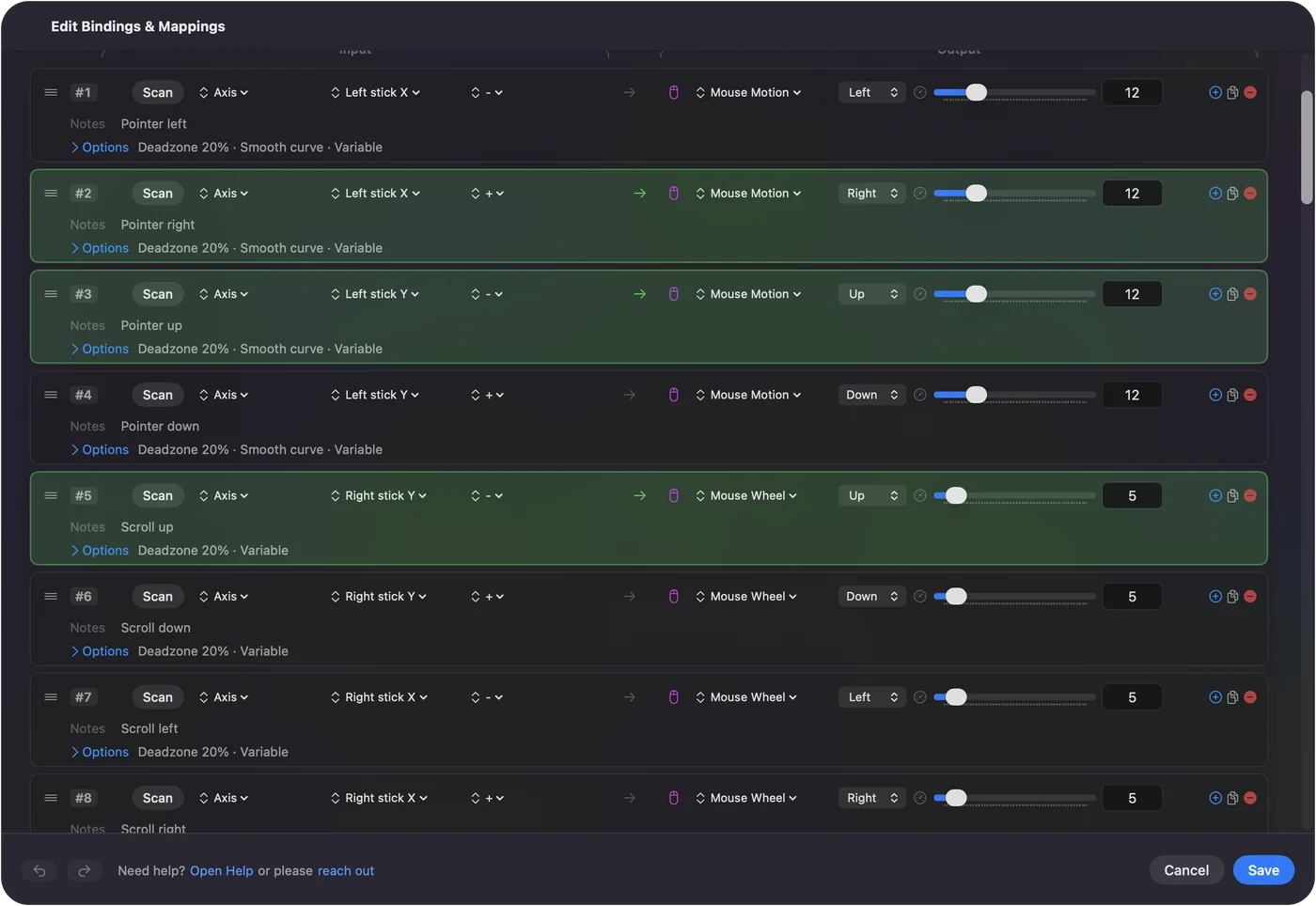
| Left stick | Pointer, Smooth curve |
| Right stick | Scroll (up / down) and horizontal scroll (left / right) |
| A / Cross | Click; hold for drag toggle |
| B / Circle | Right click |
| X / Square | Escape |
| Y / Triangle | Return; hold for Shift Return |
| D-pad | Arrow keys; hold for the same arrow with Option (word jumps) |
| Left trigger | Delete |
| Right trigger | Space |
| Start / Options | Start Dictation |
| Back / Share | Tab; hold for Shift Tab |
| L3 | Spotlight |
| R3 | Mission Control |
Hold LB to edit
| LB plus | Sends |
|---|---|
| A | Command C |
| B | Command V |
| X | Command X |
| Y | Command Z; hold for Command Shift Z |
| D-pad | Shift plus arrow (extend selection) |
| Left trigger | Command A |
| Right trigger | Command S |
| Start | Command F |
| Back | Command B (bold) |
Hold RB for apps and windows
| RB plus | Sends |
|---|---|
| A | Open App: Mail |
| B | Open App: Safari |
| X | Open App: Calendar |
| Y | Open App: Notes (change to your word processor) |
| D-pad left / right | Command Shift bracket (previous / next tab) |
| D-pad up / down | Control up / down (Mission Control and app windows) |
| Left trigger | Command Tab |
| Right trigger | Command W; hold for Command Q |
| Start | Type Text: your email address |
| Back | Type Text: your name |
- You: Open the preset in the editor and type your own details into the two Type Text rows. Add more on the holds.
- InputConfig: Types the whole string from one press.
- Check: Click into a form field, hold RB and press Start, and your email address appears, spelled right.
LB and RB have no plain-layer binding of their own, so holding them does nothing on its own. If you give them one later, a modifier's own output still fires when it goes down. The chords page explains the workaround.
Write with dictation, fix with the D-pad
Dictation on Start / Options handles prose. Punctuation and formatting are spoken: comma, new paragraph, cap. For anything dictation gets wrong, the D-pad word jumps (hold a direction for Option arrow) and the LB layer's selection and cut, copy, paste fix it without a keyboard. If Apple's Dictation falls short on long email, YapToText dictates into any app and cleans up what you said, free and on the Mac itself.
A spreadsheet is mostly arrows, Return, Tab, and typing numbers: a Type Text row per frequent value, or dictation for the rest. Passwords are the exception. The Passwords app and Touch ID fill most of them, and the macOS Accessibility Keyboard on screen is clickable from the stick for the rest. Speak the sentences, then fix them with word jumps and the editing layer.
Make a version for each app
- You: Duplicate the preset, rename it for one app, change the RB layer to that app's shortcuts, and add the app to its auto-switch list.
- InputConfig: Switches that preset in as the app comes to the front.
- Check: Bring the app forward, hold RB, and its own shortcuts fire.
Mail gets reply, archive, and next message on the face buttons under RB. The browser gets reload, new tab, and reader view. A MIDI pad controller in a second slot adds sixteen more buttons with no chords needed.
The short version
- Plain layer. Pointer, scroll, click, Return, Escape, arrows.
- LB layer. Copy, paste, cut, undo, select.
- RB layer. It holds your apps, tabs, windows and typed details.
- Dictation. Use it for anything longer than a few words.
Learn the plain layer for a day, then one bumper at a time.
Download
- Office Controller presetThe three layers above, with two Type Text placeholders to fill in and dictation on Start. 24 KB
To add a downloaded preset: drop the file on InputConfig's Dock icon, or click the … button next to any preset in the sidebar, choose Import Preset File, and pick the file. It lands in the sidebar, ready to activate or edit. Any launch target inside a preset file is cleared on import; add one yourself in the editor if you want it.
Questions
Is this faster than a keyboard?
For someone who types well, no. For someone who cannot type well, or cannot type for long, it is a complete replacement that does not hurt.
Can I use a MIDI pad as a fourth layer?
A pad controller in a second slot adds sixteen more buttons with no chords needed.
What about passwords?
The Passwords app and Touch ID fill most of them. For the rest, the macOS Accessibility Keyboard on screen is clickable from the stick.
Related
This page in other languages: العربية, Čeština, Dansk, Deutsch, Español, Suomi, Français, עברית, Magyar, Bahasa Indonesia, Italiano, 日本語, 한국어, Norsk, Nederlands, Polski, Português, Русский, Slovenčina, Svenska, ไทย, Türkçe, Українська, Tiếng Việt, 繁體中文, 简体中文
Completely free. You don't have to make an account, there are no subscriptions, and nothing is locked. Optimized for Apple silicon. Open source on GitHub.
Updated