A mouse alternative for tremor and short reach on a Mac
 InputConfig is completely free on the Mac App Store. You don't have to make an account, there are no subscriptions, and nothing is locked. Optimized for Apple silicon.
The best mouse alternative for tremor on a Mac is often a game controller stick, because a stick can ignore a shake that a mouse has to follow. macOS has no tremor filter of its own, and SteadyMouse, the best-known anti-tremor app, is Windows software. InputConfig makes a controller stick the mouse, with settings a mouse does not have: a deadzone that swallows the shake, a slow curve, and a click that waits for the hand to settle.
This guide is for hands that shake or do not reach far: essential tremor, Parkinson's, arthritis, an injury, or plain tiredness late in the day. It covers two problems with numbers to start from. A tremor means the stick shakes around wherever the thumb rests, so the pointer jitters and clicks land off target. Limited range means the stick never reaches the edge, so the pointer never reaches full speed. Allow half an hour with the person beside you. The Steady Pointer preset on this page has the starting numbers built in.
On this page: 13 sections
- Steps
- How to read this guide
- Try the Mac's own settings first
- Why there is no SteadyMouse for Mac
- Set up the stick step by step
- Make clicks land where you aimed
- If the stick is still too hard
- Arthritis: fewer presses, and lighter ones
- Start from the Steady Pointer preset
- What it cannot do
- The short version
- Download
- Questions
Steps
- Try the Mac's own settings first: a slower tracking speed, Slow Keys, Dwell, and Voice Control.
- Activate a pointer preset, or the Steady Pointer preset from this page, and watch the Live Visualizer with the thumb resting on the stick.
- Press Adjust live in a pointer row's Options and drag the Deadzone out until the shaking dot sits inside it.
- Set the curve to Smooth, lower Pointer speed on the preset's page, and try Ramp-up.
- Ask for a comfortable full push and drag Full push at in to where the dot stops.
- Make the click a hold, and lengthen hold and double-tap windows on the rows that use them.
- Use Stick settings on the device's menu to copy the deadzone to every stick row.
How to read this guide
Start where you are:
- If you are not sure a controller is needed, try the Mac's own settings first.
- If the pointer shakes, go to step 1 and work through the Deadzone.
- If the pointer never gets up to speed, go to Full push at.
- If you have arthritis and each press hurts, go to fewer presses, and lighter ones.
Try the Mac's own settings first
Some of this needs no app at all. Climb this ladder in System Settings, smallest step first:
- Tracking speed. Mouse, or Trackpad. A slower pointer turns a shake into a smaller movement.
- Slow Keys. Accessibility, Keyboard. A key has to be held for a moment before it counts, so a brushed or bounced key does not type.
- Dwell. Search for Dwell in System Settings. Resting the pointer for a set time clicks, so no button is pressed at all.
- Mouse Keys. Accessibility, Pointer Control. The pointer moves from the keyboard instead of the hand.
- Voice Control. Accessibility, Voice Control. Clicks, menus, and typing by voice.
If those are enough, you are done. If the pointer itself is still the problem, move it to a controller stick, where a shake can be ignored instead of followed.
Why there is no SteadyMouse for Mac
SteadyMouse filters the shake out of an ordinary mouse, and it is Windows software. Nothing on the Mac filters a normal mouse in software, InputConfig included: it listens alongside macOS, so a mouse's movement reaches the pointer before any app could change it.
The closest things are a hardware tremor filter that sits between the mouse and the Mac, or the controller setup on this page, which solves the same two problems, jitter and stray clicks, a different way. Is there a SteadyMouse for Mac compares the options.
Set up the stick step by step
Every number below is a starting point, not a prescription. Set them with the person, watching the Live Visualizer.
Step 1: See the shake and the reach
- You: Open any preset's page and ask the person to rest a thumb on the stick, then push as far as they comfortably can.
- InputConfig: The Live Visualizer draws the stick's dot as it really moves.
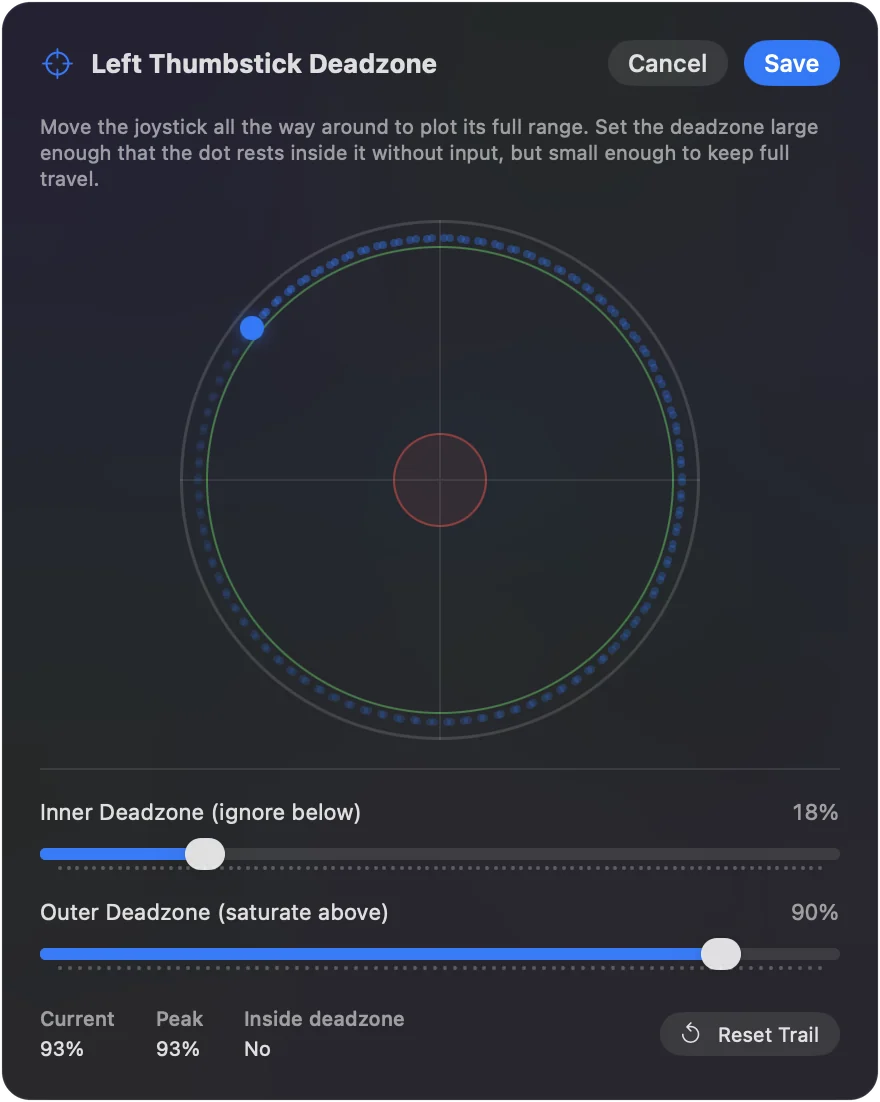
- Check: A tremor shows as a dot vibrating around a point near the center. Note how far out it reaches. Limited range shows as a dot that stops short of the ring. Note where it stops. Those two numbers are the settings.
Step 2: Swallow the shake with the Deadzone
- You: Open a pointer row's Options, press Adjust live, and drag the Deadzone out until the vibrating dot sits entirely inside it.
- InputConfig: Ignores everything inside the deadzone, so a resting thumb no longer moves the pointer, and the pointer stops the moment the stick is let go.
- Check: With the thumb resting, the pointer stays still. For a mild tremor that is usually 20 to 30 percent. For a strong one, 40 to 50.
Step 3: Slow the first bit of travel
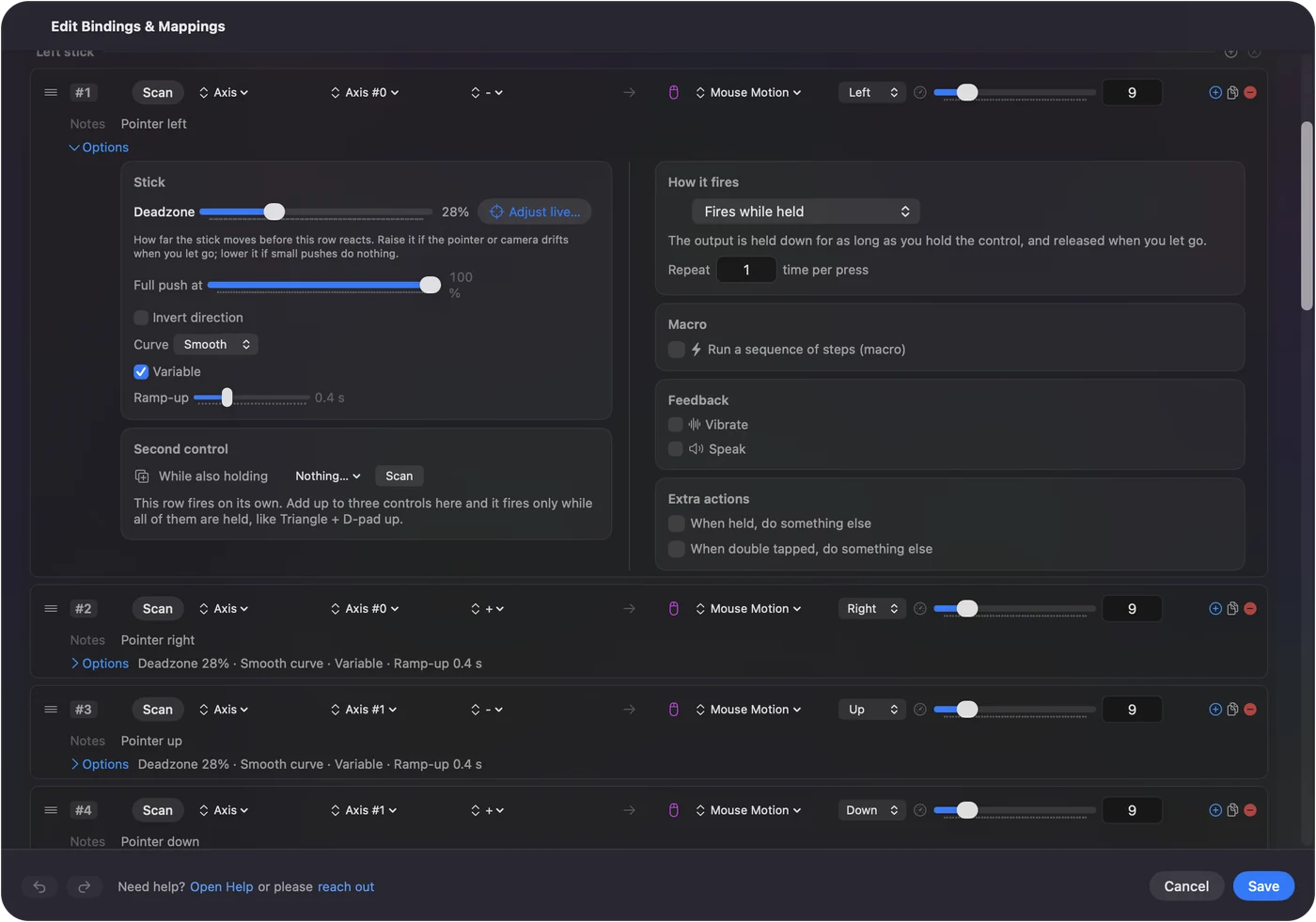
- You: Set the curve to Smooth, lower Pointer speed on the preset's page (half is a good start), and try Ramp-up in a pointer row's Options, up to one and a half seconds.
- InputConfig: Just outside the deadzone the pointer moves slowly, Pointer speed slows every pointer row at once, and each push starts slow and eases to full speed.
- Check: A sudden jolt no longer throws the pointer across the screen, and small targets can be reached. Tremor is amplified by speed, so lower it further if they still overshoot.
Step 4: Make a short push count as a full one
- You: In the same Adjust live plot, ask the person to push as far as is comfortable and hold it, then drag Full push at in to that point.
- InputConfig: Counts everything past it as full deflection, so their comfortable maximum is full speed.
- Check: A comfortable push now crosses the screen at a usable pace. Full push at is per row, so if one direction is shorter, set it separately. Raise Pointer speed if every direction still feels slow.
Step 5: Copy it to every stick row
- You: Open Stick settings on the device's menu.
- InputConfig: Applies the same deadzone to every axis row at once.
- Check: Every stick row shows its deadzone, so you can check them at a glance.
The Deadzone is for the shake, Full push at is for the reach, and the curve keeps the first bit of travel precise.
Make clicks land where you aimed
Clicking while shaking moves the pointer at the moment of the click. Two things help:
- A hold-to-click. Bind the click to a hold action with a 300 ms threshold, so the click fires after the button has been held still for a moment rather than on the press.
- Dwell. macOS clicks when the pointer rests for a set time. Search for Dwell in System Settings to find it. A stick with a wide deadzone pairs well with it, because letting go of the stick stops the pointer dead.
Timing matters too. Hold thresholds and double-tap windows default to values tuned for quick hands. Open Options on rows that use them and lengthen both: 800 ms holds and 500 ms double-tap windows are comfortable for many people with slower movement, and nothing else changes. Turbo rates can come down to 3 or 4 presses per second for scrolling. If the D-pad carries shortcuts, turn on D-pad one direction at a time on the preset's page, so a shaky press that brushes the next direction does not fire that row too. Let the click wait for the hand, not the other way around.
If the stick is still too hard
A stick is not the only way to point. Climb this ladder, from the steadiest input to the most flexible:
- The D-pad. Four rows with Mouse Motion at a fixed speed. No shake, because a D-pad is either pressed or not.
- Stick regions. Corner and edge regions on the stick as commands, with haptic feedback, for someone who can flick but not aim. A stick gesture, such as two quick flicks straight back, can be a command of its own too, and with Quick flicks only on, a push held out never counts.
- Motion. On a DualSense, DualSense Edge, or DualShock 4, the built-in Motion Cursor preset moves the pointer by turning the whole controller. Some people with a tremor find that easier, because a big, slow movement matters more than a small shake. Raise the deadzone on its motion rows: below it, movement is scaled down rather than cut, so a shaky hand barely moves the pointer while a deliberate turn still does. Hold the left bumper to park the pointer while you bring the controller back to a comfortable angle, which also helps when the wrist cannot turn far.
Arthritis: fewer presses, and lighter ones
With arthritis the problem is often less about aim and more about what each press and each grip costs. These settings cut both:
- Drag without holding. Turn on Toggle on a click row and a drag becomes press once to pick up, press again to drop, so no button is held down across the screen.
- Put the click where pressing hurts least. Any control can be the click, and more than one can. For some hands a trigger pulled with the whole finger is easier than a face button pressed with the thumb tip. For others a bumper is. Try each in the Live Visualizer and put the clicks on the winners.
- Scroll without flicking. Put scrolling on the second stick, or on a button with turbo at 3 or 4 steps a second, so a page scrolls while a finger rests.
- Fewer presses per job. A macro or Type Text puts a whole sequence on one button, and a chord gives the same few buttons a second layer, so the hand stays on the controls it uses well.
- No grip at all. If holding a controller hurts, the PlayStation Access Controller rests on a table and the Xbox Adaptive Controller has two large buttons and ports for switches. Both work in InputConfig the same way a gamepad does.
Every press you remove is one that cannot hurt.
Start from the Steady Pointer preset
The download on this page has the starting numbers built in:
- Deadzones. A 35 percent Deadzone and a Full push at of 75 percent.
- Pointer. The Smooth curve and half-speed pointer rows.
- Clicks. Hold-to-click at 300 ms on A, with a normal click on X for people who prefer it.
- Timing. 800 ms holds elsewhere.
Adjust from there with the Adjust live plot.
What it cannot do
- Steady a normal mouse or trackpad. InputConfig listens alongside macOS and cannot hold back or smooth their movement.
- Fix a deadzone pushed too far. Past 50 percent the usable travel gets small and the pointer feels like a switch. Combine a moderate deadzone with the Smooth curve and a low speed instead.
The short version
- Mac settings first. Tracking speed, Slow Keys and Dwell may be enough.
- Deadzone for the shake. Drag it past the vibrating dot in Adjust live.
- Full push at for the reach. Pull it in to where a comfortable push stops.
- A click that waits. Hold-to-click at 300 ms, and longer timing windows.
Watch the dot, set the two rings, and the shake stops reaching the pointer.
Download
- Steady Pointer presetWide deadzones, Smooth curve, slow pointer, hold-to-click, and long timing windows. 9 KB
To add a downloaded preset: drop the file on InputConfig's Dock icon, or click the … button next to any preset in the sidebar, choose Import Preset File, and pick the file. It lands in the sidebar, ready to activate or edit. Any launch target inside a preset file is cleared on import; add one yourself in the editor if you want it.
Questions
Is a bigger deadzone always better for a tremor?
Up to a point. Past 50 percent the usable travel gets small and the pointer feels like a switch. Combine a moderate deadzone with the Smooth curve and a low speed instead of pushing the deadzone alone.
Which controller is best for a tremor?
Heavier controllers damp shake a little. The Xbox controller and the DualSense are both good. Mounting the controller on a lap desk or a stand helps more than the choice of controller.
Can InputConfig steady my normal mouse?
No. It listens alongside macOS and cannot hold back or smooth the movement of a mouse or trackpad, so the shake still reaches the pointer. It steadies a controller stick used as the mouse instead, which is where the deadzone, curve, and hold-to-click settings apply.
Where is Dwell on a Mac?
Search for Dwell in System Settings. On recent macOS it sits in the Accessibility Keyboard's options under Accessibility, Keyboard. It clicks when the pointer rests for a set time, including a pointer moved by a controller through InputConfig.
Related
This page in other languages: العربية, Čeština, Dansk, Deutsch, Español, Suomi, Français, עברית, Magyar, Bahasa Indonesia, Italiano, 日本語, 한국어, Norsk, Nederlands, Polski, Português, Русский, Slovenčina, Svenska, ไทย, Türkçe, Українська, Tiếng Việt, 繁體中文, 简体中文
Completely free. You don't have to make an account, there are no subscriptions, and nothing is locked. Optimized for Apple silicon. Open source on GitHub.
Updated