Variable sensitivity
 InputConfig is completely free on the Mac App Store. You don't have to make an account, there are no subscriptions, and nothing is locked. Optimized for Apple silicon.
Variable Sensitivity makes a stick or trigger's output follow how far you push it: a small tilt moves the pointer a little, and a full push moves it fast. Switch it on in the Options of a stick or trigger row. It is what makes a stick feel like a mouse instead of a set of arrow keys.
Turn it on
- You: Expand Options on a stick or trigger row and switch on Variable Sensitivity.
- InputConfig: Multiplies mouse motion and scroll speed by how far the control is pushed, after the deadzone. A MIDI CC output follows the position too.
- Check: Tilt the stick a little and the pointer creeps; push it all the way and it runs at the row's full speed.
With it off, the output runs at the row's fixed speed whenever the control passes the deadzone. A motion row that moves the pointer always follows the tilt this way; a motion row that scrolls scrolls at a steady speed once the tilt passes the deadzone. On for pointing and scrolling, off for anything that should feel like a key.
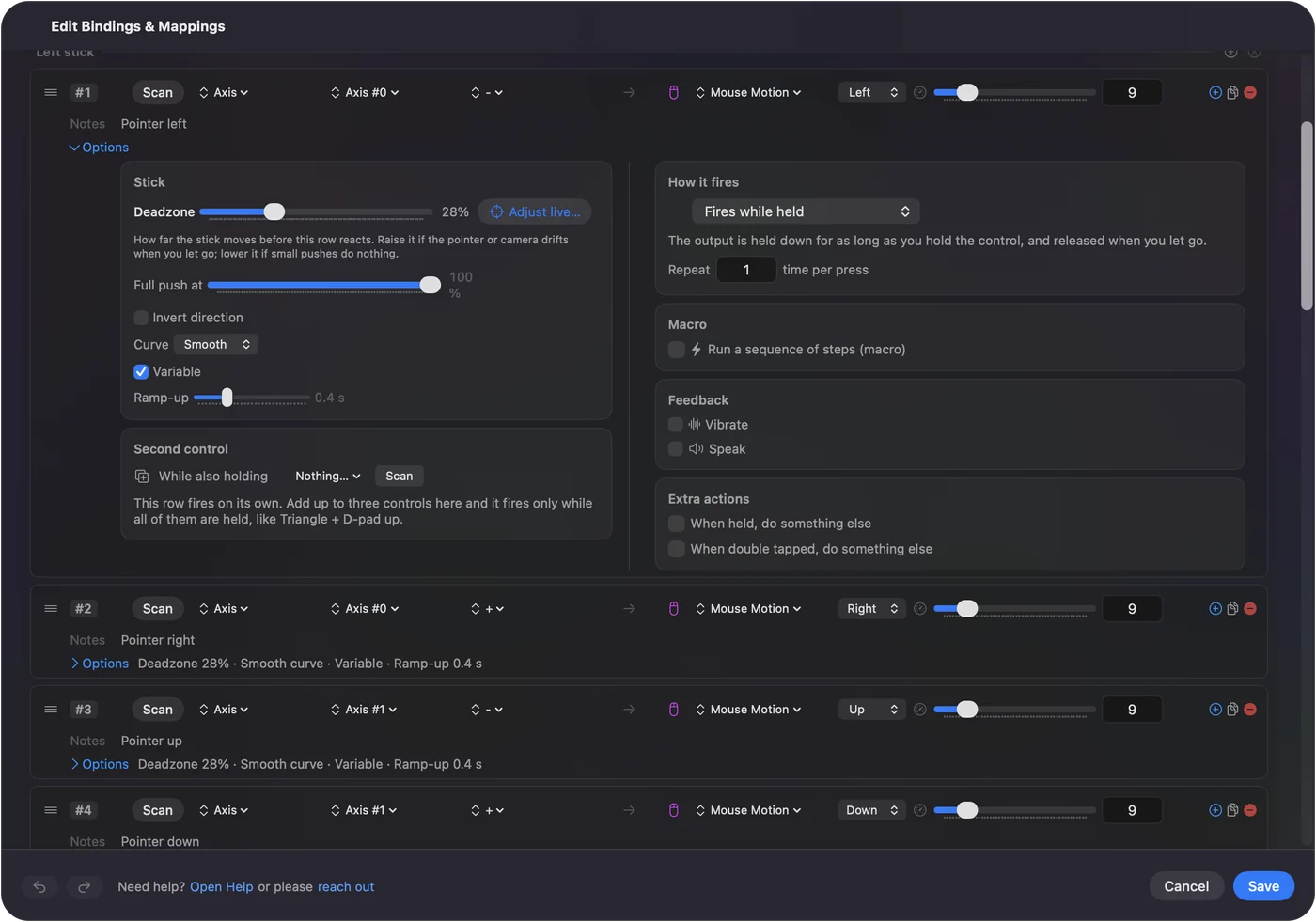
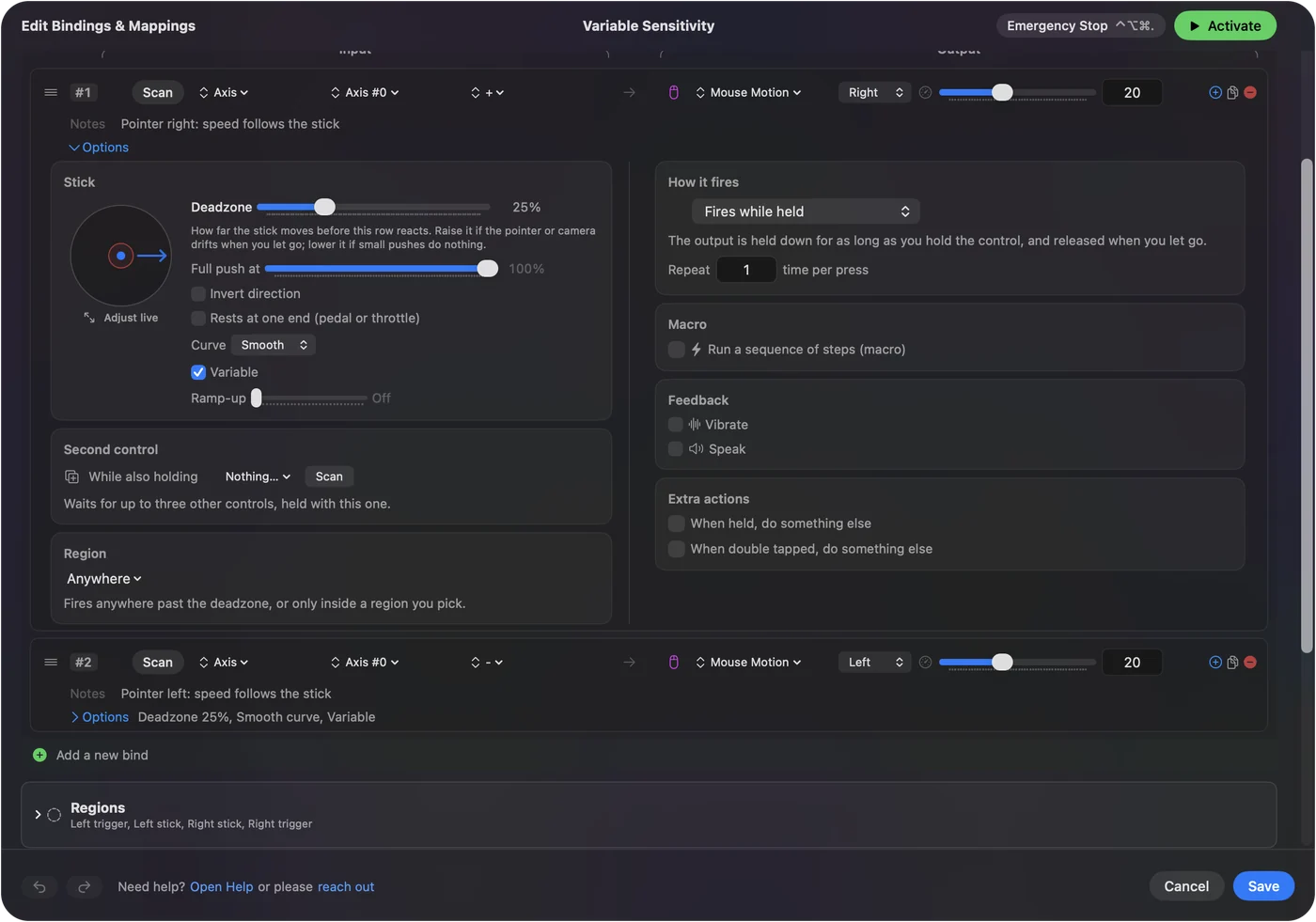
Choose a curve
- Linear. For scrolling and MIDI, where the output should mirror the hand.
- Smooth. For pointer control: precision near the center, speed when you push hard. The friendliest curve for a tremor.
- Aggressive. For aiming, where snapping to full speed matters.
The Variable Sensitivity preset puts Smooth on the right stick and Aggressive on the left so you can feel them side by side. Try both sticks of that preset before you choose; the difference is easier felt than read.
Set the speed
Each Mouse Motion row has its own speed, the maximum at full push. A preset also has Pointer speed and Scroll speed on its own page: Pointer speed scales every row that moves the pointer, and Scroll speed every row that scrolls. Change one row's speed for one stick, or Pointer speed for the whole preset.
If the pointer creeps or races
Climb this ladder, smallest step first:
- It moves when you let go. The stick rests slightly off center. Raise the Deadzone, or press Adjust live to see where it rests. See deadzones.
- It is too fast. Lower the row's speed, which is the maximum at full push.
- Small moves are jumpy. Switch the curve to Smooth so the first part of the travel stays gentle.
- Every pointer row is too fast. Lower Pointer speed on the preset's page; Scroll speed does the same for scrolling.
Creeping is a deadzone problem; racing is a speed problem.
The short version
- Switch it on. In a stick or trigger row's Options.
- Pick a curve. Smooth for pointing, Linear for scrolling and MIDI, Aggressive for aiming.
- Set the speed. Per row, or Pointer speed and Scroll speed for the preset.
Smooth plus a sensible speed suits most hands.
Questions
Why does the pointer creep when I let go?
The stick rests slightly off center. Raise the Deadzone, or press Adjust live to see where it rests.
The stick is too sensitive. How do I slow it down?
Lower the row's speed, which is the maximum at full push, and switch the curve to Smooth so the first part of the travel stays gentle. To slow every pointer row in a preset at once, use Pointer speed on the preset's page; Scroll speed does the same for scrolling. If the pointer moves when you are not touching the stick, that is drift: raise the Deadzone.
Related
Completely free. You don't have to make an account, there are no subscriptions, and nothing is locked. Optimized for Apple silicon. Open source on GitHub.
Updated