Your first preset
 InputConfig is completely free on the Mac App Store. You don't have to make an account, there are no subscriptions, and nothing is locked. Optimized for Apple silicon.
Five minutes gets you from install to a controller that moves the pointer, clicks, scrolls and types in every app on the Mac. You install InputConfig, connect a controller, activate the built-in Desktop Navigation preset, and switch on one permission when macOS asks for it. Most of the five minutes is that permission. This page is for the first time you open the app. If the pointer does not move after that, go to the permission ladder.
On this page: 9 sections
Steps
- Install InputConfig from the Mac App Store and open it. It needs macOS 14 or later.
- Connect a controller with a USB-C cable, or pair it in System Settings, Bluetooth. It shows up at the top of the sidebar within a few seconds, with its battery level.
- In the sidebar, open Desktop & Productivity and click Desktop Navigation.
- Click Activate. The first time, macOS asks for the Accessibility permission. Open System Settings, Privacy & Security, Accessibility, and switch InputConfig on.
- Move the left stick. The pointer moves. Press A / Cross to click. The right stick scrolls.
- To stop, click Deactivate, or hold Back and Start together on the controller for three seconds. That hold is the emergency stop and it works no matter what the preset maps those buttons to.
Allow the one permission
InputConfig turns controller input into the same keyboard and mouse events a real keyboard sends, and macOS only lets an app do that with the Accessibility permission.
- You: Click Activate on Desktop Navigation. When macOS asks, open System Settings, Privacy & Security, Accessibility, and switch InputConfig on.
- macOS: Lets InputConfig send keystrokes, clicks and pointer movement to other apps. Rows start working the moment the permission is granted.
- Check: Move the left stick and the pointer moves. If the InputConfig icon in the menu bar is orange, the running preset is still waiting for the permission.
The permission is mostly about sending. The app watches your own keyboard, mouse or trackpad only when a preset uses one of their keys or buttons as an input, and then only while that preset, Scan or the Live Visualizer needs it. Keys are only listened to, so a bound key still does its normal job. A mouse's middle or side button is held back from its own action only when its row turns on Block the button's own action. All of that rides on the same permission. For most setups nothing else is asked for, and the app has no network access. A controller that also acts as a keyboard needs Input Monitoring, and macOS may ask about Bluetooth when you use Disconnect on a Bluetooth controller. More on what the Accessibility permission allows.
What Desktop Navigation does
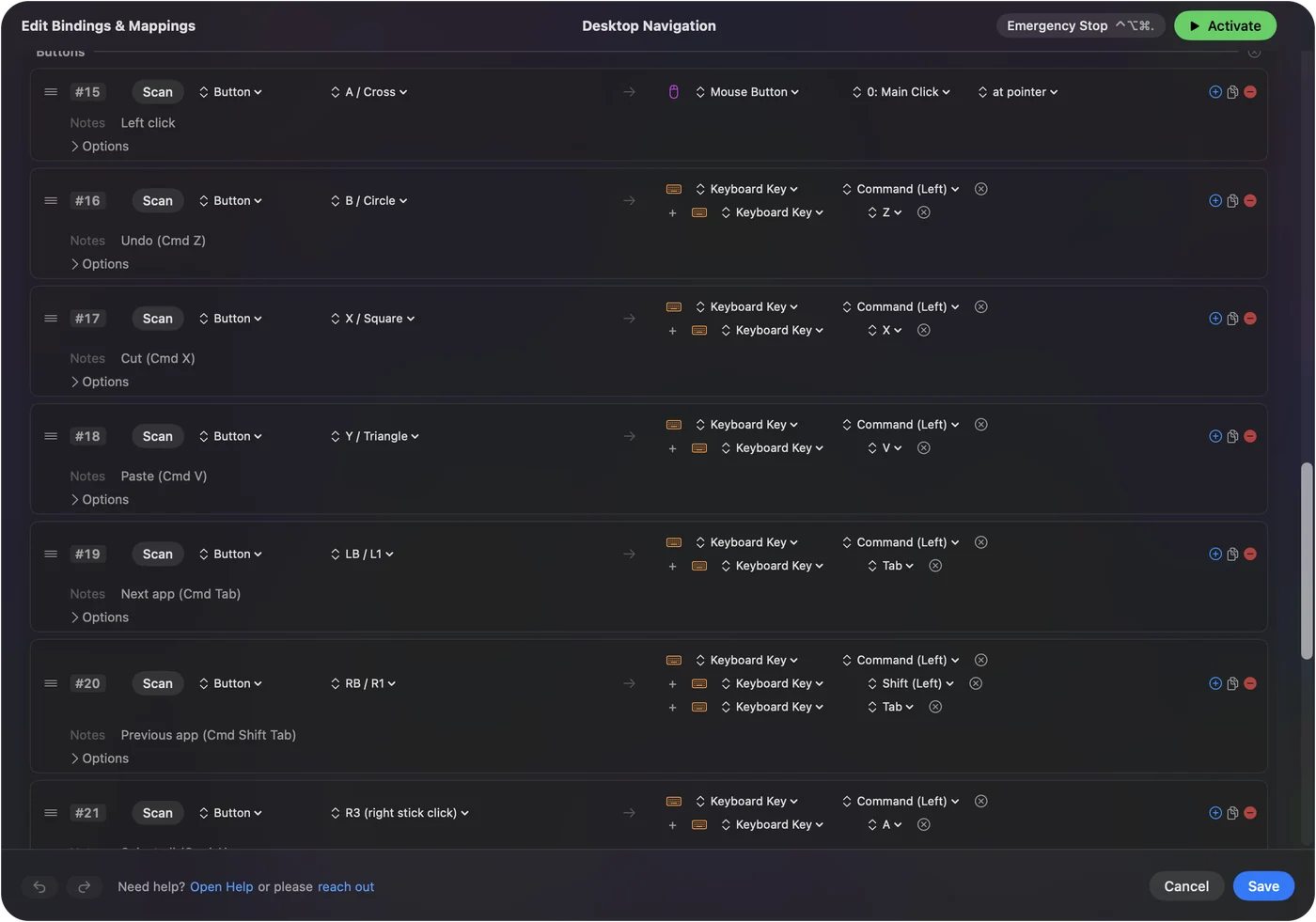
Desktop Navigation is a pointer plus the everyday shortcuts, for using the Mac without touching the keyboard.
- Point and scroll. The left stick moves the pointer: a small push is precise and a full push is fast. The right stick scrolls.
- Click. The right trigger is left click and the left trigger is right click. A / Cross clicks too.
- Edit. B / Circle undoes, X / Square cuts and Y / Triangle pastes. Pressing the right stick selects all.
- Get around. The bumpers switch apps and the D-pad sends the arrow keys. Back / Share opens Spotlight and Start / Options presses Return.
There is no copy button in the layout; add a row for Command C, or change B. Every row carries a note saying what it does, so the preset explains itself.
Change one thing
Every row in the editor is one control and what it sends, so a change is one row.
- You: Click Edit. To change what a button does, change the output on its row. To move a row to a different button, press Scan on the row and press the button you want. Then click Save.
- InputConfig: Saves the preset, and a running preset picks the change up at once.
- Check: Choose Activate at the top of the editor, press the button and watch the new output happen. A preset that is on keeps working while you edit, so turn it off again with Deactivate before you change much more.
Change one row, try it, then change the next. The binding editor page explains every part of a row.
Make a preset of your own, step by step
Desktop Navigation gets you moving. This part builds a preset from nothing, one row at a time, so you can see how every other preset is made. It takes about five minutes, and you need a controller connected.
Step 1: Start a new preset
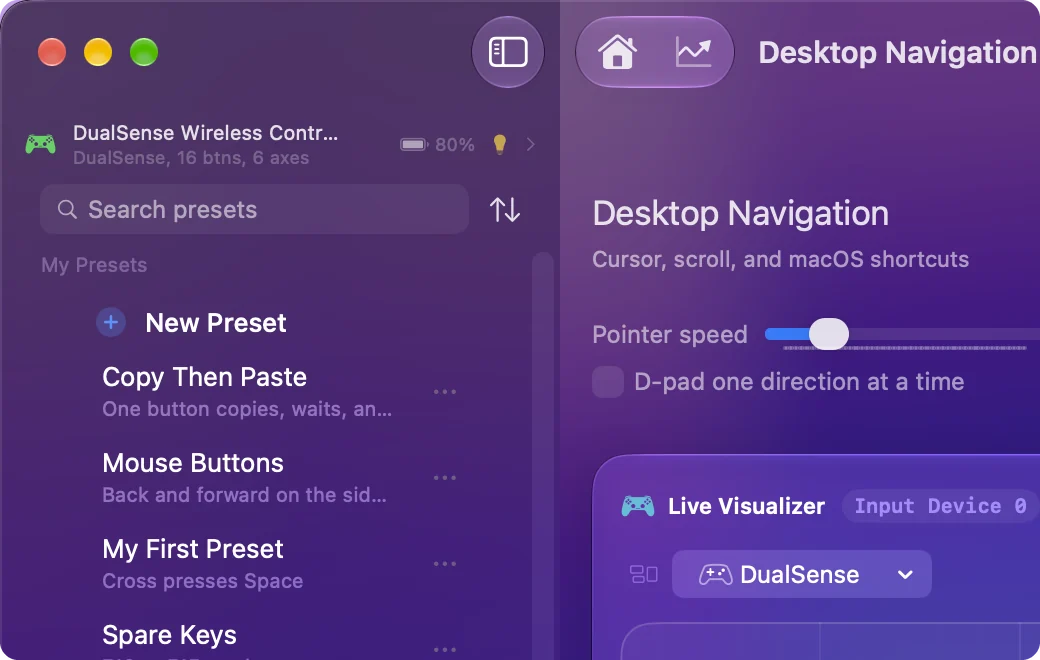
Click New Preset at the top of the sidebar. Your controller is listed just above it, which tells you InputConfig can see it.
Step 2: Name it
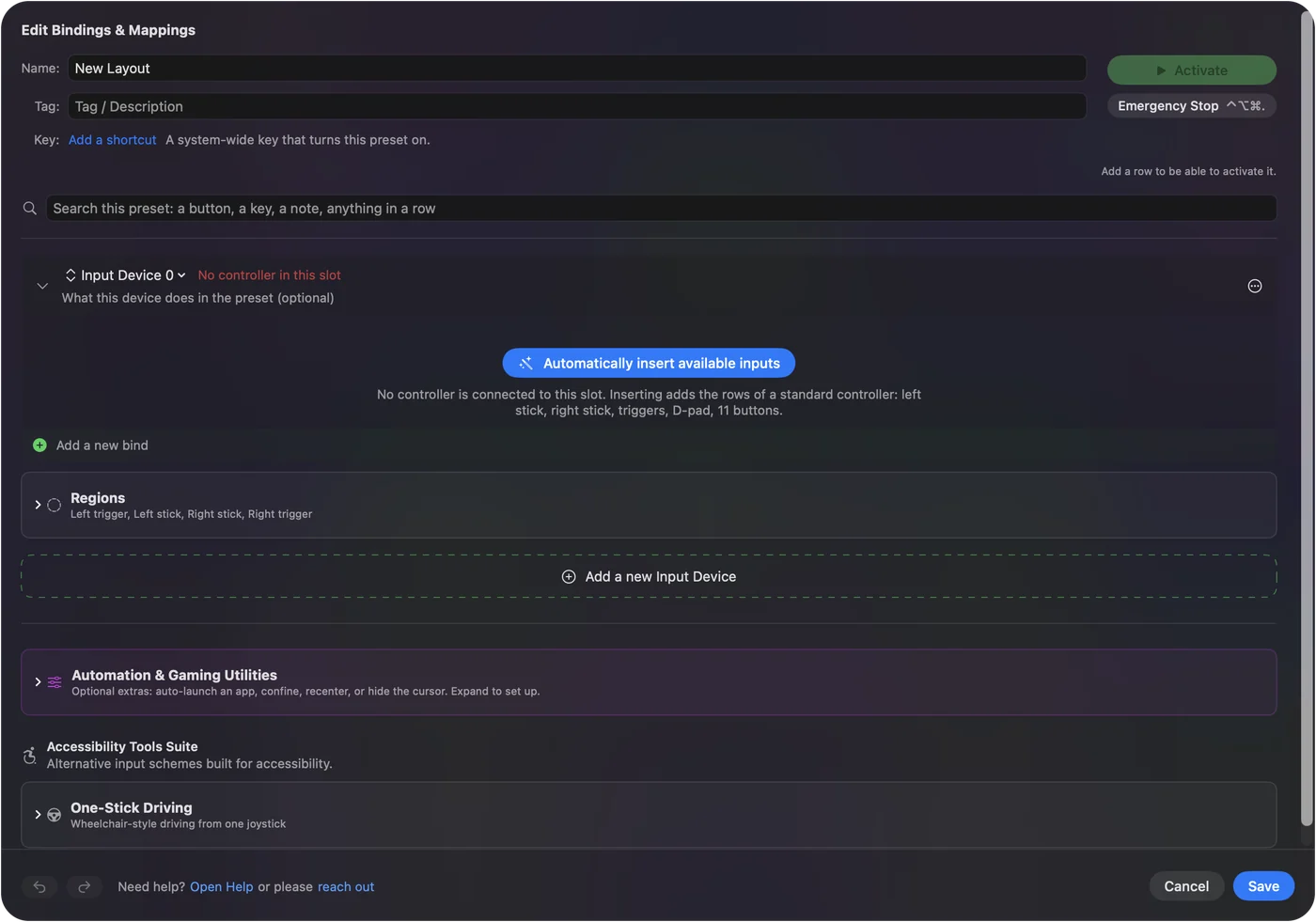
The editor opens on an empty preset. Type a name, and a tag if you want a line of description under it in the sidebar. Below those is one empty input device, waiting for rows.
Step 3: Let InputConfig add the rows
Click Automatically insert available inputs. InputConfig names the controller it found and adds a row for each of its controls, grouped by part. Every row is waiting for an output.
You can also skip this and click Add a new bind for one row at a time.

Step 4: Point a row at a button with Scan
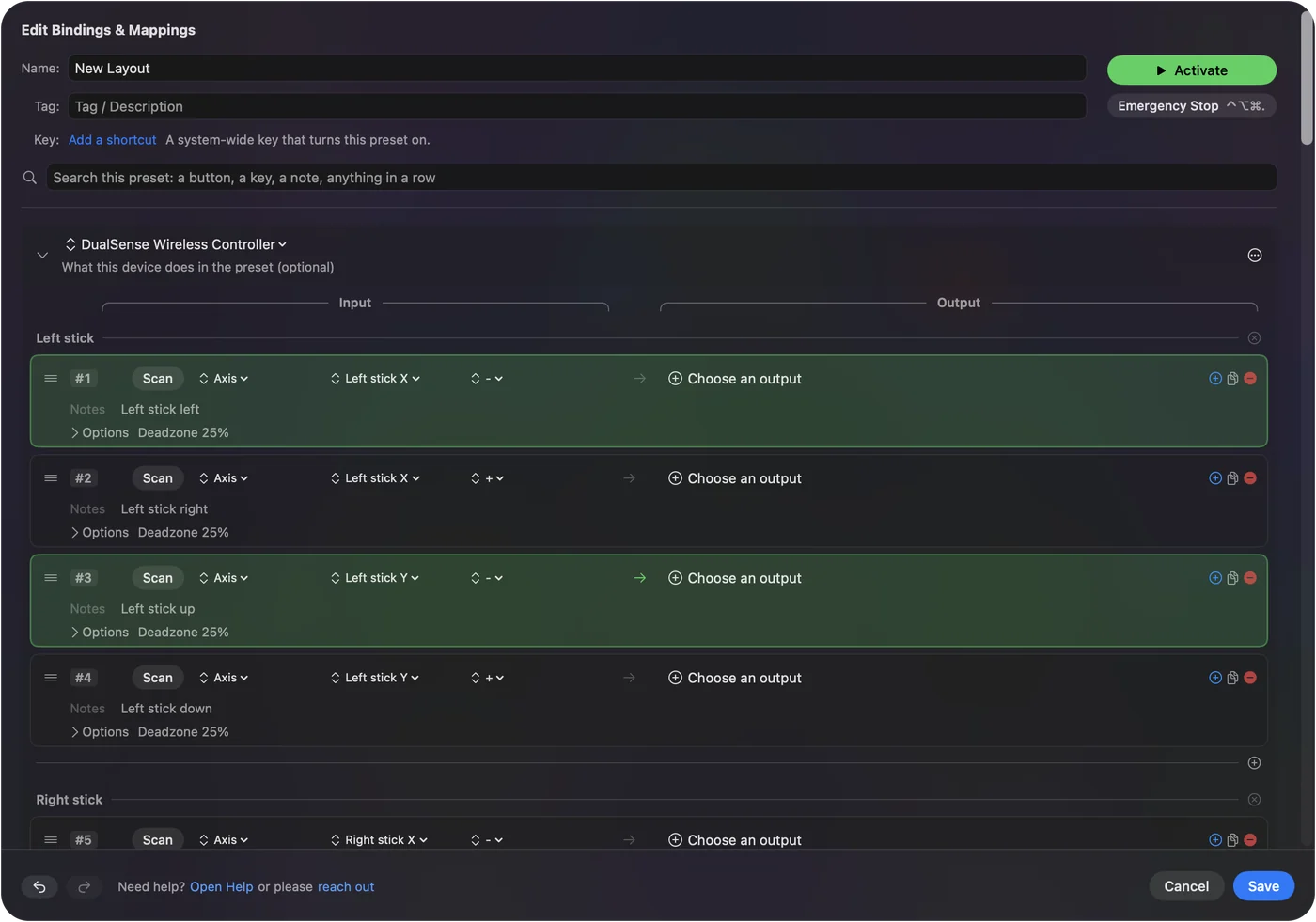
To choose a row's control by pressing it, click Scan on the row. The row waits. Press the button on the controller, and the row takes it as its input.
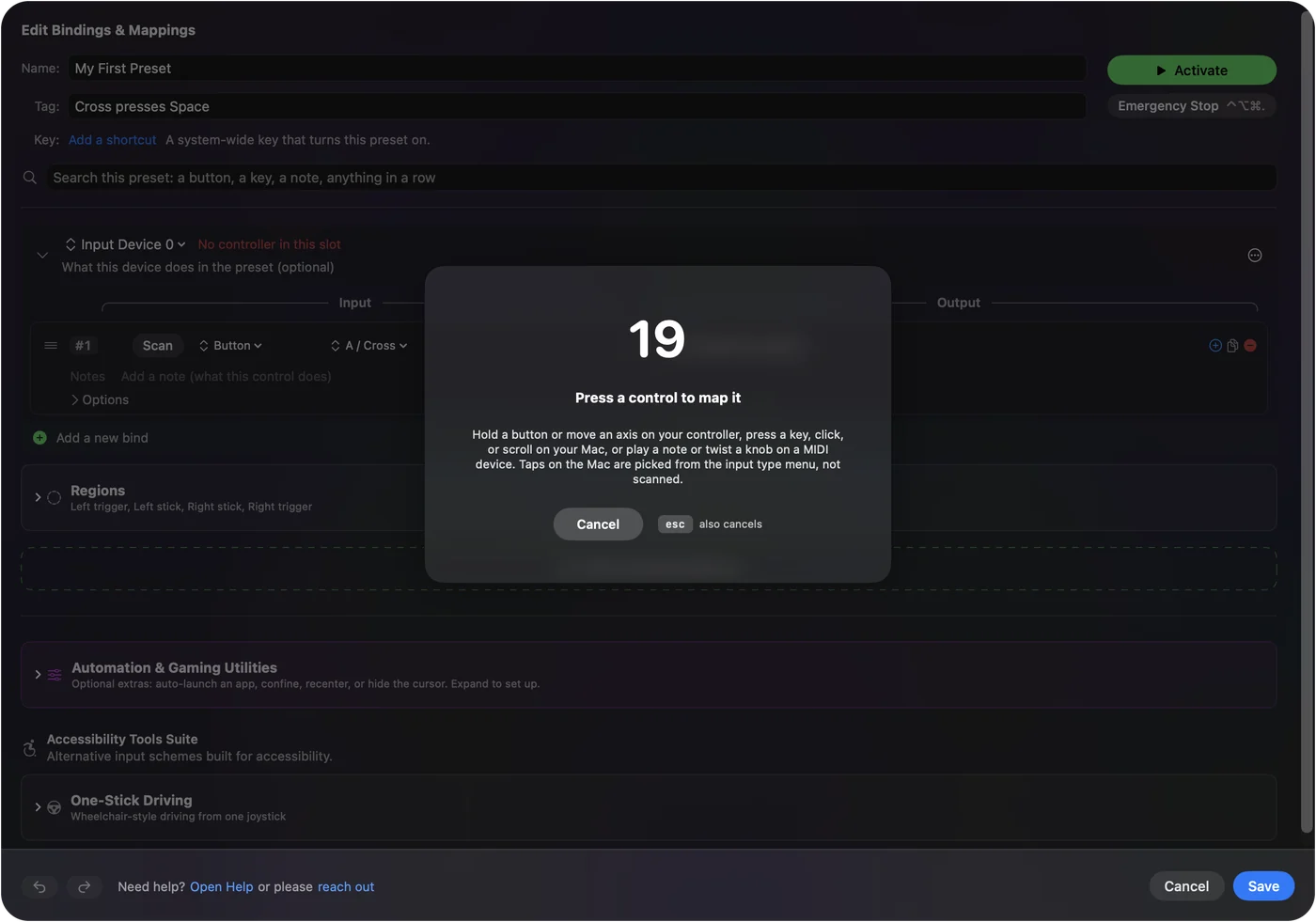

Step 5: Choose what it sends
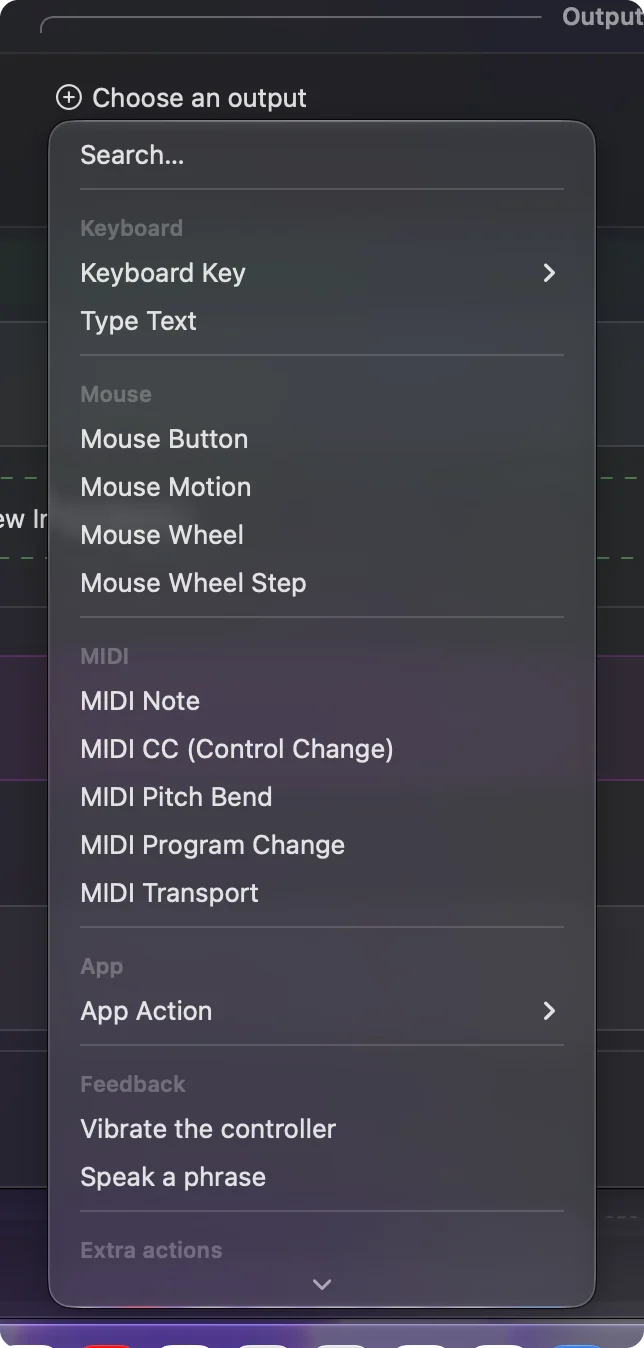
On the right side of the row, open the output menu and pick the kind of thing the row sends. For a key, choose Keyboard Key, then pick the key. This row sends Space.

Step 6: Look at Options, then leave them
Options under a row holds the extras: repeating, toggling, a different action on a hold or a double tap, a macro, and a buzz or a spoken word as feedback. A first preset needs none of them. Just know where they are.
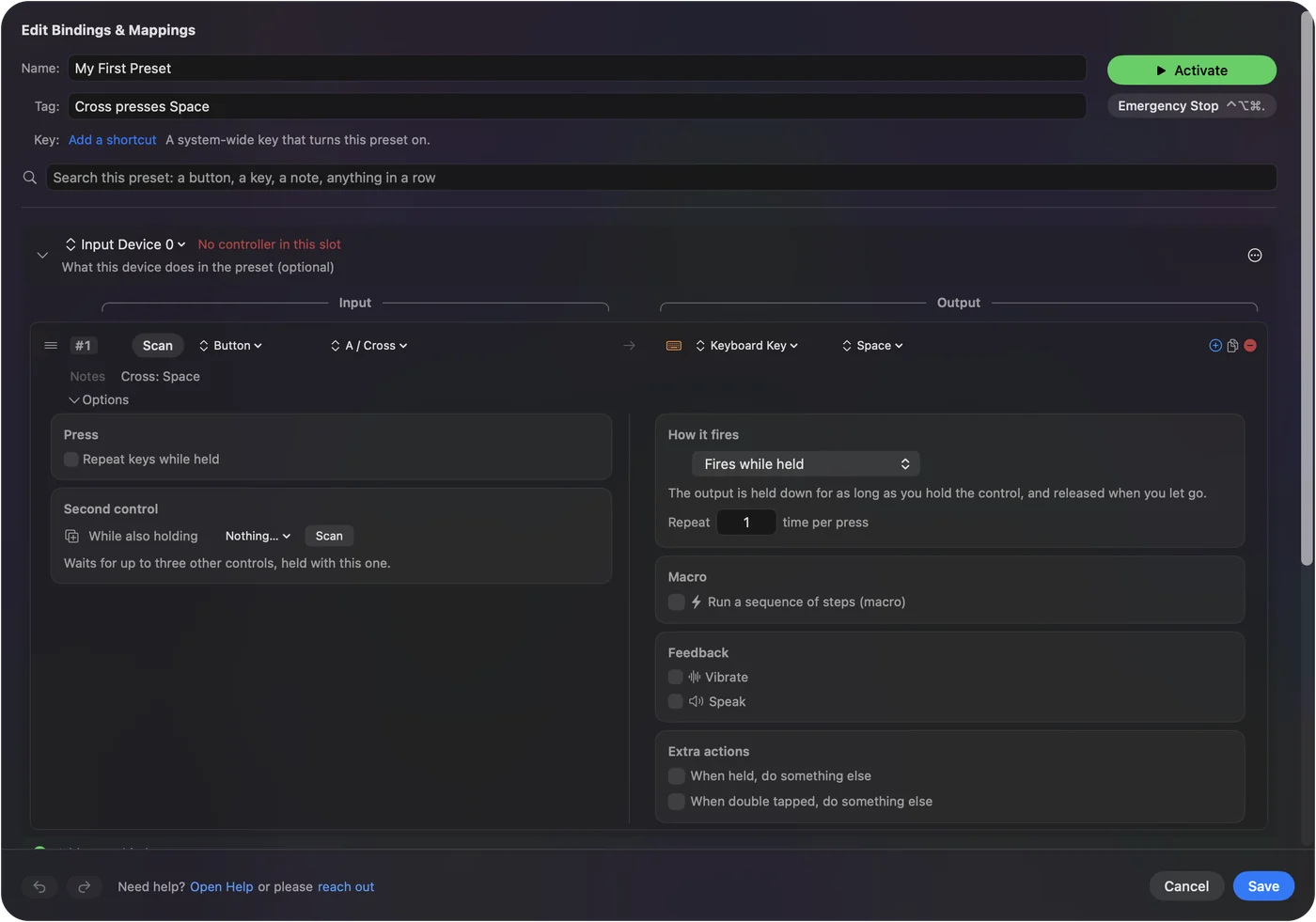
Step 7: Save and activate
Click Save. The editor closes and the preset's page shows your layout in the Live Visualizer. Click Activate, and allow the Accessibility permission if macOS asks. Press the button: its label lights up, and Space is typed wherever the cursor is.
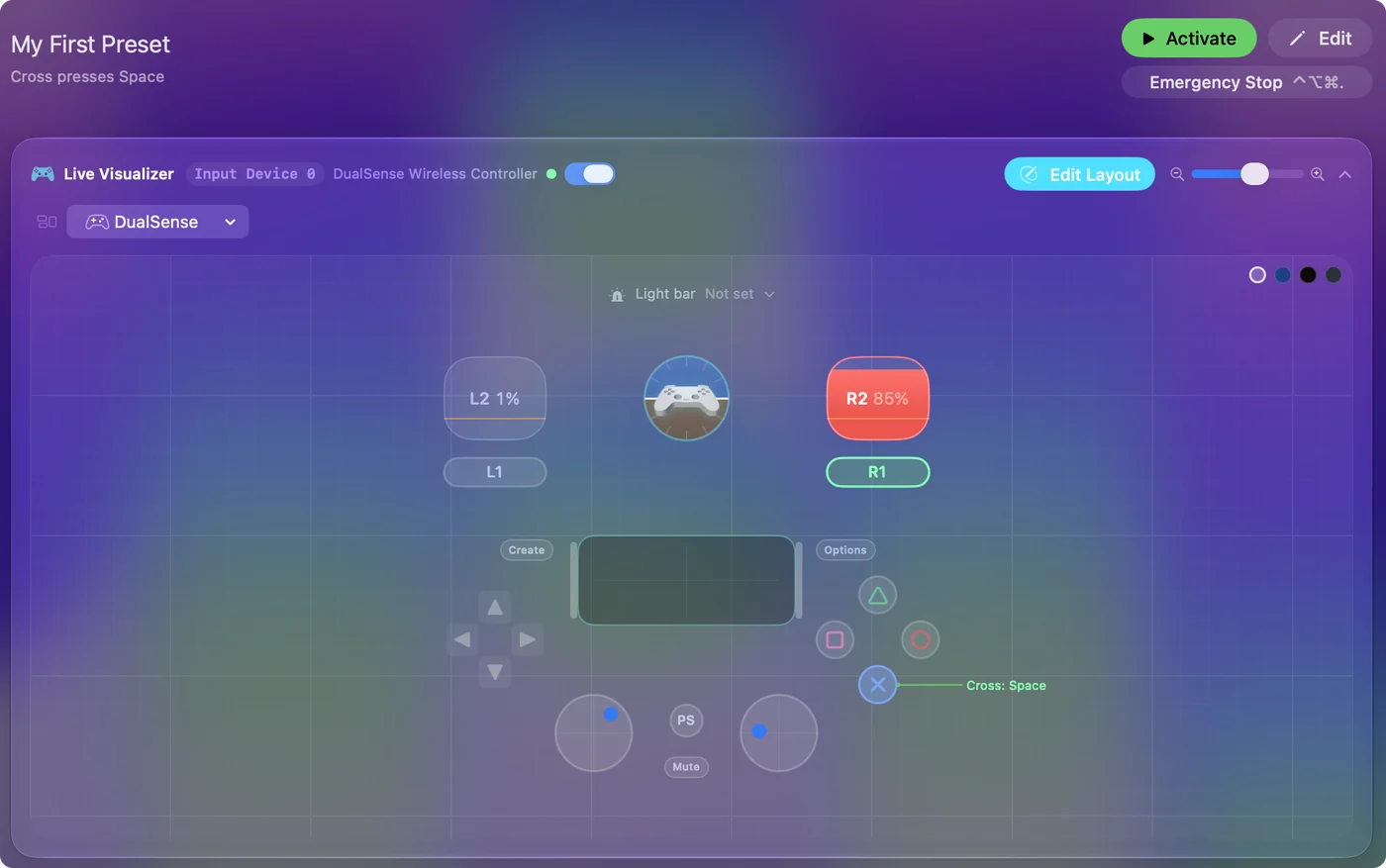
Step 8: Know where to stop it
A running preset shows in the menu bar. Click the InputConfig icon there to see which preset is running and to stop it. The emergency stop from earlier works here too.
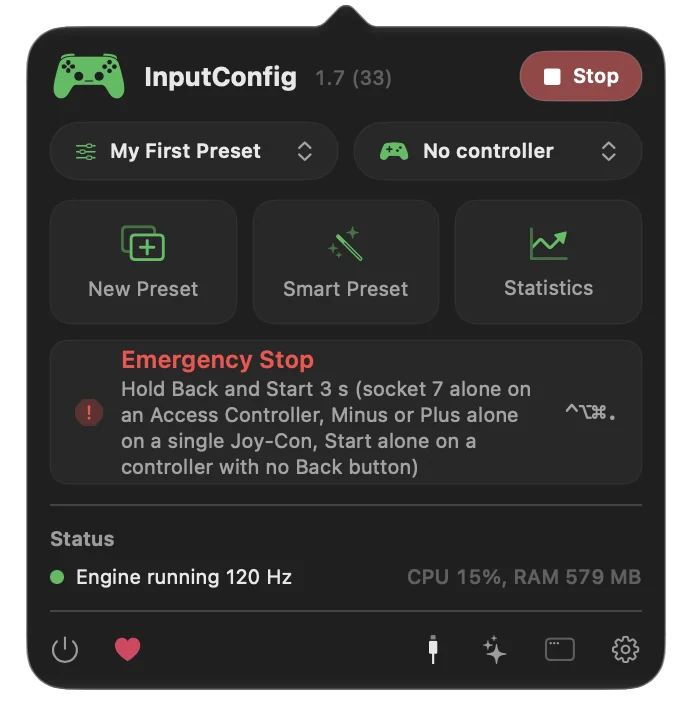
A preset is a list of rows, and a row is one control and what it sends. Everything else in the app is a variation on these eight steps. The binding editor page covers each part of a row.
If the pointer does not move
A missing permission is the usual cause, so climb this ladder, smallest step first:
- Check the permission. Open System Settings, Privacy & Security, Accessibility, and make sure InputConfig is switched on.
- Remove it and add it again. If it is already on the list and the pointer still does not move, remove it with the minus button, add it again, and relaunch InputConfig.
- Check the preset is running. The button on the preset's page reads Deactivate while it runs. If it reads Activate, click it.
- Check the controller. It should be at the top of the sidebar with its battery level. If it is not, connecting a controller has the fixes.
Start at the top: the permission is the step people skip.
If your Mac is not in English
The permission step reads System Settings, Privacy & Security, Accessibility. On a Mac set to another language, the same three places are called:
| Mac language | System Settings | Privacy & Security | Accessibility |
|---|---|---|---|
| Spanish (Spain) | Ajustes del Sistema | Privacidad y seguridad | Accesibilidad |
| Spanish (Latin America) | Configuración del Sistema | Privacidad y seguridad | Accesibilidad |
| Portuguese (Brazil) | Ajustes do Sistema | Privacidade e Segurança | Acessibilidade |
| Portuguese (Portugal) | Definições do Sistema | Privacidade e segurança | Acessibilidade |
| French | Réglages Système | Confidentialité et sécurité | Accessibilité |
| German | Systemeinstellungen | Datenschutz & Sicherheit | Bedienungshilfen |
| Italian | Impostazioni di Sistema | Privacy e sicurezza | Accessibilità |
| Japanese | システム設定 | プライバシーとセキュリティ | アクセシビリティ |
| Korean | 시스템 설정 | 개인정보 보호 및 보안 | 손쉬운 사용 |
| Chinese (Simplified) | 系统设置 | 隐私与安全性 | 辅助功能 |
| Chinese (Traditional) | 系統設定 | 隱私權與安全性 | 輔助使用 |
These are the names on macOS 26 Tahoe; older versions may word them a little differently. InputConfig itself comes in 26 languages: it follows the language set for it in System Settings, or pick one in Settings, General, Language. The mapping works the same in every language. Key names follow your keyboard layout, covered in the binding editor help.
The short version
- Install and connect. InputConfig from the Mac App Store, then a controller by cable or Bluetooth.
- Activate Desktop Navigation. Allow Accessibility once when macOS asks.
- Stop any time. Click Deactivate, or hold Back and Start together for three seconds.
- Then make it yours. Change one row at a time, or start a layout for a game with the Smart Preset Maker.
Five minutes of setup, and the controller runs the whole Mac.
Questions
Do I need drivers?
No. macOS handles the controller over USB or Bluetooth and InputConfig reads it through Apple's own framework. MIDI devices are found on their own too.
Does it work with games that have no controller support?
The game sees a keyboard and a mouse, because that is what InputConfig sends.
Is InputConfig free?
It is free and open source on the Mac App Store, with no account and nothing locked. The optional tip jar unlocks nothing.
I searched the Mac App Store for a controller mapper and InputConfig was not at the top. How do I find it?
Search for InputConfig, one word. App Store search ranks apps with words like mapper or gamepad in their name first, so a search for controller mapper can list other apps above it. The right one is by Ryleigh Newman, free, for macOS 14 or later.
Can I download InputConfig from GitHub instead?
The full source code is on GitHub under the MIT license, but the GitHub releases are source only, with no ready-to-run app attached. The signed, ready-to-run copy is the free one on the Mac App Store. If you would rather build it yourself, open the project in Xcode 26 or later, choose your own signing team, and build; the README has the steps.
Is InputConfig available in my language?
Yes, in 26 languages: Arabic, Chinese (Simplified and Traditional), Czech, Danish, Dutch, Finnish, French, German, Hebrew, Hungarian, Indonesian, Italian, Japanese, Korean, Norwegian, Polish, Portuguese, Russian, Slovak, Spanish, Swedish, Thai, Turkish, Ukrainian and Vietnamese. The editor, the built-in presets, the Smart Preset Maker and this help are all translated. InputConfig follows the Mac's language; to pick another, open Settings, General, Language and choose Restart Now.
Related
Completely free. You don't have to make an account, there are no subscriptions, and nothing is locked. Optimized for Apple silicon. Open source on GitHub.
Updated