Presets and folders
 InputConfig is completely free on the Mac App Store. You don't have to make an account, there are no subscriptions, and nothing is locked. Optimized for Apple silicon.
A preset is one complete layout: every binding for every connected device, plus its automation. One preset runs at a time, and the sidebar holds all of them in folders. The app ships with dozens of built-in presets to start from, and this page covers keeping your own in order.
On this page: 7 sections
Organize the sidebar
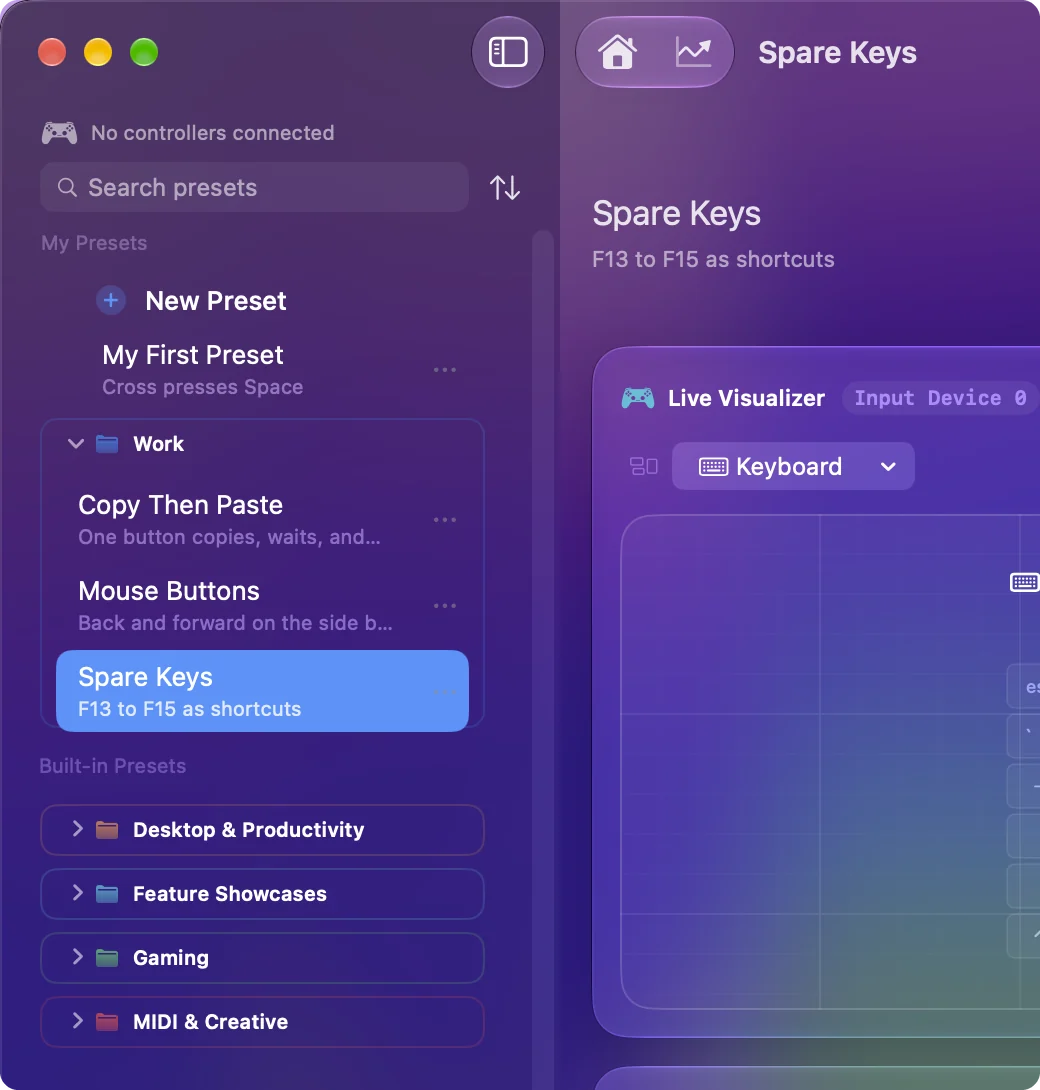
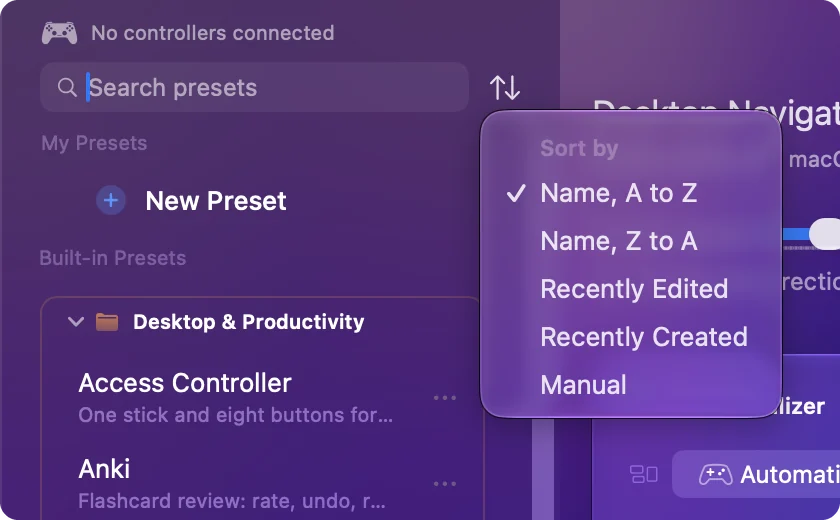
- Reorder. Drag a preset up or down and drop it where you want it. The order you set is kept.
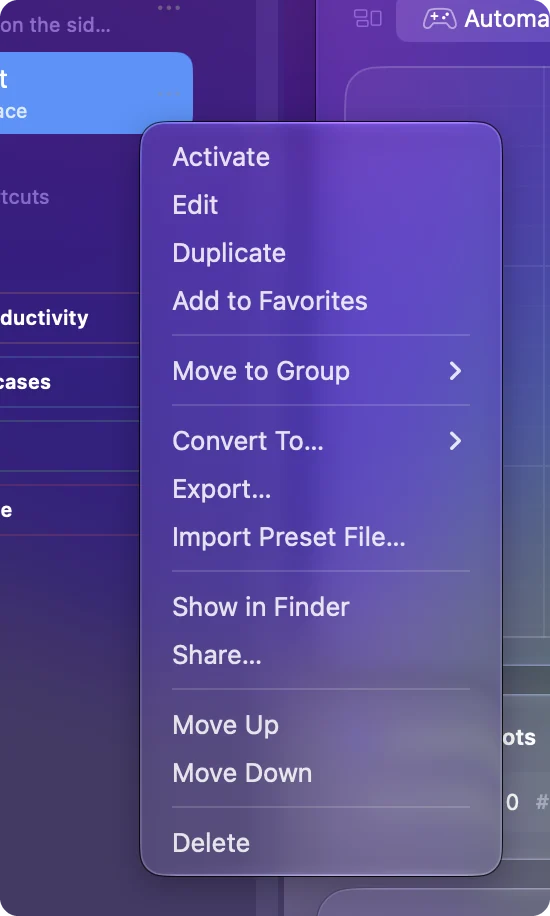
- Folders. Drop a preset on a folder header to move it in. New Group in a preset's menu makes a folder, and folders nest. A preset's menu also has Move to Group and Remove from Group.
- Folder menu. A folder's menu renames it, gives it a color, adds a subfolder, or moves it under another.
- Trash. Deleting a folder moves it and everything in it to the Trash at the bottom of the sidebar, where it can be put back whole. Deleting a folder and Empty Trash both ask first.
Nothing you delete is gone until you empty the Trash.
Star your favorites
Click the star on a preset to make it a favorite. The star in the sidebar header shows only favorites, there and in the menu bar list, and clicking it again shows the whole library. Removing the last star turns the filter off. Star the four or five you use every day and the list stays short.
Duplicate, convert and share
- Duplicate. Makes an exact copy.
- Convert To. Makes a new preset beside the original for another controller family, so an Xbox layout gets a PlayStation twin with the same bindings. The shortcut and app list stay with the original.
- Export. Writes the preset to a JSON file.
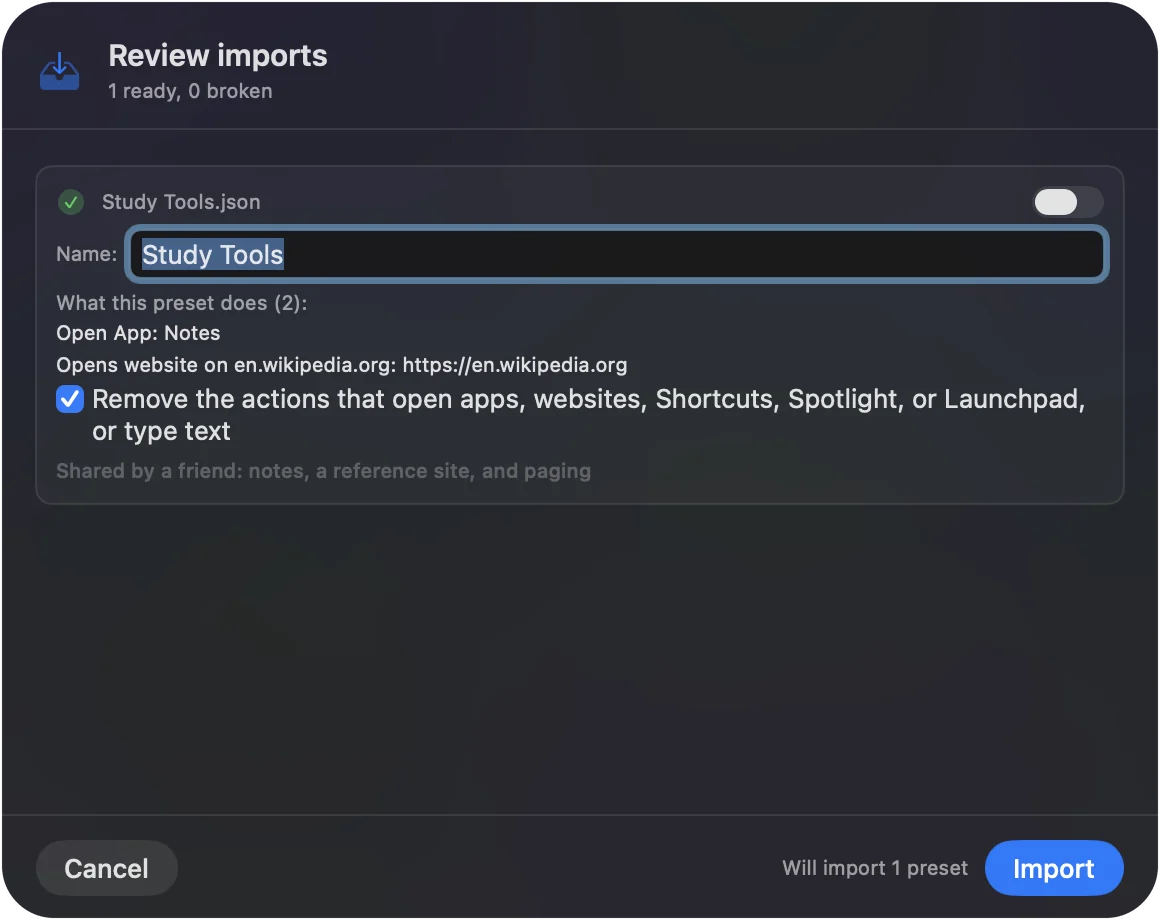
- Import. Open a preset file, drop it on the Dock icon, or choose Import Preset File from the menu next to any preset. Actions that open apps or websites can be removed first, and the sharer's own shortcut stays behind. The import review shows every action, macro and pointer setting in full, and an imported preset asks before its first start, with a list of what it does.
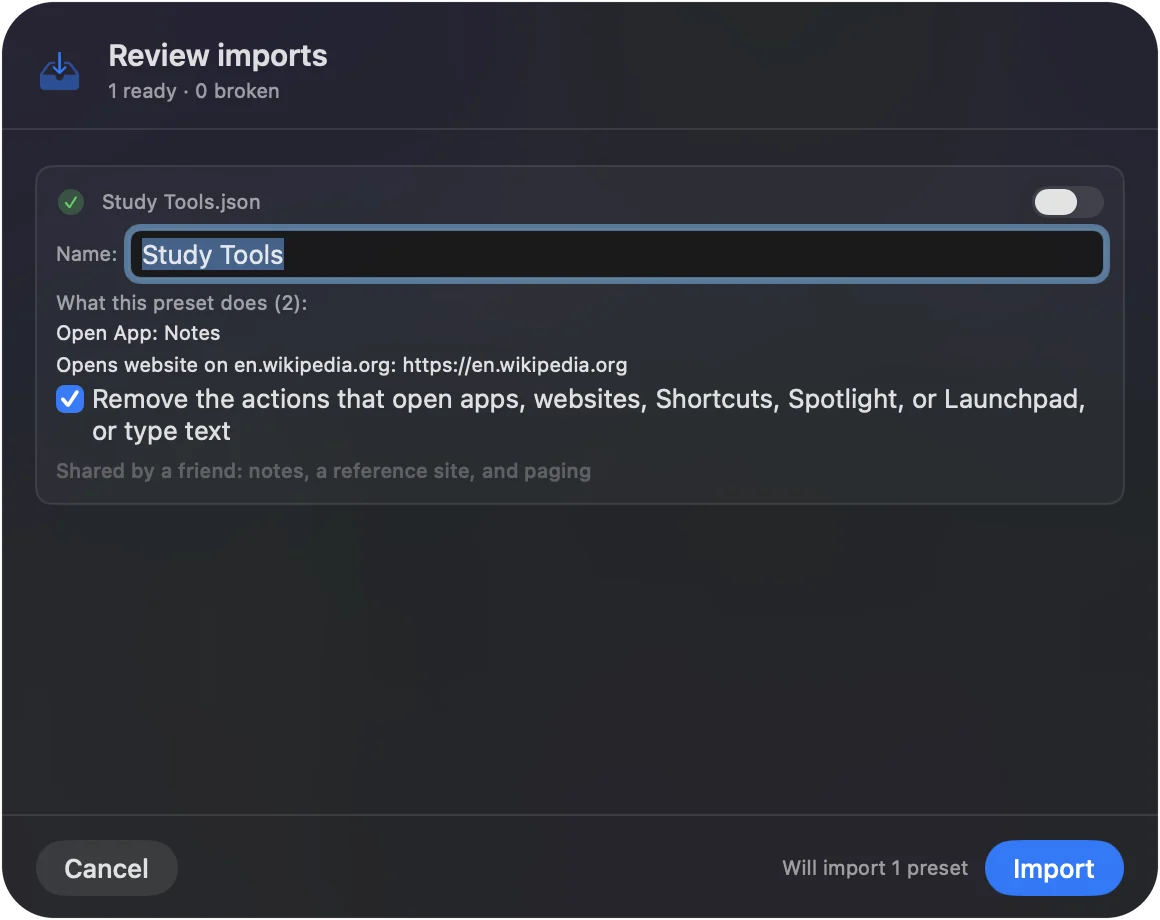
An imported preset never brings the sharer's shortcut or launch actions with it unless you add them.
Switch between presets
- A key per preset. Set in the Key field at the top of the editor. Press it anywhere to switch.
- A global shortcut. Settings, General has one that toggles the most recent preset.
- The menu bar. The menu bar icon lists every preset.
- By app. A preset can activate itself when one of its apps comes to the front. See auto-switch.
Switching is always one press away, so one preset per job is the easy way to work.
Name the buttons your controller's way
Each preset can name its buttons the way one controller prints them. Choosing a controller in the Live Visualizer's menu sets it, and Automatic in that menu goes back. On a preset with more than one controller group, choosing one only names the buttons while no names are set yet. That names every button, not only the face buttons: the bumpers, triggers, center buttons, paddles and back buttons, in the editor and the Live Visualizer alike.
- Presets written for one controller. A preset like FPS (Xbox) keeps that controller's names on any pad.
- Printed names. Otherwise PlayStation, Switch, Stadia, GameCube and Steam controllers show the names printed on them. GameCube and 2026 Steam Controller support is experimental.
- Other pads. Settings, Devices, Face button names picks the letters for other pads, including the many 8BitDo pads that report themselves as Xbox pads, and Positions puts North, South, East and West on every pad.
Only the names change, never what the buttons do.
The short version
- One at a time. One preset runs; switch with a key, the menu bar, or by app.
- Keep them tidy. Folders, colors and stars, with a Trash that gives things back.
- Share safely. Export a file; an import shows its app and website actions first.
Make a preset per job and let switching do the work.
Questions
Can two presets run at once?
No, one at a time. A preset can hold bindings for several controllers, and switching is a key press away.
Where are presets stored?
In the app's own folder under your Library, one JSON file each. Settings, Advanced, Reveal Data Folder opens it. See Data and Backups.
Related
Completely free. You don't have to make an account, there are no subscriptions, and nothing is locked. Optimized for Apple silicon. Open source on GitHub.
Updated