A Mac on the TV, run from the couch with a controller
 InputConfig is completely free on the Mac App Store. You don't have to make an account, there are no subscriptions, and nothing is locked. Optimized for Apple silicon.
A Mac mini or a laptop on a TV can be run from the sofa with a game controller you already own. With InputConfig, free on the Mac App Store, the sticks become a pointer and a scroll wheel, the buttons become play, pause, volume, back and forward, and the layout changes by itself when you move from the browser to Music or the TV app.
A Mac on a TV is a better media box than most media boxes: a full browser, every streaming site, your own files in VLC or IINA, and games. The weak part is the sofa, because a Mac wants a keyboard and a mouse and a lap is a bad desk. I walk you through the full setup in about twenty minutes, including the parts a controller cannot do.
On this page: 13 sections
- Steps
- How to read this guide
- Browse from the sofa
- Control video and music
- Netflix, YouTube and the rest, key by key
- Read long articles without tiring
- Make the TV readable from the sofa
- Set volume and sleep
- Share it between two people
- Set it once, then forget it
- Where the controller stops
- The short version
- Questions
Steps
- Pair the controller in System Settings, Bluetooth.
- Activate the built-in Web Browsing preset for the pointer, scrolling and tabs, and lower Pointer speed a notch for the TV.
- Use the Media Controller preset for Music, the TV app and Spotify, and the YouTube or media playback layout for players in the browser.
- Turn on per-app auto-switch so each app gets its layout by itself.
- Make text and the pointer larger in System Settings, and fix any overscan on the TV.
- Turn on Launch at login, and keep a small keyboard in a drawer for the login window.
How to read this guide
Start where you are:
- If you just want to browse, go to browse from the sofa.
- If you are mostly watching, go to video and music, and the key table by site.
- If the text is too small or the picture is cut off, go to the TV screen.
Browse from the sofa
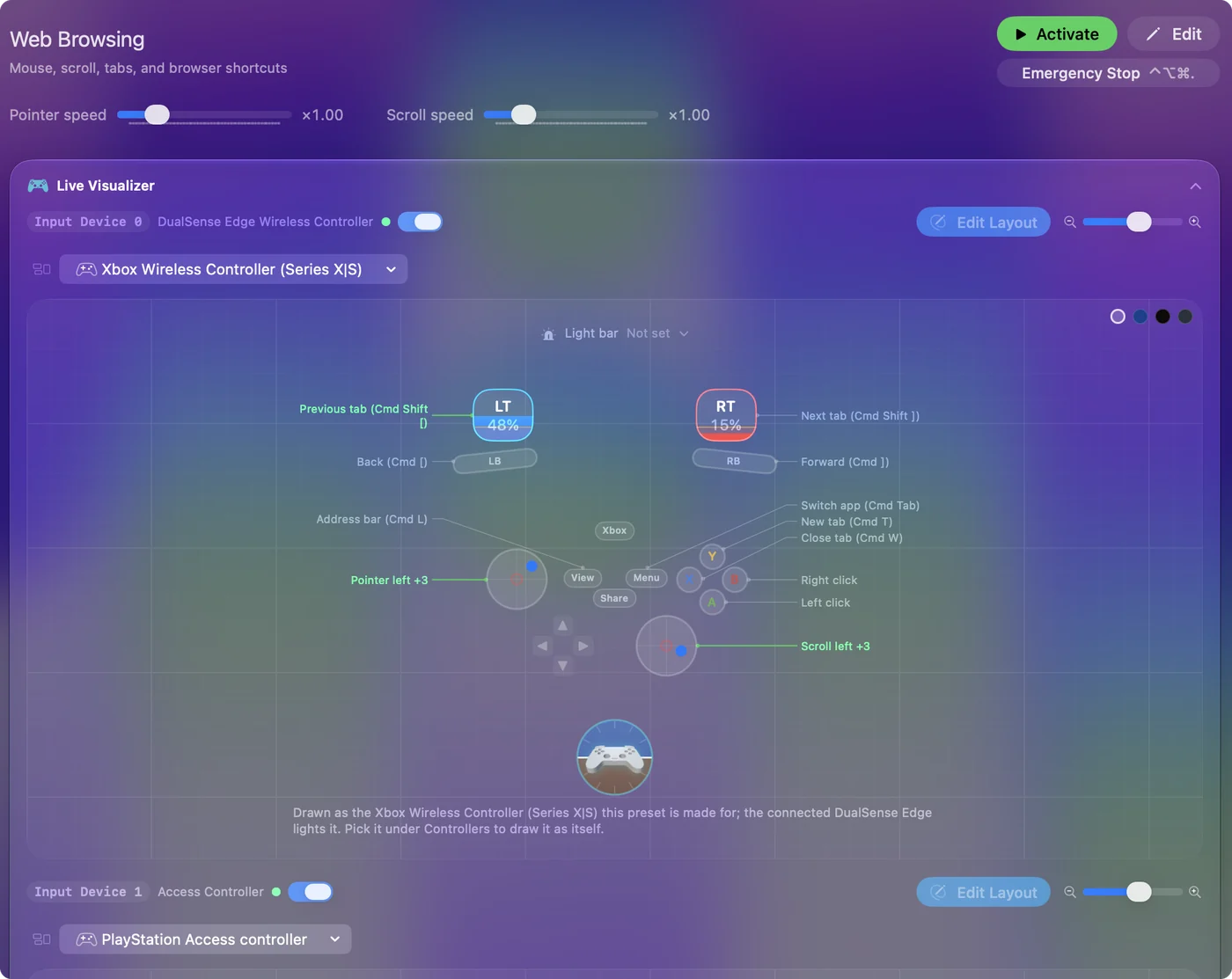
The built-in Web Browsing preset makes the controller a browser remote:
- Sticks. The left stick moves the pointer and the right stick scrolls.
- Clicks. A clicks and B right-clicks.
- Navigation. The bumpers go back and forward, the triggers step through tabs, Y opens a new tab and X closes one.
- The address bar and apps. Back / Share jumps to the address bar (Command L), and Start switches apps (Command Tab).
- You: Activate Web Browsing and lower Pointer speed a notch on the preset's page. Put Start Dictation on a free button, such as a stick click.
- InputConfig: Moves the pointer more slowly across the big screen, and presses the dictation key from the controller.
- Check: You can land on a link from the sofa without overshooting. Press Back / Share, then the dictation button, and say an address or a search.
On a TV the screen is far away, so precision matters more than speed.
Control video and music
A Mac has two kinds of play button, and it helps to know which one you are pressing:
- Media keys. The Media Controller preset sends the Mac's own media keys, the ones on the top row of a keyboard: A plays and pauses, B and X skip, Y mutes, and the bumpers and D-pad change the volume. Media keys reach whatever is playing, in Music, Spotify, the TV app or a video in a browser tab.
- A web player's own keys. These only work while the player is in front. The YouTube layout puts Space, J, L, F, M and C on the pad, and the media playback layout uses Space, F, M and the arrows that Netflix and most players share.
- You: Switch on per-app auto-switch, with Music and the TV app listed in the media layout and the browser in the browsing one.
- InputConfig: Changes layouts as each app comes to the front, with no button pressed.
- Check: Open Music and A plays. Switch to the browser and A clicks.
YouTube and browsing both live in the browser, so auto-switch cannot tell them apart: put Next Preset on a spare button and flip between the two by hand. Media keys work wherever something is playing, while a player's own keys work only while that player is in front.
Netflix, YouTube and the rest, key by key
Every streaming site in a browser listens for a few keys. Put those keys on the pad and the controller is its remote. These are the ones each site documents.
| Site or app | Keys | Layout |
|---|---|---|
| Netflix in a browser | Space plays and pauses, F full screen, Esc leaves it, left and right arrows go ten seconds back and forward, up and down arrows are volume, M mutes, S skips the intro | Media playback, add S on a spare button |
| YouTube | K or Space plays and pauses, J and L go ten seconds, the arrows five, F full screen, M mute, C captions, Shift N next video | Video watching |
| Music, the TV app, Spotify | The media keys | Media Controller |
| VLC, IINA, Infuse, Plex | Each app's own shortcuts | VLC, IINA, Infuse, Plex |
A site that uses other keys needs only a row changed in the editor. Some players, Plex HTPC among them, read a controller on their own. If one does, deactivate the preset while it is in front, or give that app an empty preset through auto-switch, so the two do not both answer.
Read long articles without tiring
For long articles and books, scrolling with a stick is tiring. Try these instead:
- Page keys. Bind the bumpers to Page Down and Page Up, or the D-pad to Space and Shift Space.
- Read aloud. Put Speak Selection on a spare button.
- Reader view. Safari's Reader view (Command Shift R) on a hold makes everything larger and calmer on a TV.
- Ready workflows. The Smart Preset Maker's Reading & Scroll and eBook Reader workflows are built for this.
Make the TV readable from the sofa
Climb this ladder, smallest change first:
- Larger text and pointer. System Settings, Accessibility, Display.
- A lower resolution. System Settings, Displays: one step lower makes text readable from the sofa.
- Fix the edges on the TV. If the picture is cut off at the edges or sits inside a black border, that is the TV scaling the image, not the Mac. Set the TV's picture size to its fit-to-screen mode (makers call it Just Scan, Screen Fit or similar), then set the Mac's resolution.
Two more touches: hide the pointer in the preset's automation section for video, and switch presets to bring it back for browsing. On a DualSense or DualShock 4, give each preset a light bar color so the controller says which one is running.
Set volume and sleep
- A volume fader. The System Volume output on a trigger makes it a volume fader: pull to set the level.
- Lock when done. Put Lock Screen on a hold of a spare button. It sends Control Command Q. Unlocking needs the password, Touch ID or an Apple Watch, so keep a keyboard or the watch within reach of the sofa.
- Wake. A Bluetooth controller wakes the Mac from sleep like a Bluetooth keyboard does, if Bluetooth wake is allowed in System Settings.
Share it between two people
Two controllers get two slots. Both can drive the pointer, which is chaos, so give the second one only media keys and volume. It makes a good remote for whoever is not browsing.
Set it once, then forget it
- You: In InputConfig's Settings, General, turn on Launch at login, and hide the Dock icon if you like.
- InputConfig: Keeps running in the menu bar, and its icon there turns green while a preset runs.
- Check: With auto-switch set up, you pick up the controller and the right layout is already on.
If a layout ever does something you did not expect, the emergency stop stops every output at once: hold Back and Start together for three seconds, or press Control Option Command and the period key. A living-room Mac should be ready when you sit down.
Where the controller stops
- The login window. InputConfig runs after you log in, so it cannot type the password at the login window after a restart. Keep a small keyboard in a drawer for those moments.
- Switching the Mac on. Nothing on a controller can do it.
- Long typing. Slow on any pad. Dictation, the macOS Accessibility Keyboard driven by the pointer, and Type Text for the phrases you type often cover most of it, and the Mac without a keyboard guide goes further.
- An app-shaped remote. If you want a big grid of buttons and nothing else, an Apple TV does that better. The Siri Remote does not pair with a Mac as an input device, and a TV remote needs a USB infrared receiver.
The Mac is worth having on the TV when you want a full browser, your own files and a real computer.
The short version
- Web Browsing for the browser. It gives you the pointer, scrolling and tabs, and I would lower Pointer speed for the TV.
- Media Controller for playback. Media keys reach whatever is playing.
- Auto-switch between them. Put Next Preset on a button for YouTube as well.
- A keyboard in the drawer. Keep one for the login window.
Pick up the controller, and the Mac on the TV is a media box with a real browser.
Questions
Does the controller wake the Mac?
A Bluetooth controller wakes the Mac from sleep like a Bluetooth keyboard does, if Bluetooth wake is allowed in System Settings.
Can the Siri Remote do this instead?
The Siri Remote does not pair with a Mac as an input device. A controller does.
Can I use a PS5 or Xbox controller as a remote for a Mac mini on a TV?
Pair it in System Settings, Bluetooth, then activate the Media Controller preset in InputConfig for playback and volume, and Web Browsing for the pointer, scrolling and tabs. Any controller the Mac recognizes works the same way.
Can I watch Netflix on a Mac with a controller?
It works in the browser. Netflix uses Space to play and pause, F for full screen, the arrows to skip ten seconds and change the volume, M to mute and S to skip the intro. The media playback layout puts those keys on the pad. Add S on a spare button.
Will my TV's remote control the Mac?
Not on its own. The Mac does not take commands from a TV remote. A USB infrared receiver that turns remote buttons into key presses is the usual workaround. A game controller needs nothing extra, just Bluetooth.
Related
This page in other languages: العربية, Čeština, Dansk, Deutsch, Español, Suomi, Français, עברית, Magyar, Bahasa Indonesia, Italiano, 日本語, 한국어, Norsk, Nederlands, Polski, Português, Русский, Slovenčina, Svenska, ไทย, Türkçe, Українська, Tiếng Việt, 繁體中文, 简体中文
Completely free. You don't have to make an account, there are no subscriptions, and nothing is locked. Optimized for Apple silicon. Open source on GitHub.
Updated