Watch video from a game controller
 The Video Watching layout is built into InputConfig, free on the Mac App Store. You don't have to make an account, there are no subscriptions, and nothing is locked. Optimized for Apple silicon.
On a Mac: Sends YouTube's own keyboard shortcuts, which work while the YouTube tab is in front. A Play / Pause system function row works from anywhere.
Yes, you can watch YouTube on a Mac with a PS5, Xbox or any controller: play, full screen, mute and captions on the face buttons, ten-second skips on the bumpers, volume on the D-pad. It sends YouTube's own keyboard shortcuts, which work while the YouTube tab is in front. The ten-second skips on the bumpers are what make a Mac on a TV feel like a TV.
The layout, control by control
How the layout thinks
Every button sends one of YouTube's own keys, and the table lists all of them.
| Button | Key | What YouTube does |
|---|---|---|
| A / Cross | Space | Play and pause |
| B / Circle | F | Full screen on and off |
| X / Square | M | Mute |
| Y / Triangle | C | Captions |
| LB / L1, RB / R1 | J, L | Ten seconds back, ten seconds forward |
| Left stick left, right | Left, Right Arrow | Five seconds back, five seconds forward |
| D-pad up, down | Up, Down Arrow | Volume |
| Right trigger | Left click | Click, for the skip button and the rest of the page |
Make play and pause work from anywhere
The keys only reach YouTube while its tab is in front.
- You: Add a row with the System Function Play / Pause output on a spare button.
- InputConfig: Sends the Mac's media key. Safari and Chrome pass media keys to the video that is playing.
- Check: Switch to another app and press the button. The video pauses.
One media key row covers the moment you have switched away from the tab.
Tune it
- Speed. Put Shift Period and Shift Comma on the stick clicks.
- Theater and mini player. Put T and I behind a chord.
- Next video. Put Shift N on the touchpad press.
- A pointer. This layout has none on a stick. For search and comments, add four Mouse Motion rows on the right stick.
- Other sites. Netflix and the rest use Space and the arrows. The Media Playback layout covers them.
Add a pointer on the right stick, and you can search for the next video without getting up.
Get it in two clicks
- Get InputConfig free on the Mac App Store, open it, and click Smart Preset Maker on the welcome screen.
- Search for Video Watching and pick it. The layout is created as a preset in your sidebar, named and ready.
- Press Activate. Every row can be changed afterwards: the editor's Scan button rebinds any control the moment you touch it.
Every binding, as a table
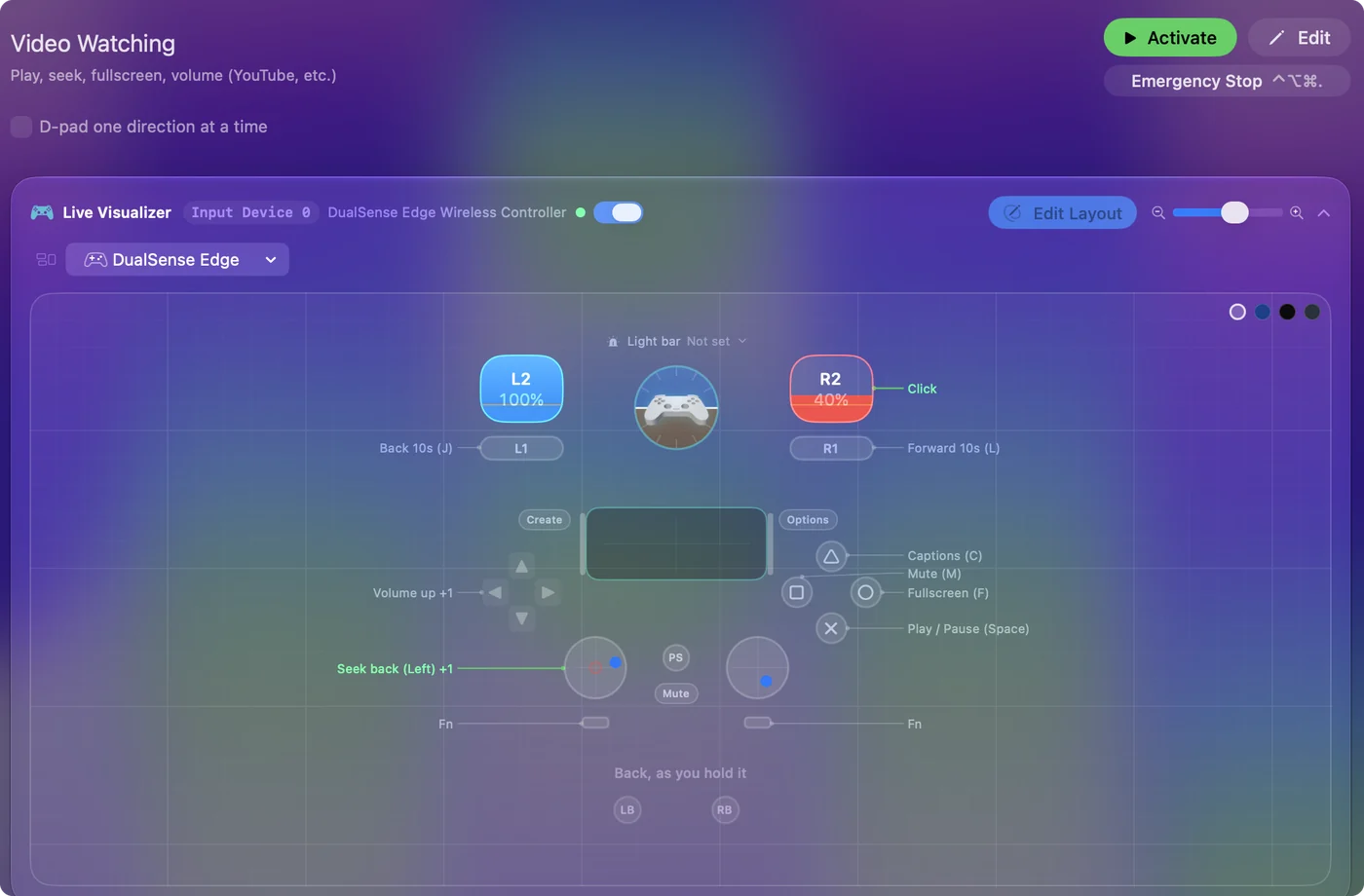
| Controller | Sends | What it does |
|---|---|---|
| A / Cross | Space | Play / Pause (Space) |
| B / Circle | F | Fullscreen (F) |
| X / Square | M | Mute (M) |
| Y / Triangle | C | Captions (C) |
| Left stick left | Left | Seek back (Left) |
| Left stick right | Right | Seek forward (Right) |
| LB / L1 | J | Back 10s (J) |
| RB / R1 | L | Forward 10s (L) |
| D-pad up | Up | Volume up |
| D-pad down | Down | Volume down |
| Right trigger | Left click | Click |
Button names follow the Xbox / PlayStation pair shown in the editor, so A / Cross is the bottom face button on either pad. On a Switch Pro Controller the bottom button is labeled B; the mapping still fires on position.
Questions
Can I use a PS5 controller for YouTube on a Mac?
Yes. Pair the DualSense in System Settings, Bluetooth, then activate this layout. An Xbox, Switch Pro or 8BitDo controller works the same. The layout is set by button position.
Why are there two ways to skip?
YouTube uses J and L for ten seconds and the arrow keys for five. The bumpers send J and L, the left stick sends the arrows.
Does it work on Netflix or Disney+?
They use Space and the arrows. The Media Playback layout is the generic one.
Related
Completely free. You don't have to make an account, there are no subscriptions, and nothing is locked. Optimized for Apple silicon. Open source on GitHub.
Updated