How to control a Mac with a game controller
 InputConfig is completely free on the Mac App Store. You don't have to make an account, there are no subscriptions, and nothing is locked. Optimized for Apple silicon.
Yes, a game controller can run a whole Mac, but not with macOS alone: macOS pairs the controller, then gives it nothing to do outside games that support controllers. A mapper fills the gap. InputConfig, a free, open-source controller mapper, turns every button, stick and trigger into keys, clicks, pointer movement, scrolling, media keys, or system actions like volume and Mission Control, in every app. Which of those you get depends on the preset, and the built-in ones below cover the common jobs.
On this page
Steps
- Pair the controller with the Mac.
- Install InputConfig and switch it on in System Settings, Privacy & Security, Accessibility.
- Pick the preset for the job: Desktop Navigation, Media Controller, Web Browsing or Presentation Remote.
- Press Activate.
Run the whole Mac
Desktop Navigation puts the pointer and scrolling on the sticks, clicks on the triggers, the app switcher on the bumpers, Spotlight and Return on the menu buttons, and the arrow keys on the D-pad. The face buttons click, undo, cut and paste, and pressing the right stick selects all. Easy Browse does the same job more calmly, with a pointer that starts slow, Dictation on a bumper, and face buttons that say their names aloud while you learn them.
With dictation on a button, it is a Mac you can run without touching the keyboard. That is the point of the Mac without a keyboard guide.
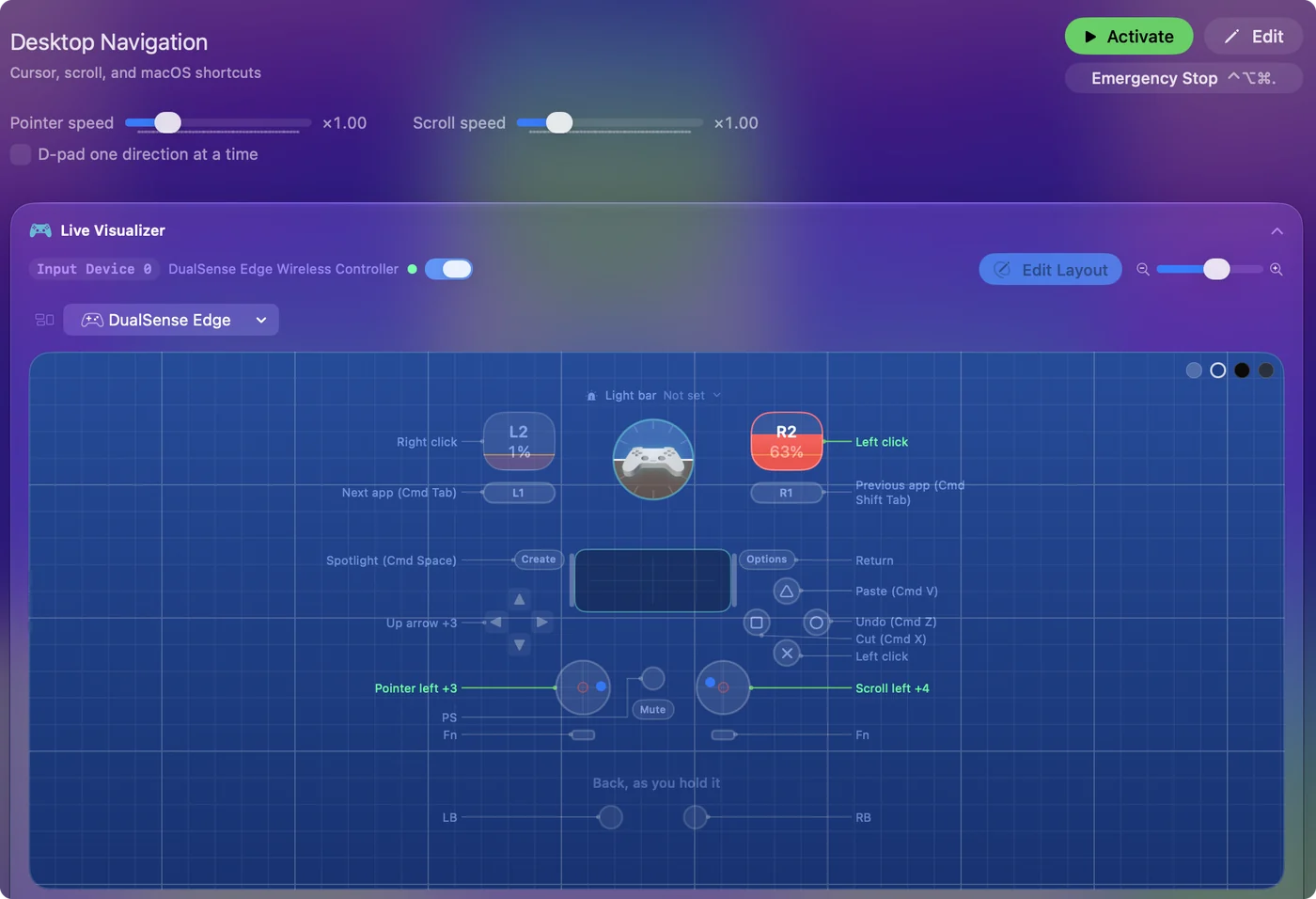
Use it as a media remote
The Media Controller preset: A or Cross plays and pauses, B and X skip forward and back, and Y or Triangle mutes. The bumpers, and up and down on the D-pad or the left stick, change the volume. Left and right skip tracks. Back is Escape, for leaving full screen. It works in Music, Spotify, VLC, the TV app, and YouTube in a browser, because it sends the Mac's own media keys. The couch guide adds browsing and reading.
Browse the web from the sofa
Web Browsing: pointer on the left stick, scroll on the right, A clicks and B right-clicks, back and forward on the bumpers, tabs on the triggers, the address bar on Back. It works in Safari, Chrome, Firefox and anything else.
Run a presentation
Presentation Remote: next and previous slide on A and B, a pointer on the left stick, a blank screen on Y, and Escape on Back. The presentation remote page has a layout with next and back on every trigger, bumper and D-pad too. It works in Keynote, PowerPoint and Google Slides.
Switch presets by app, automatically
Each preset can list the apps it belongs to, so the media layout runs in Music, the browser layout in Safari and the slides layout in Keynote, with no button pressed.
- You: Add the apps under Activate when these apps are in front, in each preset's Automation & Gaming Utilities section, then turn on Switch presets when the front app changes in Settings, Advanced.
- InputConfig: Starts the matching preset when one of its apps comes to the front.
- Check: Click into Music and the media layout takes over. Click into Safari and the browser layout does. Per-app auto-switch explains the rules.
If the controller does nothing
Climb this ladder, smallest step first:
- Check the preset is running. The menu bar icon has Start and Stop.
- Grant Accessibility. macOS only lets an app send keystrokes and clicks to other apps once you switch it on in System Settings, Privacy & Security, Accessibility. The menu bar icon turns orange while a running preset is waiting for it.
- Check the Mac sees the controller. Open Game Controllers in the System Settings sidebar and press a button.
If a preset ever takes over more than you meant, Control Option Command period is the emergency stop.
The short version
- Whole Mac. Use Desktop Navigation or Easy Browse.
- Couch. Use Media Controller and Web Browsing.
- Talks. Use Presentation Remote.
Give each preset its apps and turn on automatic switching, and the controller changes jobs on its own.
Questions
Can I use a PS5 or Xbox controller as a TV remote for my Mac?
Yes. The Media Controller preset in InputConfig sends the Mac's media keys, so it works in every player.
Can a controller run the whole Mac, not just games?
Yes. Pointer, clicks, scrolling, every key, Mission Control, dictation. People use it as their main input.
Can I control a MacBook with a PS5 or Xbox controller?
Yes. Pair it in System Settings, Bluetooth: hold PS and Create on a DualSense until the light bar flashes, or hold the pairing button on an Xbox controller until the Xbox button blinks fast. Then activate a preset in InputConfig. Desktop Navigation gives you the pointer, clicks, scrolling and the common shortcuts. How to connect a controller to a Mac covers every model.
Can a controller be the remote for a Mac mini on a TV?
Yes. That is one of the most common uses: media keys and volume on the buttons, the pointer and scrolling on the sticks, and the layout switching by app. The Mac mini on a TV page compares it with the other remotes.
Does controlling a Mac with a controller need a special permission?
Yes, one. macOS only lets an app send keystrokes and clicks to other apps once you switch it on in System Settings, Privacy & Security, Accessibility. That is the permission InputConfig asks for, and it has no network access. What the Accessibility permission allows.
Related
This page in other languages: Français, 日本語, Polski, Português, Türkçe, 繁體中文
Updated