Questions
How to use Command Tab from a controller on a Mac
Put Command Tab on a button with a mapper, because macOS has no setting that puts the app switcher on a game controller. Command Tab is a keyboard shortcut, and the Game Controllers page in System Settings only swaps controller buttons inside games.
InputConfig, free on the Mac App Store, sends the shortcut for you, so a bumper can be Command Tab in every app. A tap jumps to the last app you used, holding the bumper keeps the switcher open, and in 1.6 holding it can walk the whole list the way a held Tab key does.
On this page: 10 sections
- Know what the app switcher does on its own
- Put Command Tab on one button
- Hold it to keep the switcher open
- Walk the list without lifting your thumb
- Tap for one thing, hold for the switcher
- Start from a layout that already does it
- Reach an app another way
- If the switcher does not appear
- The short version
- Questions
Know what the app switcher does on its own
On a keyboard, hold Command and press Tab. The switcher opens with the next app highlighted. While Command is still down:
- Tab and Shift Tab. Move right and left. The arrow keys move either way too.
- Q and H. Quit or hide the highlighted app.
- Escape. Closes the switcher without switching.
- Letting go of Command. Takes you to the highlighted app.
Command ` (the key above Tab) moves between windows of the app you are already in, and Mission Control shows every window at once. All of that is keys, which is why it works from a controller once something presses those keys for you.
 InputConfig is free on the Mac App Store. macOS 14 or later, no account, no tracking, open source.
Put Command Tab on one button
Install InputConfig and allow Accessibility access when it asks; macOS needs it before any app can press keys for you.
Step 1: Pick the button
- You: Open a preset, click Add a new bind, press Scan, and press the button you want, such as RB or R1.
- InputConfig: Fills the row's input with that button.
- Check: The row names the button you pressed.
Step 2: Give it two keys
- You: Set the output to Keyboard Key and pick Command (Left) from Modifier Keys. Click the plus button to add a second output, Keyboard Key, Tab.
- InputConfig: Presses keys on one row together, the way your fingers would press them.
- Check: The row shows both outputs.
Step 3: Save and tap
- You: Save, close the editor and activate the preset, then tap the button.
- InputConfig: Sends a quick Command Tab.
- Check: You are back in the app you used last.
For the other direction, give a second button Command, Shift and Tab.
Hold it to keep the switcher open
A row on Fires while held keeps its keys down for as long as you hold the button, so holding the bumper holds Command Tab and the switcher stays on screen.
- You: Put the arrow keys on the D-pad, hold the bumper, and push left or right.
- InputConfig: Counts the keys your other buttons send as if Command were held with them, and only while the switcher row is held.
- Check: The highlight moves. Let go of the bumper to switch.
The D-pad's own rows need nothing extra; InputConfig lends the switcher's Command to them on purpose.
Walk the list without lifting your thumb
New in 1.6.
- You: Open the Command Tab row's Options and tick Repeat keys while held in the Press box.
- InputConfig: Makes a held bumper behave like a held Tab key: after a moment the highlight starts moving through your apps, one step at a time.
- Check: Let go on the app you want.
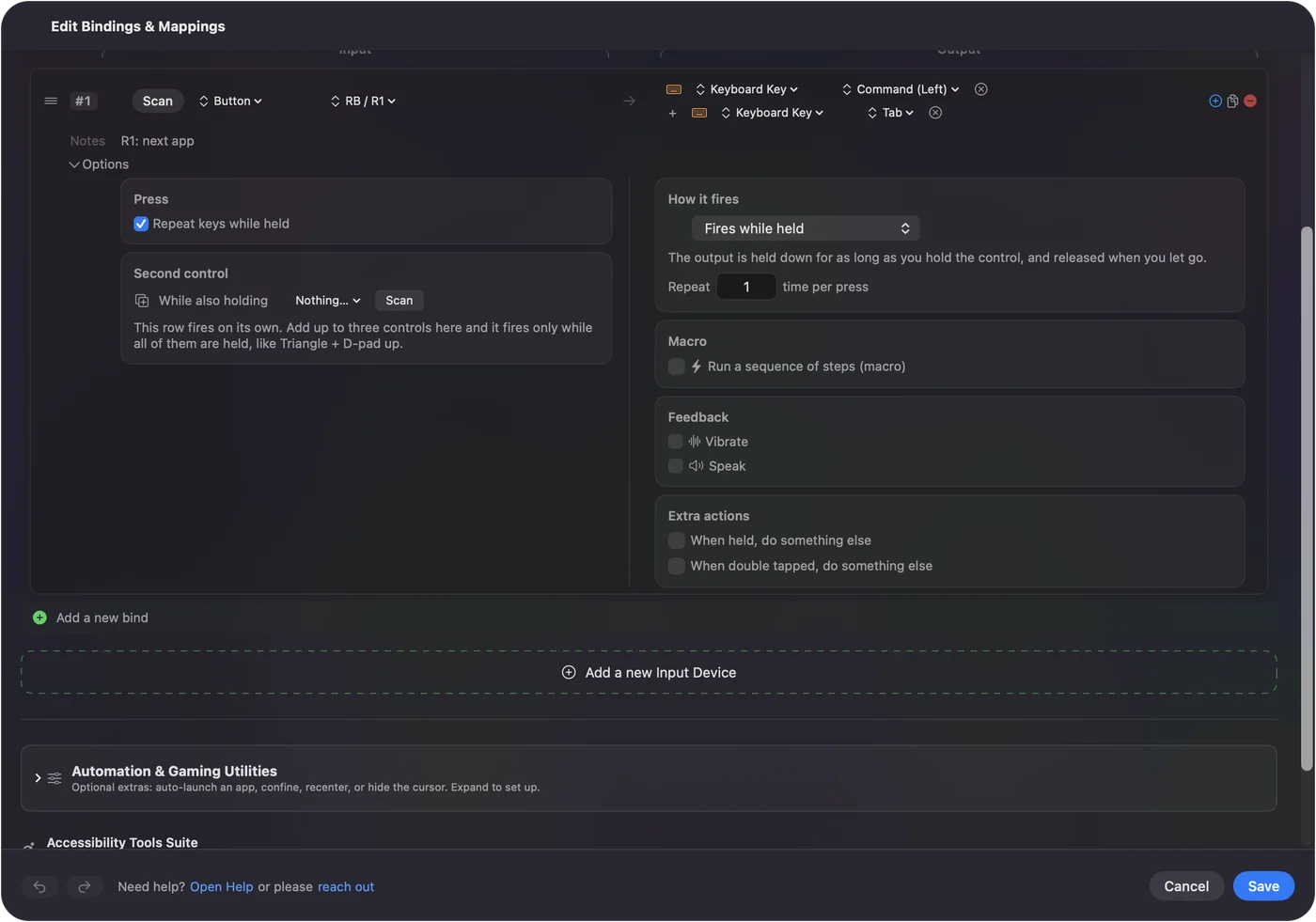
The pace is the Mac's own, set by Key repeat rate and Delay until repeat in System Settings, Keyboard. The option is off unless you turn it on, so a Command Tab row made before 1.6 never starts cycling by itself after the update.
Tap for one thing, hold for the switcher
If a bumper already has a job, give it the switcher as a second one.
- You: In the row's Options, set How it fires to Different action when held. Next to Holding sends, pick Tab and switch on the ⌘ toggle, then set the time, for example 300 ms.
- InputConfig: Sends the row's normal output on a quick tap, such as Control Tab for the next browser tab, and opens the app switcher on a hold, keeping it open until you let go.
- Check: Tap and the tab changes; hold and the switcher appears.
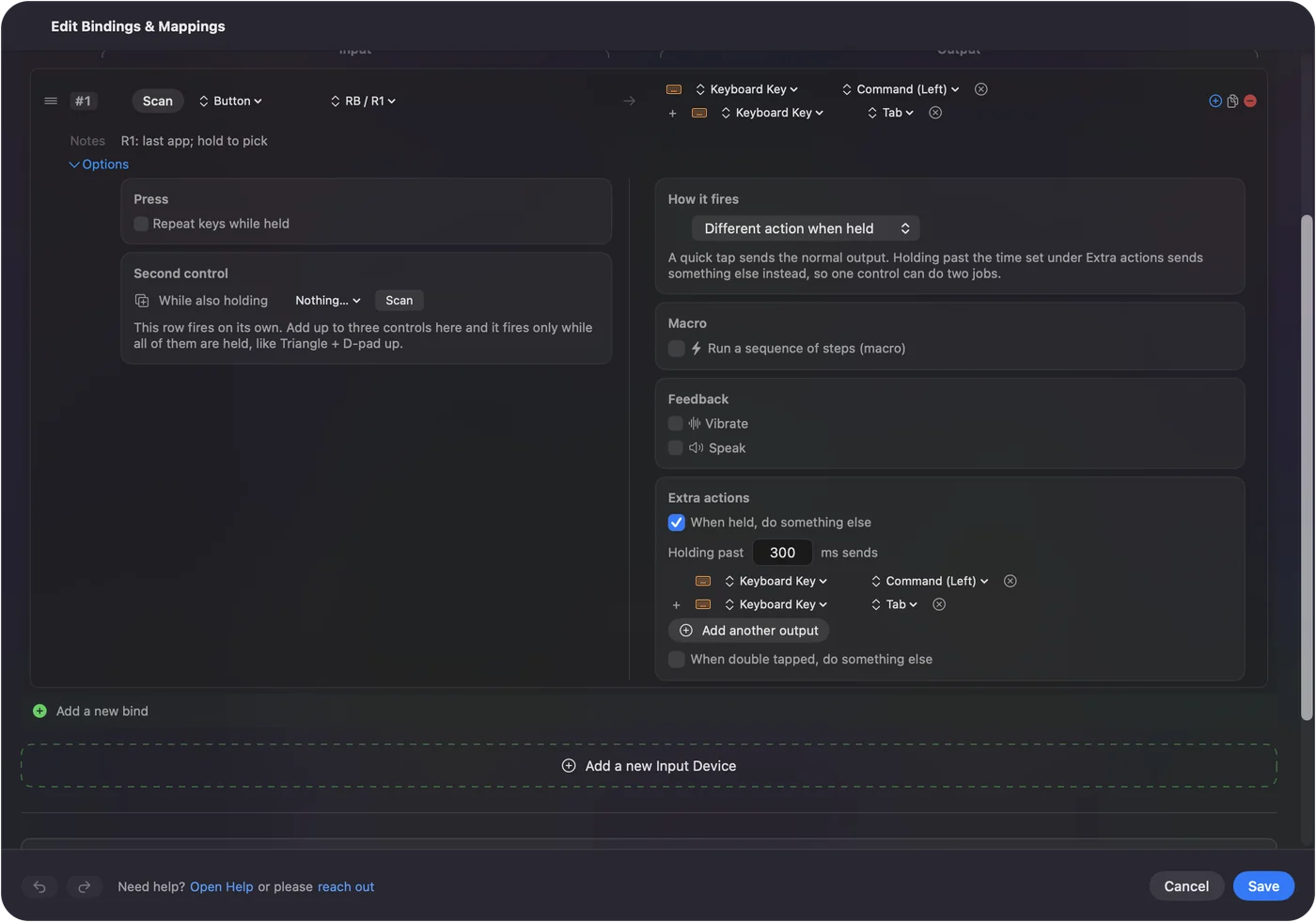
Hold actions sending a full shortcut is new in 1.6; before, a hold could only send a single key. See hold and double tap. The tap goes out when you let go, as a short press, which is why this suits one-shot outputs.
Start from a layout that already does it
- App Switcher. In the Smart Preset Maker: RB is next app (Command Tab), LB is previous app (Command Shift Tab), A is Return, B quits the front app (Command Q), X hides it (Command H), Y moves between windows of the same app (Command `), and the D-pad sends left and right. The left stick is the pointer and the triggers click. See the app switcher layout.
- Desktop Navigation. Built in: LB is Command Tab and RB is Command Shift Tab, beside a pointer, scrolling and editing shortcuts. See Desktop Navigation.
- Web Browsing. Built in: Start switches apps.
- Mission Control & Spaces and Window Management. In the Smart Preset Maker, they add Spaces and Mission Control around the switcher. See windows and Spaces from a controller.
Every row in them can be changed: press Scan on a row to move it to another button.
Reach an app another way
- One button per app. System Function, Automation, Open App brings an app to the front and opens it first if it is not running. Type a name like Safari, or pick it from the list beside the field.
- Mission Control, Spotlight and Launchpad. Each is its own System Function. See system functions.
- A layout per app. With per-app auto-switch, the preset follows whichever app you switch to, so the same buttons can mean something different in each.
Three buttons for your three most used apps can be quicker than any switcher.
If the switcher does not appear
Climb this ladder, smallest step first:
- Close the preset editor. While it is open, InputConfig holds keys and macros back; only the pointer, clicks and scrolling go through, so a controller can still reach Save.
- Allow Accessibility. In 1.6 the menu bar icon turns orange when a running preset needs it, and rows start working the moment it is granted.
- Put both keys on one row. Command on one button and Tab on another works only if you hold the Command button first.
- Unlock the Mac. While the Mac is locked or asleep no keys are sent at all; only the pointer, clicks and scrolling work at the lock screen.
If Command ever seems stuck, the emergency stop lets go of every key: Control Option Command period, or hold Back and Start together for three seconds. Close the editor before you test any key row.
The short version
- One row. Command (Left) and Tab on a bumper.
- Tap. The last app. Hold: the switcher stays open for the D-pad.
- Walk the list. Tick Repeat keys while held.
Desktop Navigation already has it on the bumpers, so you may not need to build anything.
Questions
Can a PS5 or Xbox controller switch apps on a Mac?
Not with anything built into macOS. With InputConfig, any button can send Command Tab, and the built-in Desktop Navigation preset already has it on the bumpers.
Why does my Command Tab button only go to the last app?
Because a quick press is a quick Command Tab. Hold the button to keep the switcher open and move with the D-pad, or turn on Repeat keys while held so the held button walks the list.
Can a button switch between windows of the same app?
Yes. Give it Command and the ` key (above Tab). The App Switcher layout has it on Y.
Can holding a button open the app switcher while a tap does something else?
Yes. Set the row to Different action when held and make the hold Tab with the Command toggle on. Since 1.6 a hold action can be a full shortcut.
Is it free?
Yes. InputConfig is free and open source on the Mac App Store, with no account and no network access. The optional tip jar adds no features.
Related
Free. macOS 14 or later. No account, nothing leaves your Mac. Open source on GitHub.