The app switcher from a game controller
 The App Switcher layout is built into InputConfig, free on the Mac App Store. You don't have to make an account, there are no subscriptions, and nothing is locked. Optimized for Apple silicon.
On a Mac: Command Tab, Command H, Command Q and Command backtick are macOS-wide shortcuts, so this layout works in every app. Nothing to enable.
Yes, you can switch apps with Command Tab from a game controller on a Mac: next app on the right bumper, previous (Command Shift Tab) on the left. Quit and hide sit on the face buttons, deliberately apart, and the same-app window cycle is on the fourth. These are macOS-wide shortcuts, so the layout works in every app.
On this page: 7 sections
The layout, control by control
How the layout thinks
- Step through apps. Next app (Command Tab) on the right bumper, previous (Command Shift Tab) on the left.
- Act on an app. Select (Return) on the bottom face button, quit (Command Q) on the right, hide (Command H) on the left.
- Cycle windows. The next window of the same app (Command backtick) on the top.
- Point and cancel. Escape on Options. The left stick is the pointer and the triggers click and right-click.
A single press of Command Tab jumps to the last app you used and lets go, on every Mac. The bumpers flip between your two most recent apps, which is most switching.
Walk the whole app list
To walk further down the list you need Command held while you move. Two extra rows do it.
Step 1: Hold Command on a click
- You: Add a row on the left stick click that sends Command alone, and in its Options set How it fires to Toggles on and off.
- InputConfig: Holds Command down on one press and lets it go on the next.
- Check: Press the left stick, and Command stays down until you press it again.
Step 2: Tab and step
- You: Add a row on the right stick click that sends Tab alone. Press the left stick, tap the right stick to open the switcher, and step with D-pad left and right.
- InputConfig: Sends Tab, then the arrow keys the switcher follows.
- Check: The highlight moves along the app icons. Press the left stick again to let go of Command and pick the app.
It sounds like a lot, and after three tries it is one motion. A toggled Command plus Tab is how a pad walks the whole switcher.
Tune it for safety
- Quit only on purpose. In the quit row's Options, set How it fires to Different action when held, put Command Q on the held action, and give the quick press a key nothing uses, so a stray tap cannot quit an app.
- Feel the quit. Turn on Vibrate on the quit row, under Feedback.
Mission Control shows every window instead, and the Mission Control layout puts it on one button. Make quit a hold, and the worst a slip can do is hide an app.
Get it in two clicks
- Get InputConfig free on the Mac App Store, open it, and click Smart Preset Maker on the welcome screen.
- Search for App Switcher and pick it. The layout is created as a preset in your sidebar, named and ready.
- Press Activate. Every row can be changed afterwards: the editor's Scan button rebinds any control the moment you touch it.
Every binding, as a table
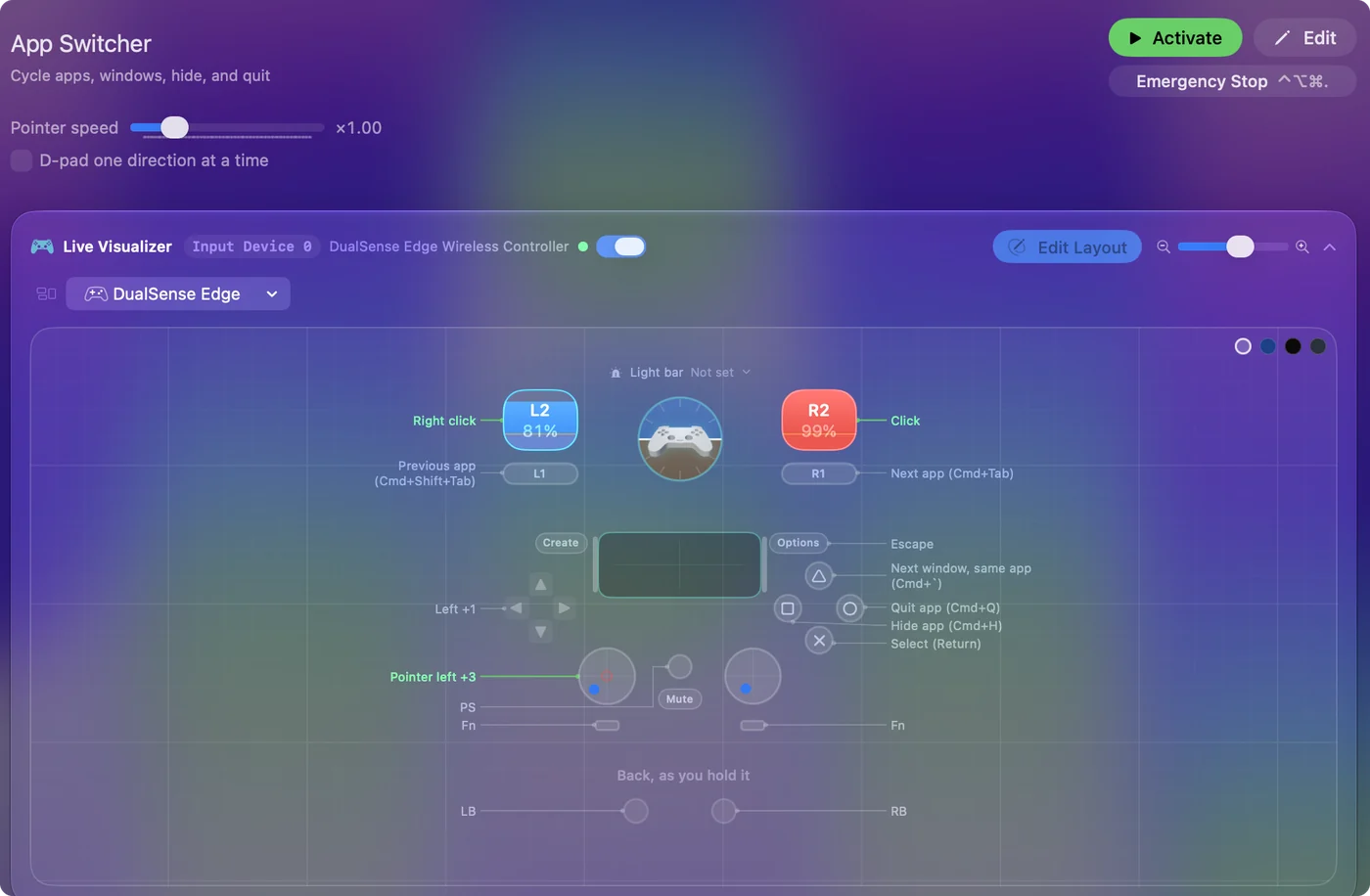
| Controller | Sends | What it does |
|---|---|---|
| Left stick left | Mouse motion left (speed 16) | Pointer left |
| Left stick right | Mouse motion right (speed 16) | Pointer right |
| Left stick up | Mouse motion up (speed 16) | Pointer up |
| Left stick down | Mouse motion down (speed 16) | Pointer down |
| Right trigger | Left click | Click |
| Left trigger | Right click | Right click |
| RB / R1 | Command (Left), Tab | Next app (Cmd+Tab) |
| LB / L1 | Command (Left), Shift (Left), Tab | Previous app (Cmd+Shift+Tab) |
| A / Cross | Return | Select (Return) |
| B / Circle | Command (Left), Q | Quit app (Cmd+Q) |
| X / Square | Command (Left), H | Hide app (Cmd+H) |
| Y / Triangle | Command (Left), ` | Next window, same app (Cmd+`) |
| Start / Options | Escape | Escape |
| D-pad left | Left | Left |
| D-pad right | Right | Right |
Button names follow the Xbox / PlayStation pair shown in the editor, so A / Cross is the bottom face button on either pad. On a Switch Pro Controller the bottom button is labeled B; the mapping still fires on position.
Questions
Why does Command Tab only go to the last app?
A single press does that on every Mac. Hold Command with a toggled row and tap Tab to move further down the list.
Is there a way to see every window instead?
Mission Control shows them all. The Mission Control layout puts it on one button.
Related
Completely free. You don't have to make an account, there are no subscriptions, and nothing is locked. Optimized for Apple silicon. Open source on GitHub.
Updated