Mission Control and Spaces from a game controller
 The Mission Control & Spaces layout is built into InputConfig, free on the Mac App Store. You don't have to make an account, there are no subscriptions, and nothing is locked. Optimized for Apple silicon.
On a Mac: Uses the macOS shortcuts for Mission Control and Spaces, so it works in every app. If you changed those keys in System Settings, Keyboard, Keyboard Shortcuts, Scan the matching rows.
Yes, you can run Mission Control and Spaces from a game controller on a Mac: Mission Control on the big button, Spaces on the bumpers, and the pointer to pick the window you want. It uses the macOS shortcuts, so it works in every app. This is the layout for a Mac with too many windows and a hand that would rather not reach for a trackpad gesture.
The layout, control by control
How the layout thinks
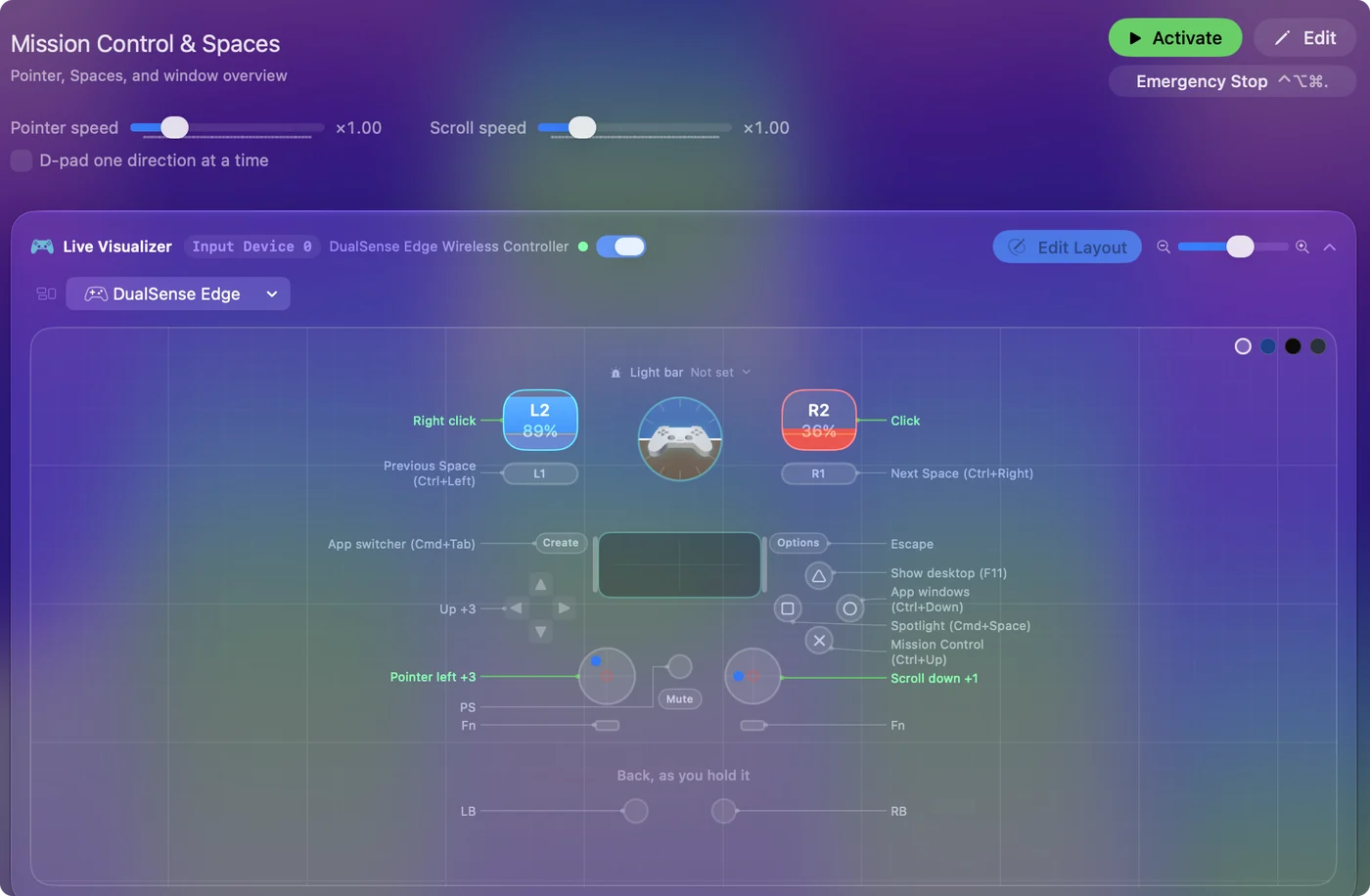
- See every window. Mission Control (Control Up Arrow) on the bottom face button, the front app's windows (Control Down Arrow) on the right.
- Move between Spaces. Previous and next Space (Control Left and Right Arrow) on the bumpers.
- Find and clear. Spotlight on the left face button, show desktop (F11) on the top.
- Switch apps. The app switcher (Command Tab) on Share or View, Escape on Options.
- Pick a window. The left stick is the pointer, the right stick scrolls, the triggers click and right-click, and the D-pad sends arrows for moving between windows in Mission Control.
Every window is one button away. Mission Control on the big button, Spaces on the bumpers, the stick to pick.
When a row does nothing
Climb this ladder, smallest step first:
- Make a second Space. Control Left and Right only move between Spaces you have made. Open Mission Control and add one with the plus button.
- Check show desktop's key. F11 is the default, and some keyboards or apps take it. Look in System Settings, Keyboard, Keyboard Shortcuts, Mission Control, then Scan the row and press yours.
- Check any key you changed. If you moved Mission Control or Spaces to other keys in the same place, Scan the matching rows.
On a trackpad, three-finger swipes do the same job. This layout is for when a trackpad is not an option. Most dead rows are a key you changed in System Settings, and one Scan fixes each.
The short version
- Use it as is. Nothing to enable.
- Copy the bumpers. Spaces left and right belong in every preset. Copy those two rows into your game or browser layout on buttons it does not use.
- Prefer Stage Manager. It has its own entry with the keys that suit it.
Two rows are worth carrying everywhere. Spaces on the bumpers is the habit worth copying into every preset.
Get it in two clicks
- Get InputConfig free on the Mac App Store, open it, and click Smart Preset Maker on the welcome screen.
- Search for Mission Control & Spaces and pick it. The layout is created as a preset in your sidebar, named and ready.
- Press Activate. Every row can be changed afterwards: the editor's Scan button rebinds any control the moment you touch it.
Every binding, as a table
| Controller | Sends | What it does |
|---|---|---|
| Left stick left | Mouse motion left (speed 16) | Pointer left |
| Left stick right | Mouse motion right (speed 16) | Pointer right |
| Left stick up | Mouse motion up (speed 16) | Pointer up |
| Left stick down | Mouse motion down (speed 16) | Pointer down |
| Right stick down | Scroll down | Scroll down |
| Right stick up | Scroll up | Scroll up |
| Right trigger | Left click | Click |
| Left trigger | Right click | Right click |
| A / Cross | Ctrl (Left), Up | Mission Control (Ctrl+Up) |
| B / Circle | Ctrl (Left), Down | App windows (Ctrl+Down) |
| LB / L1 | Ctrl (Left), Left | Previous Space (Ctrl+Left) |
| RB / R1 | Ctrl (Left), Right | Next Space (Ctrl+Right) |
| X / Square | Command (Left), Space | Spotlight (Cmd+Space) |
| Y / Triangle | F11 | Show desktop (F11) |
| Back / Share / Select | Command (Left), Tab | App switcher (Cmd+Tab) |
| Start / Options | Escape | Escape |
| D-pad up | Up | Up |
| D-pad down | Down | Down |
| D-pad left | Left | Left |
| D-pad right | Right | Right |
Button names follow the Xbox / PlayStation pair shown in the editor, so A / Cross is the bottom face button on either pad. On a Switch Pro Controller the bottom button is labeled B; the mapping still fires on position.
Questions
Show desktop does nothing. Why?
F11 is the default and another shortcut may have it. Set the show desktop key in System Settings and Scan the row.
Can I use Stage Manager instead?
Yes. Stage Manager has its own entry with the keys that suit it.
Related
Completely free. You don't have to make an account, there are no subscriptions, and nothing is locked. Optimized for Apple silicon. Open source on GitHub.
Updated