Run a Mac from a game controller
 The Desktop Navigation layout is built into InputConfig, free on the Mac App Store. You don't have to make an account, there are no subscriptions, and nothing is locked. Optimized for Apple silicon.
On a Mac: Works in every app, because it is a mouse and three keys. macOS asks once for the Accessibility permission. A fuller version ships inside the app as the built-in Desktop Navigation preset.
Yes, any game controller can be a mouse for macOS: the left stick moves the pointer, the right stick scrolls, A and the right trigger click, the left trigger right-clicks. Three keys on top, Spotlight, Return and Select All, are enough to open any app, click any button and read anything. It works in every app, because it is a mouse and three keys.
This layout is the closest to why I built the app, which was a Mac I could use from a controller when a mouse was not an option. Everything else on this site is a specialization of it. If you only ever activate one preset, make it this or its newer sibling, Easy Browse.
On this page: 7 sections
The layout, control by control
How the layout thinks
- Point. The pointer is on the left stick at a calm speed, because the pointer is what you are always doing.
- Scroll. The right stick scrolls in all four directions, because a Mac scrolls sideways more than you think.
- Click. Left click on A and on the right trigger, right click on the left trigger. The triggers sit where a mouse's buttons are, under your index fingers.
- Open anything. Spotlight on Back, Share or View, because typing an app's name into Spotlight is faster than any launcher.
- Confirm and select. Return on Start confirms whatever is in front of you, and pressing the right stick selects all.
The built-in Desktop Navigation preset changed the same way in InputConfig 1.6: A now clicks, and Select All moved to the right stick press. If an older copy of yours still selects all on A, that is why.
Choose Desktop Navigation or Easy Browse
InputConfig has a built-in preset called Easy Browse, made for using the whole Mac from a controller.
- Desktop Navigation. The plain mouse: pointer, scroll, clicks and three keys.
- Easy Browse. Starts the pointer slow and brings it up to speed with Ramp-up, puts Back, close and open on the face buttons, grab and drop on the left stick press, a double click on the right stick press, dictation and read-aloud on the bumpers, and web pages and tabs on the D-pad, which counts one direction at a time. The face buttons say their names while you learn them.
Desktop Navigation is the plain mouse, and Easy Browse is the one I would hand to someone new.
Tune it
- Pointer speed. The Pointer speed slider on the preset's page scales all four pointer rows at once, and Scroll speed does the same for scrolling.
- A gentle start. Ramp-up, in a pointer row's Options, starts the pointer slow on each push, which helps on small buttons and menus.
- Dictation. A Start Dictation row on a free face button, and you can type anywhere.
- Drag. Hold the trigger and move the stick. It works for windows, files and text. For a drag without holding, give a click row Toggle mode.
- Keep it on. Leave this preset with no apps listed. App presets take over by automatic switching and hand back when you leave their app.
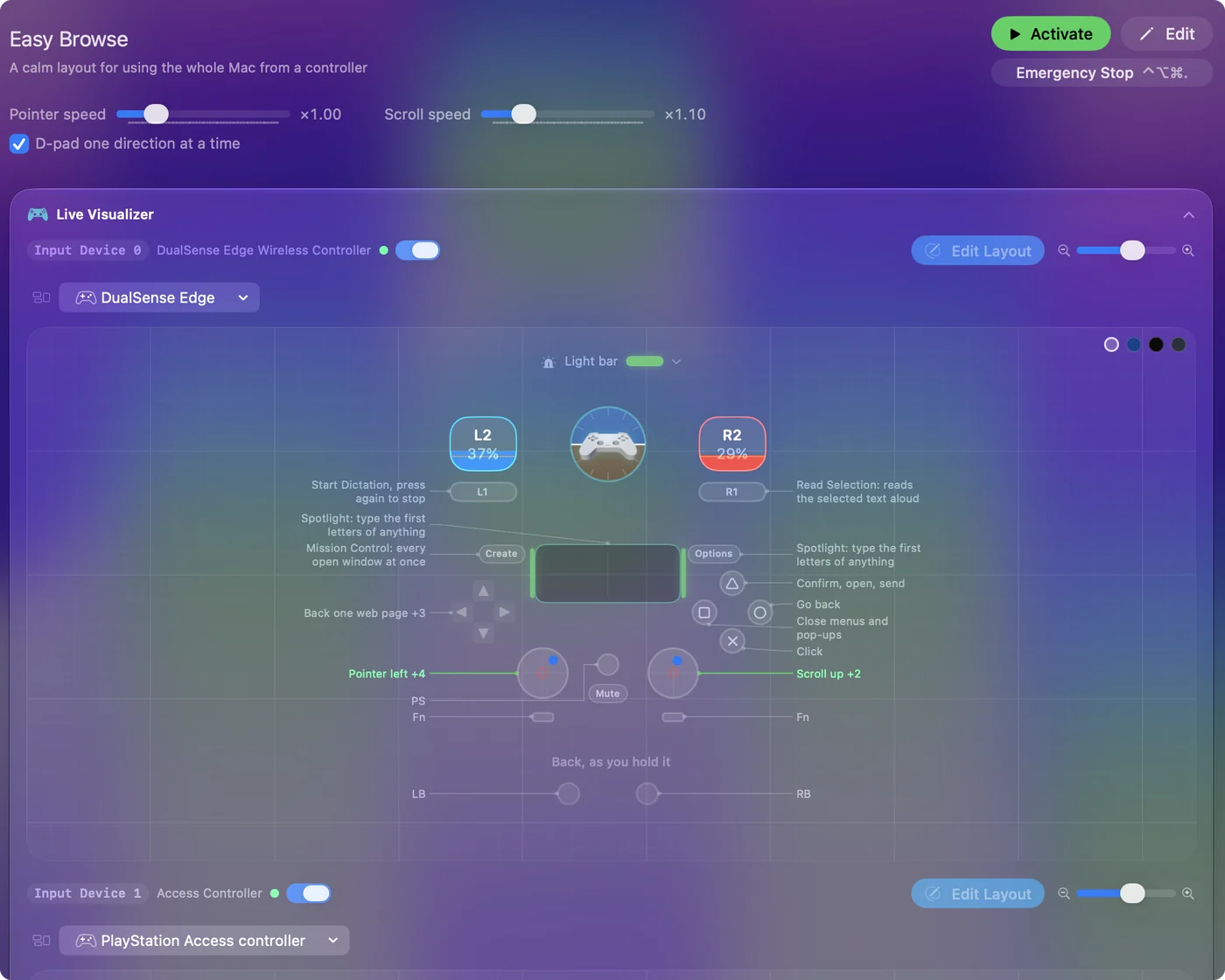
Set Pointer speed first, because it is the one change almost everyone makes.
Get it in two clicks
- Get InputConfig free on the Mac App Store, open it, and click Smart Preset Maker on the welcome screen.
- Search for Desktop Navigation and pick it. The layout is created as a preset in your sidebar, named and ready.
- Press Activate. Every row can be changed afterwards: the editor's Scan button rebinds any control the moment you touch it.
Every binding, as a table
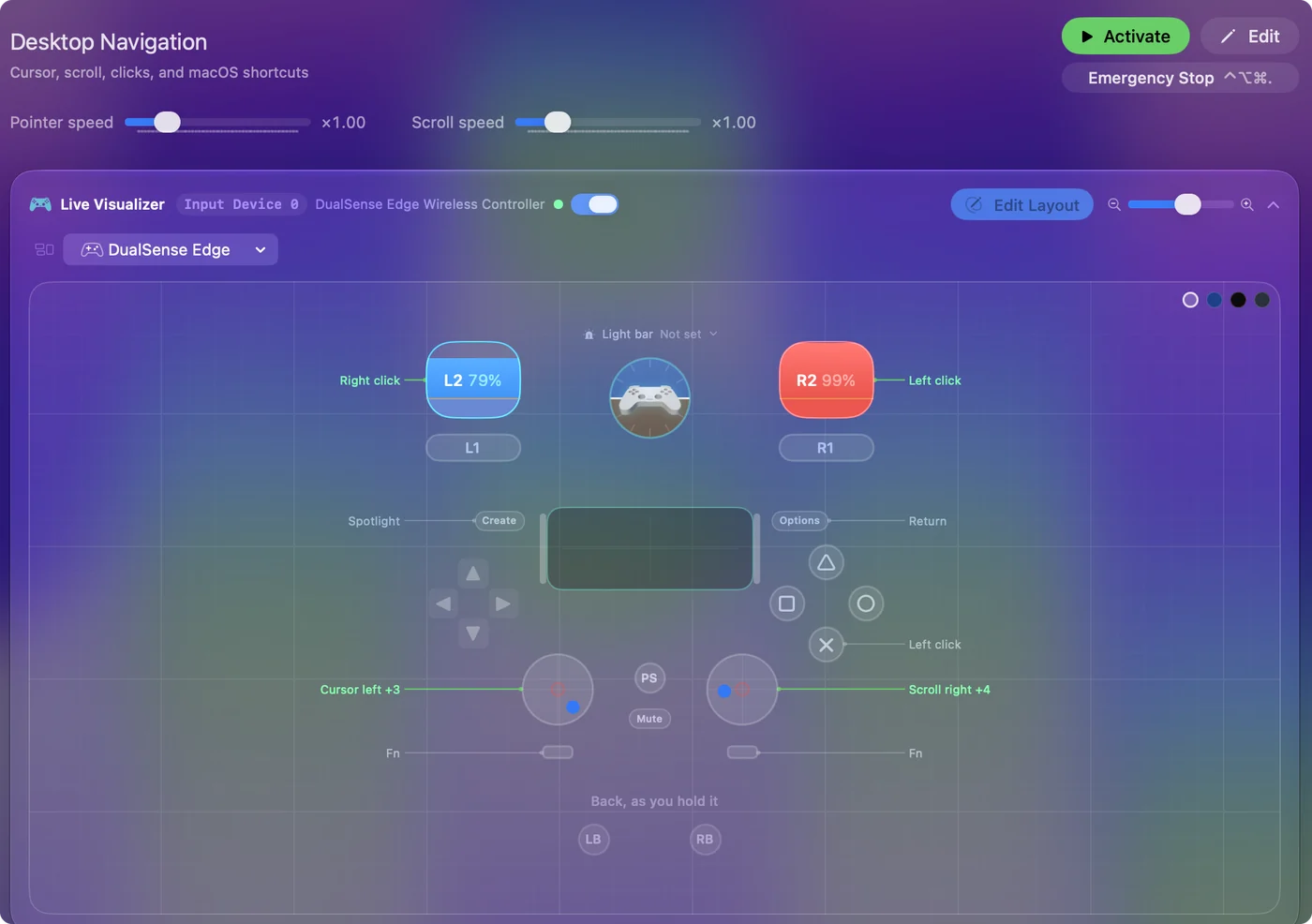
| Controller | Sends | What it does |
|---|---|---|
| Left stick left | Mouse motion left (speed 16) | Cursor left |
| Left stick right | Mouse motion right (speed 16) | Cursor right |
| Left stick up | Mouse motion up (speed 16) | Cursor up |
| Left stick down | Mouse motion down (speed 16) | Cursor down |
| Right stick right | Scroll right | Scroll right |
| Right stick left | Scroll left | Scroll left |
| Right stick down | Scroll down | Scroll down |
| Right stick up | Scroll up | Scroll up |
| Right trigger | Left click | Left click |
| Left trigger | Right click | Right click |
| A / Cross | Left click | Left click |
| R3 (right stick click) | Command (Left), A | Select all |
| Back / Share / Select | Command (Left), Space | Spotlight |
| Start / Options | Return | Return |
Button names follow the Xbox / PlayStation pair shown in the editor, so A / Cross is the bottom face button on either pad. On a Switch Pro Controller the bottom button is labeled B; the mapping still fires on position.
A preset with this name also ships inside the app, with a file you can download: Desktop Navigation built-in preset.
Questions
Does this need the Accessibility permission?
Yes, once. macOS asks the first time InputConfig sends a click. Grant it in Privacy & Security, Accessibility. The menu bar icon turns orange if a running preset still needs it.
Is the pointer precise enough?
At the default speed, for most things. For small buttons, lower the Pointer speed slider or use the Accessibility Pointer layout's two-stick design.
Can I type?
Dictation, on a button, is the answer for prose. The Type Text output puts a whole phrase on a button, and the typing page covers the on-screen keyboard.
Related
Completely free. You don't have to make an account, there are no subscriptions, and nothing is locked. Optimized for Apple silicon. Open source on GitHub.
Updated