A presentation remote for your Mac from a game controller
 The Presentation Remote layout is built into InputConfig, free on the Mac App Store. You don't have to make an account, there are no subscriptions, and nothing is locked. Optimized for Apple silicon.
On a Mac: Works in Keynote, PowerPoint and Google Slides, because they all advance on the arrow keys and end on Escape. Also ships inside the app as a built-in preset.
Yes, a game controller becomes a presentation remote on a Mac: next and back in Keynote, PowerPoint and Google Slides, with a pointer on the stick. Every slideshow app on a Mac moves on the arrow keys and ends on Escape, so one layout covers them all, and it also ships inside the app as a built-in preset. If you own a clicker and it works, keep it. This is for when it is in the other bag, two buttons are not enough, or your hands do better with a controller.
On this page: 8 sections
The layout, control by control
How the layout thinks
- Next. The right trigger, the right bumper, the bottom face button and D-pad right.
- Previous. The left trigger, the left bumper, the right face button and D-pad left.
- End. Escape on the top face button.
- Point. The left stick moves the pointer at a slow speed, which a two-button clicker cannot do at all.
It pairs over Bluetooth like any controller, with no receiver to lose.
Add keys to start and pause the show
These are the keys worth adding to a spare button, from Apple's and Microsoft's shortcut lists for the Mac:
| Job | Keynote | PowerPoint for Mac |
|---|---|---|
| Start the show | Option Command P | Command Shift Return (from the start), Command Return (from this slide) |
| Black screen | B | B or period |
| White screen | W | W or comma |
| Go to a slide | the slide number | the slide number, then Return |
| Pointer | C shows or hides it | Command L for the laser pointer |
| End | Escape or Q | Escape |
F5 is the Windows PowerPoint key for starting a show. On a Mac, bind Command Shift Return instead. A macro row can type a slide number and Return in one press. Black screen on a spare button is the one I would add before any talk.
Choose a clicker, your phone or a controller
A ladder from what you may already have to what this page offers:
- A USB or Bluetooth clicker. Most show up as a keyboard and need no software. Fine if two buttons are enough. If one misbehaves, the presentation clicker page shows how to check it.
- Your iPhone. Keynote on an iPhone can drive Keynote on the Mac, free from Apple. A touch screen gives you nothing to feel for while you face the audience.
- A game controller. Buttons you can find without looking, a stick for the pointer, room for black screen and jump to slide, and a light rumble on each advance, set with Vibrate under Feedback in the row's Options.
Change slides without a hand-held remote
- A foot pedal. A sustain pedal on a USB MIDI keyboard is an on and off switch to the app. Bind it to Right Arrow and your foot turns the slide. See MIDI devices as input.
- A knock on the MacBook. Tap the Mac counts taps on the laptop's case, so a double knock can be next slide. It was tested on M4 MacBooks and did not work on an M1 Pro in our testing; the calibrator's status chip tells you whether yours listens.
- An adaptive controller. A switch on a PlayStation Access controller or an Xbox Adaptive Controller is a button like any other.
Anything InputConfig can read can turn a slide.
Get it in two clicks
- Get InputConfig free on the Mac App Store, open it, and click Smart Preset Maker on the welcome screen.
- Search for Presentation Remote and pick it. The layout is created as a preset in your sidebar, named and ready.
- Press Activate. Every row can be changed afterwards: the editor's Scan button rebinds any control the moment you touch it.
Every binding, as a table
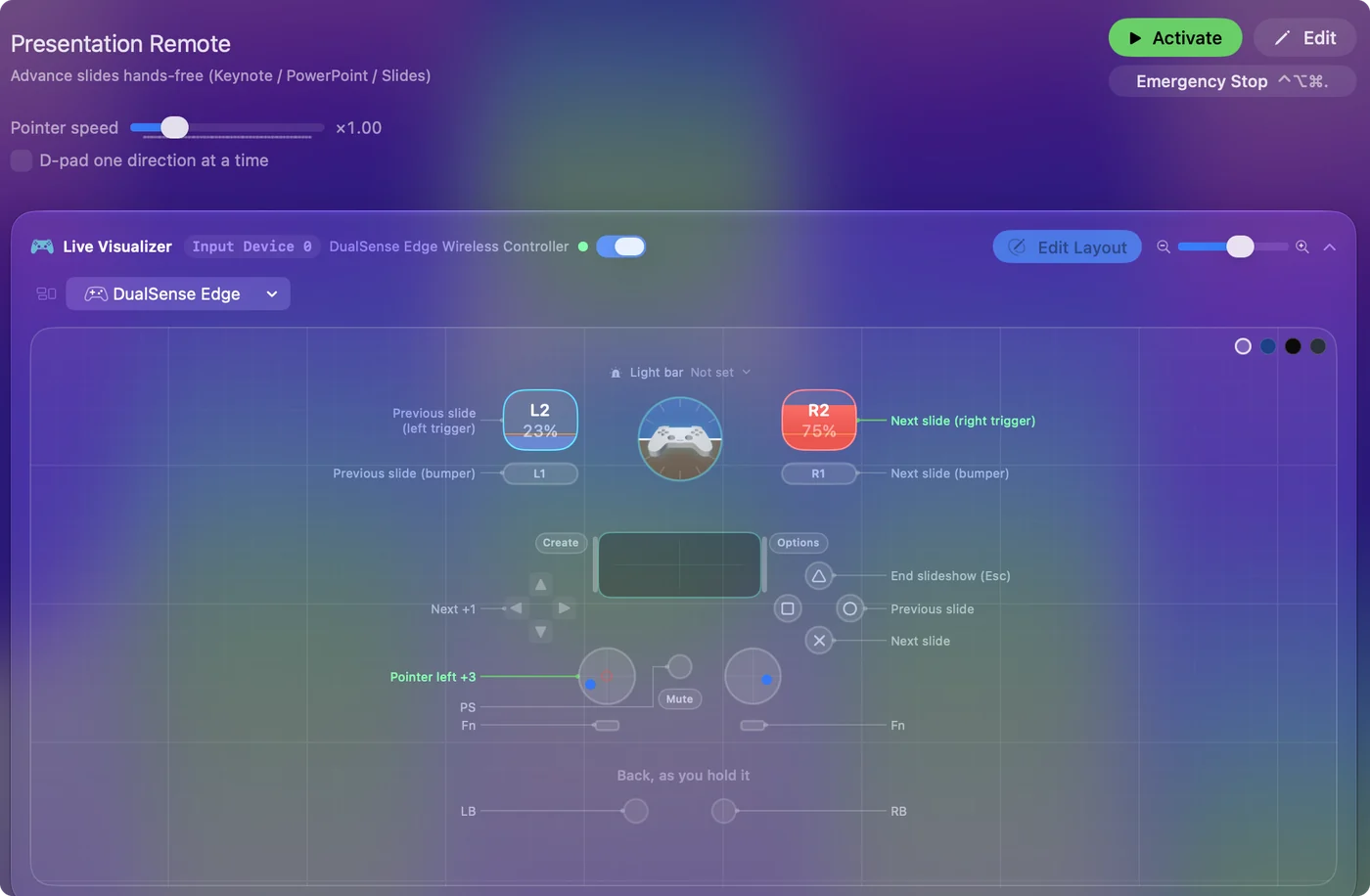
| Controller | Sends | What it does |
|---|---|---|
| Right trigger | Right | Next slide (right trigger) |
| Left trigger | Left | Previous slide (left trigger) |
| A / Cross | Right | Next slide |
| B / Circle | Left | Previous slide |
| RB / R1 | Right | Next slide (bumper) |
| LB / L1 | Left | Previous slide (bumper) |
| D-pad right | Right | Next |
| D-pad left | Left | Previous |
| Y / Triangle | Escape | End slideshow (Esc) |
| Left stick left | Mouse motion left (speed 14) | Pointer left |
| Left stick right | Mouse motion right (speed 14) | Pointer right |
| Left stick up | Mouse motion up (speed 14) | Pointer up |
| Left stick down | Mouse motion down (speed 14) | Pointer down |
Button names follow the Xbox / PlayStation pair shown in the editor, so A / Cross is the bottom face button on either pad. On a Switch Pro Controller the bottom button is labeled B; the mapping still fires on position.
A preset with this name also ships inside the app, with a file you can download: Presentation Remote built-in preset.
Questions
Which apps does it work with?
Keynote, PowerPoint, Google Slides in a browser, and anything else that advances on the arrow keys.
Can a PS5 or Xbox controller be a presentation clicker on a Mac?
Yes. Pair it over Bluetooth, activate the Presentation Remote layout, and the triggers, bumpers, face buttons and D-pad advance and go back. The left stick moves the pointer.
Do I need special software for a normal clicker on a Mac?
Usually not. Most clickers act as a small keyboard. You only need software like InputConfig when something that is not a keyboard should change slides.
Related
Completely free. You don't have to make an account, there are no subscriptions, and nothing is locked. Optimized for Apple silicon. Open source on GitHub.
Updated