LibreOffice from a game controller
 The LibreOffice layout is built into InputConfig, free on the Mac App Store. You don't have to make an account, there are no subscriptions, and nothing is locked. Optimized for Apple silicon.
On a Mac: LibreOffice for Mac uses Command for its shortcuts and reads them from this layout like a keyboard.
Yes, LibreOffice Writer, Calc and Impress work from a game controller on a Mac, because LibreOffice for Mac uses Command for the same keys Word does. Copy, paste, select all and undo sit on the face buttons, the arrows on the D-pad. With dictation on a bumper, a long document is readable and editable from a chair.
The layout, control by control
How the layout thinks
- Edit. Copy on the bottom face button, paste on the right, select all on the left, undo on the top.
- Move the text cursor. The D-pad sends the arrow keys.
- Point and scroll. The left stick is the pointer, the right stick scrolls, the right trigger clicks.
Tune it for each app
- Calc. The arrows already move between cells. Add Tab and Return on the bumpers, or switch to the spreadsheet layout with per-app auto-switch.
- Impress. The arrow keys advance a slideshow, and the presentation remote layout is built for presenting.
- Dictation. Add a Start Dictation row on a bumper.
- Save. Put Command S on a stick click.
Writer needs nothing changed, while Calc and Impress each want one small addition.
Get it in two clicks
- Get InputConfig free on the Mac App Store, open it, and click Smart Preset Maker on the welcome screen.
- Search for LibreOffice and pick it. The layout is created as a preset in your sidebar, named and ready.
- Press Activate. Every row can be changed afterwards: the editor's Scan button rebinds any control the moment you touch it.
Every binding, as a table
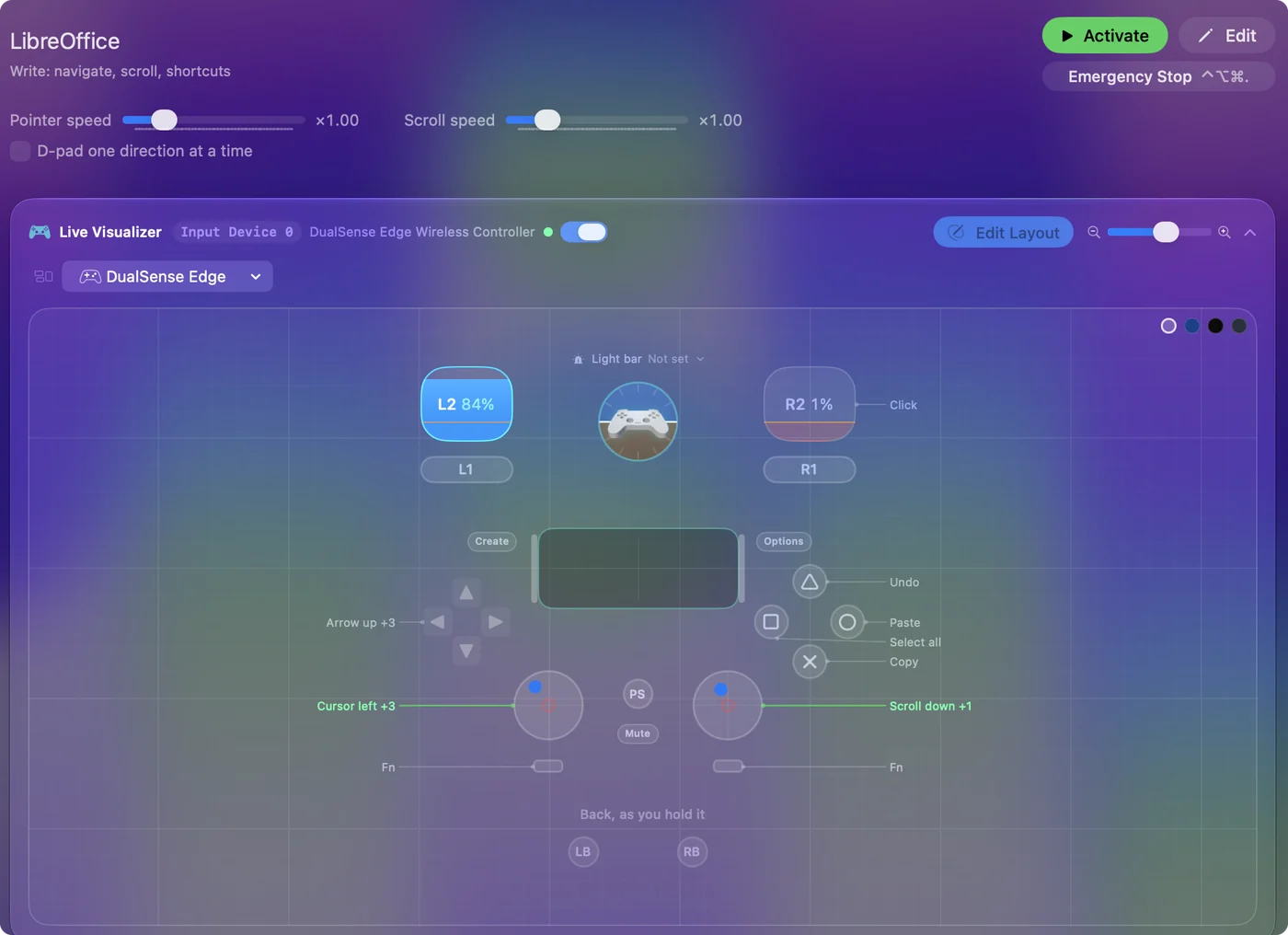
| Controller | Sends | What it does |
|---|---|---|
| Left stick left | Mouse motion left (speed 16) | Cursor left |
| Left stick right | Mouse motion right (speed 16) | Cursor right |
| Left stick up | Mouse motion up (speed 16) | Cursor up |
| Left stick down | Mouse motion down (speed 16) | Cursor down |
| Right stick down | Scroll down | Scroll down |
| Right stick up | Scroll up | Scroll up |
| Right trigger | Left click | Click |
| A / Cross | Command (Left), C | Copy |
| B / Circle | Command (Left), V | Paste |
| X / Square | Command (Left), A | Select all |
| Y / Triangle | Command (Left), Z | Undo |
| D-pad up | Up | Arrow up |
| D-pad down | Down | Arrow down |
| D-pad left | Left | Arrow left |
| D-pad right | Right | Arrow right |
Button names follow the Xbox / PlayStation pair shown in the editor, so A / Cross is the bottom face button on either pad. On a Switch Pro Controller the bottom button is labeled B; the mapping still fires on position.
Questions
Does this match the Word layout?
Yes, the rows are the same.
Related
Completely free. You don't have to make an account, there are no subscriptions, and nothing is locked. Optimized for Apple silicon. Open source on GitHub.
Updated