Microsoft Word from a game controller
 The Microsoft Word layout is built into InputConfig, free on the Mac App Store. You don't have to make an account, there are no subscriptions, and nothing is locked. Optimized for Apple silicon.
On a Mac: Word for Mac has no controller settings of its own. It takes ordinary keys and clicks, which is all this layout sends, so there is nothing to enable in Word.
Yes, you can edit in Microsoft Word on a Mac with a game controller, as long as dictation does the typing. This layout puts the pointer, scrolling, the arrow keys, copy, paste and undo on the pad, and macOS dictation writes the words. I would start here for any long piece of writing.
On this page: 8 sections
The layout, control by control
How the layout thinks
It is an editing layout, not a typing one: you dictate a paragraph, then fix it from the pad.
- Point and scroll. The left stick is the pointer at a calm speed, the right stick scrolls the document, and the right trigger clicks.
- Move the text cursor. The D-pad is the four arrow keys, which move the cursor a character or a line at a time, the thing you do most when editing.
- Keep the four commands close. Copy on the bottom face button, Paste on the right, Select All on the left, Undo on the top.
- Leave typing to your voice. Nothing on the pad types, on purpose.
For a hand that cannot span a keyboard, that split is the difference between writing and not writing. Everything except typing turns out to be most of editing.
Tune it for Word
- Dictation on a button. Add a row on any spare button with the System Function output Start Dictation. Press it, talk, press it again, and the words land at the cursor. Dictation has to be on in System Settings, Keyboard.
- A word at a time. Duplicate the four D-pad rows, add Option to each output, and in each copy's Options, under Second control, set While also holding to L1. Holding L1 turns the D-pad into Option and the arrows, which jumps by word. A second set with Shift behind R1 selects as it moves.
- Held arrows that repeat. Turn on Repeat keys while held in a D-pad row's Options, and holding down runs the cursor down the page at the repeat speed set in System Settings, Keyboard.
- Cut, save, find. The bumpers are free: Cut (Command X) and Save (Command S) fit there, and Find (Command F) on the touchpad press.
- Stock phrases. A Type Text output puts a whole string on a button: a signature block, an address, a heading you use every day.
- Hear it back. The Speak Selection system function reads the selected text aloud, once Speak selection is on in System Settings, Accessibility, Spoken Content. It catches the dictation mistakes your eyes skip.
- A calmer pointer. If the pointer feels quick on Word's small ribbon buttons, lower the Pointer speed slider on the preset's page. It changes all four pointer rows at once.
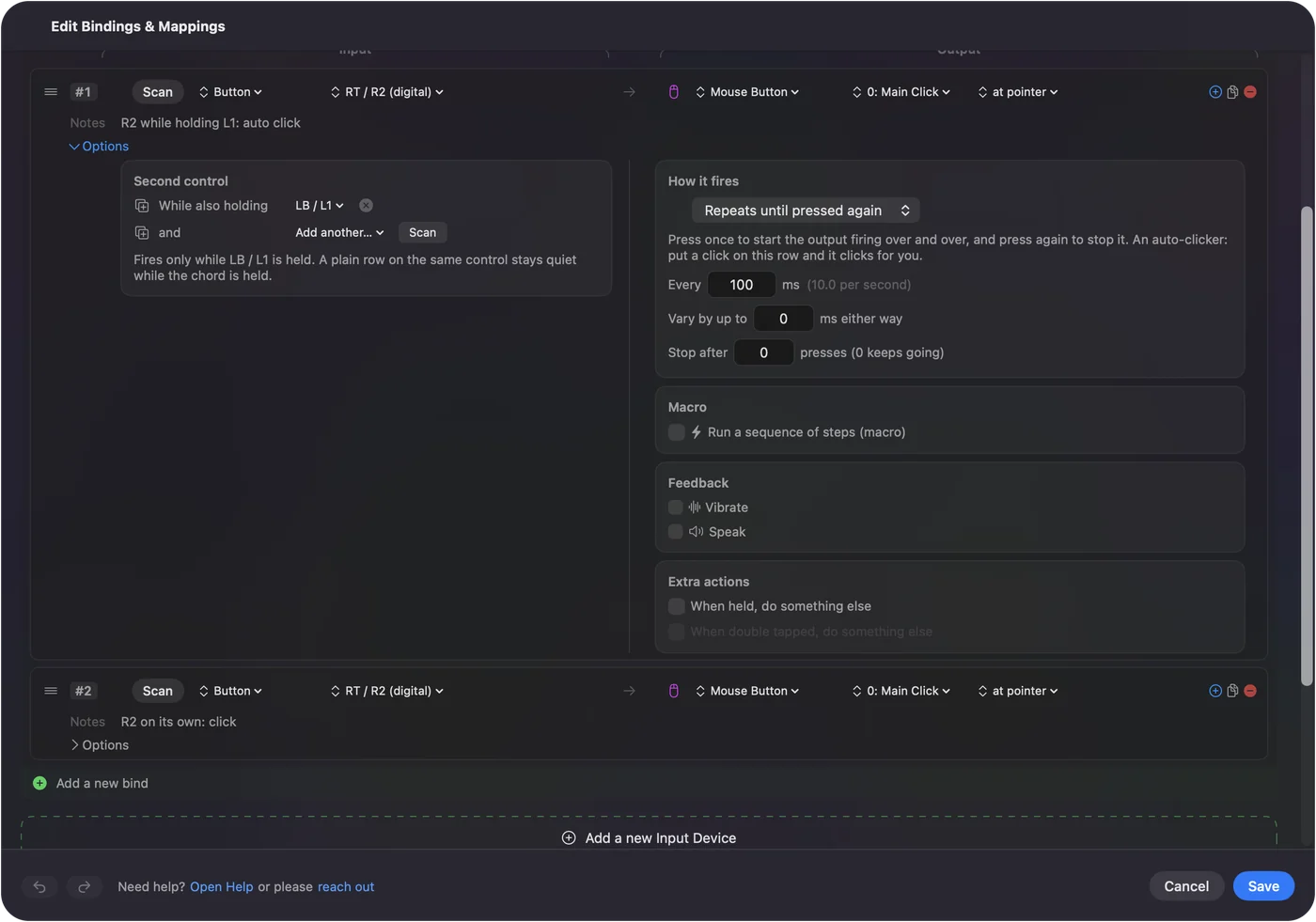
If you add only one row, make it dictation. The dictation row is what turns this from an editor into a writing tool.
If you keep a mouse in the other hand
InputConfig has a built-in preset called Easy Edit for exactly that person: a controller in one hand, a mouse or trackpad in the other. It works in Word as it is.
- The D-pad edits. Undo up, Copy down, Cut left, Paste right. It counts one direction at a time, so a quick press cannot fire Cut in place of Copy.
- The face buttons finish. A deletes, B saves, X types a space, Y is Return.
- The left stick talks. Push it up firmly to start dictation, and down to hear the selected text read aloud.
The using a Mac without a keyboard guide covers the longer version of this setup. With a mouse in the other hand, start from Easy Edit rather than this layout.
The short version
- Talk, then fix. Dictate a paragraph, then move, select and undo from the pad.
- Add two rows first. Start Dictation on a spare button, and the word-jump chord on L1.
- Slow the pointer if you overshoot. One slider on the preset's page does it.
Give it a week of real documents before you change much else. Your voice writes and the pad edits, and together they cover everything a keyboard did.
Get it in two clicks
- Get InputConfig free on the Mac App Store, open it, and click Smart Preset Maker on the welcome screen.
- Search for Microsoft Word and pick it. The layout is created as a preset in your sidebar, named and ready.
- Press Activate. Every row can be changed afterwards: the editor's Scan button rebinds any control the moment you touch it.
Every binding, as a table
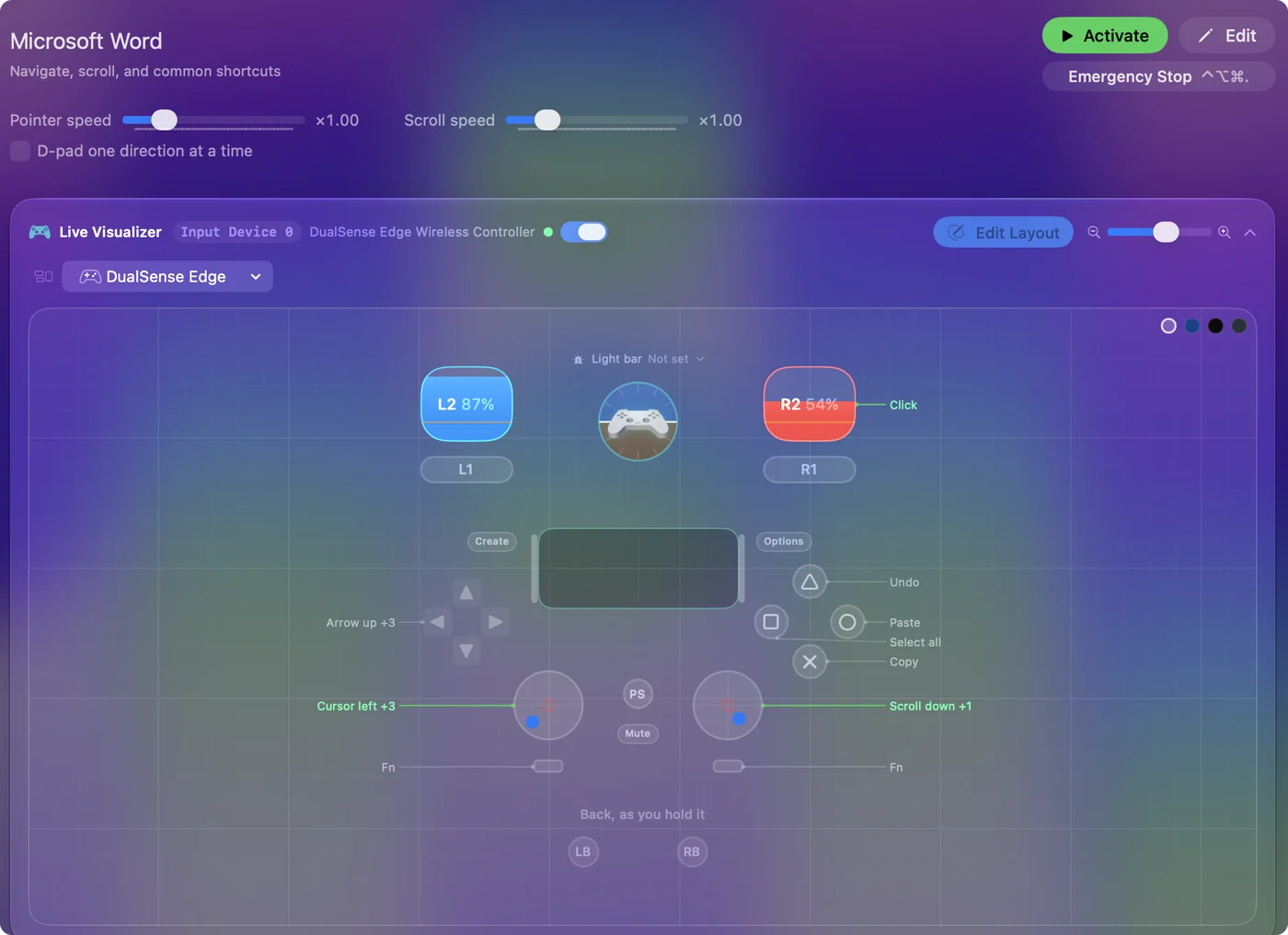
| Controller | Sends | What it does |
|---|---|---|
| Left stick left | Mouse motion left (speed 16) | Cursor left |
| Left stick right | Mouse motion right (speed 16) | Cursor right |
| Left stick up | Mouse motion up (speed 16) | Cursor up |
| Left stick down | Mouse motion down (speed 16) | Cursor down |
| Right stick down | Scroll down | Scroll down |
| Right stick up | Scroll up | Scroll up |
| Right trigger | Left click | Click |
| A / Cross | Command (Left), C | Copy |
| B / Circle | Command (Left), V | Paste |
| X / Square | Command (Left), A | Select all |
| Y / Triangle | Command (Left), Z | Undo |
| D-pad up | Up | Arrow up |
| D-pad down | Down | Arrow down |
| D-pad left | Left | Arrow left |
| D-pad right | Right | Arrow right |
Button names follow the Xbox / PlayStation pair shown in the editor, so A / Cross is the bottom face button on either pad. On a Switch Pro Controller the bottom button is labeled B; the mapping still fires on position.
Questions
Can I type in Word with a game controller?
Not letter by letter, and you would not want to. Use macOS dictation for the words and the controller for editing, which is what this layout is built around. Type Text outputs cover stock phrases, and the on-screen keyboard page covers the rest.
Does this work with Pages or Google Docs?
Yes. It is ordinary keyboard and mouse input. Pages has its own entry in the Smart Preset Maker, and Google Docs in a browser takes the same keys.
Will the preset switch on when I open Word?
Yes, if you list Word under Activate when these apps are in front and turn on automatic switching in Settings, Advanced. It turns on when Word comes to the front and hands back to your previous preset when Word leaves.
Related
Completely free. You don't have to make an account, there are no subscriptions, and nothing is locked. Optimized for Apple silicon. Open source on GitHub.
Updated