Microsoft Excel from a game controller
 The Microsoft Excel layout is built into InputConfig, free on the Mac App Store. You don't have to make an account, there are no subscriptions, and nothing is locked. Optimized for Apple silicon.
On a Mac: Excel for Mac reads the arrow keys, Tab, Return and its Command shortcuts like any keyboard. Nothing to enable in Excel.
Yes, you can work in Excel on a Mac with a game controller, because a spreadsheet is a grid and a D-pad is a grid controller. This layout moves cell to cell on the D-pad, confirms with Tab and Return on the bumpers, and keeps copy, paste, save and undo on the face buttons. Reviewing a sheet, checking figures and filling in a form somebody sent you all fit. The numbers come from dictation or the Numeric Keypad layout.
On this page: 7 sections
The layout, control by control
How the layout thinks
- Move between cells. Each D-pad press is an arrow key, one cell at a time.
- Confirm and move on. The left bumper is Tab, which confirms a cell and moves right. The right bumper is Return, which confirms and moves down.
- Keep the four commands close. Copy on the bottom face button, Paste on the right, Save on the left, Undo on the top.
- Reach the rest with the stick. The left stick is the pointer for what a cell cursor cannot reach, the ribbon and the sheet tabs. The right stick scrolls and the right trigger clicks.
Once the D-pad moves the cell and the bumpers confirm it, most of Excel is reachable without a keyboard. The D-pad is the cell cursor, and the stick is for everything around the grid.
Tune it for Excel
Start with these two settings in InputConfig, then add the chords you miss.
- One direction at a time. On the preset's page, turn on D-pad one direction at a time. The first direction pressed keeps the D-pad until you let go, so a slightly diagonal press never moves the cursor two ways.
- Run down a column. In each D-pad row's Options, turn on Repeat keys while held, so holding down runs down a column at the Mac's own key repeat speed.
- Jump to the edge of the data. It is Command plus an arrow. Duplicate the D-pad rows with Command added and, under Second control in each row's Options, set While also holding to L3 or a paddle.
- Select a range. Shift plus an arrow extends the selection, and Command Shift plus an arrow selects to the edge. Two more chord sets.
- Fill down. Command D copies the cell above into the selection. Put it on the touchpad press, or a stick click on an Xbox pad.
- Back up a row. Shift Return confirms and moves up, for correcting the cell you just left.
- Enter numbers. The Numeric Keypad layout puts 0 to 9 on the pad behind chords. Copy those rows in if you enter more numbers than you review, or add a Start Dictation row, say the number and press the Return bumper.
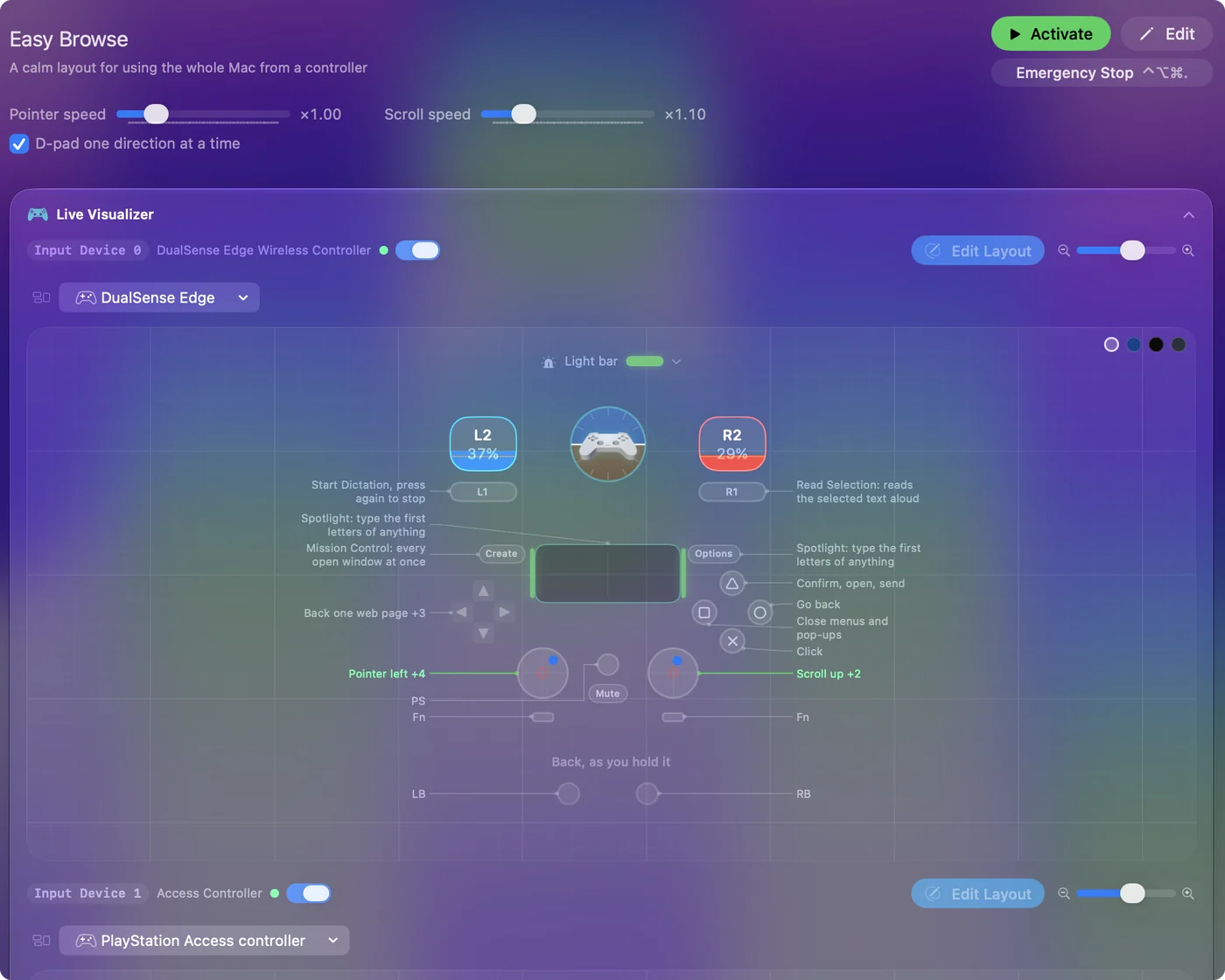
The first setting is the one people notice. Turn on one direction at a time before you trust the D-pad with a real sheet.
The short version
- D-pad for cells, bumpers to confirm. Tab moves right, Return moves down.
- Two settings first. Set the D-pad to one direction at a time, and turn on Repeat keys while held on the D-pad rows.
- Chords for the rest. Command reaches edges and Shift selects ranges, both behind a held button.
Numbers can stay with dictation until you know you need the keypad rows. Most spreadsheet work is moving and checking, and that is all on the D-pad.
Get it in two clicks
- Get InputConfig free on the Mac App Store, open it, and click Smart Preset Maker on the welcome screen.
- Search for Microsoft Excel and pick it. The layout is created as a preset in your sidebar, named and ready.
- Press Activate. Every row can be changed afterwards: the editor's Scan button rebinds any control the moment you touch it.
Every binding, as a table
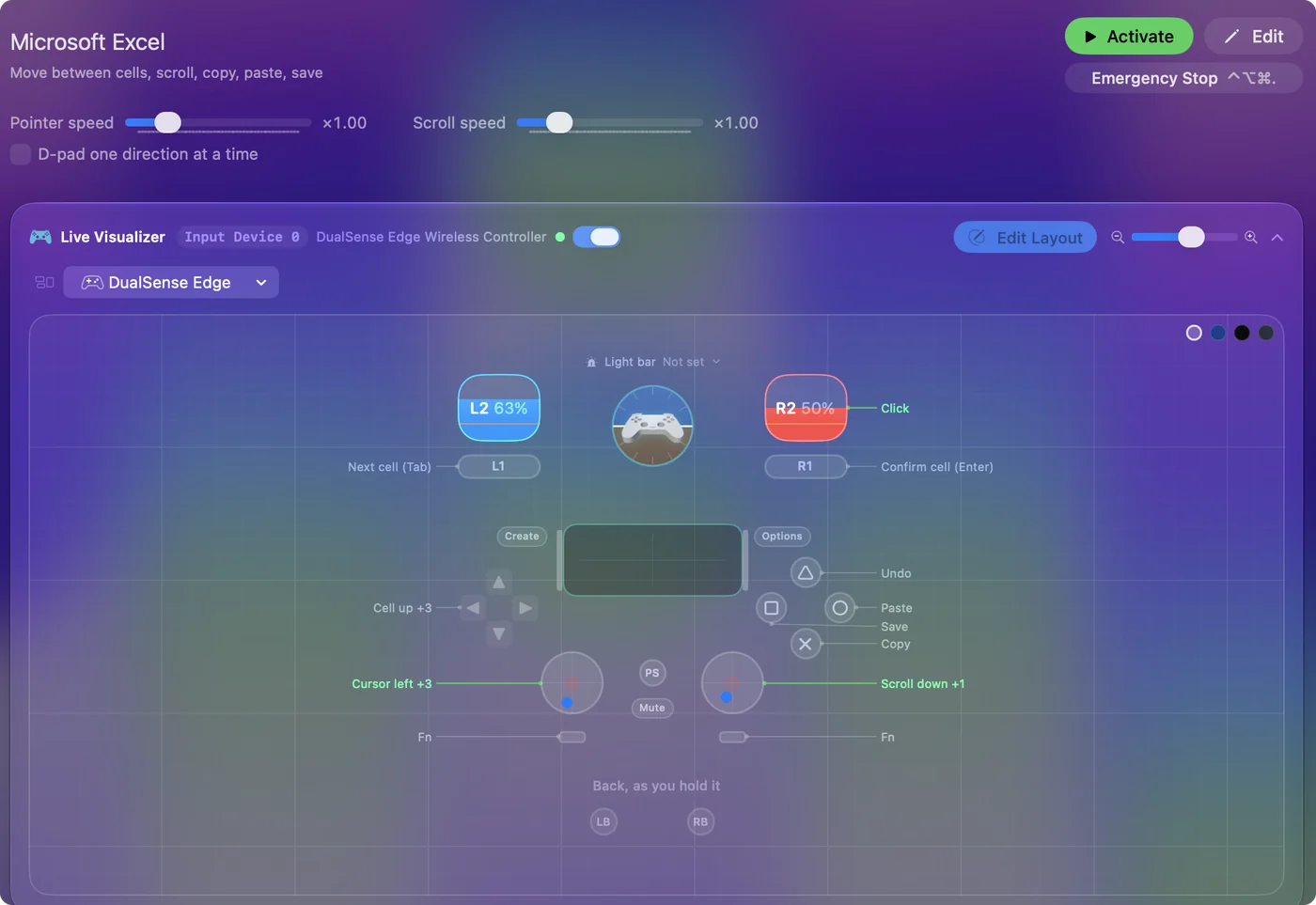
| Controller | Sends | What it does |
|---|---|---|
| Left stick left | Mouse motion left (speed 16) | Cursor left |
| Left stick right | Mouse motion right (speed 16) | Cursor right |
| Left stick up | Mouse motion up (speed 16) | Cursor up |
| Left stick down | Mouse motion down (speed 16) | Cursor down |
| Right stick down | Scroll down | Scroll down |
| Right stick up | Scroll up | Scroll up |
| Right trigger | Left click | Click |
| D-pad up | Up | Cell up |
| D-pad down | Down | Cell down |
| D-pad left | Left | Cell left |
| D-pad right | Right | Cell right |
| A / Cross | Command (Left), C | Copy |
| B / Circle | Command (Left), V | Paste |
| X / Square | Command (Left), S | Save |
| Y / Triangle | Command (Left), Z | Undo |
| LB / L1 | Tab | Next cell (Tab) |
| RB / R1 | Return | Confirm cell (Enter) |
Button names follow the Xbox / PlayStation pair shown in the editor, so A / Cross is the bottom face button on either pad. On a Switch Pro Controller the bottom button is labeled B; the mapping still fires on position.
Questions
Can I enter numbers in Excel with a controller?
Yes, with the Numeric Keypad layout's rows added to this preset, or with dictation into the active cell.
Does it work with Numbers or Google Sheets?
Yes. Numbers has its own entry in the Smart Preset Maker, and Google Sheets in a browser takes the same arrow keys, Tab and Return.
Why does the cursor jump two cells sometimes?
A D-pad pressed at a slight angle can register two directions. Turn on D-pad one direction at a time on the preset's page and the first direction pressed keeps the D-pad until you let go.
Related
Completely free. You don't have to make an account, there are no subscriptions, and nothing is locked. Optimized for Apple silicon. Open source on GitHub.
Updated