MIDI to keystroke: MIDI keys, pads and knobs as shortcuts
 InputConfig is completely free on the Mac App Store. You don't have to make an account, there are no subscriptions, and nothing is locked. Optimized for Apple silicon.
InputConfig turns MIDI notes, pads, knobs, faders and the sustain pedal into keystrokes, keyboard shortcuts, mouse clicks, scrolling, macros and system functions on a Mac. Plug the device in over USB or pair it as Bluetooth MIDI and the app finds it with no drivers. It is free and open source, on the Mac App Store. I built InputConfig because my hands do not work well, and one pad is easier for me than a three-key shortcut. If a pad does nothing, the ladder starts with the Live Visualizer.
On this page: 11 sections
Steps
- Connect the MIDI device.
- Add a row, set its input type to MIDI, press Scan, and play a key, turn a knob, or move the wheel.
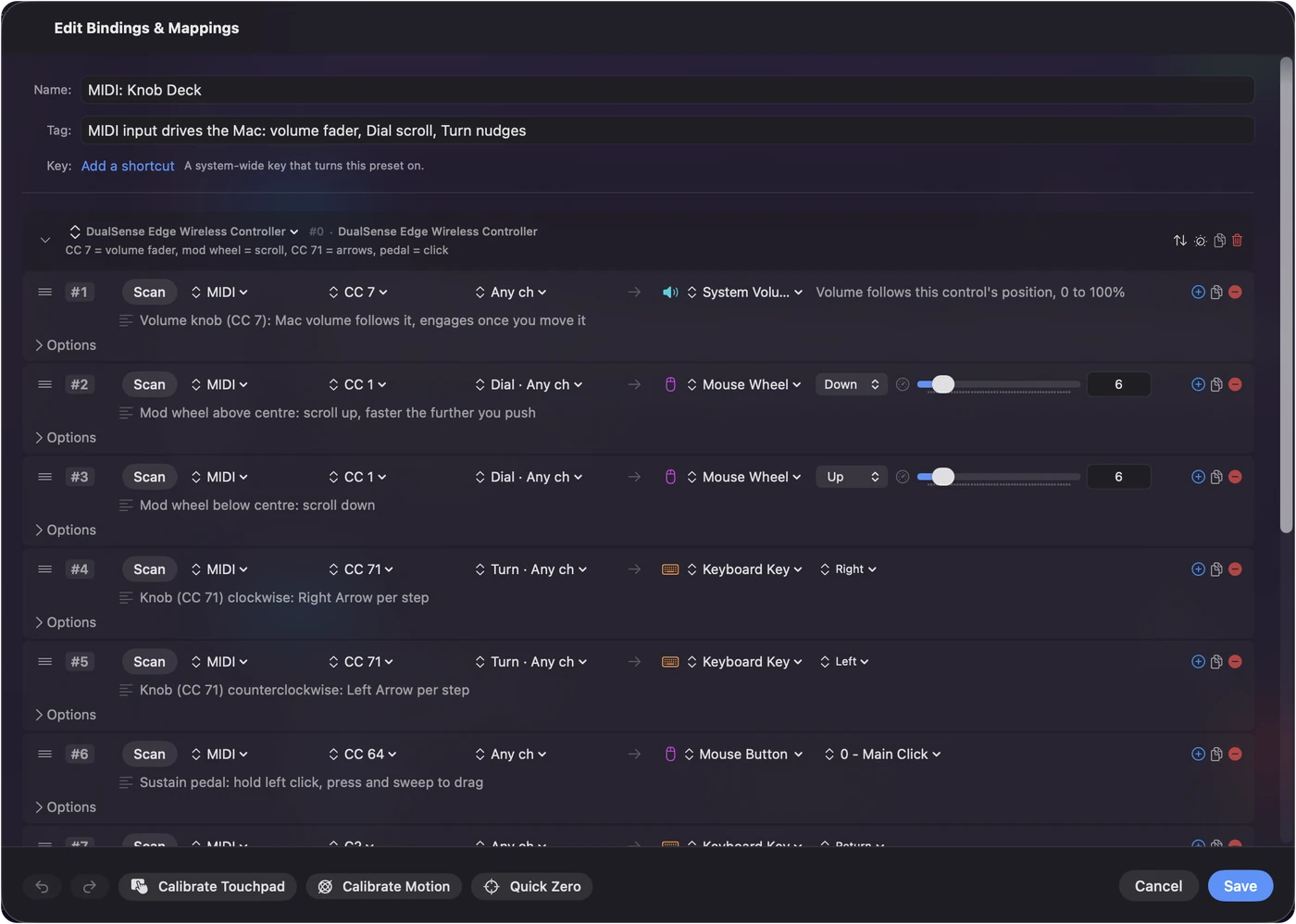
- Pick an output. The built-in MIDI: Knob Deck and MIDI: Media Deck presets are complete examples to re-scan onto your own hardware.
Know what each control does
- Notes and pads. They act like buttons and stay held while the key is down.
- Knobs, sliders and pedals. Control Change fires once the value passes halfway, so a sustain pedal is an on and off switch.
- The pitch wheel. It rests at center and binds in plus and minus, like a stick axis.
- Aftertouch. It fires when you press harder into a held key.
- Program Change. It fires once each time the patch changes.
- Transport. Start, Continue and Stop from a sequencer, drum machine or DAW fire once each, like Program Change.
A DAW on this Mac reaches InputConfig through an IAC Driver bus in Audio MIDI Setup: send its MIDI sync to that bus and InputConfig hears it. Press Scan and play the control, and InputConfig works out which kind it is.
Choose a knob mode
- Switch. Fires once the value passes halfway. For pedals and buttons that send CC.
- Dial. The center of the knob is zero, like a stick. The further you turn, the faster the output runs, and the row's deadzone keeps it still near the middle. Pair it with Mouse Wheel for scrolling that speeds up as you turn.
- Turn. Fires short nudges every few steps of rotation, clockwise for plus and counterclockwise for minus. For knobs that send their position, including endless encoders set to absolute mode: volume, brightness, arrow keys, zoom. Turn Step sets the nudge size.
An encoder in a relative mode, sending 65 and 63 or 1 and 127, is not decoded; set it to absolute. Dial for scrolling, Turn for stepping, Switch for pedals.
Pick what a pad, key or knob sends
- A key or a full shortcut. Such as Command S or Command Shift 4. The key is held for as long as the pad is held.
- A macro. A timed list of keys and clicks, such as copy, switch app, paste. See macros.
- Type Text. A whole phrase, a signature or a code snippet from one pad.
- Mouse clicks. Left or right, and a held button for dragging. A knob in Dial mode can be the scroll wheel.
- System functions. Volume, mute, play and pause, next track, brightness, Mission Control, Spotlight, lock screen, the screenshot toolbar and Start Dictation. See system functions.
- Automation. Run a Siri Shortcut, Open App or Open URL.
- System Volume. A real fader that follows a knob or slider one to one. It only takes over once you move the control, so plugging in does not yank the volume.
- MIDI out. Through the app's own virtual port. See MIDI output.
- App actions. Switch to another preset, or the emergency stop.
Several outputs can sit on one row, so a single pad can press a key and click at once. Anything a keyboard, a mouse or the Mac's own keys can do, a pad can do.
Filter by channel and device
Rows default to any device, so the preset keeps working when a different keyboard is plugged in. A row made by Scan keeps the channel it was scanned on; choose Any channel from the row's menu for an MPE controller, which plays each note on its own channel. Pick a channel to split a keyboard, or a device to keep two keyboards independent. Leave rows on any device unless two keyboards need different jobs.
Give one pad several jobs
- Hold and double tap. Every row can carry a press, a hold action and a double-tap action, so one pad can save on a tap and save-as on a hold.
- Toggle. Latches a modifier until the next press.
- Per app. With per-app auto-switch the same pads send Final Cut shortcuts while Final Cut is in front and OBS hotkeys while OBS is in front. Automatic switching is off until you turn it on in Settings, Advanced.
- Whole layouts. A Program Change row can activate a specific preset, so a patch button on the controller flips between whole layouts.
With three jobs per pad, a small pad controller goes a long way.
If a pad does nothing
The Live Visualizer's MIDI layout shows a seven-octave keyboard shaded by velocity, a named dial for every knob, pitch bend and aftertouch meters, a channel strip and an event log. It is the quickest way to find what a mystery knob sends. Climb this ladder, smallest step first:
- Watch the Live Visualizer. Press the pad. If nothing lights, macOS is not passing the device through, so check Audio MIDI Setup and the cable.
- Check the preset is active. If it lights but nothing happens, the preset may not be running.
- Check the filters. The row's channel and device must match what the pad sends.
- Check the permission. InputConfig needs Accessibility in System Settings, Privacy & Security to send keys and clicks.
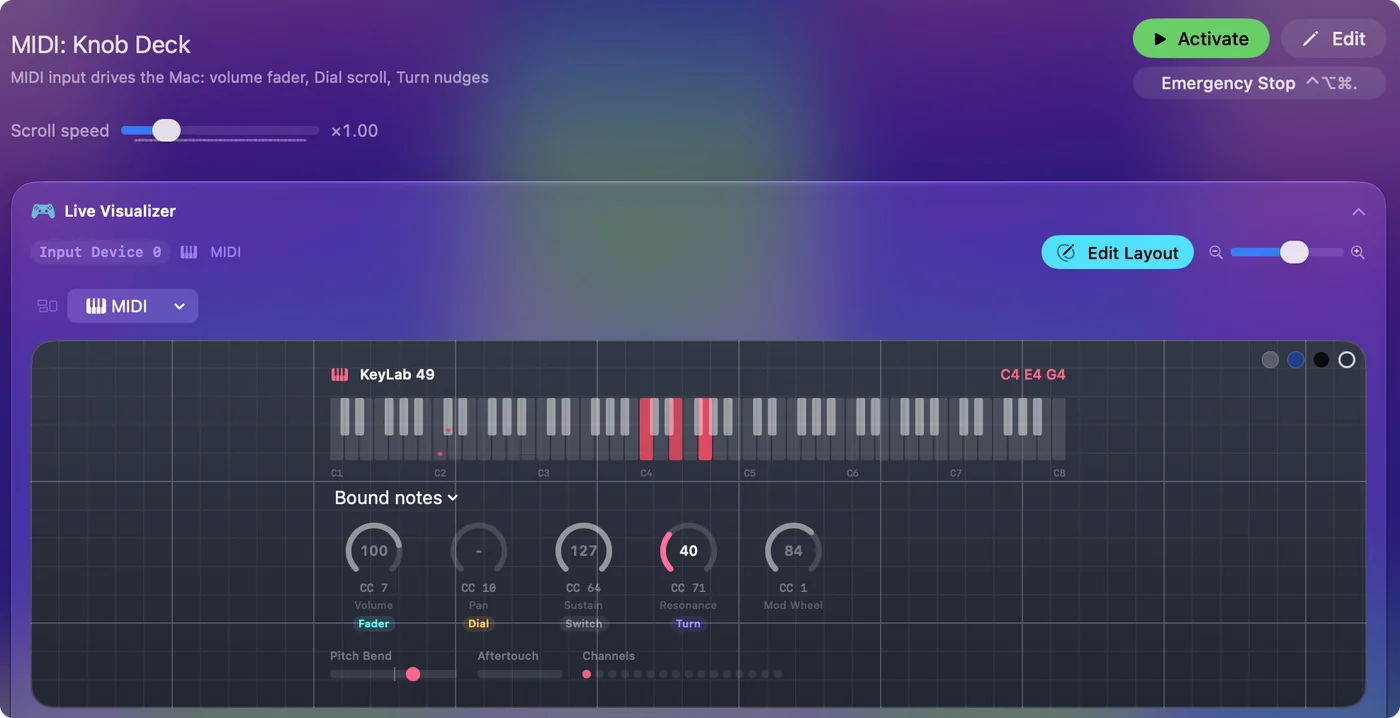
If the Live Visualizer sees the pad, the fix is in the preset, not the cable.
Why a MIDI pad makes a good macro pad
A second computer keyboard makes a poor macro pad on a Mac, because InputConfig listens alongside macOS and never takes a key away: the 7 on a spare numpad still types 7. A MIDI pad types nothing on its own, so every pad is free for a shortcut, and many desks already have one. The macro deck guide compares the options, and the streaming deck guide builds an OBS deck the same way.
Your DAW still hears the notes, because InputConfig reads a copy of what the device sends. If a track is armed, it will record the shortcut pads. Use pads or a channel the DAW ignores, or disarm the track.
When you do not need this
If you only want a knob to move a fader or a plugin control inside your DAW, use the DAW's own MIDI learn. It is built for that and needs nothing else. InputConfig is for everything the DAW cannot reach: Finder, the browser, Zoom, Photoshop, menu commands, the Mac's volume. If you need conditional rules, variables or routing between hardware MIDI ports, Bome MIDI Translator Pro is the stronger tool. The MIDI to keystroke app list compares the rest honestly.
I have not tested every MIDI controller. Any keyboard, pad controller, knob box or pedal that shows up in Audio MIDI Setup should work, and a controller with a DAW-specific mode should be switched to its plain MIDI mode. If it appears in Audio MIDI Setup, InputConfig sees it.
The short version
- Connect and scan. Plug in the device, press Scan on a row, play the control.
- Pick an output. A shortcut, a macro, a click, the volume, or anything else a row can send.
- Start from an example. MIDI: Knob Deck and MIDI: Media Deck are complete layouts to re-scan onto your own hardware.
A pad that types nothing is the best shortcut key a Mac can have.
Questions
Does it need a game controller alongside?
No. A MIDI-only preset runs with no controller connected.
Can MIDI in and MIDI out share a preset?
The app never listens to its own output port, so they cannot loop.
Can one pad press a whole sequence of keys?
Make the row a macro: each step is a key or a mouse button with its own wait and hold time. To send a whole phrase, use a Type Text row.
Does my DAW still get the notes?
InputConfig reads a copy of what the device sends and does not intercept it, so the DAW and InputConfig hear the same notes. Keep shortcut pads off armed tracks.
I press a pad and nothing happens. What should I check?
First, open the Live Visualizer and press the pad: if nothing lights, macOS is not passing the device through, so check Audio MIDI Setup and the cable. If it lights, check that the preset is active, that the row's channel and device filters match, and that InputConfig has Accessibility permission in System Settings, Privacy & Security, which it needs to send keys and clicks.
Is there a free MIDI to keystroke app for Mac that works on Apple silicon?
InputConfig is free and open source with nothing locked, runs on Apple silicon and Intel Macs with macOS 14 or later, and comes from the Mac App Store. It needs no account and makes no network connections.
Which MIDI controllers work?
Any keyboard, pad controller, knob box, or pedal that shows up in Audio MIDI Setup, which covers most USB class-compliant gear, Bluetooth MIDI, and hardware on an interface. I have not tested every model, so that is the check to make: if your Akai, Novation, Arturia, or Korg controller appears there, InputConfig sees it. Controllers with a DAW-specific mode should be switched to their plain MIDI mode.
Can a knob scroll, move the volume, or step through frames?
In Dial mode a knob drives the mouse wheel, faster the further you turn. Bound to System Volume, it becomes the Mac's volume fader. In Turn mode each bit of rotation sends a nudge, so it can press the arrow keys, change brightness, or zoom.
Related
Completely free. You don't have to make an account, there are no subscriptions, and nothing is locked. Optimized for Apple silicon. Open source on GitHub.
Updated