A MIDI controller as a control surface
 InputConfig is completely free on the Mac App Store. You don't have to make an account, there are no subscriptions, and nothing is locked. Optimized for Apple silicon.
A MIDI keyboard, pad controller or knob box can be a macro pad and control surface for the whole Mac, while it keeps playing your instruments. InputConfig turns the idle parts into commands: pads become DAW shortcuts and app launchers, knobs become the Mac's volume and a scroll wheel, the sustain pedal becomes a click, and the channels and notes you leave alone keep reaching the DAW as before. No driver is needed.
This guide is written for someone who already knows what a CC is. Setting up the pad remote on this page takes ten minutes.
On this page: 14 sections
- Steps
- Know what InputConfig listens to
- See what a control sends
- Choose a knob mode
- Make a fader the Mac's volume
- Turn sixteen pads into a DAW remote
- Split a keyboard into shortcuts and notes
- Switch presets with Program Change
- Send MIDI the other way too
- Pair a Bluetooth MIDI device
- If a device does not show up
- The short version
- Download
- Questions
Steps
- Connect the controller by USB, or pair a Bluetooth MIDI device in Audio MIDI Setup.
- Open the Live Visualizer's MIDI view and touch each pad and knob to see what it sends.
- Add the MIDI DAW Remote preset from this page, or make a MIDI-only preset of your own.
- Pick Switch, Dial or Turn on each knob row to match the control and the output.
- Bind a fader to System Volume and change the pad outputs to your DAW's shortcuts.
- Keep shortcut notes out of recordings with a note range or a separate channel.
Know what InputConfig listens to
InputConfig reads these messages, from any source macOS lists: USB class-compliant devices, Bluetooth MIDI through Audio MIDI Setup, and hardware on an interface.
- Notes and pads. With velocity, though they act as on and off.
- Control Change. On any number.
- Pitch bend and channel aftertouch. As continuous inputs.
- Program Change. Once per patch change.
Every row can be filtered to one channel and one device, or left open to all. Nothing needs a game controller. A preset can be MIDI-only. InputConfig reads a copy of what the device sends and does not intercept it, so the DAW still receives everything, its own MIDI learn included. The controller keeps playing, because InputConfig only listens alongside.
See what a control sends
- You: Open the Live Visualizer, pick MIDI, and touch every pad, key and knob.
- InputConfig: Shows a named dial for every CC the device has sent, with its mode badge, plus the keyboard, wheels, aftertouch, a 16-channel strip, and an event log.
- Check: Each control shows its note or CC number and its channel. Use those numbers in the rows.
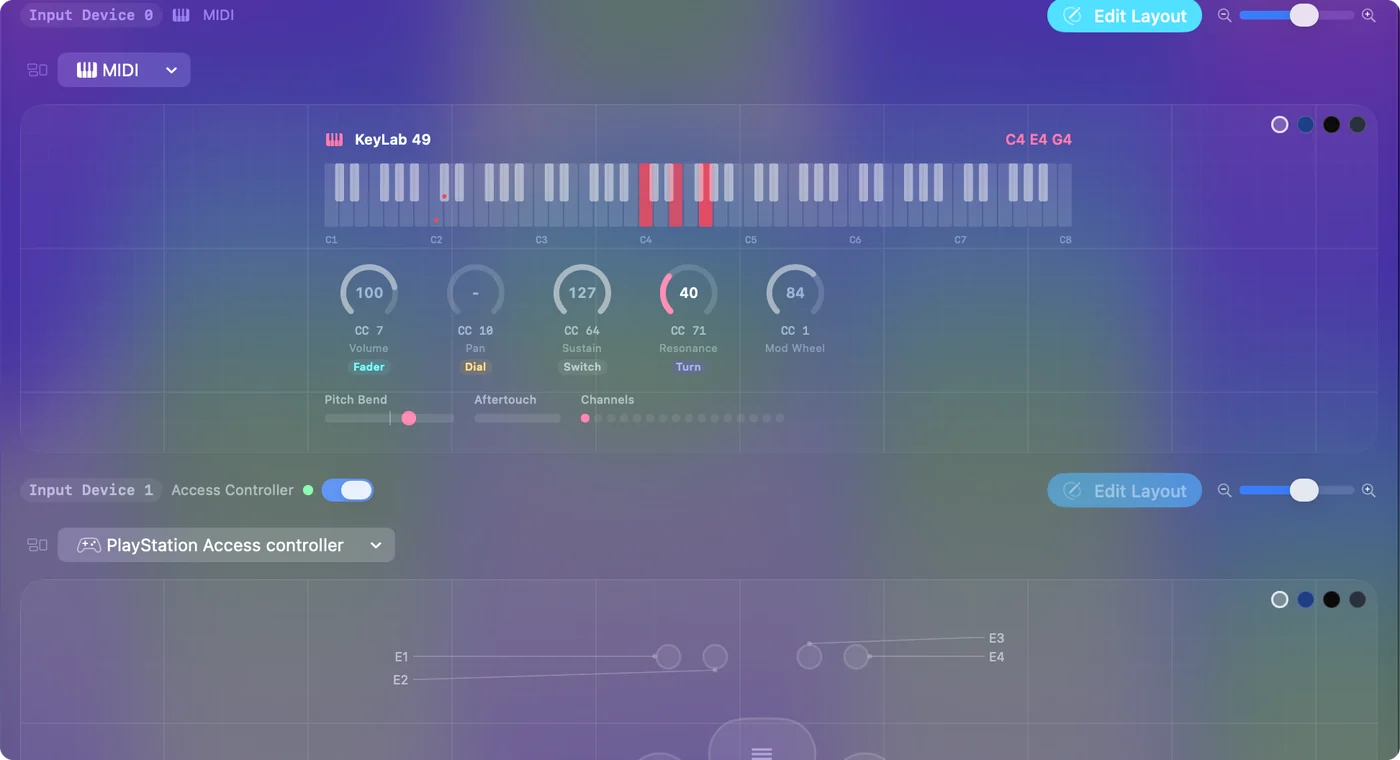
It is faster than a MIDI monitor for the question of what a knob sends.
Choose a knob mode
Each CC row has three modes:
- Switch
- A threshold at 64. The row is held while the value is at or above it, released below. Pedals, buttons that send CC, and pads on controllers that send CC instead of notes.
- Dial
- Center-relative. Value 64 is rest. Distance from 64 is speed, and sign is direction, so the row's deadzone keeps it still near center. Meant for absolute knobs and faders driving a continuous output: mouse wheel, mouse motion, a MIDI CC out. Two rows on the same CC, plus and minus, cover both directions.
- Turn
- Delta. Each step of rotation past the Turn Step size fires the outputs once as a nudge, clockwise for plus and counterclockwise for minus. Built for endless encoders and for stepped targets: Volume Up / Down, brightness, arrow keys, zoom, undo / redo. Turn Step goes from Fine (2 units) to Chunky (16).
Switch for pedals, Dial for faders and pots when the output is continuous, Turn for encoders and for anything that steps.
Make a fader the Mac's volume
The System Volume output is not a press. It follows the control's position one to one.
- You: Bind a CC to System Volume. It works from a fader, a pot, the pitch wheel, aftertouch, or a game controller trigger.
- InputConfig: Maps 0 to 127 onto 0 to 100 percent, and only takes over once the control moves.
- Check: Plug the device in and the level does not jump. Move the fader and the Mac's volume follows it.
Turn sixteen pads into a DAW remote
The MIDI DAW Remote preset on this page assumes a 16-pad controller sending notes 36 to 51, the General MIDI drum range most pad controllers default to. It sends Logic's and GarageBand's default shortcuts. Change the outputs to match Ableton, Bitwig, or Reaper in a couple of minutes.
| Pad (note) | Sends |
|---|---|
| 36 | Space (play / stop) |
| 37 | R (record) |
| 38 | Return (go to start) |
| 39 | C (cycle) |
| 40 | Command Z (undo) |
| 41 | Command Shift Z (redo) |
| 42 | Command T (split at playhead in Logic; change for your DAW) |
| 43 | M (mute selected track) |
| 44 | S (solo) |
| 45 | Command S (save) |
| 46 | Tab (toggle Logic's main window areas) |
| 47 | K (metronome) |
| 48 | Mission Control |
| 49 | Start Dictation (for naming tracks by voice) |
| 50 | Open App: the browser |
| 51 | Emergency Stop |
Two CCs are also mapped: CC 7 to System Volume, and CC 1 in Turn mode to Volume Up / Down as an alternative. Every row has Speak switched off. Turn it on while learning. A note row in Toggle mode latches a modifier until the pad is pressed again, or leave Toggle off and the modifier is held while the pad is held, so a pad can hold Shift while you click with the mouse. Pad 51 is the emergency stop, so the remote can always be turned off from the pads.
Split a keyboard into shortcuts and notes
Most keyboards send everything on one channel. Climb this ladder, simplest split first:
- A note range. InputConfig matches a note row by number, so the lowest octave, C1 to B1, can be twelve shortcuts while C2 upward plays the instrument.
- A separate channel. If the keyboard can send zones on different channels, set the shortcut zone to channel 16 and filter the rows to it. Then nothing above the split ever fires a shortcut, even if you play down there.
The catch: the DAW also hears the shortcut notes, and will record them if the track is armed. Filter the instrument track's input to the keyboard's other channel, or mute the shortcut zone in the DAW's MIDI input settings. Keep the shortcut zone out of the instrument track's input, or it ends up in the take.
Switch presets with Program Change
A Program Change row fires once per patch change, and its output can be an App Action that activates a specific preset. Patch 1 on the controller loads the mixing layout, patch 2 the editing layout. Controllers with a patch bank button get a whole set of layouts from one button.
Send MIDI the other way too
The same preset can send MIDI out: a game controller's face buttons playing notes into the DAW while the pad controller runs shortcuts. InputConfig never listens to its own virtual port, so the two never loop. The gamepad as instrument guide covers the outbound half.
Pair a Bluetooth MIDI device
Audio MIDI Setup: Open the MIDI Studio window, then double-click the Bluetooth icon.
Audio MIDI Setup, Window, Show MIDI StudioWhat happens: Once paired, the device appears to InputConfig like any other source.
Bluetooth MIDI arrives a little later than USB, which matters for playing and does not matter for shortcuts.
If a device does not show up
Climb this ladder, smallest step first:
- Check its mode. Devices in a proprietary mode, such as Push in Live's own mode or Maschine in its plugin mode, usually have a MIDI mode switch. Use that.
- Check Audio MIDI Setup. If macOS does not list the device there, InputConfig cannot hear it either.
- Check the row's filters. A row filtered to one channel or one device ignores the rest.
The short version
- Look first. The Live Visualizer's MIDI view names every note and CC.
- Pick the knob mode. Switch, Dial or Turn, by control and output.
- Start from the DAW Remote. Sixteen pads, a volume fader, and a stop.
- Split carefully. A note range or a channel, and keep shortcut notes out of the take.
The parts of the controller you never play can run the rest of the Mac.
Download
- MIDI DAW Remote presetSixteen pads as Logic / GarageBand shortcuts on notes 36 to 51, CC 7 as the Mac's volume fader, CC 1 in Turn mode as volume nudges. 9 KB
To add a downloaded preset: drop the file on InputConfig's Dock icon, or click the … button next to any preset in the sidebar, choose Import Preset File, and pick the file. It lands in the sidebar, ready to activate or edit. Any launch target inside a preset file is cleared on import; add one yourself in the editor if you want it.
Questions
Does it work with Ableton Push or Native Instruments Maschine?
If the device presents as a standard MIDI source, yes. Devices in a proprietary mode (Push in Live's own mode, Maschine in its plugin mode) usually have a MIDI mode switch; use that.
Can a pad hold a modifier while I click with the mouse?
A note row in Toggle mode latches a modifier until the pad is pressed again, or leave Toggle off and the modifier is held while the pad is held.
Will this interfere with the DAW's own MIDI learn?
No. The DAW still receives everything the device sends. InputConfig reads a copy. It does not intercept.
Related
This page in other languages: العربية, Čeština, Dansk, Deutsch, Español, Suomi, Français, עברית, Magyar, Bahasa Indonesia, Italiano, 日本語, 한국어, Norsk, Nederlands, Polski, Português, Русский, Slovenčina, Svenska, ไทย, Türkçe, Українська, Tiếng Việt, 繁體中文, 简体中文
Completely free. You don't have to make an account, there are no subscriptions, and nothing is locked. Optimized for Apple silicon. Open source on GitHub.
Updated