Questions
A game controller as a DJ controller on a Mac
Yes, with a translator that sends MIDI: InputConfig, my free Mac app, turns each button into a MIDI note and each trigger into a fader-like MIDI CC, sent through a virtual MIDI port named InputConfig. The DJ app's MIDI learn then maps them like any controller.
DJ apps on the Mac are built for MIDI controllers, and a game controller is not one until something translates. It is a good way to learn, practice on a sofa, or carry two decks in a bag. It is not a replacement for jog wheels.
On this page: 10 sections
Steps
- In InputConfig, give each face button a MIDI Note output and each trigger a MIDI CC output.
- Activate the preset so the InputConfig MIDI port appears.
- In the DJ app, pick InputConfig as a MIDI controller.
- Use the app's MIDI learn to press each control and choose its job.
Use MIDI, not keyboard shortcuts
Most DJ apps have keyboard shortcuts, and a controller can press those too. But a key is on or off, so a fader or a filter cannot follow a trigger. MIDI can:
- A trigger on MIDI CC. Sends 0 to 127 as you pull it.
- A button on MIDI Note. Sends note-on when pressed and note-off when released, which is what a cue button that previews while held needs.
Only MIDI lets a trigger move a filter smoothly.
 InputConfig is free on the Mac App Store. macOS 14 or later, no account, no tracking, open source.
Build a two-deck layout
| Control | InputConfig output | Map it to |
|---|---|---|
| Cross / A | MIDI Note 36 | Deck 1 play |
| Square / X | MIDI Note 37 | Deck 1 cue |
| Circle / B | MIDI Note 38 | Deck 2 play |
| Triangle / Y | MIDI Note 39 | Deck 2 cue |
| Left trigger | MIDI CC 20 | Deck 1 filter or effect amount |
| Right trigger | MIDI CC 21 | Deck 2 filter or effect amount |
| D-pad left and right | MIDI Notes 40 and 41 | Sync deck 1, sync deck 2 |
| D-pad up and down | MIDI Notes 42 and 43 | Loop on and off for each deck |
| Bumpers | MIDI Notes 44 and 45 | Pitch bend or nudge, held |
| Right stick right | MIDI CC 22 | A filter sweep |
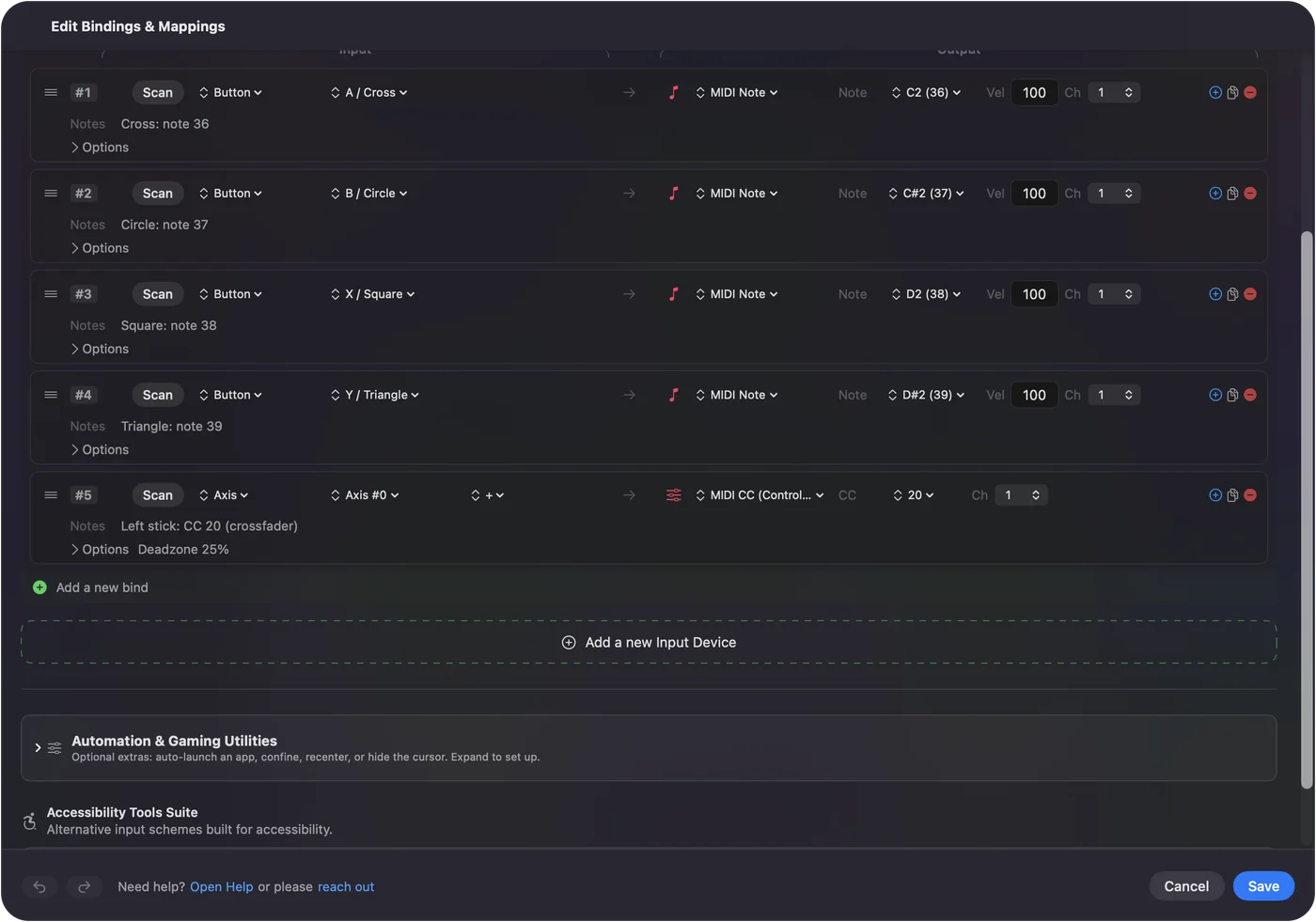
- Any numbers. The note and CC numbers are arbitrary; the DJ app learns whatever arrives.
- Triggers rest at 0. A trigger at rest sends 0 and a full pull sends 127, so give it a job that should sit at zero when you let go, like a filter or an effect amount, rather than a channel volume, which would drop to silence.
- Sticks spring back. A stick returns to center, where its rows return to 0, so it suits momentary moves like a filter sweep better than a crossfader.
- A crossfader. A trigger can be one if you are happy for it to rest at one end; otherwise put the app's own crossfader keys on two buttons.
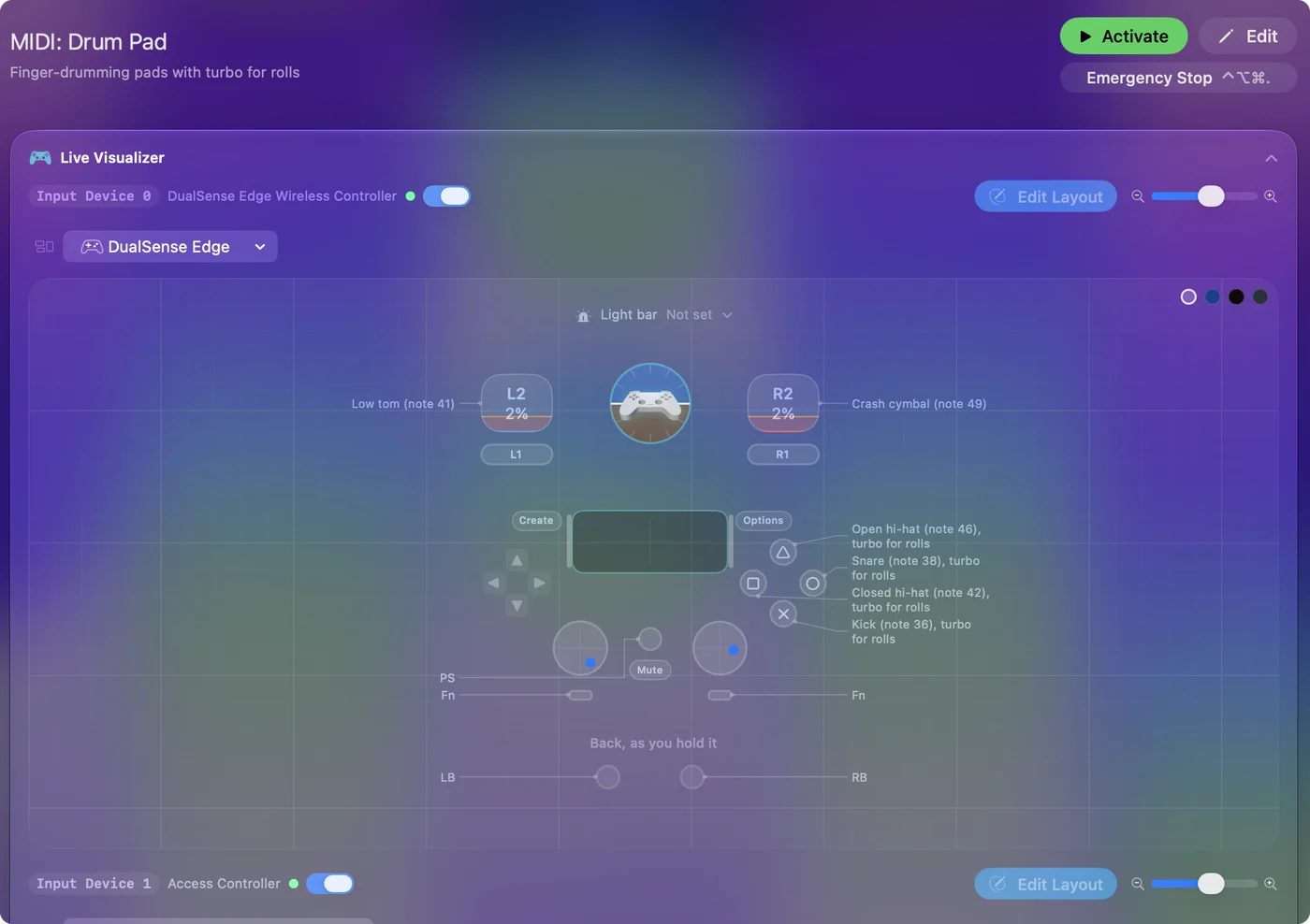
Put filters and effects on the triggers, never a channel volume.
Map it in Mixxx or rekordbox
- Mixxx (free and open source). Open Preferences, Controllers, pick InputConfig in the list, enable it, and use the Learning Wizard to press each control and choose its job.
- rekordbox. Its MIDI Learn window assigns rekordbox functions to a MIDI controller. Choose InputConfig as the device and press each control to learn it.
- djay Pro and Serato DJ Pro. Both have MIDI mapping of their own. What each allows depends on the version and the license, so check their documentation before planning a set around it.
InputConfig's port exists while the app runs and keeps the same identity each time, so a mapping you save stays put. You do not need the IAC Driver. Learn one control at a time: if two rows share a note or CC number, the app learns whichever arrived last.
Keep the latency low
- You: Set both polling rates to 240 in Settings, Advanced, Polling rate before you play.
- InputConfig: Sends a note the moment its poll sees the press, about 4 ms at 240 Hz.
- Check: A rumble on the play rows, set under Feedback, tells you a press landed without looking down.
240 Hz polling and a buzz on play are the two settings worth making before a set.
Share the decks between two people
Since 1.6, two PlayStation pads each get their own light color and rumble, and a preset can hold a group of rows for each controller. Two people can share the decks with each pad on its own MIDI channel.
If the DJ app does not see it
Climb this ladder, smallest step first:
- Keep InputConfig running. The InputConfig port exists only while the app runs.
- Enable the device in the DJ app. In Mixxx, pick InputConfig in Preferences, Controllers and enable it.
- Learn one control at a time. Two rows on the same number confuse MIDI learn.
If InputConfig is running, its MIDI port is there for any app to pick.
What it cannot do
A game controller has no jog wheels and no long faders. For practice, parties at home and learning the moves it is plenty; for a booked gig, a real DJ controller is the better tool.
The short version
- Buttons. MIDI notes for play, cue, sync and loops.
- Triggers. MIDI CC for filters and effects.
- The app. MIDI learn, with InputConfig as the device.
Two decks in your hands, from a pad you already own.
Questions
Can I DJ with a PS5 or Xbox controller on a Mac?
Yes, through a translator that sends MIDI. Buttons become notes for play, cue, sync and loops, triggers send continuous CC for filters and effects, and the DJ app maps them with MIDI learn.
Does Mixxx support game controllers directly?
Mixxx's controller support is built for MIDI and for specific HID DJ controllers. Sending the game controller as MIDI is the simple route.
Do I need the IAC Driver or a virtual MIDI cable?
No. InputConfig makes its own virtual MIDI source named InputConfig whenever it runs.
Is this good enough to perform with?
For practice, parties at home and learning the moves, yes. For a booked gig, a real DJ controller with jog wheels and proper faders is the better tool.
Related
Free. macOS 14 or later. No account, nothing leaves your Mac. Open source on GitHub.