A free Stream Deck alternative from a gamepad or MIDI pad
 InputConfig is completely free on the Mac App Store. You don't have to make an account, there are no subscriptions, and nothing is locked. Optimized for Apple silicon.
A game controller, MIDI pad or foot pedal you already own can do most of a Stream Deck's job on a Mac, for free. InputConfig, the free, open-source Mac app I make, turns a spare PS5 or Xbox controller, an old MIDI pad, or a pedal into a deck: one press switches the OBS scene, mutes the mic, fires a Siri Shortcut that changes the room lights, and says out loud what it just did so you never have to look.
An Elgato Stream Deck costs $99.99 for the eight-key Neo and $149.99 for the fifteen-key model. I build the whole deck on F13 to F19, function keys nothing else on the Mac uses, in about fifteen minutes, and I say what a real Stream Deck still does better.
On this page: 12 sections
Steps
- Add the Streamer Deck preset from this page and activate it with the controller connected.
- Open OBS, Settings, Hotkeys, click each scene and action field, and press the matching controller button to record F13 to F19.
- Pick your Siri Shortcuts by name in the D-pad rows.
- Put the deck rows in a second slot of your game preset so both work while you play.
- Try every button once with OBS open, and leave the stream and record toggles on their holds.
Use F13 to F19, the keys nothing uses
macOS has function keys past F12 that a MacBook keyboard does not have and no app uses by default. Only full-size keyboards with a numeric keypad, Apple's among them, carry F13 to F19. InputConfig can send F13 through F20 as ordinary keys.
Assign them as hotkeys inside OBS, Streamlabs, Discord, or anything else with a hotkey field, and they can never collide with a real keyboard shortcut. Ecamm Live and Streamlabs both accept them. A key no keyboard sends is a hotkey nothing else can trigger by accident.
Set the hotkeys in OBS
Do this once, with the Streamer Deck preset active and the controller in your hands.
- You: Open OBS, Settings, Hotkeys. Click in the field for Switch to scene: Starting and press the controller button bound to F13.
- InputConfig: Sends a real F13, so OBS captures it exactly as if a keyboard had that key.
- Check: The field shows F13.
Repeat for the rest, then click Apply:
- F14. The main scene.
- F15. The break scene.
- F16. Mute microphone.
- F17. Start / Stop streaming.
- F18. Start / Stop recording.
- F19. The ending scene.
Learn the deck
The Streamer Deck preset on this page puts it on a standard controller:
| Control | Sends | Speaks |
|---|---|---|
| A / Cross | F14 | Main scene |
| B / Circle | F15 | Break |
| X / Square | F13 | Starting |
| Y / Triangle | F19 | Ending |
| LB / L1 | F16 (toggle mute) | Mic |
| RB / R1, held one second | F17 | Stream |
| Back / Share, held one second | F18 | Recording |
| D-pad up / down | System Volume Up / Down | |
| D-pad left | Siri Shortcut: Lights on | Lights |
| D-pad right | Siri Shortcut: Do Not Disturb | Focus |
| Start / Options | Open App: OBS | |
| Back / Share and Start / Options, held together three seconds | Emergency Stop (built in. The buttons and the time are in Settings) |
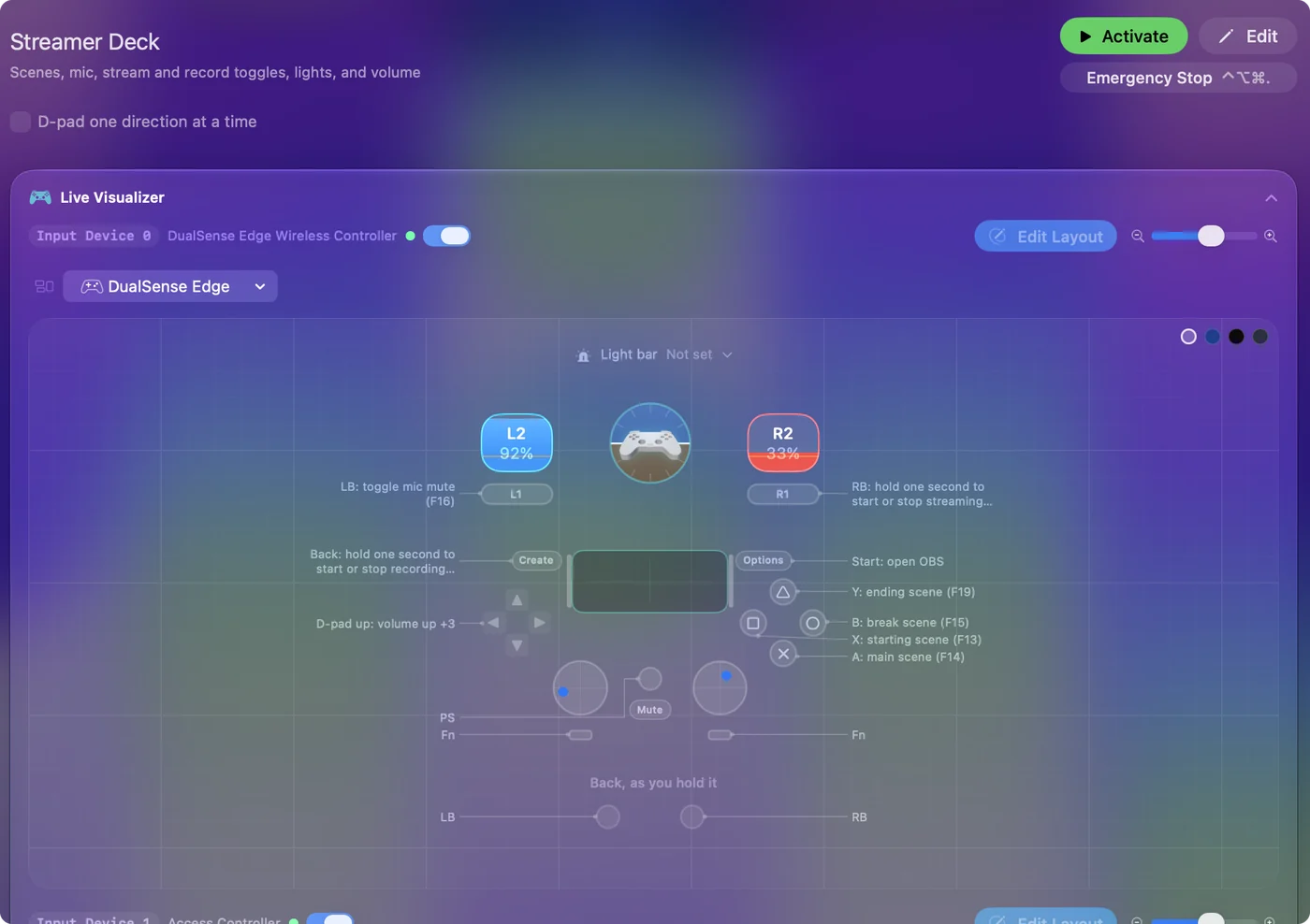
The two destructive actions, starting and stopping the stream and the recording, are on holds, so a bump cannot end a stream. The recording hold is on Back / Share, half of the built-in emergency stop, which also needs Start held, so holding Back alone only ever starts or stops the recording.
Speech is on for every scene row, and it plays through the Mac's sound output, so if your stream captures desktop audio, viewers hear it too. Speech announces the scene on each switch, but there is no two-way link from OBS back to the controller. Anything that can end a stream sits on a hold, never a plain press.
Run everything else through Siri Shortcuts
Anything the Shortcuts app can do is one output: HomeKit scenes for the lights, a Focus mode, a timer, a message to a moderator, a Music playlist.
- You: Build the shortcut in the Shortcuts app, then pick it by name in the row's Run Siri Shortcut list.
- InputConfig: Runs it in the background, without stealing focus from the game.
- Check: Press the button mid-game and the game stays in front.
Keep the game controller and the deck apart
The deck can live beside the game without getting in its way:
- A second gamepad. It has its own slot in the preset, so the game controller stays a game controller.
- A MIDI pad. It is a MIDI slot. A pad types nothing on its own, so no key leaks into the stream.
- A spare numpad. Works as long as a stray digit is harmless, because its keys still type as well. Keys that type nothing, F13 to F19, are the cleaner choice. The macro deck guide covers both.
Give the game its own preset with the game listed in its auto-switch apps, and put the deck rows in that preset's second slot as well. When the game is in front the game preset runs and the deck works. When OBS is in front, a desktop preset with the same deck rows takes over. Copy the deck slot between presets with the slot's duplicate button. Only what you bind reaches the game. Unbound buttons send nothing.
Push to talk with a foot pedal
A row's default behavior holds its output down for as long as the input is held, so a pedal on Discord's push-to-talk key talks while your foot is down and stops when you lift it. Pedals that work:
- A USB pedal. Programmed to send F13.
- A sustain pedal. Plugged into a MIDI keyboard.
- A switch. In an Xbox Adaptive Controller port.
- Elgato's Stream Deck Pedal. $89.99. InputConfig can connect it directly, as an experimental feature, and reads it as Left, Middle and Right pedal.
Foot pedal shortcuts on a Mac covers which pedals work and how to set each kind up.
Decide between a Stream Deck and what you own
| Option | Cost | Buttons | Pictures on the keys |
|---|---|---|---|
| Elgato Stream Deck Neo | $99.99 | 8 LCD keys | Yes |
| Elgato Stream Deck (15 keys) | $149.99 | 15 LCD keys | Yes |
| Elgato Stream Deck Pedal | $89.99 | 3 foot pedals | No |
| A phone or tablet app (Stream Deck Mobile, Touch Portal, DeckPilot) | Free tiers, paid upgrades | A touch screen | Yes |
| InputConfig with a game controller | Free, with a controller you own | Every button, each with a hold and a double tap | No |
| InputConfig with a MIDI pad | Free, with a pad you own | Every pad and knob | No |
Elgato prices are from elgato.com on 22 September 2026.
- Buy the Stream Deck. If you want a picture and a live status on every key, or plugins that talk to OBS directly. InputConfig sends hotkeys, so OBS never tells the controller which scene is live.
- Use what you own. If you would rather press physical buttons without looking, want more than one action per button, or already have a controller or a MIDI pad in a drawer. Every row can carry a press, a hold action and a double tap, and on a game controller a held button can give every other button a second job through chords.
If you already have a Stream Deck, InputConfig can connect it from InputConfig, Devices, as an experimental feature: its keys scan as Key 1, Key 2 and so on, a Neo's touch points as Left and Right touch, and a Stream Deck +'s four dials and touch strip as buttons after its eight keys, each dial pressed or turned either way and the strip tapped, long pressed or swiped. Leave a key empty in Elgato's app, or quit that app, for InputConfig to read it. Otherwise both act on the press. I would try the deck with hardware you already own for a week, and if you miss the pictures on the keys, buy one then.
What it cannot do
- Show live status. There is no link from OBS back to the controller, so no key shows which scene is live.
- Light MIDI pads. InputConfig sends MIDI only through its own virtual port, so it cannot light a pad controller's pads.
- Put pictures on keys. Controllers, pads and pedals have none.
The short version
- F13 to F19 as hotkeys. Set them in OBS by pressing the controller buttons.
- Holds for anything final. Stream and record toggles are never a plain press.
- Siri Shortcuts for the rest. That covers lights, Focus, timers and messages.
- A second slot for the deck. The game controller stays a game controller.
A controller in a drawer is a free deck with a hold and a double tap on every button.
Download
- Streamer Deck presetThe table above on a standard controller, with spoken confirmations and hold-protected stream and record toggles. Assign F13 to F19 in OBS. 6 KB
To add a downloaded preset: drop the file on InputConfig's Dock icon, or click the … button next to any preset in the sidebar, choose Import Preset File, and pick the file. It lands in the sidebar, ready to activate or edit. Any launch target inside a preset file is cleared on import; add one yourself in the editor if you want it.
Questions
Does it work with Streamlabs, Twitch Studio, or Ecamm?
Anything with hotkey fields. Ecamm Live and Streamlabs both accept F13 to F19.
Can I see which scene is live from the controller?
Speech announces the scene on switch. There is no two-way link from OBS back to the controller.
Will the controller's own inputs reach the game?
Only what you bind. Unbound buttons send nothing, and the game does not see the controller's raw input unless it reads gamepads itself.
Can a MIDI controller or a Launchpad be a Stream Deck?
As far as the buttons go, it can. Add a row per pad, Scan the pad, and give it one of the F13 to F19 hotkeys you set in OBS, or a Siri Shortcut, Open App, or media key. A pad types nothing on its own, so no key leaks into the stream. Two limits: the pads have no screens or labels, and InputConfig sends MIDI only through its own virtual port, so it cannot light the pads to show which scene is live.
Does InputConfig work with an Elgato Stream Deck?
It works as an experimental feature. Connect it from InputConfig, Devices, and its keys scan as Key 1, Key 2 and so on, a Pedal's as Left, Middle and Right pedal. Leave a key empty in Elgato's app, or quit that app, so only InputConfig acts on it. InputConfig does not draw pictures on the keys.
Can I use a PS5 or Xbox controller as a Stream Deck on a Mac?
Any controller the Mac sees works, including a second one kept on the desk. Give each button a row that sends one of F13 to F19, set those keys as hotkeys in OBS, and the buttons switch scenes, mute the mic, and start or stop the stream. The Streamer Deck preset on this page does it for a standard controller.
Is a Stream Deck worth it if I do not stream?
It can be, for launching apps, muting calls and running Shortcuts. But try it with hardware you own first: a controller, a MIDI pad or F13 to F19 on a keyboard give you the same jobs for free, and if you miss the pictures on the keys after a week, then buy one.
Related
This page in other languages: العربية, Čeština, Dansk, Deutsch, Español, Suomi, Français, עברית, Magyar, Bahasa Indonesia, Italiano, 日本語, 한국어, Norsk, Nederlands, Polski, Português, Русский, Slovenčina, Svenska, ไทย, Türkçe, Українська, Tiếng Việt, 繁體中文, 简体中文
Completely free. You don't have to make an account, there are no subscriptions, and nothing is locked. Optimized for Apple silicon. Open source on GitHub.
Updated