OBS Studio from a game controller
 The OBS Studio layout is built into InputConfig, free on the Mac App Store. You don't have to make an account, there are no subscriptions, and nothing is locked. Optimized for Apple silicon.
On a Mac: OBS ships with no hotkeys, so this layout sends keys you assign once in OBS Settings, Hotkeys. OBS needs Input Monitoring to hear them while a game is in front.
Yes, a game controller works as a stream deck for OBS on a Mac: scenes on the face buttons and D-pad, record and stream on the bumpers, mic mute on Share. A stream deck is a grid of buttons that send hotkeys to OBS, and so is a controller. The difference is the price and the little pictures. It works with the pad in your lap while the game has the screen.
On this page: 7 sections
The layout, control by control
Assign the keys in OBS once
OBS ships with no hotkeys, so it ignores every button until you give it some. The table lists the key each row sends.
- You: In OBS, open Settings, Hotkeys. For each scene's Switch to scene field, press the key its row sends. Do the same for Start and Stop Recording, Start and Stop Streaming, and the mic's Mute.
- InputConfig: Sends those keys when you press the buttons.
- Check: Press the bottom face button and OBS switches to scene 1.
The defaults are the number keys 1 to 9, which many games also use for weapons and hotbars. If yours does, change each row to F13 to F19, as the streaming deck guide does, and assign those in OBS. Nothing happens until each key is assigned in OBS Settings, Hotkeys.
How the layout thinks
- Scenes. Scenes 1 to 4 on the face buttons, 5 and 6 on D-pad up and down.
- Record and stream. Recording on the left bumper, streaming on the right.
- Mute. The mic mute is on Share.
The preset sends keys to whatever app is in front, and OBS hotkeys work from any app while OBS is running and has Input Monitoring permission, so you can stay in the game and switch scenes. Turn OBS on in System Settings, Privacy & Security, Input Monitoring. The game gets the keys too, so use keys the game ignores.
Tune it for streaming
- Feel the record start. Turn on Vibrate on the recording row, so you know it started without looking at OBS.
- Hear the scene. Spoken feedback on each scene row says its name through the Mac's sound output. Pick the controller in System Settings, Sound to hear it from a DualSense's speaker.
- A second bank. Behind a chord, the face buttons are scenes 7 to 10. Assign them in OBS the same way.
- If you own a Stream Deck. InputConfig can read an Elgato Stream Deck as an input device too, from the Devices menu or the menu bar, and a Stream Deck +'s dials and touch strip become buttons as well. That support is experimental.
- MIDI pads. A MIDI pad controller works the same way. The MIDI control surface guide builds one.
F13 to F19 are safe in almost everything. Move the scene keys to F13 and up, and the game never notices them.
Get it in two clicks
- Get InputConfig free on the Mac App Store, open it, and click Smart Preset Maker on the welcome screen.
- Search for OBS Studio and pick it. The layout is created as a preset in your sidebar, named and ready.
- Press Activate. Every row can be changed afterwards: the editor's Scan button rebinds any control the moment you touch it.
Every binding, as a table
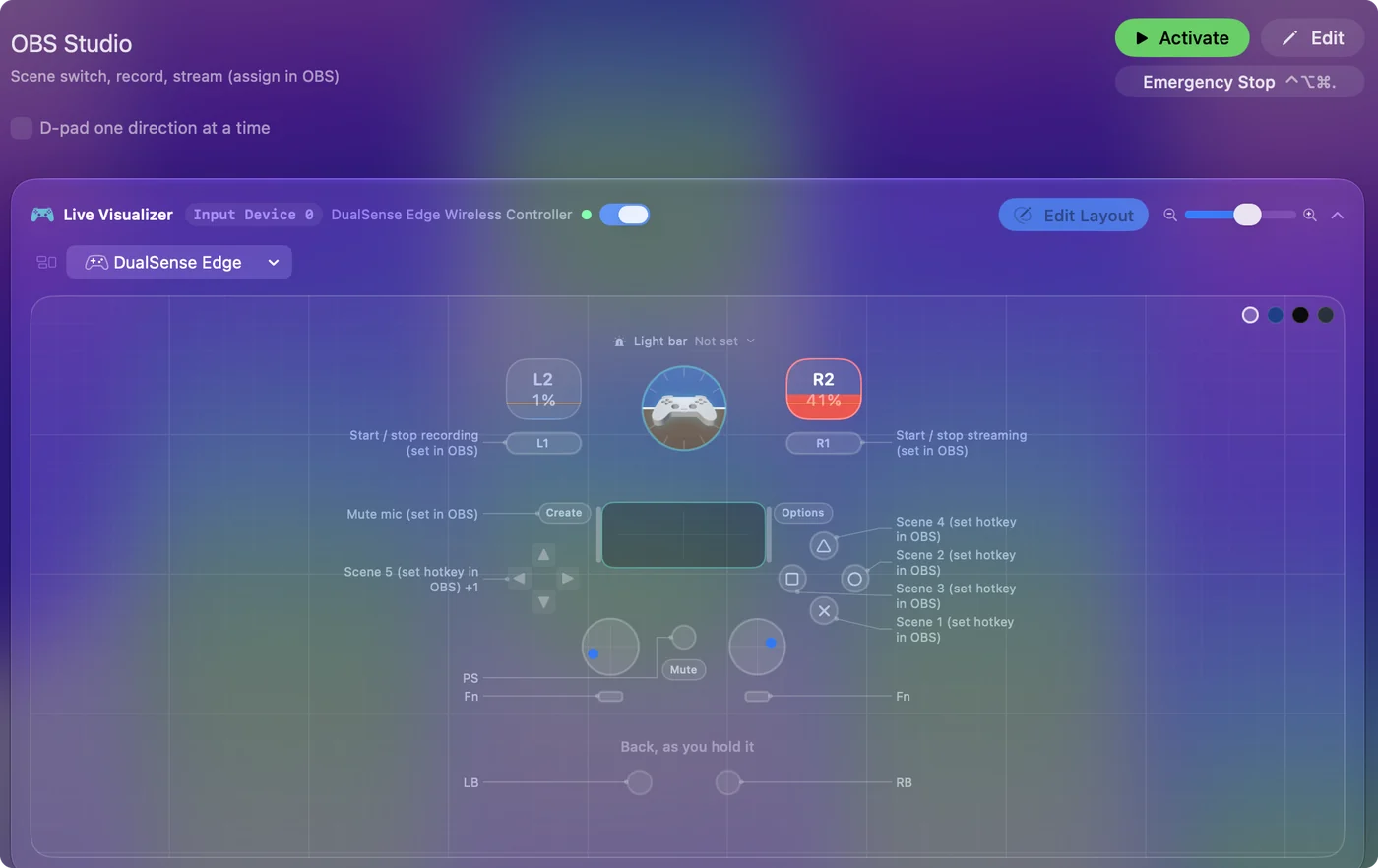
| Controller | Sends | What it does |
|---|---|---|
| A / Cross | 1 | Scene 1 (set hotkey in OBS) |
| B / Circle | 2 | Scene 2 (set hotkey in OBS) |
| X / Square | 3 | Scene 3 (set hotkey in OBS) |
| Y / Triangle | 4 | Scene 4 (set hotkey in OBS) |
| D-pad up | 5 | Scene 5 (set hotkey in OBS) |
| D-pad down | 6 | Scene 6 (set hotkey in OBS) |
| LB / L1 | 7 | Start / stop recording (set in OBS) |
| RB / R1 | 8 | Start / stop streaming (set in OBS) |
| Back / Share / Select | 9 | Mute mic (set in OBS) |
Button names follow the Xbox / PlayStation pair shown in the editor, so A / Cross is the bottom face button on either pad. On a Switch Pro Controller the bottom button is labeled B; the mapping still fires on position.
Questions
Why does nothing happen when I press a button?
OBS has no hotkeys until you assign them. Open OBS Settings, Hotkeys, and give each scene and action the key its row sends.
Will the game get the keys too?
Yes, whatever app is in front receives them. Use keys the game does not use. F13 to F19 are safe in almost everything.
Why do my OBS hotkeys not work on a Mac when a game is in front?
OBS needs Input Monitoring permission for hotkeys to work while it is in the background. Turn OBS on in System Settings, Privacy and Security, Input Monitoring.
Related
Completely free. You don't have to make an account, there are no subscriptions, and nothing is locked. Optimized for Apple silicon. Open source on GitHub.
Updated