A video editing controller from a gamepad or MIDI knobs
 InputConfig is completely free on the Mac App Store. You don't have to make an account, there are no subscriptions, and nothing is locked. Optimized for Apple silicon.
A game controller makes a good video editing controller for Final Cut Pro, Premiere Pro or DaVinci Resolve on a Mac, for free. Play and pause sit under one thumb, J and L on the triggers, frame steps on the D-pad, in and out on the bumpers, the blade and undo on the face buttons, and a held stick click gives a layer of tools. A MIDI knob can add the jog wheel.
Editing is a two-handed job: one hand drives the playhead and marks, the other holds the mouse. The hardware made for that first hand, a Speed Editor, a Loupedeck, a TourBox or a Contour ShuttlePRO, costs real money and is usually built around one editor. Since 1.8 InputConfig reads a ShuttlePRO itself, jog wheel and shuttle ring included, so if one is already on your desk it can run the same jobs. I built InputConfig because my hands do not work well, and a controller in my lap is easier on them than reaching across a keyboard. I build the layout for Final Cut Pro, list the rows to change for Premiere Pro and Resolve, and say when a dedicated controller is the better buy.
On this page: 11 sections
Steps
- Add the Video Shuttle (Final Cut Pro) preset from this page and activate it. Keep the mouse in your other hand.
- For Premiere Pro or Resolve, duplicate the preset and change the cut, zoom and tool rows.
- Add each editor to its preset's auto-switch list and turn on automatic switching in Settings, Advanced.
- Switch on Vibrate on the mark in and mark out rows.
- For a jog wheel, put a MIDI knob in Turn mode on Left and Right Arrow, or Scan a ShuttlePRO's jog wheel.
Learn the layout
The preset on this page uses Final Cut Pro's default shortcuts:
| Control | Final Cut | Notes |
|---|---|---|
| Right trigger | L (play forward) | As an axis with turbo: press again for faster. |
| Left trigger | J (play backward) | |
| A / Cross | K (stop) and Space on a hold | |
| D-pad left / right | Left / right arrow (one frame) | Hold for Shift arrow (ten frames). |
| D-pad up / down | Up / down arrow (previous / next edit) | |
| LB / L1 | I (mark in) | |
| RB / R1 | O (mark out) | |
| B / Circle | Command B (blade) | |
| X / Square | Command Z (undo) | Hold for Command Shift Z. |
| Y / Triangle | M (marker) | Hold for Option M (marker and modify). |
| Right stick left / right | Mouse wheel horizontal (pan along the timeline) | Variable sensitivity on. |
| Right stick up / down | Command plus / minus (zoom timeline) | Turbo at 4 per second. |
| Left stick | Pointer | For when the mouse hand is busy. |
| Start / Options | Shift Z (fit timeline) | |
| Back / Share | Command S (save) | Final Cut saves as you work, so this row earns its place in Premiere and Resolve. In Final Cut, give it M or Option-L. |
| L3 held plus face buttons | A, T, B, P (select, trim, blade, position tools) | A chord layer. |
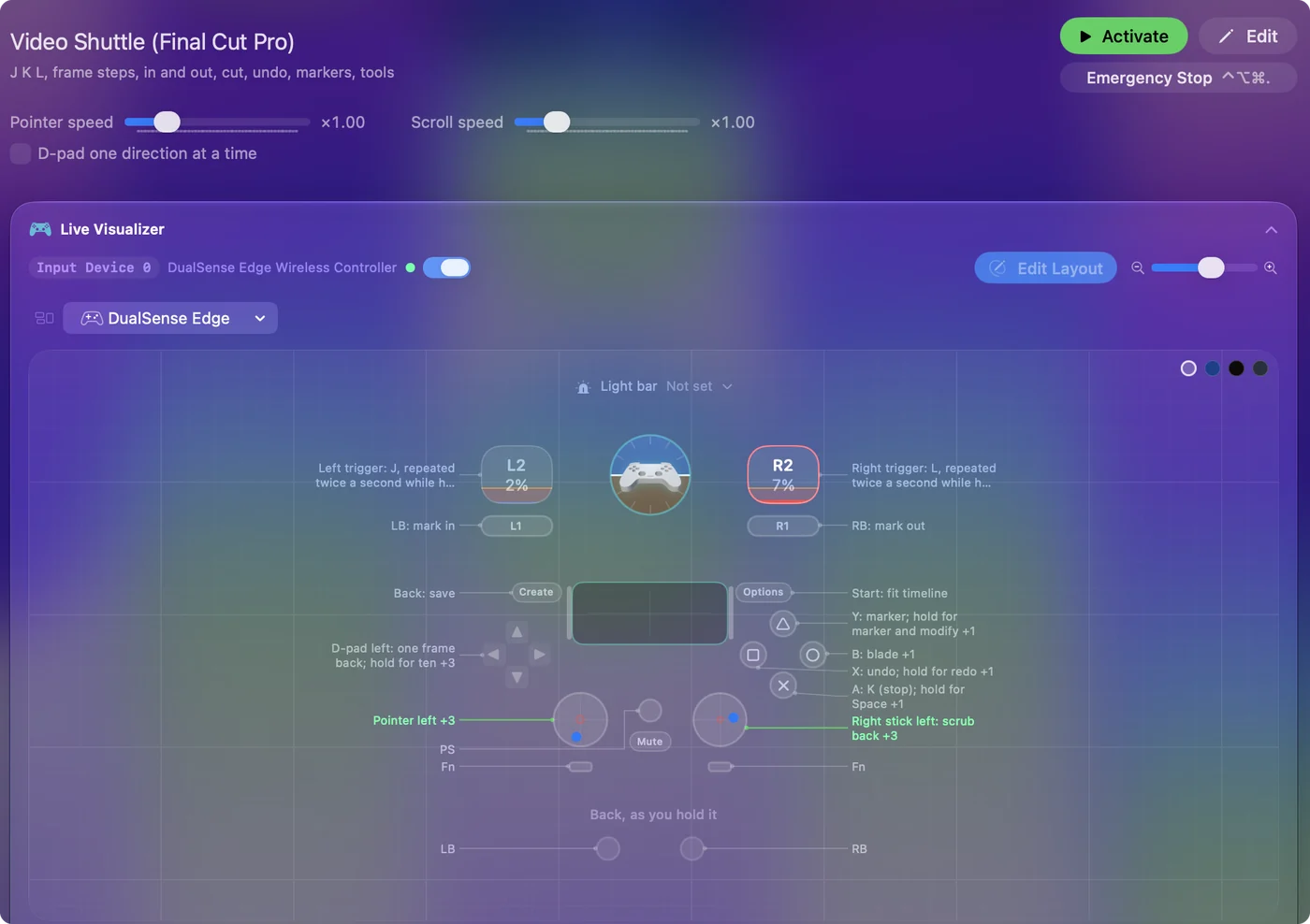
The controller is the off hand. The mouse does the fine work. Playhead, marks and cuts under the thumbs, and the mouse never leaves the other hand.
Change four rows for Premiere or Resolve
J, K, L, I, O, and the arrows do the same jobs in Premiere Pro and DaVinci Resolve, so most of the preset carries over. The marker is M in all three. The rows to change:
| Row | Premiere Pro | DaVinci Resolve |
|---|---|---|
| Cut at the playhead | Command K | Command B |
| Zoom | Plus and minus | Command plus and minus |
| Tool layer | V, C, B, N | A, T and B |
One more difference: Shift with an arrow moves ten frames in Final Cut but five in Premiere.
- You: Duplicate the preset, change those rows, and add each editor to its preset's auto-switch list. Turn on automatic switching in Settings, Advanced first.
- InputConfig: Switches the right layout in when each editor comes to the front.
- Check: Open Premiere and press B: it cuts with Command K, not Command B.
If you would rather start from a ready layout, the Smart Preset Maker has one for Final Cut Pro, Premiere Pro, DaVinci Resolve, iMovie and CapCut. iMovie shares most of Final Cut's shortcuts; CapCut's differ.
Get a shuttle feel
Real shuttles speed up as you turn. Three rows give the same feel:
- Moving along the timeline. The right stick's horizontal scroll with Variable Sensitivity on: a little push nudges the view, a hard push flies.
- J and L speed. Final Cut steps up each time the key is pressed, so a turbo row at 2 per second on the trigger ramps through speeds while held and stops when released, with K on A to stop dead.
- Half speed. For checking a cut point slowly, Final Cut plays at half speed with Option-L and Option-J. The L3 layer has D-pad up and down free for them.
A Contour ShuttlePRO has the real wheel and ring. InputConfig reads its buttons, its jog wheel and its shuttle ring, so they can be rows in this preset beside the controller: press Scan on a row, turn the jog or the ring, and give it J, L or the arrow keys.
Feel the marks with haptics
- You: Switch on Vibrate on the mark in and mark out rows, at a low intensity on in and a higher one on out.
- InputConfig: Pulses the controller as each mark is set.
- Check: You can tell in from out by feel, without looking at the timeline.
A physical shuttle is worth having because you can confirm the mark under your hand.
Switch layouts for Resolve's Color page
Resolve's Color page wants different buttons from the Edit page. Build a second preset for it, and leave its auto-switch list empty: when two presets claim the same app, the first in the sidebar wins, so a second Resolve preset would never switch in on its own.
- You: Give a spare chord in each preset the App Action Activate Preset, pointing at the other one.
- InputConfig: Swaps presets when you press the chord.
- Check: Press it as you change pages. Shift 6 jumps to the Color page in Resolve, so the color preset can start there.
What a controller will not do is turn Resolve's color wheels the way a grading panel does: InputConfig sends keys, mouse movement, scrolling and MIDI, and does not pretend to be a panel.
Add a MIDI knob as the jog wheel
A game controller has no wheel. A MIDI controller with knobs does, and InputConfig reads it over USB or Bluetooth MIDI with no driver.
- You: Put a knob's row in Turn mode, with Right Arrow on the clockwise row and Left Arrow on the counterclockwise one. The built-in MIDI: Knob Deck preset already has that pair on CC 71: press Scan on each row and turn your own knob.
- InputConfig: Fires a short nudge every few steps of rotation, which steps frames in Final Cut, Premiere and Resolve.
- Check: Turn the knob slowly and the playhead moves a frame at a time. Turn Step sets how much rotation makes one frame. At the default step, a knob turned from one end stop to the other gives about 32 frames.
A second knob in Turn mode on Command plus and Command minus zooms the timeline in Final Cut and Resolve. Pads are buttons: J, K, L, I and O on five pads and the blade on a sixth. Rows listen to any channel and any device unless you pick one, so the layout survives a different controller being plugged in. The knob modes are explained in MIDI devices as input, and the full Final Cut pad layout is in MIDI controller for Final Cut Pro.
When to buy an editing controller instead
Buy dedicated hardware in these cases:
- You edit only in DaVinci Resolve. Blackmagic's Speed Editor is made for it: a weighted search dial and dedicated edit keys that Resolve understands without any mapping.
- You want ready dial profiles. Loupedeck and TourBox sell dial controllers with ready profiles for Final Cut and Premiere.
- You already own a control surface and cut in Final Cut. Look at CommandPost, an open-source Final Cut companion built around control surfaces that can also drive a Speed Editor. Its site says it now asks you to own one paid LateNite app.
InputConfig reads game controllers, devices that identify as a joystick, gamepad or multi-axis controller, MIDI gear, and since 1.8 the Contour ShuttlePRO, jog and shuttle included. A ShuttlePRO is the editing controller to pick if you want InputConfig to drive it in Final Cut or Premiere. The Speed Editor is not on the list, and I have not tested it, so do not buy one expecting InputConfig to drive it. More on the trade-off in Speed Editor alternatives for Final Cut and Premiere. A controller you own is the free way to find out whether a physical controller changes how you edit, and for plenty of people it stays enough.
The short version
- Triggers and thumbs for the playhead. J and L are on the triggers, K is on A, and frames are on the D-pad.
- Bumpers for marks. They send I and O, with a pulse to confirm each.
- Four rows per editor. Cut, zoom and tools are different in Premiere and Resolve.
- A knob for the jog wheel. Turn mode on the arrow keys, or a ShuttlePRO's own jog and shuttle.
The controller drives the playhead, and the mouse does the fine work.
Download
- Video Shuttle (Final Cut Pro) presetThe table above. Change four rows for Premiere or Resolve. 13 KB
To add a downloaded preset: drop the file on InputConfig's Dock icon, or click the … button next to any preset in the sidebar, choose Import Preset File, and pick the file. It lands in the sidebar, ready to activate or edit. Any launch target inside a preset file is cleared on import; add one yourself in the editor if you want it.
Questions
Can I use it with a mouse at the same time?
That is the point. The controller is the off hand. The mouse does the fine work.
Does it work in iMovie and CapCut?
Any app with keyboard shortcuts. iMovie shares most of Final Cut's. CapCut's differ and are one duplicate-and-edit away.
Do I need a hardware editing controller?
Not to start. If you edit only in DaVinci Resolve, Blackmagic's Speed Editor is made for it and needs no mapper. For Final Cut or Premiere, or to try the idea before buying anything, a controller you already own does the same shuttle and marking jobs through this preset.
Can I edit video with an Xbox or PS5 controller on a Mac?
Final Cut, Premiere and Resolve listen to the keyboard, not to game controllers, so a mapper turns each button into a shortcut the editor already knows. A DualSense, an Xbox Series or Elite, a Switch Pro or an 8BitDo pad all work. The preset on this page is a free download.
Is there a free jog wheel for a Mac?
Not as software alone, since a wheel needs something to turn. The two closest free options: a MIDI knob in Turn mode sending the arrow keys, which steps frames like a jog wheel, and a controller stick with Variable Sensitivity sending horizontal scroll, which moves along the timeline faster the further you push. InputConfig does both and is free and open source on the Mac App Store. If you own a Contour ShuttlePRO, InputConfig reads its jog wheel and shuttle ring too.
Does the DaVinci Resolve Speed Editor work with Final Cut Pro or Premiere?
Blackmagic makes it for DaVinci Resolve. CommandPost, a third-party Final Cut companion, can drive it in Final Cut Pro. For Final Cut or Premiere with nothing to buy, a game controller running the layout on this page does the shuttle, mark and cut jobs. The longer answer is in Speed Editor alternatives.
Related
This page in other languages: العربية, Čeština, Dansk, Deutsch, Español, Suomi, Français, עברית, Magyar, Bahasa Indonesia, Italiano, 日本語, 한국어, Norsk, Nederlands, Polski, Português, Русский, Slovenčina, Svenska, ไทย, Türkçe, Українська, Tiếng Việt, 繁體中文, 简体中文
Completely free. You don't have to make an account, there are no subscriptions, and nothing is locked. Optimized for Apple silicon. Open source on GitHub.
Updated