How do I use mouse side buttons in Final Fantasy XIV on a Mac?
 InputConfig is completely free on the Mac App Store. You don't have to make an account, there are no subscriptions, and nothing is locked. Optimized for Apple silicon.
Open System, then Keybind, in Final Fantasy XIV, click a hotbar slot or an action, and press the side button. If the game refuses it, set the button to send a key in the mouse's own software, and then bind that key. The Mac client is Square Enix's own, and its manual says the Keybind menu is where bindings change. It does not say which mouse buttons can be reassigned, so I treat side buttons as something to test. InputConfig is the free Mac app I make, and it turns any button into a key press, a hold, a double tap or a macro.
On this page: 11 sections
Steps
- Press NUM minus, or open System and Keybind, and try binding an action to a side button.
- If the game says the command cannot be assigned, set the button to a key in the mouse's software.
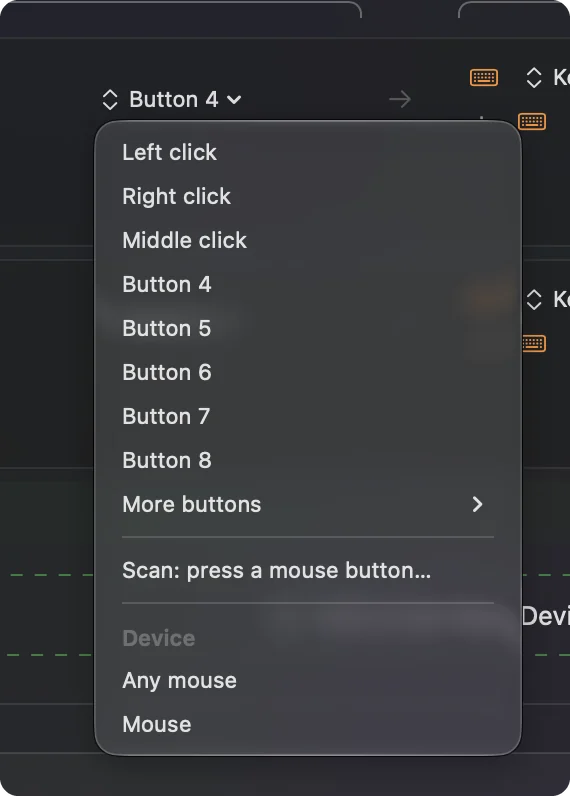
- In InputConfig, add a Mouse row, press Scan, and press the side button.
- Choose Keyboard Key and the key your hotbar slot already uses, then block the button's own action.
- Add the game to the preset's app list, press Activate, and test the button on a hotbar slot.
What works with nothing installed
Final Fantasy XIV has a Mac client you download from the game's own site after you make a Square Enix account. The system requirements I read on October 21, 2026, through the Console Games Wiki, list macOS Ventura, Sonoma and Sequoia, an M1 Mac or better, and say that Apple silicon Macs must have Rosetta installed. They do not say whether the game is native, so I will not say it is.
The game's manual lists these mouse defaults: the left button selects a target and drags to turn the camera, the right button drags to turn both you and the camera, left and right together move you forward, the wheel zooms, and clicking the wheel toggles auto-run. A side button has no default. Any job for a side button is yours to choose, and the choice is made in the Keybind menu or in InputConfig.
The manual also says that on a Mac the Command key can function like Control, and that operating system commands for Shift, Control, Option and all function keys take priority over in-game systems. That is the main reason I steer people away from F1 to F12 for a thumb grid, and toward F13 to F20.
Find out what each button sends
Square Enix's forum has a thread where a player could not move bindings back to mouse buttons and got the message that commands cannot be assigned to that key. I could not open it fully, so take it as one player's report, but it matches the usual advice: make the mouse send a key, and bind the key.
- You: Open InputConfig, add a row, press Scan, and press the button. Use a Mouse row for a side button and a Keyboard Key row for a thumb grid.
- InputConfig: Names what arrived, such as Button 4, or a key such as 1.
- Check: A side button that scans as Button 5 is a mouse button. A grid button that scans as a number is a key and will type it.
| Button | How it usually reports | In this game |
|---|---|---|
| Side buttons | Button 4 and Button 5 on most mice | No default. Test the Keybind menu, or send a key. |
| Thumb grid | The number row, then minus and equals, on most MMO mice | Set to F13 through F20 in the maker's software. |
| Wheel press | Middle click | Toggles auto-run by default. |
| Wheel scroll | Scroll | Zooms the camera. |
| DPI and profile buttons | Often nothing | They stay in the mouse's own software. |
Bind a side button to a hotbar slot
Decide the key first. In the game, open System, Keybind, and pick or note the key of the slot you want. Then make the side button send that key.
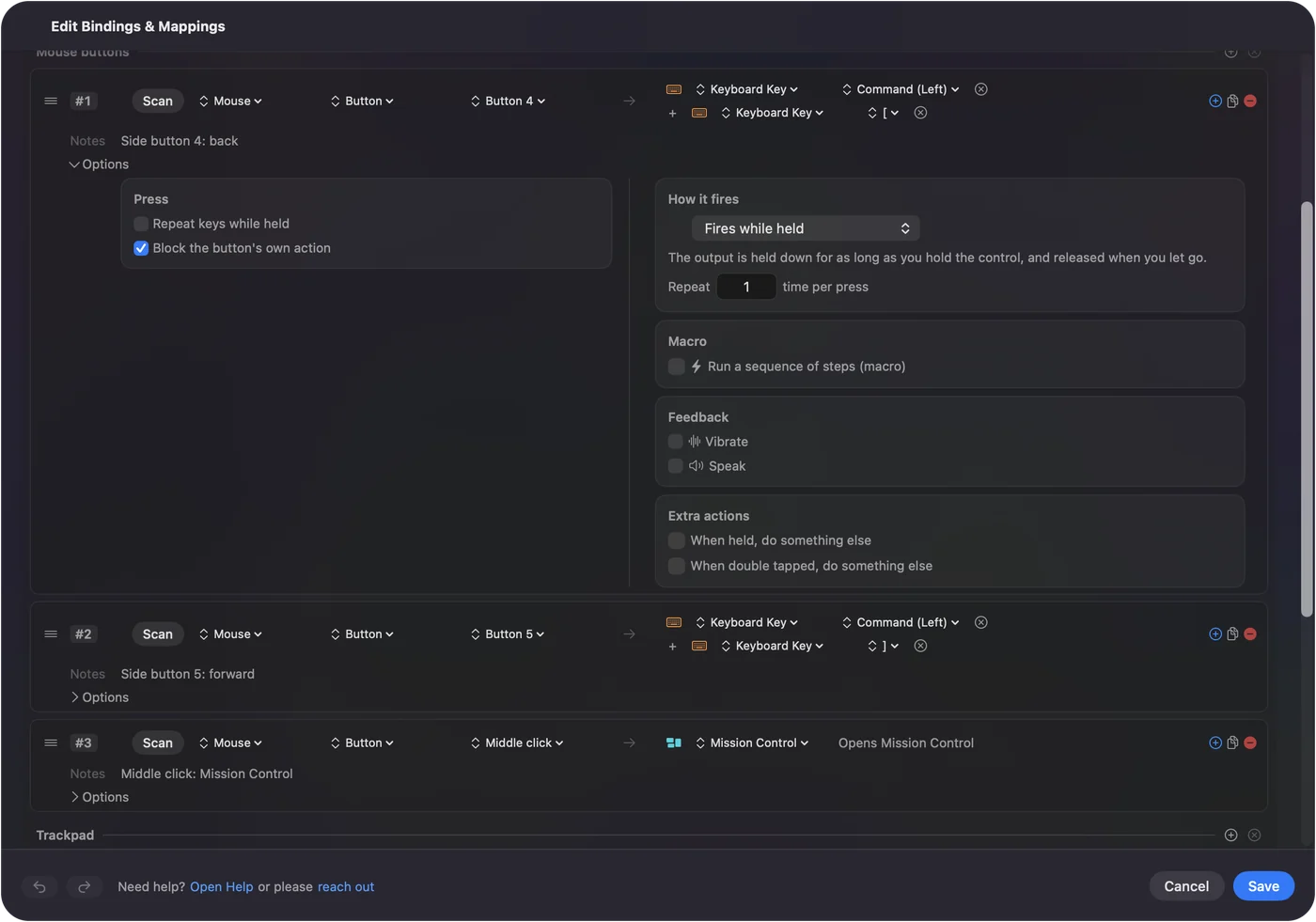
- You: Add a Mouse row, press Scan, press the side button, choose Keyboard Key, and pick the key your slot uses. Use the plus button to add a modifier output if the slot sits on Control or Shift plus a number.
- InputConfig: Presses that key each time you press the button.
- Check: Click Activate, then press the button in the game. The slot lights and the action fires.
Because the manual says Command can act as Control on a Mac, I would test a Control based slot with the key you really pressed. Press it yourself first, then compare. InputConfig needs the Accessibility permission, in System Settings, Privacy & Security, Accessibility, and Control Option Command period is the emergency stop.
Targeting and movement on the side buttons
The manual's defaults give two targeting keys worth putting on a thumb: Tab cycles through enemies from nearest to farthest, and F11 targets the nearest enemy. Putting Tab on a side button means you tab target without moving your left hand off movement. The other good candidate is auto-run, which the wheel press already toggles by default, so a side button that sends the same key is useful only if you do not want to press the wheel.
- Button 4. Tab, for cycling targets.
- Button 5. A modifier layer, held while you press the hotbar keys.
- A held thumb button. Use While also holding as a second control, and the whole grid becomes a second set of jobs for as long as you hold it.
Direct chat must be off in the game for keyboard commands to work, according to the manual. If a bound key opens or types into chat, that is the first thing I would check.
Macros and rows with more than one job
A row's Options can run a macro: key, shortcut and click steps, each with a wait and a hold time. For this game I would use it for chores, such as opening your inventory and then your map, and not for a combat rotation. Games have rules about automation, and I have not checked Square Enix's current rules, so read them before you build anything long. One press for one action is the pattern I trust.
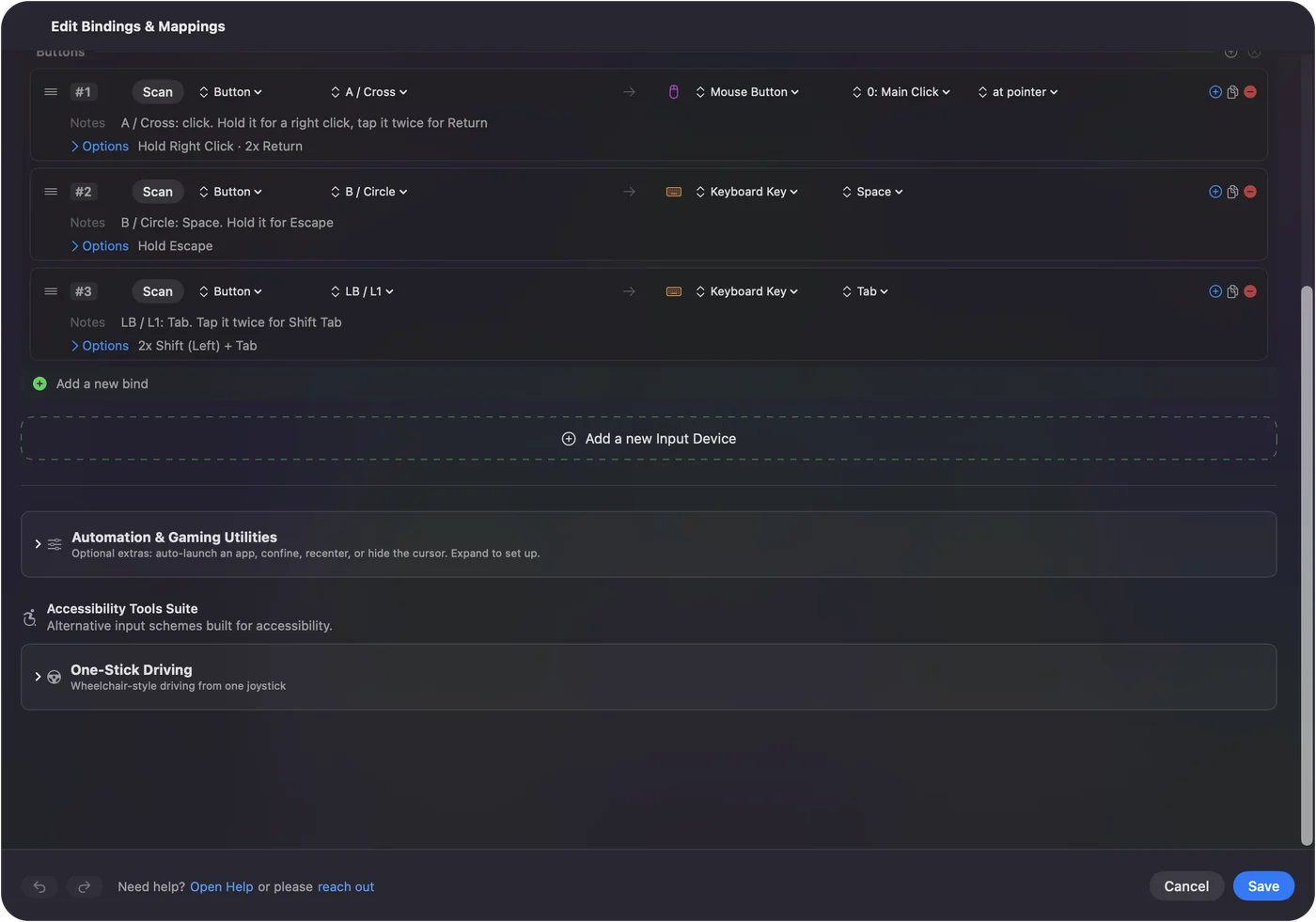
Each row can have a hold action and a double tap action, each a full second output, so two side buttons can cover six jobs. Mouse button double click and hold actions has the details.
A layout for each hat you wear
List Final Fantasy XIV under Automation & Gaming Utilities, in Activate when these apps are in front, and turn on Switch presets when the front app changes in Settings, Advanced. Only one preset runs at a time, so the same mouse can be a hotbar in the game and an editing pad in another app.
- Crafters and gatherers. Long repetitive actions are the best case for a macro or a repeat while held.
- Healers and tanks. Put the buttons you press most on the thumb, and the rarely pressed ones on a hold.
- Players with tired hands. I made InputConfig because my hands are hard to use, so a thumb button that replaces a two key chord is the kind of change I would start with.
- Controller players. The game has a gamepad mode, so a mouse is optional. See MMOs, MOBAs and strategy games with a controller and the Final Fantasy XIV layout.
If a button does nothing in the game
Climb this ladder, smallest step first:
- Press Scan. See whether the button is a mouse button or a key.
- Try a different key. The manual says system commands for Shift, Control, Option and function keys take priority, so a key that macOS also uses may never reach the game.
- Check direct chat. Commands that use the keyboard need direct chat off.
- Check the mouse profile. An onboard profile on the mouse may be sending something else. See MMO mouse on a Mac and gaming mouse on a Mac.
- Check Accessibility. InputConfig must be listed and on in System Settings.
- Stop the preset. Control Option Command period turns it off, and the game then sees only the mouse.
What it cannot do
- Block a typed key. InputConfig listens to the keyboard and does not block or remap a key itself.
- Read profile buttons. DPI and profile switches that talk only to the maker's software send nothing to macOS.
- Change DPI or polling. That stays in the maker's app or a tool such as LinearMouse, Mac Mouse Fix or SteerMouse.
- Confirm every mouse. I have not tested Final Fantasy XIV with every mouse, so a Scan on yours settles it.
The short version
- Test. Try the side button in System, Keybind, and expect to need a key.
- Send the key. InputConfig turns the button into the key your hotbar uses.
- Layer it. Hold, double tap and a per app preset give each button more than one job.
The game will take any key you can send, so make the button send one.
Questions
Does Final Fantasy XIV work on a Mac?
Yes, there is a Mac client from Square Enix. The requirements I read say Apple silicon Macs must have Rosetta installed, and they do not say the game is native.
Can I bind mouse side buttons in FFXIV on a Mac?
The manual does not say which mouse buttons can be reassigned, and one player on the Square Enix forum got a message that commands cannot be assigned to that key. The reliable route is to send a key from the button.
What are the default FFXIV mouse buttons?
The left button selects and turns the camera, the right button turns you and the camera, left and right together move forward, the wheel zooms and clicking the wheel toggles auto-run.
Does Command work like Control in Final Fantasy XIV on a Mac?
The manual says the Command key can function like the Control key. It also says system commands for Shift, Control, Option and function keys take priority over the game.
Which keys should an MMO mouse grid send for FFXIV on a Mac?
F13 through F20, set in the maker's software, then bound in the game or with InputConfig. F21 to F24 are not passed to apps by macOS.
Related
This page in other languages: العربية, Čeština, Dansk, Deutsch, Español, Suomi, Français, עברית, Magyar, Bahasa Indonesia, Italiano, 日本語, 한국어, Norsk, Nederlands, Polski, Português, Русский, Slovenčina, Svenska, ไทย, Türkçe, Українська, Tiếng Việt, 繁體中文, 简体中文
Completely free. You don't have to make an account, there are no subscriptions, and nothing is locked. Optimized for Apple silicon. Open source on GitHub.
Updated