Does the Razer Naga work on a Mac, and can I use the thumb grid?
 InputConfig is completely free on the Mac App Store. You don't have to make an account, there are no subscriptions, and nothing is locked. Optimized for Apple silicon.
Yes, as a mouse: the pointer, the clicks and the scroll wheel work with nothing installed. The thumb grid is the part that needs a plan, because on most Nagas it types keys, usually the number row, and a Mac then sees you typing instead of clicking. The fix is to give the grid keys that type nothing, F13 to F20, in Razer's software or the mouse's own memory, and then give those keys jobs.
I make InputConfig, a free Mac app that reads any mouse's extra buttons and any key and gives each one a job. I have checked it with a Razer mouse, and this page is about the Naga family in particular. The general list of which Razer mice Razer Synapse for Mac supports is on Razer mouse on a Mac, so I do not repeat it here.
On this page: 12 sections
- Steps
- What a Naga does on a Mac with nothing installed
- Find out what each grid button sends
- Move the grid to F13 to F20 and bind it
- Use NagaController when the grid cannot be moved to F13 to F20
- Run longer jobs from one grid button
- Add hold, double click and per-app layouts
- Layouts for MMO play and for editing
- If a grid button does nothing or still types
- What it cannot do
- The short version
- Questions
Steps
- Plug in the Naga or its dongle, or pair it over Bluetooth, and the pointer and clicks work at once.
- Open InputConfig, add a Mouse row, press Scan and press a grid button to see whether it arrives as a mouse button or as a key.
- If it arrives as a key such as 1, set the grid to F13 to F20 in Razer Synapse, either on the Mac or once on a Windows PC. If it cannot be moved, NagaController is the other route.
- Scan each grid button again, choose what it sends, then Save and Activate the preset.
- Make a second preset for each app, such as a game and a video editor, and turn on switching by front app.
What a Naga does on a Mac with nothing installed
The Naga is a standard mouse to a Mac, so the pointer, the left and right buttons, the wheel and its tilt-clicks all work. System Settings, Mouse sets the tracking speed. Everything else depends on the model and on the software Razer offers for it.
| Model | Connection | Thumb grid | On the Synapse for Mac list I read |
|---|---|---|---|
| Naga V3 Pro | HyperSpeed wireless and Bluetooth | Three magnetic plates with 12, 6 and 2 buttons | Not confirmed |
| Naga V2 Pro | HyperSpeed wireless and Bluetooth | Three magnetic plates with 12, 6 and 2 buttons | Yes |
| Naga V2 HyperSpeed | HyperSpeed wireless and Bluetooth | 12-button grid | No |
| Naga Pro | HyperSpeed wireless, Bluetooth and a cable | Three magnetic plates with 12, 6 and 2 buttons | Not confirmed |
| Naga Trinity | Not confirmed | Swappable plates with 12, 7 and 2 buttons | Not confirmed |
| Naga Left-Handed Edition | Wired | 12-button grid, left-handed shape | No |
| Naga X | Not confirmed | Not confirmed | No |
The connection and plate details come from Razer's product pages for the Naga V2 Pro, the Naga V2 HyperSpeed and the Naga Left-Handed Edition, which I read on October 21, 2026. The last column is the Synapse for Mac list quoted on the Razer page linked above. The newer and older swappable-plate models come from Razer's pages for the Naga V3 Pro, the Naga Pro launch announcement and the Naga Trinity, which I also read on October 21, 2026. The Trinity was the first Naga with the three-in-one plate design, and the Naga Pro builds on it. Razer's V3 Pro page lists up to 23 programmable buttons and five onboard profiles. I could not find the V3 Pro, Naga Pro or Trinity on a Synapse for Mac list, so I marked them not confirmed. I could not read the Naga X page in full, so I have left its details blank. Razer's own pages also disagree on the macOS minimum for Synapse for Mac, so check the current one before you buy. A Naga that is not on the list still works as a mouse, and you only lose Razer's own settings screen on the Mac.
Find out what each grid button sends
Razer says the Naga V2 Pro has up to 23 programmable buttons, while retailers list 19 plus one, so I would not trust any count on a box. Scan counts what really arrives.
- You: Open InputConfig, add a Mouse row, press Scan, and press one thumb button. Do it again for every button you care about.
- InputConfig: Names what the Mac received, either a button such as Button 9 or a key such as 1.
- Check: A button name means you can bind it as it is. A key name means it needs the F13 to F20 change in the next section. Nothing at all means the mouse keeps that button to itself.
| Control | How it usually reports | What to do |
|---|---|---|
| Thumb grid, out of the box | Usually keys, the number row, so check yours | Move to F13 to F20 and bind those |
| Thumb grid set to mouse buttons | Button 6 and up, up to Button 32 | Bind them straight away |
| Wheel tilt | Sideways scroll, shown as Scroll X | See the tilt wheel page |
| DPI stage buttons | Often nothing, because they talk to the mouse only | Change DPI in Synapse |
| Profile button underneath | Switches the mouse's stored profile, nothing arrives | Leave it to Razer |
Razer says the V2 Pro stores up to five profiles and a button on its base cycles through them. If a press does not scan, no Mac app can read it, and that is the mouse, not InputConfig.
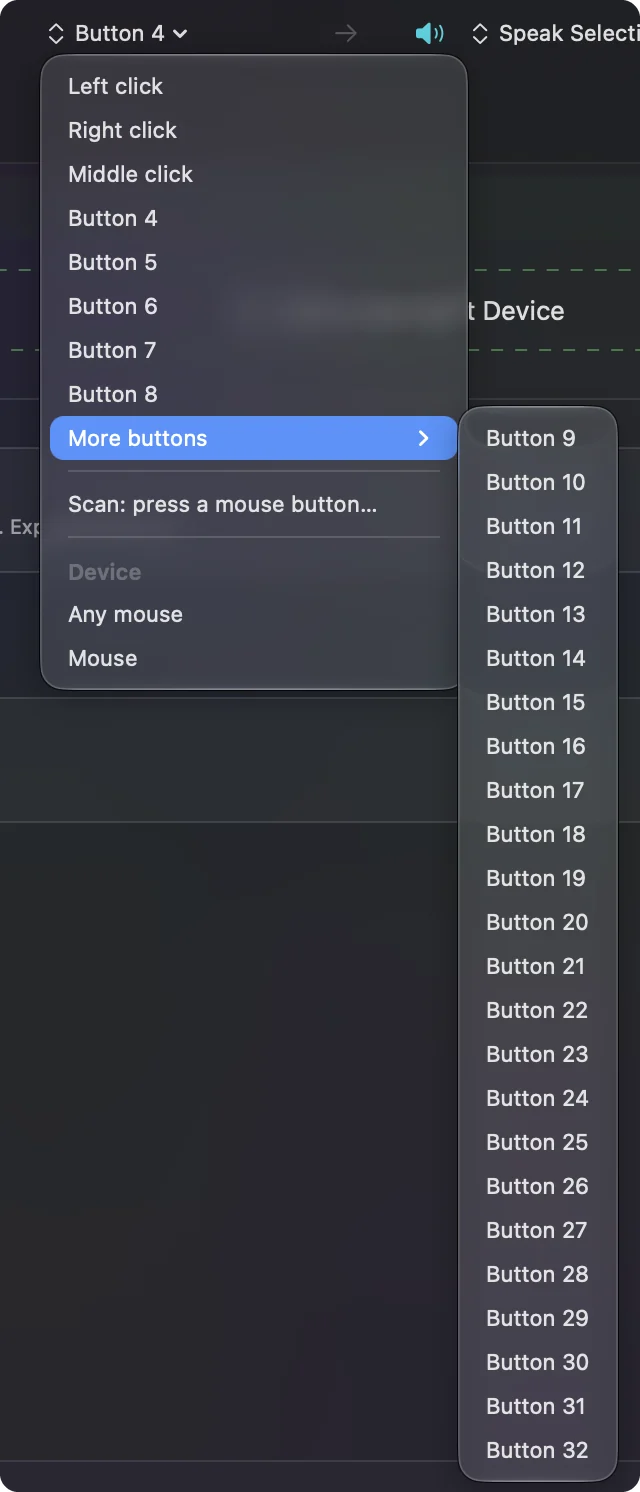
Move the grid to F13 to F20 and bind it
InputConfig listens to the keyboard alongside macOS and does not block or remap a key itself, so a grid that types 1 still types 1 in every app. The way out is in the mouse. Pick the keys no Mac app uses, F13 to F20. Skip F21 to F24, which macOS does not pass to apps. F13 to F19 on a Mac explains why.
Step 1: Change the grid in Razer Synapse
- You: Open Razer Synapse, choose the Naga, and set each grid button you want to a keyboard function, F13 first. The V2 Pro is on Razer's Synapse for Mac list, so a Mac can do this. For a Naga that is not, do it once on a Windows PC.
- InputConfig: Nothing yet. This step is the mouse's own.
- Check: Razer's pages say these mice keep profiles on board, so the change should travel with the mouse. Plug it into the Mac and Scan to find out.
Step 2: Scan the new keys
- You: In InputConfig, make a preset, click Add a new Input Device, choose Any keyboard or This Mac's keyboard, add a row, press Scan and press the first grid button.
- InputConfig: Names the key, F13.
- Check: Each of the eight buttons you changed should name a different F key.
Step 3: Choose what each one sends
- You: Pick the output on the right: a key with modifiers, Type Text, Open App, a system function, a Siri Shortcut or a macro. Save and Activate.
- InputConfig: Runs the row whenever that key arrives, in every app.
- Check: Press the grid button in a text editor. Nothing should type, and the row should fire.
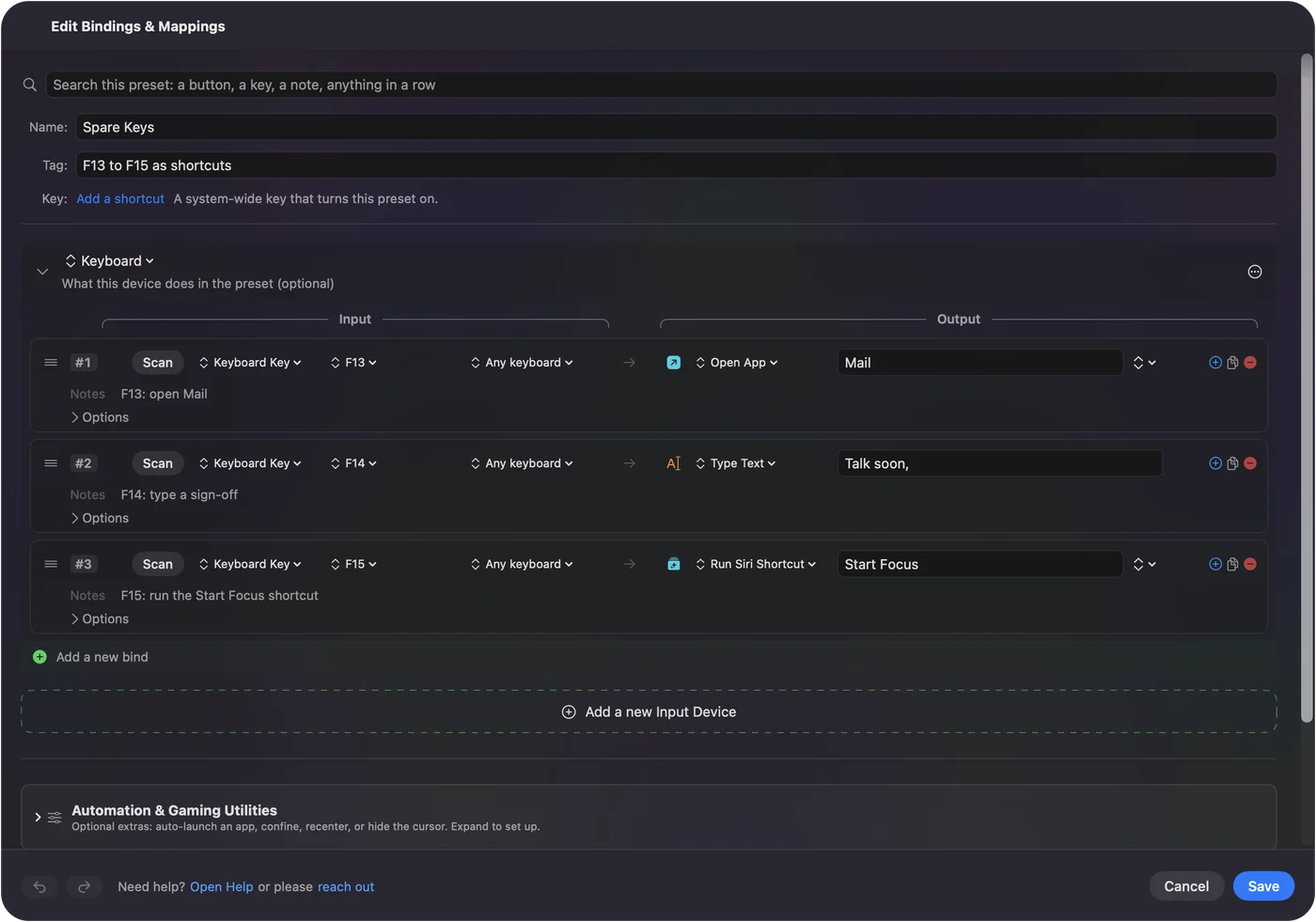
If you have no Windows PC, Karabiner-Elements is a free Mac key remapper that can turn the grid's keys into F13 to F20 on the Mac itself. I have not tried it with a Naga, and it runs beside InputConfig. The 6-button and 2-button plates need no such juggling, since F13 to F20 cover them.
A 12-button plate has four buttons more than F13 to F20 cover. Put the eight you use most on F keys, and leave the other four for jobs where typing a digit does no harm. Razer's HyperShift button gives each button a second assignment while you hold it, which might carry modifier combinations. I have not tested that on a Naga, so Scan to see what arrives.
Use NagaController when the grid cannot be moved to F13 to F20
Some Nagas keep sending the number row no matter what you try, and Synapse for Mac does not always let you change the grid (see the last step of the ladder below). For that case there is a free, open-source menu bar app called NagaController on GitHub. There is also a fork, NagaController-v2. I read both README files on October 21, 2026, and I have not tested either app, so this is their own description and not my experience.
- What it does. The README says the thumb buttons send the default 1 to 0, minus and equals key events. The app intercepts those events so they stop typing, and maps buttons 1 to 12 to key sequences, app launches, simple macros or profile switches.
- How it tells a Naga from a keyboard. It matches Razer devices by their USB vendor ID or a product name containing Naga, and it blocks an event only when a recent press from such a device lines up with it. A regular keyboard is left alone.
- What you give it. The README lists macOS 13 or later, with Accessibility, Input Monitoring and Bluetooth permissions, under an MIT license. It says it was tested on the Naga V2 HyperSpeed and that other Naga models may work. It also says a mouse that was customized in Synapse on Windows may need its onboard profile reset first.
- The fork. Its README describes the same idea as an alternative to Synapse and does not say what it changes, so read both before you pick one.
It runs beside InputConfig, but two apps should not both claim the same button. If NagaController owns the grid, give InputConfig the buttons that arrive as mouse buttons and the F keys, and leave the grid to NagaController. If you would rather keep everything in InputConfig, moving the grid to F13 to F20 in the mouse is still the cleaner route, because InputConfig can then bind each key.
Run longer jobs from one grid button
A row can run a macro, a sequence of key, shortcut and click steps with a wait and a hold time on each. Open the row's Options and tick Run a sequence of steps (macro). The long form is in how to make a macro on a Mac.
- Copy, switch, paste. Command C, then Command Tab, then Command V, on one grid button, for moving text between a document and a chat.
- A sign-off. Type Text sends a whole sentence, which suits a Naga used for support or data entry.
- An app launcher. Open App with your game, editor or a browser on the button under your thumb.
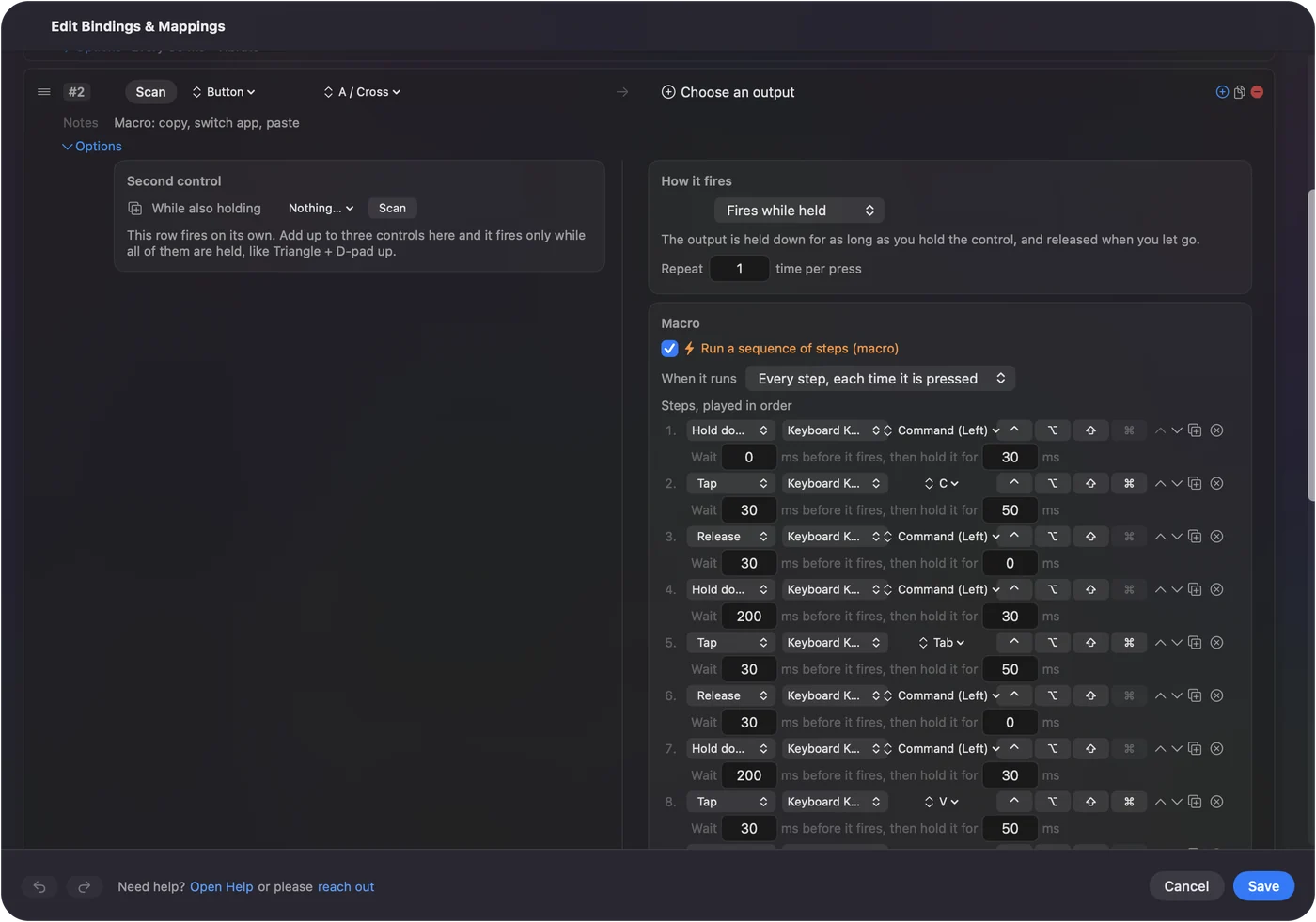
The macros live in InputConfig and run on the Mac, so they work whatever Razer's software does or does not support here.
Add hold, double click and per-app layouts
- Hold. A row can have a second job for when you hold the button, so twelve buttons can be eighteen or more.
- Double click. A Mouse row of the kind Double click fires on the second click of a pair, and it has its own job.
- Block the original. For a grid button set to a mouse button, the Press box in the row's Options has Block the button's own action, so an app that already reads Button 9 stops seeing it. This does not apply to a key, which InputConfig cannot block.
- Per-app presets. Under Automation & Gaming Utilities, list the apps in Activate when these apps are in front, then turn on Settings, Advanced, Switch presets when the front app changes.
Only one preset runs at a time, so each app gets a complete layout. The Naga V2 Pro's swappable plates match this well: fit the 12-button plate for the game preset and the 2-button plate for the day you only need back and forward. The emergency stop, if a layout ever misbehaves, is Control Option Command period.
Layouts for MMO play and for editing
These are ideas, not a tested setup of mine. Each one assumes the buttons arrive as F13 to F20 or as mouse buttons.
An MMO grid for a game that runs on a Mac
A game reads keys, so a row that turns F13 into the key the game wants, for example 1, keeps the old muscle memory. The benefit over the default grid is that you can change which spell sits on which button without opening the game.
An editing layout
- Undo and redo. Command Z and Shift Command Z on the two buttons your thumb finds first.
- Cut and ripple. Whatever your editor calls its blade or trim, on the middle rows.
- Playback. Media keys such as play and pause as system functions, for apps that listen to them.
- Dictation. The Start Dictation system function, for people who talk through notes.
A thumb grid also helps people for whom holding two or three keys together is hard, because one press does the whole shortcut. The carpal tunnel mouse page goes further on comfort.
If a grid button does nothing or still types
Climb this ladder, smallest step first:
- Scan it. If nothing scans, the button is one the mouse keeps to itself.
- Check the mode. A wireless Naga must be in the mode you paired it in, dongle or Bluetooth.
- Look for a digit. If the button types 1 in a text editor, it is still on the number row. Redo the Synapse step.
- Allow Accessibility. InputConfig needs it in System Settings, Privacy & Security, Accessibility.
- Activate the preset. Rows only fire while their preset runs.
- Quit Synapse and test. Razer forum users report remaps that only take effect after Synapse is closed, so quit it, replug the mouse and Scan again.
- Check the plate. A different side plate has a different count of buttons, so rescan after swapping.
- Check for the Keyboard Function bug. If Synapse for Mac shows the assignment but nothing types, read the next paragraph.
A Razer Insider thread from September 2026, Naga V2 Pro side button keyboard mappings not working on macOS, describes exactly this. The poster says Synapse for Mac sees the mouse and both side panels, a Launch Program action on the same button works, and a Keyboard Function such as 1 produces no input in TextEdit or a game. They had already tried the Accessibility and Input Monitoring permissions, the 12-button and 2-button panels, wired and wireless, a fresh profile, two keyboard layouts, a firmware update and a reboot. The same mouse worked in Windows inside Parallels on the same Mac. Two later replies on October 9 and October 12 report similar trouble, and when I read the thread on October 21, 2026, there was no answer from Razer and no fix. So I cannot give you one either. What the thread does show is what to try: make the change on a Windows PC where it works and save it to the mouse, use NagaController above, or give the button a job that is not a Keyboard Function in Synapse and let InputConfig do the rest.
The live mouse map in the mouse tester shows every button the Mac receives, which settles most arguments.
What it cannot do
- Hardware settings. InputConfig does not change DPI, polling rate, lighting or pointer feel. Razer Synapse does, and apps such as LinearMouse, Mac Mouse Fix or SteerMouse handle scrolling and acceleration beside it.
- Two mice apart. Every mouse connected counts as one, so it cannot give your Naga and a second mouse different jobs for the same button.
- The mouse's private buttons. DPI and profile buttons send nothing the Mac can read.
- Keys. It listens to the keyboard and does not block the key, so a grid on its default number row keeps typing until you move it to F13 to F20.
The short version
- Works. A Naga is a good Mac mouse out of the box.
- Scan first. A button name means bind it. A key name means change it in the mouse. Nothing means Razer keeps it.
- Use F13 to F20. Eight clean keys from the grid, then rows and macros for each.
I would start with the eight buttons under your thumb that you use every day, and leave the rest alone for a week.
Questions
Does the Razer Naga work on a Mac?
Yes, as a mouse, with the pointer, clicks and wheel working at once. The Naga V2 Pro is on Razer's Synapse for Mac list I read, and other Naga models get no Synapse settings on a Mac.
Why does my Razer Naga type numbers on a Mac?
The thumb grid usually sends the number row as keyboard keys. Set the grid to F13 to F20 in Razer Synapse, then bind those keys in InputConfig.
Why do my Naga remaps not work while Synapse is open?
Razer forum users report that remaps sometimes only apply once Synapse is closed. Quit it, replug the mouse, press Scan in InputConfig and see which keys arrive.
Why are my Naga V2 Pro side button keyboard mappings not working on macOS?
A September 2026 Razer Insider thread reports that Keyboard Function assignments do nothing in Synapse for Mac while Launch Program works, and I found no Razer answer or fix. Set the keys on a Windows PC, try NagaController, or press Scan to see what the Mac receives.
Is there an open-source alternative to Razer Synapse for the Naga on a Mac?
NagaController is a free menu bar app on GitHub that remaps the thumb grid by intercepting the number keys. Its README says it was tested on the Naga V2 HyperSpeed, and I have not tried it.
Which Naga models have swappable side plates?
Razer's pages say the Naga V3 Pro and the Naga Pro use three magnetic plates with 12, 6 and 2 buttons, and the older Naga Trinity uses swappable plates with 12, 7 and 2 buttons.
Related
This page in other languages: العربية, Čeština, Dansk, Deutsch, Español, Suomi, Français, Magyar, Bahasa Indonesia, Italiano, 日本語, Norsk, Nederlands, Polski, Português, 繁體中文, 简体中文
Completely free. You don't have to make an account, there are no subscriptions, and nothing is locked. Optimized for Apple silicon. Open source on GitHub.
Updated