Does the Razer Basilisk work on a Mac?
 InputConfig is completely free on the Mac App Store. You don't have to make an account, there are no subscriptions, and nothing is locked. Optimized for Apple silicon.
Yes, as a mouse: the pointer, the clicks and the HyperScroll wheel work on any Mac with nothing installed. What changes is how much of the rest you can reach. The side buttons and the wheel tilts can be given jobs by a free app, and the clutch button under your thumb may or may not be readable, depending on what it is set to inside the mouse.
I make InputConfig, a free Mac app that reads a mouse's extra buttons and tilt and gives each one a job. I have checked it with a Razer mouse. Which Basilisk models Razer Synapse for Mac supports is covered on Razer mouse on a Mac, and this page is about using the buttons.
On this page: 11 sections
- Steps
- What each Basilisk does on a Mac
- Find out what the clutch, side buttons and wheel send
- Bind the buttons
- Use the tilt wheel for tabs and Spaces
- Macros and options on the buttons you scanned
- Ideas for people who use a Basilisk
- If a Basilisk button does not respond
- What it cannot do
- The short version
- Questions
Steps
- Plug in the Basilisk, or pair it over Bluetooth if the model has it, and use it as a normal mouse.
- Open InputConfig, add a Mouse row, press Scan and press the thumb button, then each side button, then tilt the wheel.
- Bind the buttons that scan, such as Button 4 and Button 5 for back and forward.
- Give the left and right tilt of the wheel a job each, for example previous and next tab.
- Leave DPI, the scroll mode and lighting to Razer Synapse, and keep going.
What each Basilisk does on a Mac
The HyperScroll Tilt Wheel is a four-way wheel with tactile, free-spin and Smart-Reel modes, and the Mac simply sees a wheel that scrolls and tilts. Razer's pages for the Basilisk V3, V3 Pro, V3 Pro 35K and Basilisk Mobile, which I read on October 21, 2026, give this picture.
| Model | Programmable controls | Connection | Synapse for Mac list I read |
|---|---|---|---|
| Basilisk V3 | 10 plus 1, with five onboard profiles | Not confirmed on the page | No |
| Basilisk V3 Pro | 10 plus 1 | HyperSpeed wireless | Yes |
| Basilisk V3 Pro 35K | 13 | HyperSpeed wireless and Bluetooth | Yes |
| Basilisk V3 X HyperSpeed | 7 programmable buttons and 9 programmable controls, per Razer's page | HyperSpeed wireless and Bluetooth | Not confirmed |
| Basilisk Mobile | 10 | HyperSpeed, Bluetooth and wired USB-C | Yes |
The last column is the Synapse for Mac list quoted on the Razer mouse page linked above. The Basilisk V3 X HyperSpeed row comes from Razer's product page, which I read on October 21, 2026. It names HyperSpeed wireless and Bluetooth, with the HyperSpeed dongle stored under the top cover, and it does not say anything about onboard memory. I could not confirm that model on a Synapse for Mac list.
One more thing helps if you have a second computer. Where Razer says a model keeps profiles on board, as it does for the Basilisk V3 with five onboard profiles, buttons set up in Synapse on another computer are stored in the mouse and keep working when you plug it into a Mac. Razer says the same of the Naga Pro, whose profiles work without Synapse. For the V3 X HyperSpeed I would not count on it, because the page does not mention onboard memory. A model that is not on that list still works as a mouse and still has side buttons the Mac can see.
Find out what the clutch, side buttons and wheel send
Razer calls the left-side thumb button a multi-function trigger. On many Basilisks it ships set to a DPI action, often called the sniper or clutch button, but Razer's pages did not say that, so I cannot tell you what yours is set to. That is why you scan.
- You: In InputConfig, add a Mouse row, press Scan, and press the thumb button. Then do the same for each side button and for each tilt of the wheel.
- InputConfig: Names the mouse button or the scroll direction it received.
- Check: A button name means you can bind it. Scroll X means a tilt. If nothing arrives, the button is set to something the mouse keeps to itself.
| Control | What to expect | What to do |
|---|---|---|
| Left and right click | Left click and Right click | Leave them alone |
| Wheel click | Middle click | Bind it, and block its own action if you want |
| Wheel tilt | Sideways scroll, Scroll X | Give each tilt a job |
| Side buttons | Usually Button 4 and Button 5, plus more on some models | Scan to find out |
| Thumb trigger | Depends on how it is set, a DPI action sends nothing | Scan, then change it in Synapse if you want a key |
| Scroll mode button, DPI button | Talk to the mouse only | Razer Synapse |
Bind the buttons
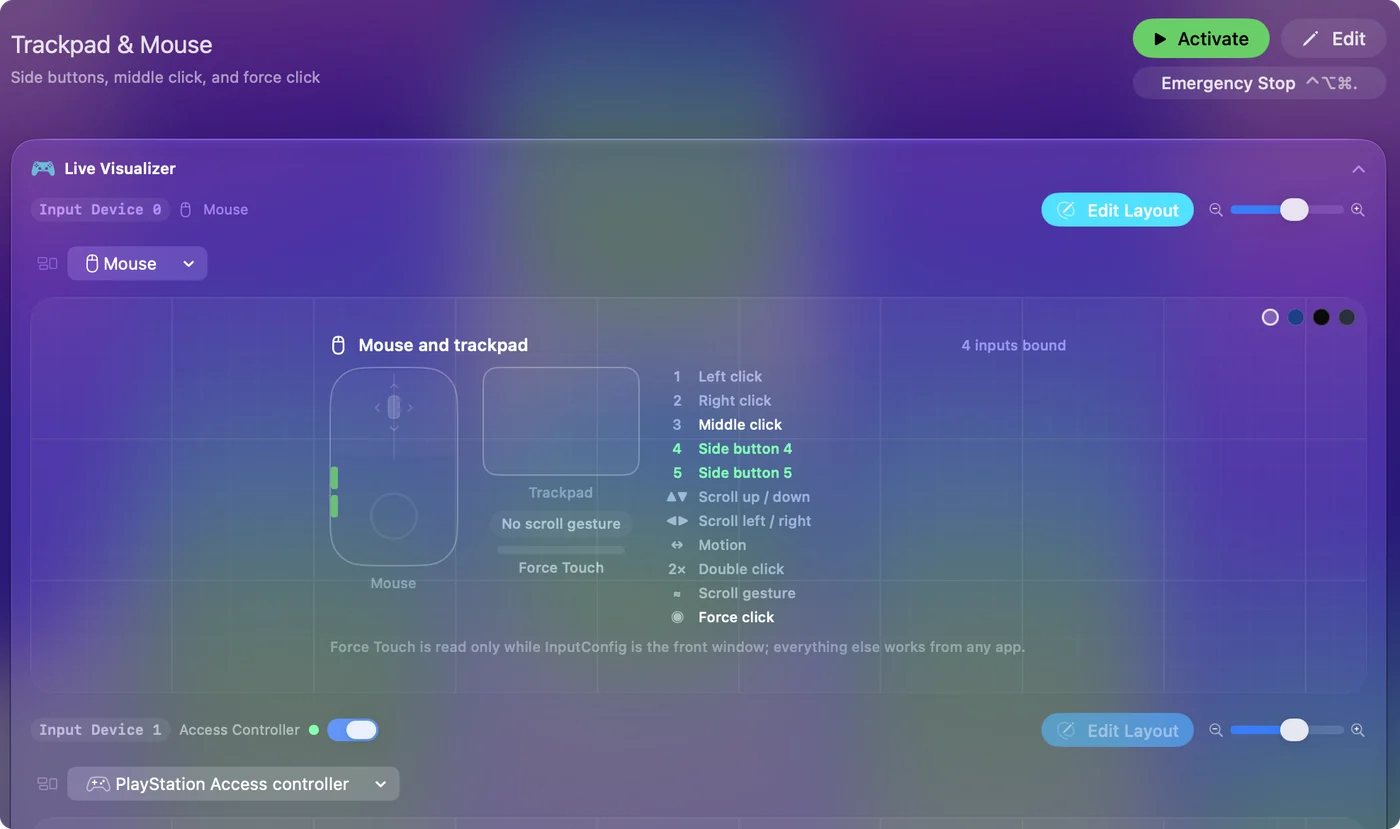
- You: Make a preset, click Add a new Input Device, choose This Mac's mouse or trackpad, add a row for each button, and pick what it sends.
- InputConfig: Runs the row each time the button is pressed, in every app, while the preset is active.
- Check: Press the button in Safari or Finder and see the result, then Save and Activate.
Good first jobs for a Basilisk:
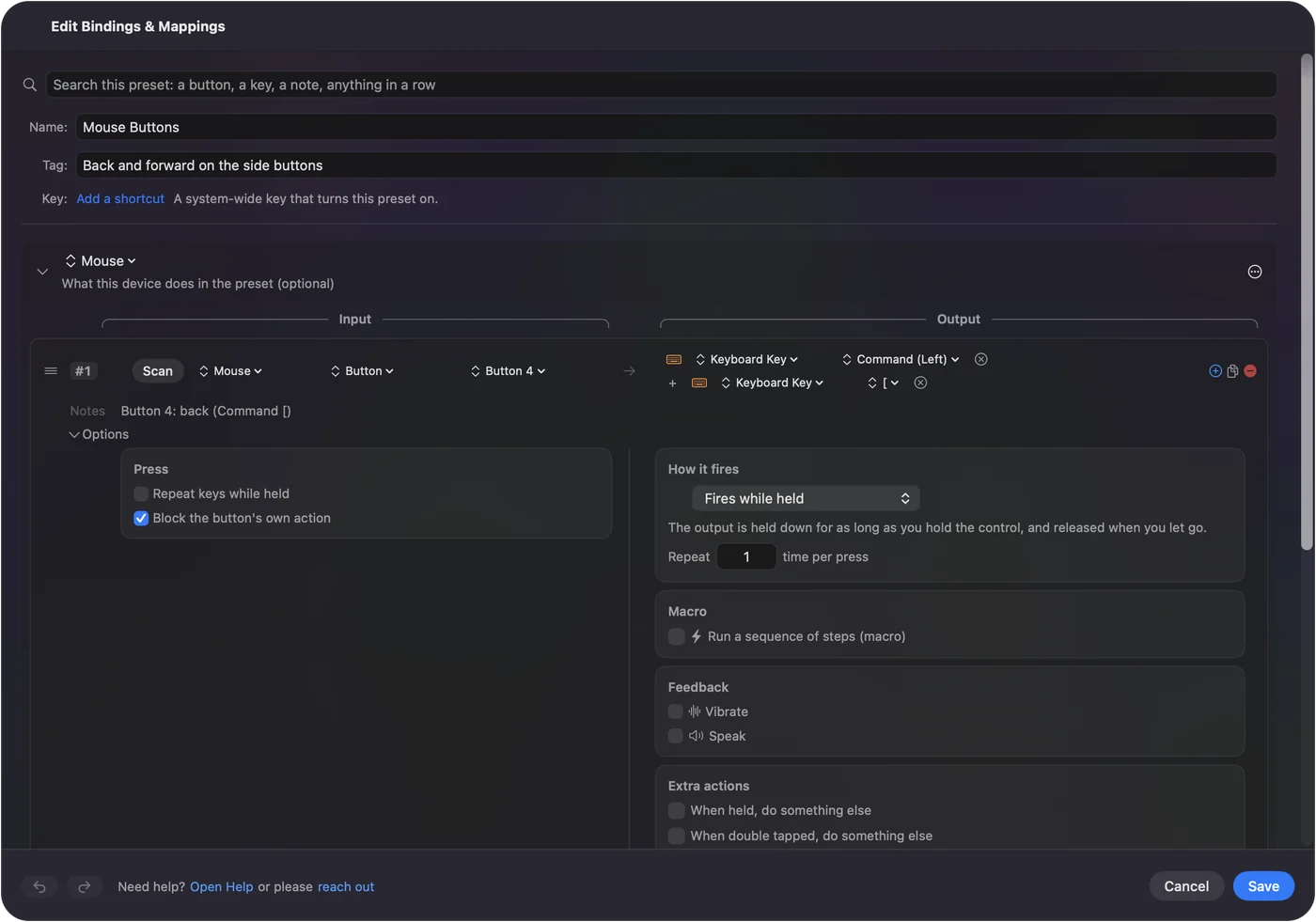
- Back and forward. Command [ and Command ] on the two side buttons.
- Mission Control. The Mission Control system function on the thumb trigger, if it sends a button.
- Dictation. Start Dictation on a side button, for people who would rather talk than type.
- Copy and paste. Command C and Command V on a spare button pair.
The full walk-through for the ordinary two buttons is mouse side buttons on a Mac, and the wider one is how to map extra mouse buttons. If a button is set to a DPI action in the mouse, change that in Synapse first and the Mac can see it.
Use the tilt wheel for tabs and Spaces
A tilt shows up as Scroll X, one row for left and one for right, as described in the tilt wheel page. A Basilisk is a good fit for the Control Shift Tab and Control Tab pair, which move between browser tabs.
- You: Add a row, press Scan and tilt the wheel left. Pick the output, then repeat for the right tilt.
- InputConfig: Records a Mouse input of the kind Scroll X in that direction.
- Check: Tilt left and right in a browser. The tabs should change.
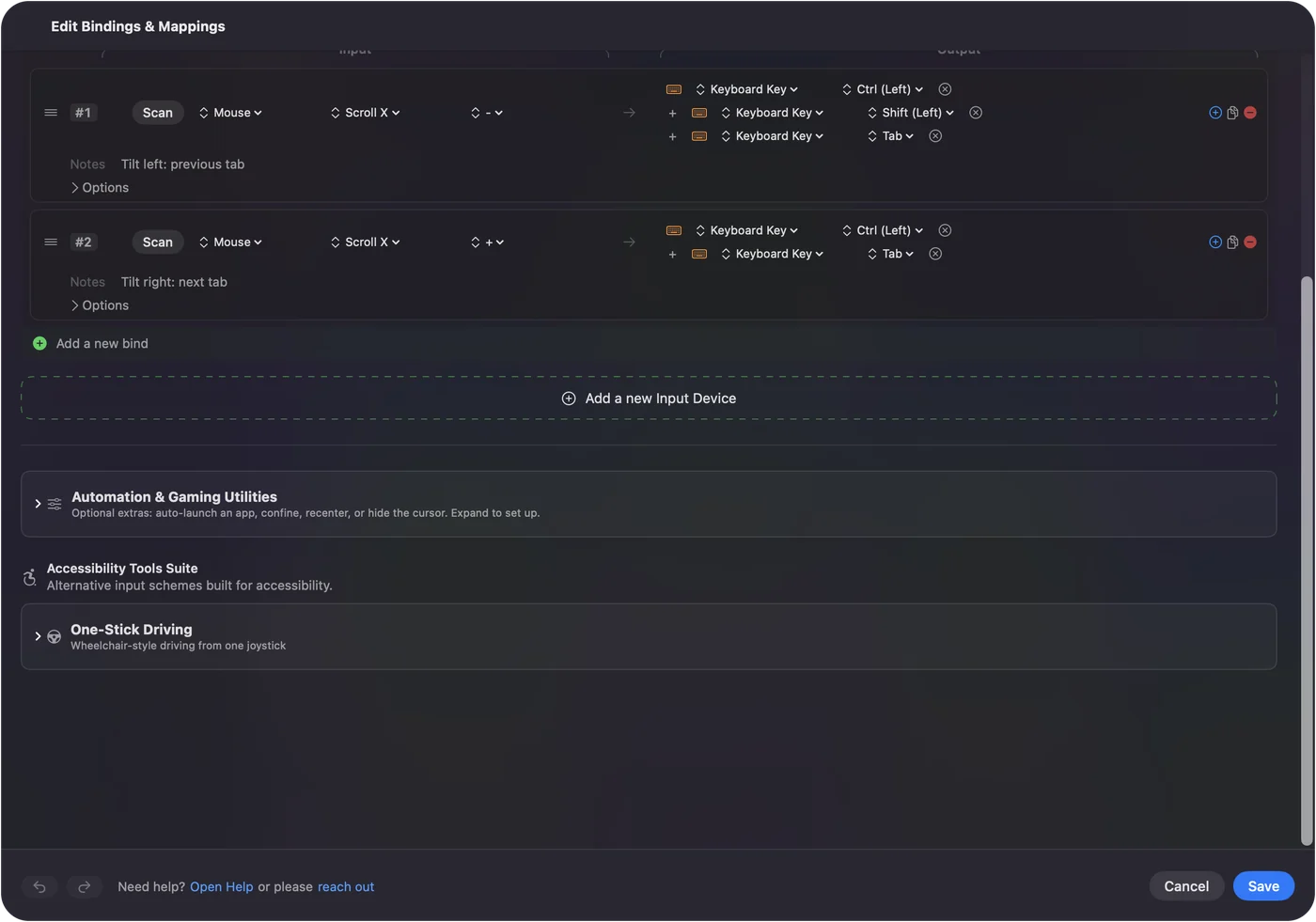
There is one catch for this mouse. In free-spin mode the wheel keeps going after you let go, and a held tilt may repeat, so a single push can step through several tabs. Switching the wheel to tactile mode, with its scroll mode button, makes tilts crisper. InputConfig cannot hold back the sideways scroll itself, so in an app with a wide page the tilt both scrolls and runs its row.
Macros and options on the buttons you scanned
- A macro on the thumb button. Tick Run a sequence of steps (macro) in a row's Options for a timed sequence, such as copy, switch app and paste, as in how to make a macro on a Mac.
- Hold and double click. A held side button can run a second job, and a double tap a third, each a full second output.
- Block the original. For the wheel click and the side buttons, the Press box has Block the button's own action, so an app that already uses Button 4 does not go back twice.
- Per app. A preset can list apps under Automation & Gaming Utilities, and Switch presets when the front app changes makes the layout follow the app in front.
Because the Basilisk has a rich wheel, it gives you two more jobs, the two tilts, than a plain side button mouse.
Ideas for people who use a Basilisk
- Editors and designers. Tilt to move a timeline sideways, thumb button for undo.
- Spreadsheet users. Tabs on the tilt, back and forward on the sides, copy on the thumb button.
- Players. The sniper or clutch is a DPI function in the mouse, so keep that for aiming and use the side buttons for the Mac jobs.
- People with sore hands. One press can do a shortcut that otherwise needs two or three keys held together.
If a Basilisk button does not respond
Climb this ladder, smallest step first:
- Scan the button. Nothing scanning means the mouse keeps it to itself.
- Change its assignment in Synapse. A DPI action can be changed to a mouse button or key on a model Synapse for Mac lists.
- Quit Synapse and test. One Razer forum user reported that with Synapse for Mac running, a Basilisk V3 Pro clutch, scroll mode and stage buttons stopped responding and the tilt did not scroll, and quitting Synapse brought them back. That is a single report, but it costs nothing to try.
- Check the connection. A wireless Basilisk talks to the dongle or Bluetooth, not both.
- Look for the maker's app. If Synapse maps the tilt to something else, it may never arrive as scrolling.
- Allow Accessibility and Activate. InputConfig needs the permission, and rows only fire while their preset runs.
Watching the Mouse map in the Live Visualizer, or the browser mouse tester, shows exactly what arrives.
What it cannot do
- DPI and scroll feel. InputConfig does not change DPI, polling rate, Smart-Reel, virtual acceleration or lighting. Razer Synapse does.
- Private buttons. Buttons that talk only to the maker's software send nothing to the Mac.
- Two mice apart. Every mouse counts as one, so a second mouse shares the same button jobs.
- Trackpad swipes. A sideways swipe is Scroll X too, so it fires the tilt rows.
The short version
- Works. The Basilisk is a normal mouse on a Mac.
- Scan. Side buttons and tilts usually bind. A DPI clutch may not.
- Tilt. Two extra jobs, best for tabs.
I would start with back and forward on the side buttons and tabs on the tilt, and add the rest later.
Questions
Does the Razer Basilisk work on a Mac?
Yes, as a mouse. Razer's Synapse for Mac list I read includes the Basilisk V3 Pro, V3 Pro 35K and Mobile, and other models still work for pointing and clicking.
Can I use the Basilisk tilt wheel on a Mac?
Yes. A tilt arrives as sideways scroll, and InputConfig can give the left and right tilt a job each, such as previous and next tab.
What is the Basilisk sniper button on a Mac?
Razer calls the thumb button a multi-function trigger, and on many models it is set to a DPI action. A DPI action stays inside the mouse, so press Scan to see whether yours sends anything.
Why did my Basilisk buttons stop working on a Mac?
A forum report says some buttons and the tilt stop responding while Synapse for Mac is running. Quit Synapse, press Scan in InputConfig and see what the Mac receives.
Do Basilisk profiles saved on a Windows PC work on a Mac?
If the model stores profiles on board, as Razer says the Basilisk V3 does with five, the buttons set up on the PC travel with the mouse. Razer's page for the V3 X HyperSpeed does not mention onboard memory, so check yours.
Does the Razer Basilisk V3 X HyperSpeed work on a Mac?
Yes as a mouse, over HyperSpeed wireless or Bluetooth. I could not confirm it on a Synapse for Mac list, so press Scan to see which buttons the Mac receives.
Related
This page in other languages: العربية, Čeština, Dansk, Deutsch, Español, Suomi, Français, Magyar, Bahasa Indonesia, Italiano, 日本語, 한국어, Norsk, Nederlands, Polski, Português, 繁體中文, 简体中文
Completely free. You don't have to make an account, there are no subscriptions, and nothing is locked. Optimized for Apple silicon. Open source on GitHub.
Updated