How to use mouse buttons in VS Code on a Mac
 InputConfig is completely free on the Mac App Store. You don't have to make an account, there are no subscriptions, and nothing is locked. Optimized for Apple silicon.
VS Code already treats the side buttons as back and forward, and the built-in way to do that on a Mac is a setting, not a mapper. The jobs a mapper adds are run, build, stop and the debugger steps, which are keys on a button. InputConfig, the free Mac app I make, scans any mouse button and sends a key or a whole shortcut, and it can follow VS Code as the front app. This app is completely free, and you do not have to make an account.
The keys come from Microsoft's macOS keyboard shortcuts sheet, the debugging page and the tasks page, which I read on October 21, 2026. A Xcode section further down uses Apple's own list.
On this page: 11 sections
What VS Code and macOS give a mouse
VS Code has a setting, workbench.editor.mouseBackForwardToNavigate, described in its source as enabling mouse buttons four and five for the commands Go Back and Go Forward, and its default is on. That is from VS Code's source on GitHub, which I read on October 21, 2026. A mouse whose side buttons report as Button 4 and Button 5 should therefore navigate with no help.
The keyboard equivalents are Control minus for Go Back and Control Shift minus for Go Forward, from Microsoft's sheet. If your side buttons already navigate in VS Code, leave them alone, and use the mapper for the buttons that do nothing.
Find out what each button sends
A mouse button reaches the Mac as Left click, Right click, Middle click or Button 4 and up. Press Scan, then click the button. If Scan names a key instead of a mouse button, the mouse is sending a key, and the fix is on F13 to F19 on a Mac.
| Button | How it usually reports | A good VS Code job |
|---|---|---|
| Left click and right click | Left click and Right click | Leave them. They cannot be blocked. |
| Wheel press | Middle click | Close editor, Command W, or Go to Definition, F12. |
| Side buttons | Button 4 and Button 5 | Back and forward, which VS Code may already do. |
| Thumb grid or extra buttons | Button 6 and higher | Run, Stop, Step over, Step into, Build. |
| Tilt wheel | Sideways scroll | Previous and next editor tab. |
| DPI or profile button | Often nothing the Mac can read | Nothing. If Scan hears no press, no app can read it. |
The Command bracket trap
InputConfig has a built-in preset that puts back and forward on the side buttons by sending Command left bracket and Command right bracket, which browsers and the Finder understand. In VS Code, Microsoft's sheet lists the same two keys as indent and outdent line. If that preset runs while VS Code is in front, a side button press edits your code.
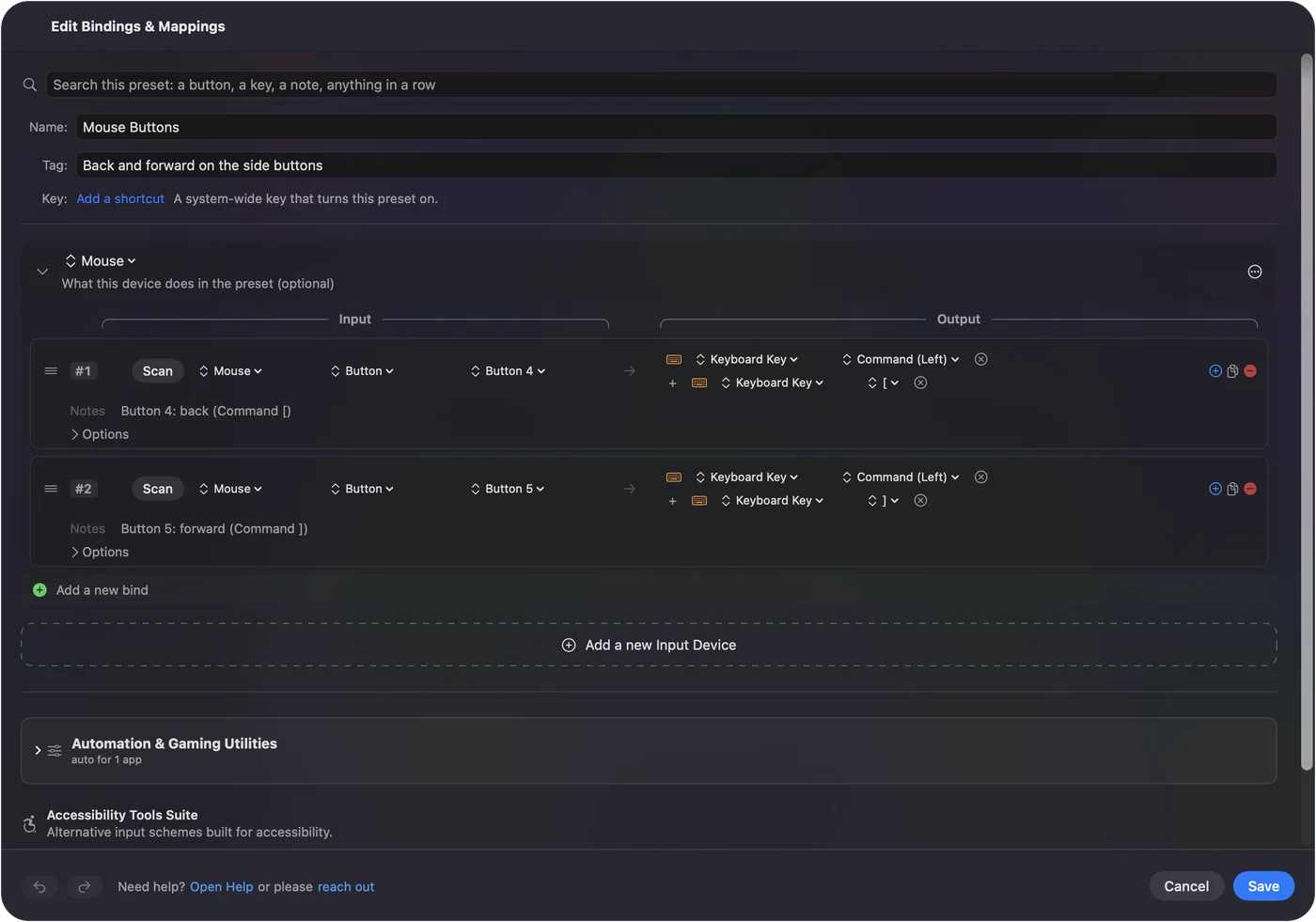
- Option one. Leave the side buttons to VS Code's own setting, and keep this preset for other apps.
- Option two. Make a VS Code preset that sends Control minus and Control Shift minus on the same buttons, and list VS Code under Activate when these apps are in front.
- Option three. Tick Block the button's own action on the rows if both VS Code and the preset act, so back does not happen twice.
Only one preset runs at a time, so a VS Code preset and the back and forward preset need their own app lists. The same two buttons should send different keys in different apps, and that is what per-app presets are for.
Put run, build and the debugger on the buttons
Step 1: Scan and give it Run
- You: Add a row, set the device to This Mac's mouse or trackpad, the input to Mouse and the kind to Button, then press Scan and click a thumb button. Set the output to Keyboard Key and pick F5.
- InputConfig: Presses F5 each time you press the button.
- Check: Open a project with a launch setup and press the button. The debugger starts, or continues if it is already running.
Step 2: Add build and stop
- You: On the next button, set the output to Keyboard Key, pick Shift and Command under Modifier Keys, and add B. On another, Shift and F5.
- InputConfig: Presses Shift Command B, which Run Build Task uses, and Shift F5, which stops debugging.
- Check: Press build and the task picker or the default task runs. Press stop and the debugger ends.
| Job | VS Code key on a Mac | Good home |
|---|---|---|
| Go Back and Go Forward | Control minus and Control Shift minus | Button 4 and Button 5 |
| Start or continue debugging | F5 | A thumb button |
| Stop debugging | Shift F5 | A hold on that button |
| Restart debugging | Shift Command F5 | A second hold |
| Run Build Task | Shift Command B | A thumb button |
| Step over, into, out | F10, F11 and Shift F11 | Three thumb buttons |
| Toggle breakpoint | F9 | A thumb button |
| Go to Definition and Peek Definition | F12 and Option F12 | Wheel press and a hold |
| Quick Open and Command Palette | Command P and Shift Command P | Two thumb buttons |
| Show integrated terminal | Control backtick | A thumb button |
| Close editor | Command W | Wheel press |
VS Code's debug page lists F5 as continue or pause, and Shift F5 as stop. Run Build Task is Shift Command B on the tasks page.
Macros and multi-step jobs
A macro is a row with Run a sequence of steps ticked, and each step is a key, a shortcut or a click with its own wait. Three that suit code:
- Save, then build. Command S, a short wait, then Shift Command B. It saves the file you are on and starts the build.
- Stop and start again. Shift F5, a wait of a second, then F5. A rerun on one button.
- Terminal at hand. Control backtick shows the integrated terminal, then a Type Text output can type a command you run all day. I would leave the Return off, so you check it first.
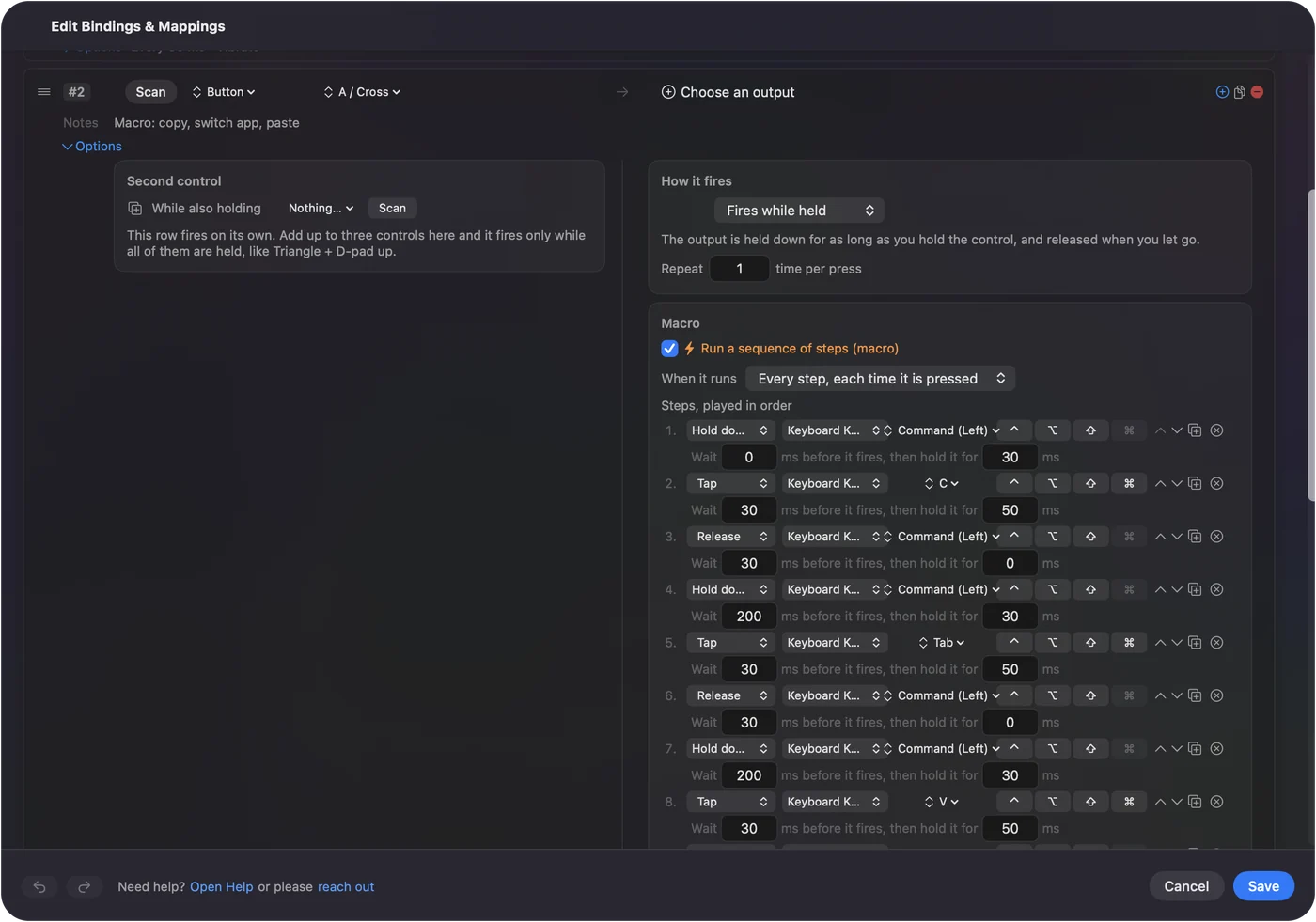
I have not run these in VS Code myself, and a macro that stops and starts a debugger is worth a test run first. Keep Return out of any typed command, so a stray press cannot run it.
Hold, repeat, tap twice and switch by app
- A tap and a hold. F5 on the tap and Shift F5 on the hold, so one button starts and stops. A quick tap sends the normal output, and holding past a time you set sends something else.
- Repeat keys while held. For stepping with F10, this keeps stepping while the button is held. Leave it off for build.
- Block the button's own action. Available for the middle button and the side buttons, so an app stops seeing them while the preset runs.
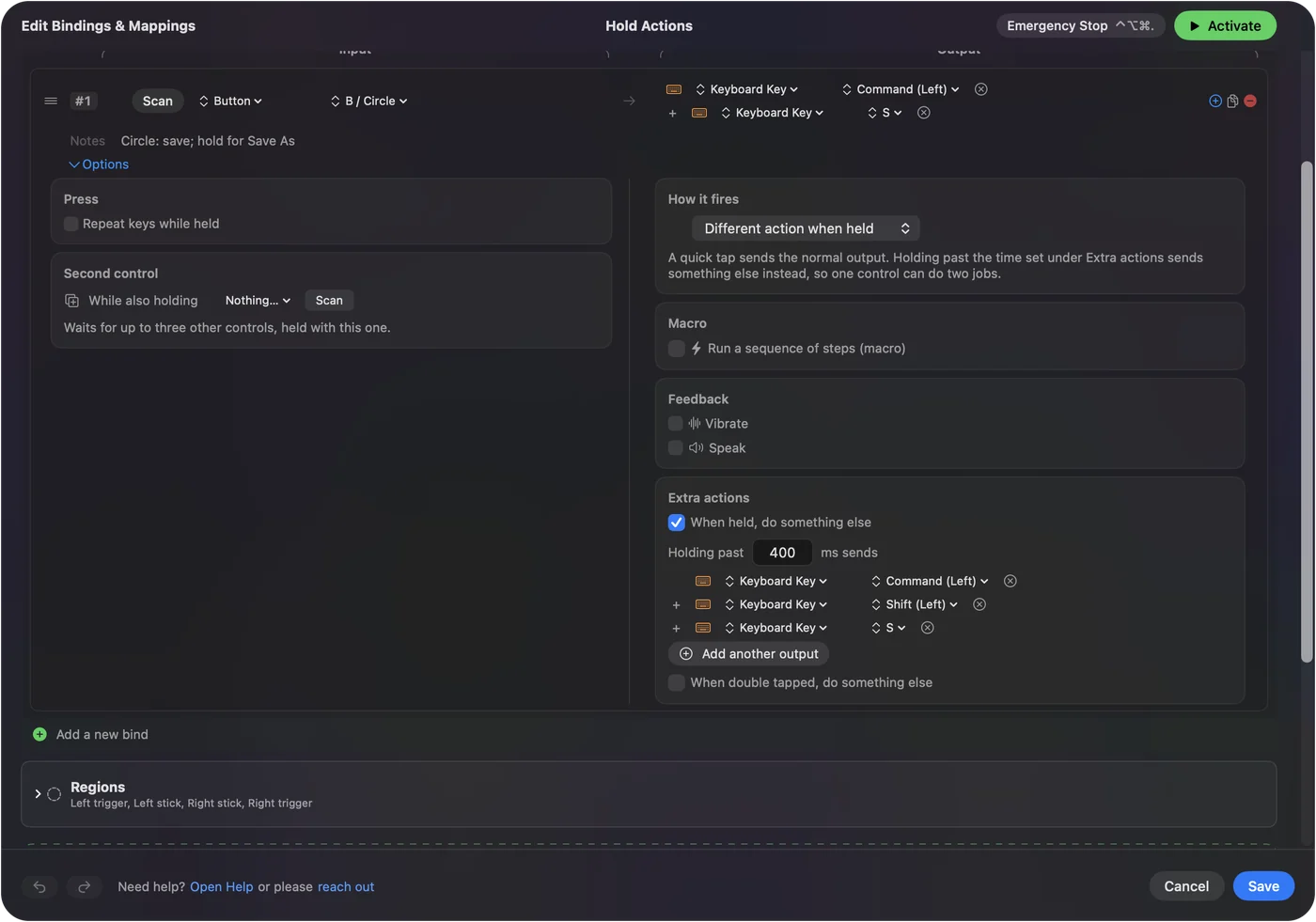
To keep the layout in VS Code, open the preset's Automation & Gaming Utilities section, add Visual Studio Code under Activate when these apps are in front, and in Settings, Advanced, turn on Switch presets when the front app changes. The emergency stop is Control Option Command period.
Xcode on a Mac
Xcode is the same idea with different keys. Apple's archived table lists them in Apple's archived Xcode menu command shortcuts, which I read on October 21, 2026. It describes an older Xcode, so open the Product and Navigate menus in your version, where each command shows its current key.
| Job | Xcode key from Apple's table | Good home |
|---|---|---|
| Go Back and Go Forward | Control Command Left Arrow and Control Command Right Arrow | Button 4 and Button 5 |
| Run | Command R | A thumb button |
| Build | Command B | A thumb button |
| Stop | Command period | A hold on Run |
| Open Quickly | Shift Command O | Wheel press |
| Clean | Shift Command K | A hold on Build |
Give Xcode its own preset, and list it under Activate when these apps are in front. Scan the buttons, bind the keys from your Xcode menus, and Xcode never sees the VS Code keys. Run and Stop on a hold of one button is the simplest way to drive either editor.
If a button does nothing in VS Code
Climb this ladder, smallest step first:
- Check the preset is on. Click Activate, and make sure VS Code is the app the preset follows.
- Check Accessibility. In System Settings, Privacy & Security, Accessibility.
- Check for a double action. If back goes twice, VS Code's own setting and your row are both acting. Tick Block the button's own action.
- Check the function keys. F5 and F10 may need the Fn key on a laptop. Set the keyboard's function keys as standard in System Settings, Keyboard, or send the key from the row, which does not depend on that.
- Check the Scan. If the button scans as a key, set it to F13 to F20 in the maker's software first.
- Quit the maker's software. Logi Options+ and similar apps can take a button over.
What it cannot do
- Read your code. InputConfig sends keys, clicks and scrolls. It cannot know which file or debugger state you are in.
- Tell two mice apart. Every mouse connected counts as one device.
- Change pointer speed. Use the Mac's settings, the maker's app, or LinearMouse, Mac Mouse Fix or SteerMouse.
- Run only in one project. A preset follows the app in front, not the folder or workspace.
The short version
- Check the setting first. VS Code can navigate with Button 4 and Button 5 by itself.
- Avoid the bracket keys. Command left and right bracket indent lines in VS Code.
- Follow the app. VS Code and Xcode each get their own preset.
Run on a tap and stop on a hold, on one thumb button, is the setup I would try first.
Questions
Can I use my mouse back and forward buttons in VS Code on a Mac?
Yes. VS Code has a setting for mouse buttons four and five as Go Back and Go Forward, and its source lists it as on by default. The keyboard keys are Control minus and Control Shift minus.
Why does my mouse back button indent lines in VS Code?
A preset is sending Command left bracket or Command right bracket, which VS Code uses to indent and outdent. Use a VS Code preset that sends Control minus instead.
What are the VS Code shortcuts for run and build on a Mac?
F5 starts or continues debugging, Shift F5 stops, and Shift Command B runs the build task.
How do I use a mouse button to run code in VS Code?
Scan the button in InputConfig, set the output to Keyboard Key, and pick F5. Add a hold action for Shift F5 so the same button stops it.
What is the Xcode shortcut to go back on a Mac?
Control Command Left Arrow, and Control Command Right Arrow goes forward, in Apple's table. Check your own Xcode menus, because the table is from an older version.
Related
This page in other languages: العربية, Čeština, Dansk, Deutsch, Español, Suomi, Français, עברית, Magyar, Bahasa Indonesia, Italiano, 日本語, 한국어, Norsk, Nederlands, Polski, Português, Русский, Slovenčina, Svenska, ไทย, Türkçe, Українська, Tiếng Việt, 繁體中文, 简体中文
Completely free. You don't have to make an account, there are no subscriptions, and nothing is locked. Optimized for Apple silicon. Open source on GitHub.
Updated