How to put a macro on a mouse button on a Mac
 InputConfig is completely free on the Mac App Store. You don't have to make an account, there are no subscriptions, and nothing is locked. Optimized for Apple silicon.
You can put a macro on any mouse button on a Mac with InputConfig, the free app I make. A row gets the option Run a sequence of steps (macro), and the steps are keys, shortcuts and clicks, each with its own wait and hold time, all started by one press of the button.
This page is about the mouse side of it: which button to use, a copy then paste example, a login sequence, and repeating while the button is held. The general method is in how to make a macro on a Mac, and I will not repeat it all here.
On this page: 11 sections
- Why a mouse button is a good place for a macro
- Build a macro on a mouse button
- Example: copy, wait, paste on one button
- Timing that works
- A macro recorder or a macro built step by step
- Example: a login sequence
- Run while held, or repeat
- If the macro does nothing or misses steps
- What it cannot do
- The short version
- Questions
Why a mouse button is a good place for a macro
A macro needs a trigger that types nothing and that your hand already rests on. A thumb button on a mouse is exactly that. Your other hand stays on the keyboard, and the pointer stays where it is, which matters because a macro can click at the pointer.
macOS has some pieces of this. Text Replacements expand short text, and the Shortcuts app chains actions. Neither can start from a mouse button on its own. InputConfig is the part that connects the button to the chain.
Build a macro on a mouse button
Install InputConfig from the Mac App Store and allow Accessibility access first.
Step 1: Scan the button
- You: Make a preset, add This Mac's mouse or trackpad as the device, add a row, press Scan and click the side or thumb button.
- InputConfig: Names it, for example Button 4.
- Check: The row shows that name. Button 4 and Button 5 are the usual side buttons, and More buttons holds Button 9 to Button 32.
Step 2: Turn the row into a macro
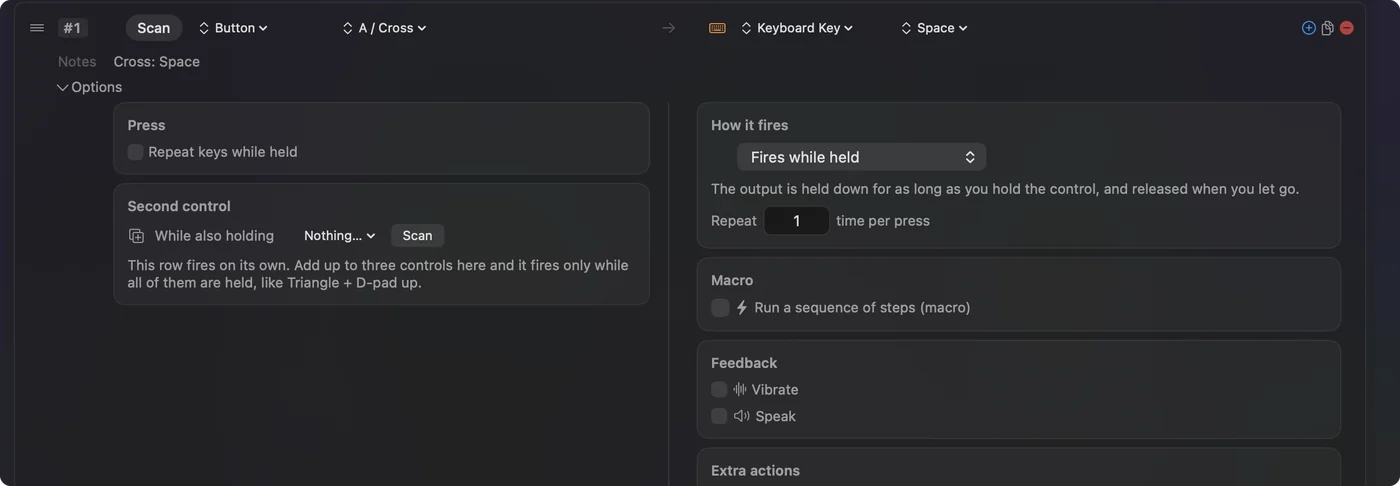
- You: Open the row's Options and tick Run a sequence of steps (macro). Click Add a step for each action.
- InputConfig: Plays the steps in order, each after its own wait, each held for its own time.
- Check: The steps list shows one line per step, numbered, with a wait and a hold in milliseconds.
Step 3: Test it
- You: Click Activate, open the app, and press the button.
- InputConfig: Runs the whole chain from the one press.
- Check: Watch for a step that misses. If one does, lengthen the wait before that step.
Example: copy, wait, paste on one button
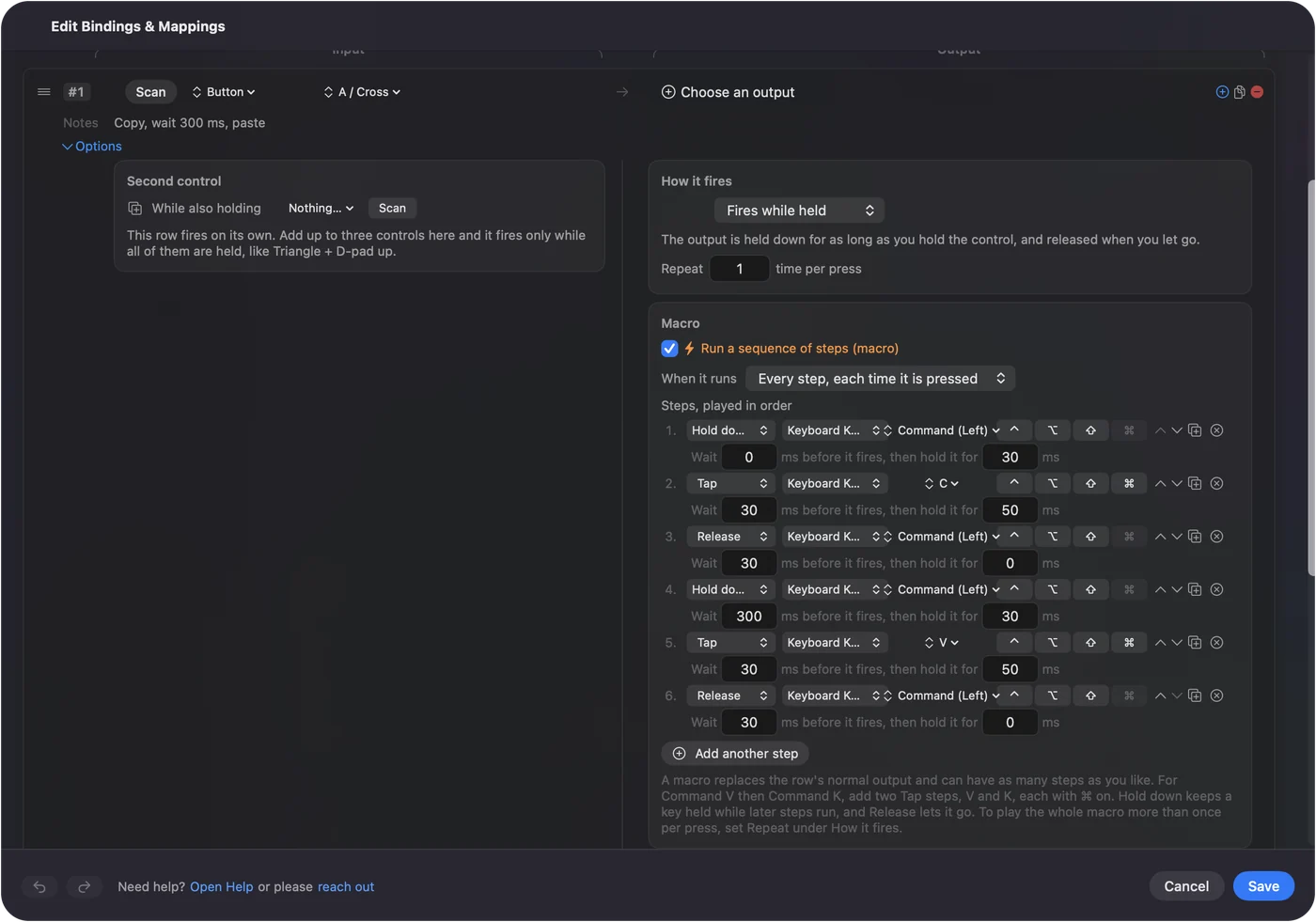
Copying in one app and pasting in another is the classic two-hand job. On a mouse button it becomes one press. The steps look like this:
- Hold Command. Hold down, Command (Left), wait 0 ms, hold 30 ms.
- Tap C. Tap, wait 30 ms, hold 50 ms.
- Release Command. Release, wait 30 ms.
- Wait for the switch. Hold Command again with a wait of 200 ms, tap Tab, release, to move to the next app.
- Paste. Hold Command, tap V, release.
The built-in Macros & Turbo preset has a version of this on a controller button, so you can open it and copy the steps. Every step has its own wait, so a slow app only needs a longer number on the one step that misses.
Timing that works
| Step | Wait and hold I would start with |
|---|---|
| A keystroke | A hold of 30 to 50 ms and a gap of about 50 ms |
| After switching apps | 300 to 500 ms before the next step |
| After opening a menu or a web page | Longer, and test it with your own connection |
| A click at the pointer | A wait of 100 ms or more so the screen has caught up |
These are starting points, not measurements of your Mac. Change one number at a time and press the button again.
A macro recorder or a macro built step by step
People who search for mouse macros often want a macro recorder, so here is the honest difference. A recorder replays what you did, including the slow moments and the slips, which is quick for a chore you will do a few times. A macro built in InputConfig is a list of steps you write, each with an exact wait and an exact hold, so it behaves the same on a busy day as on a quiet one and you can change one step without redoing the rest. It also runs from any button the Mac can see, which is the part a recorder usually leaves to a hotkey. Record when you want speed, and build when you want it to be exact. The options for recording are in macro recorder for Mac.
Example: a login sequence
A login sequence is a chain of the same moves you make every morning: switch to the app, click into the field, Tab, and press Return. I would build it from steps like these:
- Switch to the app. A Command Tab step, then a wait of 400 ms.
- Click into the field. A click step, at the pointer, so put the pointer there first.
- Fill the field. Run your password manager's own fill shortcut as a step, so it does the filling.
- Confirm. A Tab step or a Return step.
I would not type a password into a preset. A preset is a file, and Type Text sends exactly what you write. Let a password manager fill the secret, and let the macro only do the clicking and the key presses around it.
Run while held, or repeat
At the top of the macro you choose when it runs. Every step, each time it is pressed plays the whole chain once per press. Only while held plays it while the button is down, and letting go stops the rest of the steps and releases anything held.
- Repeat while held. Good for a button that steps through a list, such as a press that tabs through fields while you hold it.
- Repeat a number of times. Set Repeat under How it fires. A repeating macro waits between passes.
- Stop. Letting go ends it, and Control Option Command period is the emergency stop for anything that runs away.
Test a repeating macro in a blank document first.
If the macro does nothing or misses steps
Climb this ladder, smallest step first:
- Check the preset is on. The row does nothing until you click Activate.
- Scan the button again. If Scan names a key, set the mouse button to F13 to F20 in its own software.
- Lengthen the wait. Add 100 to 200 ms before the step that misses.
- Block the old job. If the button also does something on its own, tick Block the button's own action in the Press box.
- Check the pointer. A click step lands where the pointer is, so a macro that clicks needs the pointer in the right place.
What it cannot do
- Record you. InputConfig does not watch and record. You build the steps, which keeps every wait visible. See macro recorder for Mac for the options.
- A macro on a hold. A row with a macro has no hold action, so give the macro its own row.
- Type a sentence in a step. Steps are keys, shortcuts and clicks. Put a Type Text output on its own row for words.
For the one-button, one-job shortcut, see assigning a keyboard shortcut to a mouse button.
The short version
- Trigger. A side or thumb button that types nothing.
- Steps. Keys, shortcuts and clicks, each with a wait and a hold.
- Run mode. Every press, or only while held.
Build it one step at a time and test each step as you add it.
Questions
Can I put a macro on a mouse button on a Mac?
Yes. In InputConfig, scan the button, open the row's Options and tick Run a sequence of steps (macro). Then add steps, each with its own wait and hold time.
How do I make a mouse macro repeat while I hold the button?
Set the macro to run Only while held. It keeps playing while the button is down, and letting go stops it.
Can a mouse macro click on the screen?
Yes. A step can be a click at the pointer, so the pointer has to be in the right place when you press the button.
Does InputConfig record a macro?
No. You build the steps yourself, which means every wait is visible and easy to change.
Is a macro recorder better than a mouse macro on a Mac?
A recorder replays what you did and is fast to start. InputConfig's macro is built step by step with exact waits and holds and runs from any button, so it is steadier and easier to edit.
Related
This page in other languages: العربية, Čeština, Dansk, Deutsch, Español, Suomi, Français, עברית, Magyar, Bahasa Indonesia, Italiano, 日本語, 한국어, Norsk, Nederlands, Polski, Português, ไทย, 繁體中文, 简体中文
Completely free. You don't have to make an account, there are no subscriptions, and nothing is locked. Optimized for Apple silicon. Open source on GitHub.
Updated