How to remap mouse buttons on a Mac
 InputConfig is completely free on the Mac App Store. You don't have to make an account, there are no subscriptions, and nothing is locked. Optimized for Apple silicon.
To remap a mouse button on a Mac, you need an app that reads the button and sends something else, because macOS has no list of mouse buttons to change. InputConfig, the free app I make, reads any mouse that is plugged in or paired, scans each button by name, and gives it any job: a keyboard shortcut, typed text, a macro, an app, a hold action, a double click action and more.
This page is the full method with every option, for any mouse. If you only want the thumb buttons, mouse side buttons on a Mac is shorter, and mapping extra mouse buttons covers Button 6 to Button 32.
On this page: 10 sections
What macOS does with a mouse on its own
Apple's Mouse settings, which I read on October 21, 2026, hold tracking speed and pointer acceleration, and Accessibility, Pointer Control holds double-click speed and scroll speed under Mouse Options. Those change how the mouse feels. None of them changes what a button does.
The one place macOS lets a mouse button do something new is Desktop & Dock, Shortcuts, which on some mice offers Mission Control, Application windows or Show Desktop. Everything else, a button that sends a shortcut or runs a sequence, needs an app.
Find out what each button sends
Before you remap anything, find out how the button reaches the Mac. A mouse can send a standard button, a key, scrolling or nothing at all, and each one is handled differently.
| The control | How it shows up | What to do |
|---|---|---|
| Left click and right click | Named in the button menu | Bind them, but read the limit in the options section below. They cannot be blocked. |
| Middle click (the wheel press) | Named Middle click | Bind it, and block the original if you want the old job gone. |
| Side and thumb buttons | Button 4 to Button 8, then More buttons for Button 9 to Button 32 | Bind them. This is where remapping pays off most. |
| Scroll wheel and tilt wheel | Scroll up and down, and Scroll X for sideways | Bind them as inputs. Scroll wheel shortcuts has the details. |
| A button that sends a key | Scan names a key, often 1 to 0 | Set it to F13 to F20 in the maker's software, then bind that key. |
| DPI, profile and some gesture buttons | Scan hears nothing | Only the maker's software can read them. No Mac app can. |
Press Scan to see what your own model sends. I would rather you trust that than a list of models, because two mice with the same shape can report differently. The mouse tester and the Live Visualizer's Mouse map also light each button as it arrives, with no preset running.
Remap a button, step by step
Install InputConfig from the Mac App Store and allow Accessibility access first. Then it is three steps.
Step 1: Add the mouse as an input
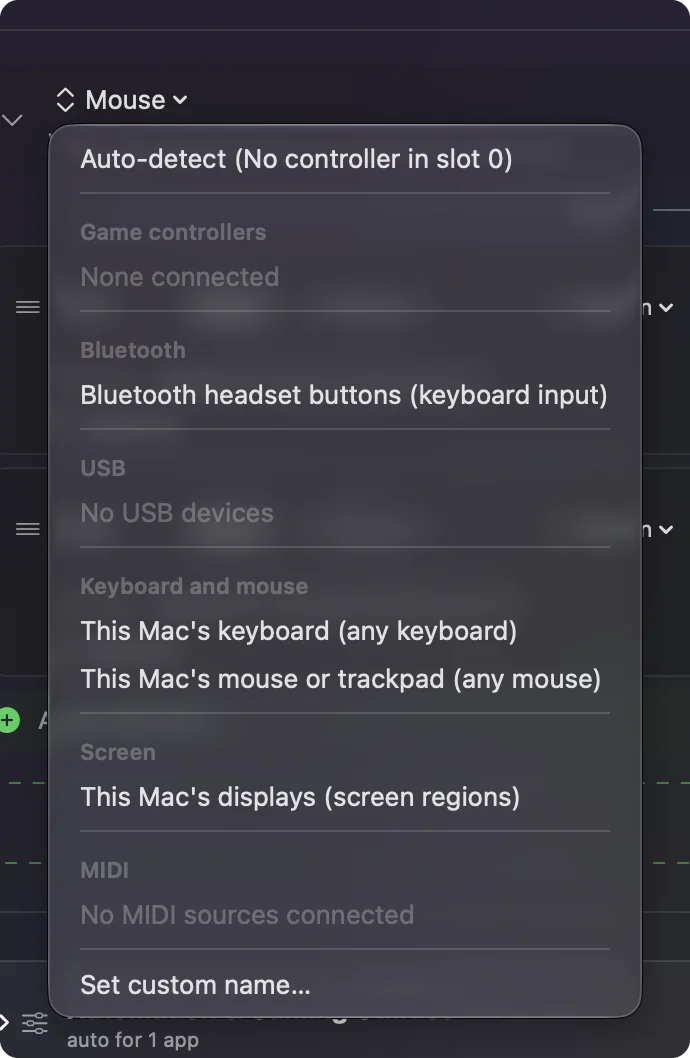
- You: Make a preset, click Edit, click Add a new Input Device, and set the device to This Mac's mouse or trackpad.
- InputConfig: Reads any mouse you plug in or pair, so there is no model to pick.
- Check: The device menu shows the mouse entry, as in Figure 1.
Step 2: Scan the button
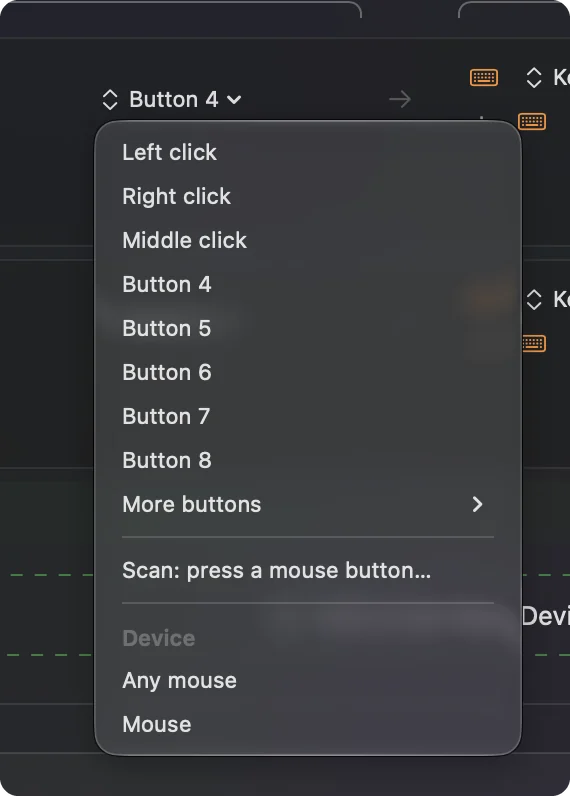
- You: Add a row, set its input to Mouse, kind Button, then open the button menu and press Scan: press a mouse button. Click the button you want to change.
- InputConfig: Names it, for example Button 4, and fills the row.
- Check: The button menu now reads the name you expect. If it stays empty, read the ladder further down.
Step 3: Choose the new job
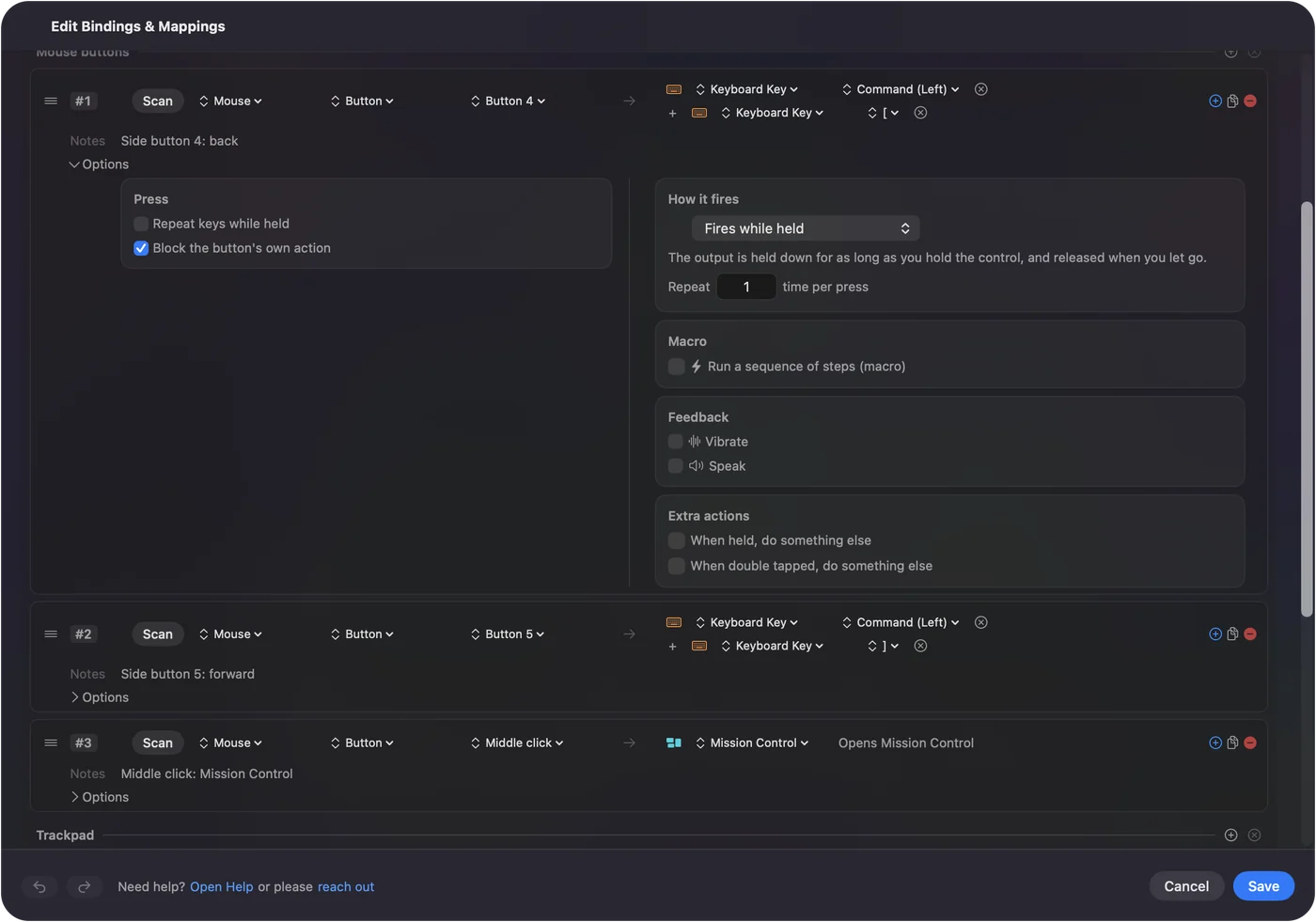
- You: Pick an output for the row, such as Keyboard Key, Type Text, System Function, Run Siri Shortcut or a Mouse Button. Click Activate.
- InputConfig: Runs that output each time you press the button, while the preset is on.
- Check: Press the button in a text editor or in the app you care about. The new job runs.
The editor shows the same steps with more pictures in the keyboard and mouse as input page. If you can scan the button, you can remap it.
Choose a job that fits the button
The output menu is where a remap becomes useful. These are the jobs I would try first, by what they replace:
- A keyboard shortcut. Command C, Command Z, Command W, or any chord. Several outputs on one row press together, added with the plus button. Assigning a shortcut to a mouse button has the full steps.
- A macro. A timed chain of keys and clicks. See mouse macros on a Mac.
- Typed text. Type Text sends an email address or a reply you send every day.
- A system function. Open App, Open URL, Mission Control, volume, media keys, a screenshot, Start Dictation or Lock Screen.
- A Shortcuts automation. Run Siri Shortcut starts anything you built in the Shortcuts app.
- A different mouse action. A click, pointer movement or scrolling, for example a side button that sends a middle click.
The options that change how a remap behaves
Open a row's Options and you will find the settings that decide how the button acts. They are the difference between a remap that works and one that fights you.
- Block the button's own action. InputConfig listens alongside macOS, so a button keeps its old job and the new one happens on top. In the Press box, this switch makes apps stop seeing the button while the preset runs. It works for the middle button and the side buttons. Left and right click cannot be blocked, so I would not remap them to something big.
- Repeat while held. A held button keeps sending its key, the way a held key repeats.
- Hold and double click actions. Each row can carry a second output on a long press and a third on a double tap. See double click and hold actions on a mouse button.
- While also holding. A second control makes a combo, so a button can mean one thing alone and another while a second control is down.
- A different layout per app. A preset can list the apps it belongs to, so the same button does a different job in each. See different mouse button jobs per app.
Keep two apps from fighting over a button
A button can only have one owner. Logi Options+, BetterMouse, SteerMouse, Mac Mouse Fix and InputConfig can all claim the side buttons, and when two of them do, one sees the press first or both act, and the result looks random. Pick one remapper for each button and turn that button's job off in the other. A mouse maker's app counts too, so the button you remap here should not also have a job in Logi Options+ or Razer Synapse.
- Check the shortcut you choose. macOS already reserves some keys, such as the screenshot shortcuts, Command Space for Spotlight and the keys that switch Spaces. If a button sends one of those, you can end up with two things happening or with the wrong one. Where InputConfig has a System Function for the job, such as Mission Control, use that instead of typing the key combination.
- Switching Spaces from a button. Apple's page on working in multiple spaces, which I read on October 21, 2026, says to press Control with the Right or Left Arrow key. Give one side button Control Right Arrow and the other Control Left Arrow as keyboard outputs. Apple's page does not say where they are switched on, so if nothing happens, open System Settings, Keyboard, Keyboard Shortcuts, Mission Control and make sure the move left and right a space entries are ticked.
- Start small. Take two or three buttons you will really use every day and give them jobs first. A mouse with twelve remapped buttons you cannot remember is worse than one with three you reach for without thinking.
If the remapped button does nothing
Climb this ladder, smallest step first:
- Check the preset is on. Rows do nothing until you click Activate. Control Option Command period is the emergency stop if one ever runs away.
- Check Accessibility. InputConfig needs it to read clicks and send keys, in System Settings, Privacy & Security, Accessibility.
- Press Scan again. If Scan names a key, the button is a key in disguise. Set it to F13 to F20 in the mouse's own software, then scan the F key.
- Quit the maker's app for a minute. Logi Options+, Razer Synapse and similar tools can take a button over before the Mac sees it. If it works with the tool closed, set the button back to a plain button there.
- Accept that some buttons are private. If nothing scans, the button talks only to the maker's software. That is common for DPI and profile buttons.
What it cannot do
- Hardware settings. It does not change DPI, polling rate, lighting, pointer acceleration or scroll feel. The maker's app, or LinearMouse, Mac Mouse Fix or SteerMouse, handles those, and they run alongside InputConfig.
- Two mice apart. Every mouse connected counts as one, so two mice cannot have different jobs for the same button.
- Buttons the Mac never receives. A button that only reaches the maker's software scans as nothing.
The short version
- Scan first. A mouse button name means bind it, and a key name means move it to F13 to F20.
- Pick the job. Shortcut, macro, text, app or system function.
- Block the old job. Do that on the middle and side buttons.
Scan, choose, activate, and test in the app where you will use it.
Questions
Can you remap mouse buttons on a Mac without software?
Only a little. macOS can put Mission Control, Application windows or Show Desktop on some mouse buttons in Desktop & Dock, Shortcuts. Anything more needs an app such as InputConfig.
How do I remap a mouse button on a Mac for free?
Install InputConfig from the Mac App Store, add This Mac's mouse or trackpad as the device, scan the button, and pick its output.
Why does my remapped side button still go back in the browser?
InputConfig adds a job and leaves the old one alone unless you tick Block the button's own action in the row's Options. That works for the middle and side buttons.
Can I remap the left click on a Mac?
You can bind it, but it cannot be blocked, so its normal click still happens. I would leave the left and right click alone and use the other buttons.
How do I switch Spaces with a mouse button on a Mac?
Give one button the keyboard output Control Right Arrow and another Control Left Arrow. If it does nothing, turn on the move a space shortcuts in System Settings, Keyboard, Keyboard Shortcuts, Mission Control.
Why do my mouse buttons do two things at once on a Mac?
Two apps, for example Logi Options+ and a remapper, are both claiming the button. Turn the button's job off in one of them so only one owns it.
Related
This page in other languages: العربية, Čeština, Dansk, Deutsch, Español, Suomi, Français, עברית, Magyar, Bahasa Indonesia, Italiano, 日本語, 한국어, Norsk, Nederlands, Polski, Português, ไทย, 繁體中文, 简体中文
Completely free. You don't have to make an account, there are no subscriptions, and nothing is locked. Optimized for Apple silicon. Open source on GitHub.
Updated