How to use the scroll wheel and middle click as shortcuts on a Mac
 InputConfig is completely free on the Mac App Store. You don't have to make an account, there are no subscriptions, and nothing is locked. Optimized for Apple silicon.
The scroll wheel can run shortcuts on a Mac, but only with some help. macOS does zoom with the wheel on its own, and for anything else, such as volume or switching tabs, InputConfig, the free app I make, reads the wheel and the wheel press as inputs and runs any job you give them.
Fixing a wheel that scrolls the wrong way or too fast is a different job, and the scroll wheel page covers it. The sideways tilt is in the tilt wheel page. This page is about the wheel as a trigger.
On this page: 9 sections
What macOS already does with the wheel
macOS has a few wheel tricks and no list for changing them. Natural scrolling decides the direction, and Scroll speed in Accessibility, Pointer Control, Mouse Options sets how far a notch goes, which Apple's own Mouse page, read on October 21, 2026, places in Pointer Control. Zoom with the wheel is in Accessibility, Zoom, as Use scroll gesture with modifier keys to zoom, and the default modifier is Control.
- Zoom. Hold the modifier shown in that setting and roll the wheel.
- Sideways scrolling. Holding Shift while you turn the wheel scrolls sideways in many apps, with no tilt wheel needed.
- Middle click. On a mouse with a clicking wheel, the press is a real middle click that apps use for a new tab or autoscroll.
macOS gives the wheel a few jobs, and no way to give it more.
Use the wheel and the wheel press as inputs
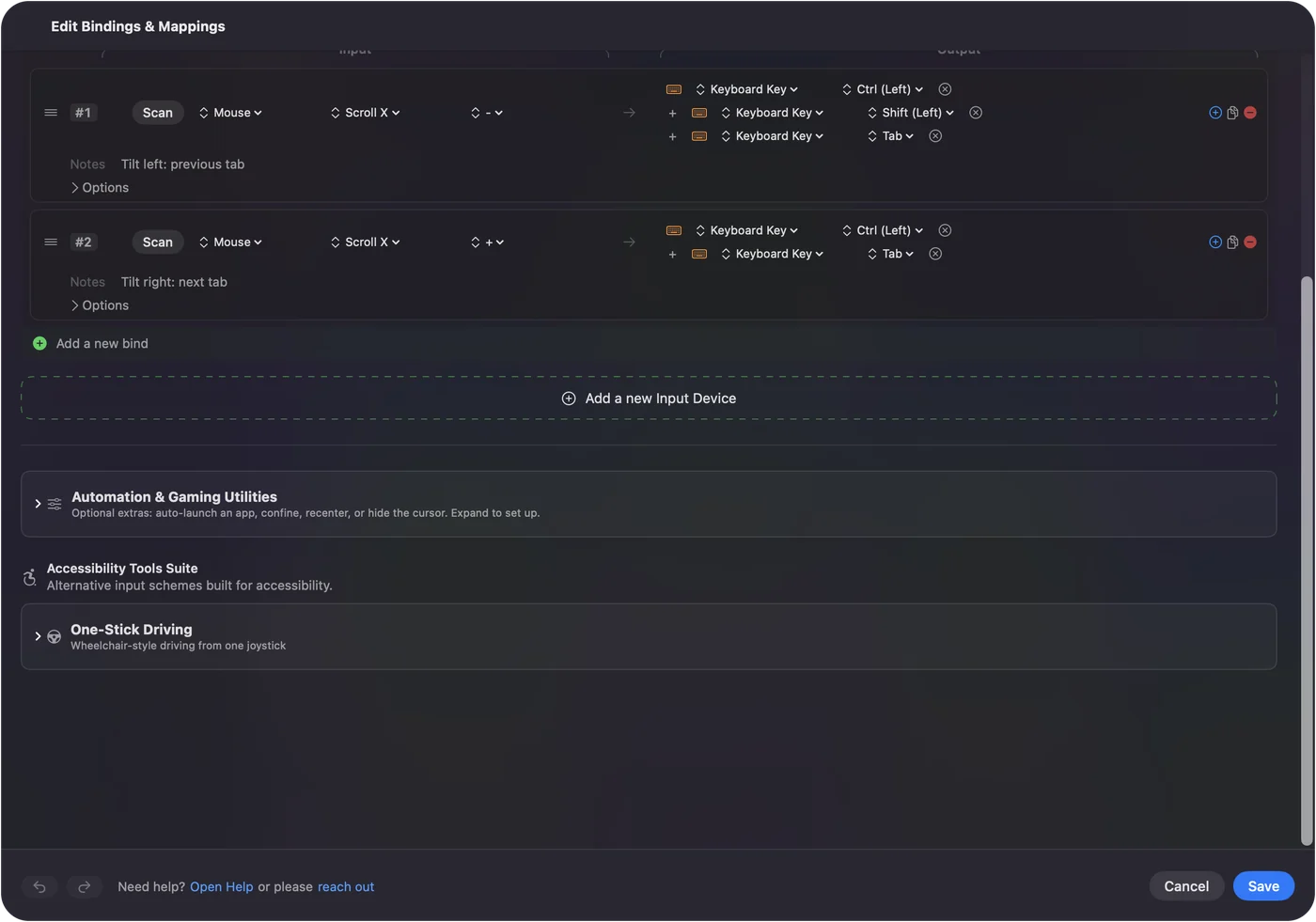
InputConfig reads the scroll wheel as a Mouse input, in the kind menu next to Button, where the scroll entries sit beside Move, Pressure and Double click. The wheel press is the Middle click button in the button menu.
Step 1: Scan the wheel
- You: Add a row, set the device to This Mac's mouse or trackpad and the input to Mouse, then press Scan and roll the wheel up or down.
- InputConfig: Records a scroll input with the direction you rolled.
- Check: The row names a scroll kind and a direction. If you rolled the wrong way, press Scan again.
Step 2: Pick the job
- You: Choose the output, such as Volume Up for rolling up and Volume Down for rolling down, or a keyboard shortcut. Add a second row for the other direction. Click Activate.
- InputConfig: Runs the job when the wheel moves.
- Check: Roll the wheel in an app and the job runs.
Step 3: The wheel press
- You: Add a row with the kind Button and Middle click, set an output, and open Options.
- InputConfig: Runs the output on the press. Tick Block the button's own action if you do not want the app to see a middle click as well.
- Check: Press the wheel in a browser. The new job runs and no new tab opens, if Block is on.
Good jobs for a scroll wheel
| Wheel move | Job | Why |
|---|---|---|
| Roll up and down | Volume Up and Volume Down | System functions, no keys to remember |
| Roll up and down with a combo | Command plus and Command minus | Zoom in and out of a page |
| Roll up and down | Control Shift Tab and Control Tab | Previous and next tab in Safari and Chrome |
| Tilt left and right | Control Left Arrow and Control Right Arrow | One Space left or right |
| Wheel press | Mission Control | A big overview with no reach |
| Wheel press | Play or pause | A music or podcast stop |
The honest limit is that I have not measured how many times a fast spin fires a row. I would give the wheel jobs that are safe to repeat, such as volume or zoom steps, and watch it in the Live Visualizer's Mouse map first. Roll slowly and it should step once per notch.
Make the wheel a combo
A row has a second control, While also holding, which makes the row fire only while another control is down. That lets a wheel mean one thing alone and another with a button held, for example a thumb button held and a roll that changes volume, while a plain roll keeps scrolling.
I have not tried every pairing, so press Scan in the second control and see what it hears. A combo keeps a plain roll for what it always did.
Other things that can scroll for you
The wheel is also an output. A button can send a scroll, so a thumb button can send scrolling, and a controller stick can scroll with its own speed slider. The Mouse + Scroll built-in preset shows rows like that. For a controller, see scrolling with a controller.
If the wheel does nothing
Climb this ladder, smallest step first:
- Watch it arrive. Open the Live Visualizer, pick Mouse, and roll the wheel. If the arrows light, the Mac receives it and InputConfig can use it. The scroll wheel test shows each step.
- Check the preset is on. Rows do nothing until you click Activate.
- Quit the maker's software. Logi Options+ and similar tools can take the wheel over. Set its wheel back to plain scrolling there, or quit it, and try again.
- Try the wheel press instead. A click on the wheel is a button and scans as Middle click.
- Check Accessibility. InputConfig reads the wheel through it.
What it cannot do
- Stop the scroll. InputConfig adds a job and cannot hold the scroll back. Block the button's own action applies to buttons, not to the wheel, so a roll both scrolls and runs its row.
- Change the wheel's feel. Direction, speed and smoothness stay with macOS, the maker's app, or LinearMouse, Mac Mouse Fix and SteerMouse.
- Tell the wheel from a trackpad. A two-finger scroll counts as scrolling too, and every mouse and trackpad counts as one device.
Where a tilt scroll needs a job instead, the answer is on the tilt wheel page.
The short version
- macOS. Zoom with a modifier, sideways with Shift, direction and speed in Settings.
- InputConfig. Scroll and the wheel press as inputs, for volume, tabs or anything else.
- Caution. The scroll still happens, and a fast spin may fire a row many times.
Start with the wheel press and a safe pair of volume rows, then add more.
Questions
Can I use the scroll wheel as a shortcut on a Mac?
Yes, with an app. InputConfig reads the scroll wheel and the wheel press as inputs and runs any output you give them, such as volume or a tab shortcut.
How do I zoom with the scroll wheel on a Mac?
Turn on Use scroll gesture with modifier keys to zoom in System Settings, Accessibility, Zoom, then hold the modifier shown there and roll the wheel.
Can I change what the middle click does on a Mac?
Yes. Scan Middle click in InputConfig, choose an output, and tick Block the button's own action to stop apps seeing the press.
Can InputConfig stop the wheel from scrolling?
No. It adds a job without taking the scroll away, so a roll scrolls and runs the row as well.
Related
This page in other languages: العربية, Čeština, Dansk, Deutsch, Español, Suomi, Français, עברית, Magyar, Bahasa Indonesia, Italiano, 日本語, 한국어, Norsk, Nederlands, Polski, Português, ไทย, 繁體中文, 简体中文
Completely free. You don't have to make an account, there are no subscriptions, and nothing is locked. Optimized for Apple silicon. Open source on GitHub.
Updated