How to change volume and media with a mouse button or the scroll wheel on a Mac
 InputConfig is completely free on the Mac App Store. You don't have to make an account, there are no subscriptions, and nothing is locked. Optimized for Apple silicon.
You can change the volume and control music with a mouse button on a Mac, but macOS needs help to do it. In InputConfig, the free app I make, a Mouse row set to System Function can run Volume Up, Volume Down, Mute, Play / Pause, Next Track and Previous Track. Two side buttons become volume down and up, the wheel press becomes play and pause, and the scroll wheel can do volume too, with one caveat that I explain below.
Without an app, the way to use only a mouse is the Sound slider in the menu bar. That works, but it takes a click, a drag and a click away every time.
On this page: 10 sections
What a mouse can do on its own
A mouse with no app can change the volume by clicking the Sound control in the menu bar or Control Center and dragging its slider. That is the only built-in route I know of, and it keeps your eyes and hand busy. Many keyboards have volume and media keys, but a mouse has none. InputConfig lists those jobs as System Functions, which send the Mac's own volume, mute and media controls for you.
A mouse button cannot press a key you do not have, but it can send the same system function the key does.
Find out what your button sends
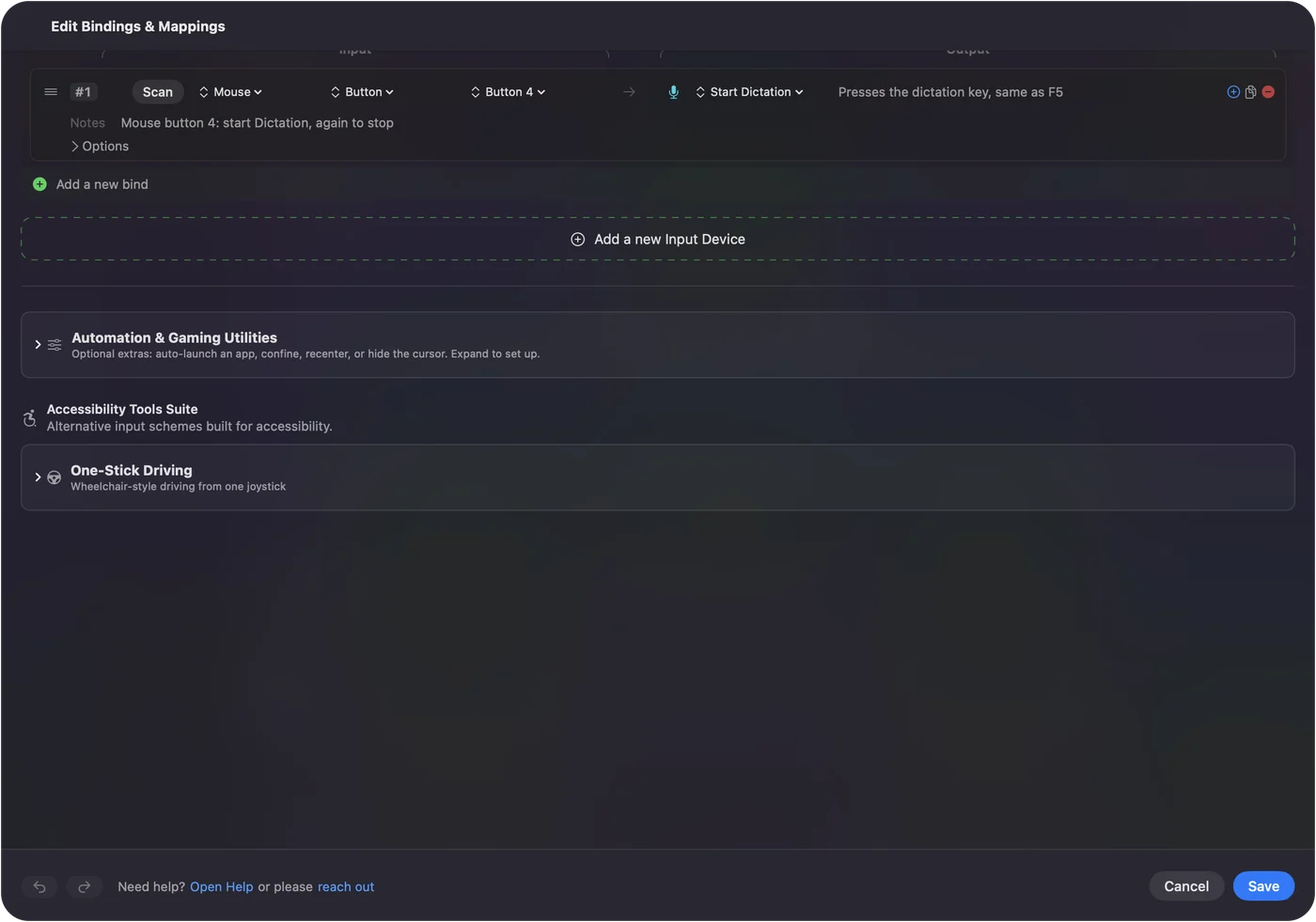
Press Scan on a row and click the button. A mouse button choice that works well:
| Button | Good job | Why |
|---|---|---|
| Button 4 and Button 5 | Volume Down and Volume Up | A natural pair under the thumb. |
| Middle click | Play / Pause or Mute | The wheel press, easy to find, and you can block its tab opening. |
| Button 6 and Button 7 | Previous Track and Next Track | A second pair on a mouse with a thumb grid. |
| Wheel with a thumb button held | Volume Up and Down | A combo, so a plain roll keeps scrolling. |
If a button scans as a key, set it to F13 to F20 in the maker's software first. A DPI button that never reaches the Mac cannot be bound.
Put volume on two buttons
Step 1: Volume Up
- You: Add a row, set the device to This Mac's mouse or trackpad and the input to Mouse, press Scan and click Button 5. Set the output type to System Function and pick Volume Up.
- InputConfig: Sends the Mac's volume up each time the button fires.
- Check: Play something and press the button. The volume bar on the screen rises one step.
Step 2: Volume Down
- You: Add a row for Button 4 with Volume Down. In Options on both rows, tick Block the button's own action.
- InputConfig: Stops apps seeing those buttons while the preset runs.
- Check: Press each button in a browser. The volume changes and the page does not go back or forward.
Hold for a smooth ramp
A volume key moves one step each press, and holding it down makes it repeat on a keyboard. A row can do the same: in Options, the press menu has Repeats while held, with a gap between presses in milliseconds. Hold Button 5 and the volume climbs, let go and it stops. I would start with a gap around a tenth of a second and widen it if the steps blur together.
The same menu has Toggles on and off, which suits Mute. And Extra actions gives you a second job on a hold: a tap on the wheel press can be Play / Pause and a hold past about 400 ms can be Mute. A tap for the thing you do all day and a hold for the thing you do now and then keeps one button useful.
Use the scroll wheel for volume
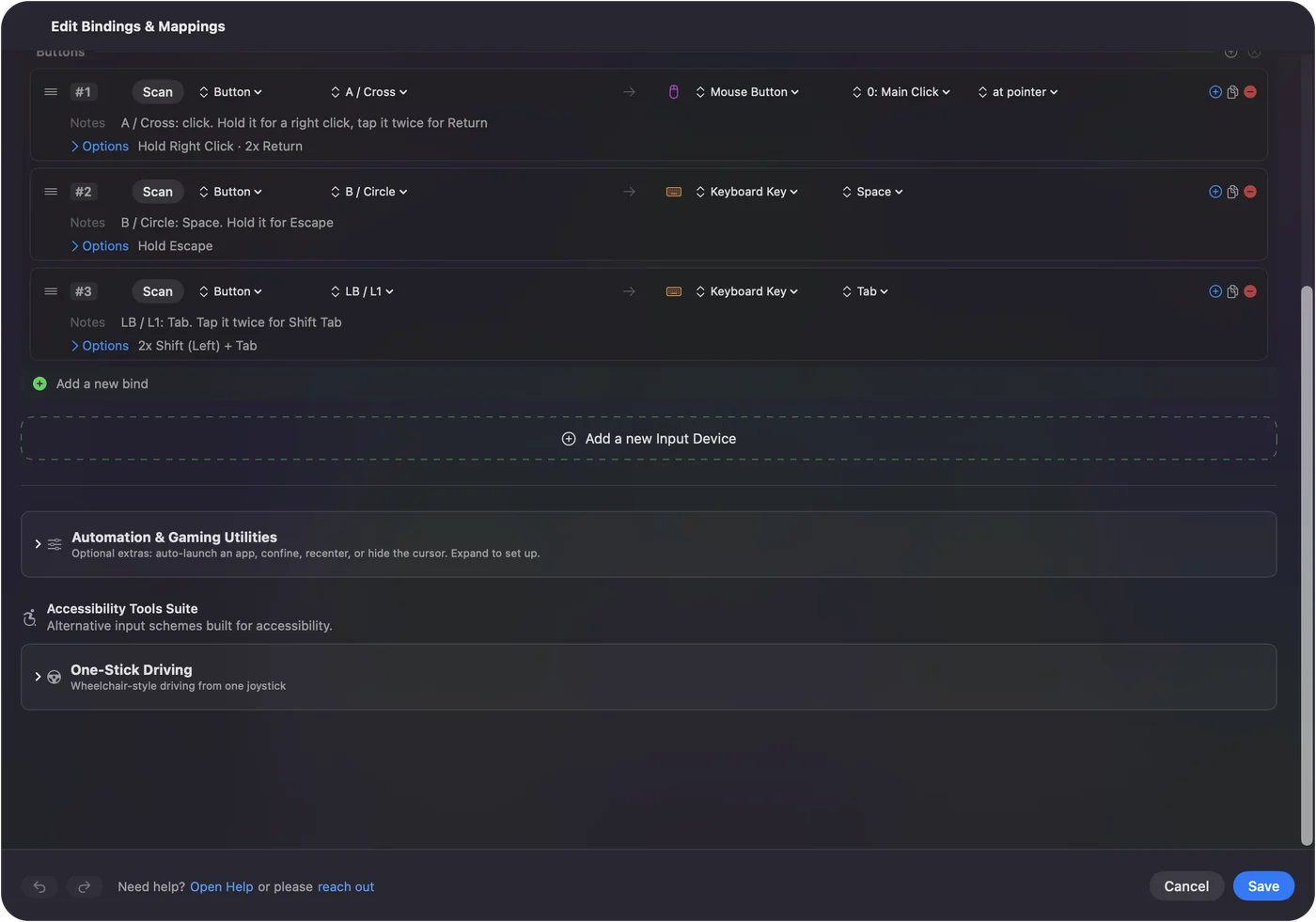
The wheel is an input too, and Scan records a scroll direction when you roll it. A row for rolling up can send Volume Up and a row for rolling down can send Volume Down. Here is the catch: InputConfig adds a job and cannot stop the scroll, so a roll scrolls the page under the pointer as well as changing the volume. The scroll wheel shortcuts page explains the same limit.
There are two ways around it, and I have not timed how many rows a fast spin fires:
- Hold a button. Give the row a second control, While also holding, set to a thumb button. A plain roll scrolls, and a roll with the thumb button down changes the volume.
- Park the pointer. Rest it on the desktop or on an app with nothing to scroll while you change the volume.
Ideas for different people
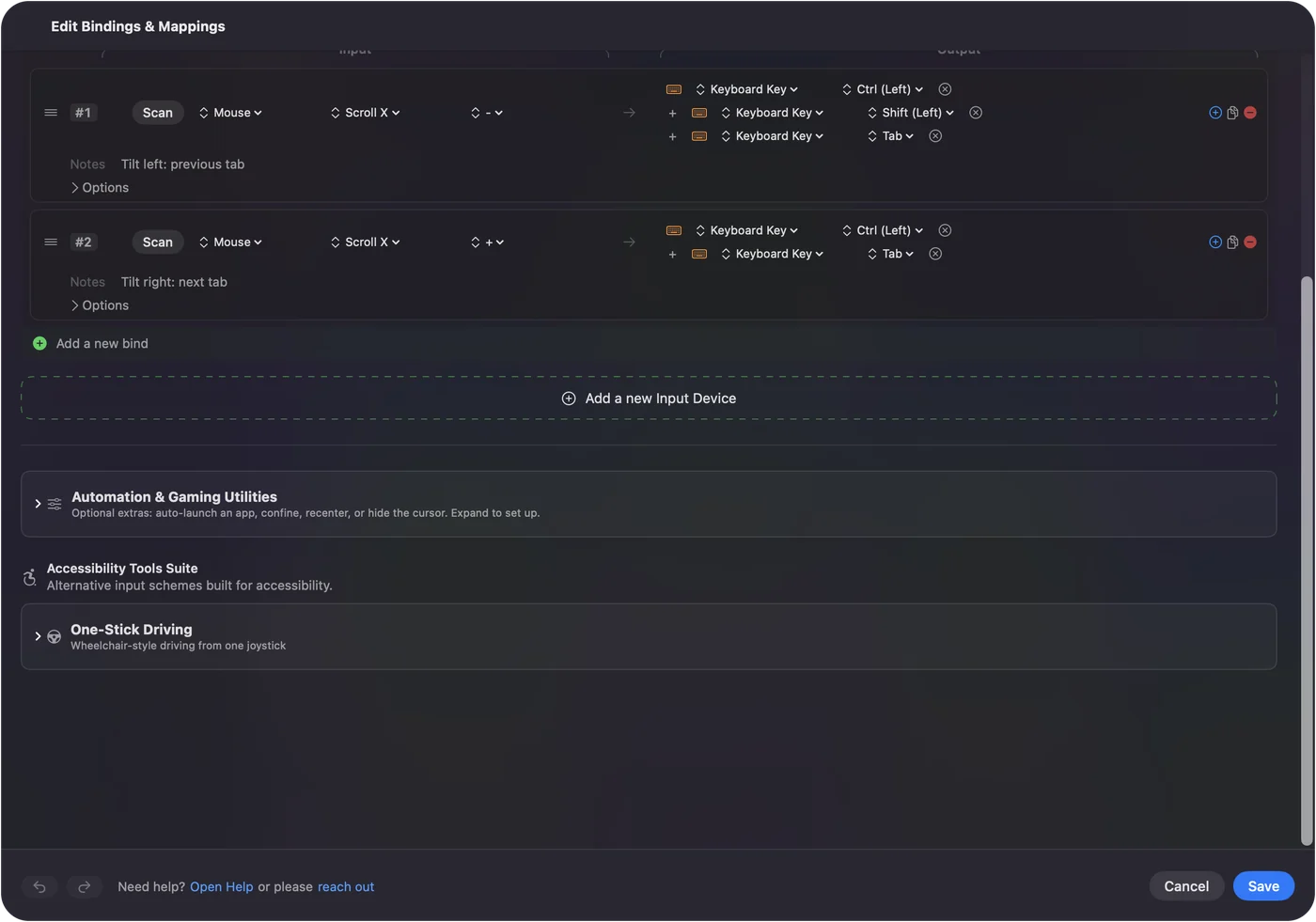
- Desk workers with music on. Volume on the side buttons and Play / Pause on the wheel press, without leaving the document.
- Callers. Volume down on a button when someone starts talking, and Mute on a hold.
- Video watchers. Next Track and Previous Track on Button 6 and Button 7, and volume on the wheel with a button held.
- Gamers. Keep the thumb grid for the game and put volume on a hold of the side button. See the gaming mouse page.
- Per app. A music app can have the whole set on the side buttons while a browser keeps back and forward. See per-app mouse buttons.
If the buttons change nothing
Climb this ladder, smallest step first:
- Check the Mac's own volume. If the output device is a display or a speaker with its own dial, the Mac's volume may do nothing. Try the keyboard keys.
- Check the preset is on. Rows do nothing until you click Activate, and InputConfig needs Accessibility in System Settings, Privacy & Security.
- Check the button scans. If Scan shows a key, set that button to F13 to F20 in the maker's software.
- Check the media player. Play / Pause goes to whichever app the Mac thinks is playing. A paused tab in a browser can hold the controls.
- Quit the maker's app. A mouse app can take a button and hide it from the Mac, so a remapped button may never arrive.
What it cannot do
- Stop the scroll. A wheel row does not stop the page scrolling.
- Change the volume steps. The size of a step belongs to macOS.
- Fix a dial on an external speaker. That volume is outside the Mac.
- Tell two mice apart. Every connected mouse counts as one device.
The short version
- Volume. Volume Down and Volume Up on Button 4 and Button 5.
- Media. Play / Pause on the wheel press, and tracks on a second pair.
- The wheel. A combo with a thumb button held, so scrolling stays normal.
Start with the side buttons and the wheel press, and add the wheel only if you really want it.
Questions
Can I change the volume with a mouse button on a Mac?
Yes. In InputConfig, bind a button to the Volume Up or Volume Down system function. macOS has no mouse button setting for it.
Can I control the Mac volume with the scroll wheel?
Yes, with a row for each scroll direction. The page still scrolls under the pointer, so it works best with a thumb button held through While also holding.
How do I play and pause music with a mouse button on a Mac?
Bind the middle click or another button to the Play / Pause system function. It goes to the app the Mac thinks is playing.
How do I mute with a mouse button?
Use the Mute system function on a row. Set the row's press mode to Toggles on and off if you want one press to mute and the next to unmute.
Related
This page in other languages: العربية, Čeština, Dansk, Deutsch, Español, Suomi, Français, עברית, Magyar, Bahasa Indonesia, Italiano, 日本語, 한국어, Norsk, Nederlands, Polski, Português, Русский, Slovenčina, ไทย, 繁體中文, 简体中文
Completely free. You don't have to make an account, there are no subscriptions, and nothing is locked. Optimized for Apple silicon. Open source on GitHub.
Updated