How to use mouse buttons in Figma on a Mac
 InputConfig is completely free on the Mac App Store. You don't have to make an account, there are no subscriptions, and nothing is locked. Optimized for Apple silicon.
In Figma, the mouse buttons that help most are the ones that hold a key for you. Figma pans when you hold Space and drag, and it zooms when you hold Command and roll the wheel, so a thumb button that holds Space and another that holds Command give a mouse the canvas controls of a design mouse. InputConfig, the free Mac app I make, holds those keys from any mouse button on a Mac.
The shortcuts come from Figma's help, Explore design files and Figma's zoom and view help, which I read on October 21, 2026. If you are on a trackpad, Figma's pinch and two-finger gestures already cover most of this, and this page is for the mouse.
On this page: 10 sections
What Figma and macOS give a mouse
Figma's help says to pan with a mouse by holding the Space bar, then clicking and dragging, and to zoom by holding Command and scrolling the wheel up to zoom in or down to zoom out. A trackpad pans with two fingers. The H key selects the Hand tool, which lets you click, drag and zoom around a file without changing anything.
The help also lists zoom keys: Shift plus zooms in, Shift minus zooms out, Shift 1 zooms to fit, and Shift 2 zooms to the selection. Arrow keys pan the canvas when nothing is selected, and Shift makes them go faster. I did not find a middle button pan in Figma's help, and a Figma community thread about adding one suggests it is not built in. I would not count on it. Figma's mouse controls are all a held key plus a drag or a wheel, and that is exactly what a mapper can hold for you.
Find out what each button sends
A mouse button reaches the Mac as Left click, Right click, Middle click or Button 4 and up. Press Scan, then click the button. If Scan names a key instead of a mouse button, the mouse is sending a key, and the fix is on F13 to F19 on a Mac.
| Button | How it usually reports | A good Figma job |
|---|---|---|
| Left click and right click | Left click and Right click | Leave them. They cannot be blocked. |
| Wheel press | Middle click | Zoom to fit, or the Hand tool H. |
| Side buttons | Button 4 and Button 5 | Hold Space to pan, and hold Command to zoom with the wheel. |
| Thumb grid or extra buttons | Button 6 and higher | Zoom to selection, zoom to fit, Undo. |
| Tilt wheel | Sideways scroll | Pan sideways with the arrow keys, or zoom steps. |
| DPI or profile button | Often nothing the Mac can read | Nothing. If Scan hears no press, no app can read it. |
One Figma forum thread I read on October 21, 2026 reports a Logitech mouse's side buttons going unrecognized in Figma after a software update. That fits the usual cause, a maker's app taking the button over. If Scan hears the button, InputConfig can use it, whatever Figma does with it.
Hold Space and Command from the buttons
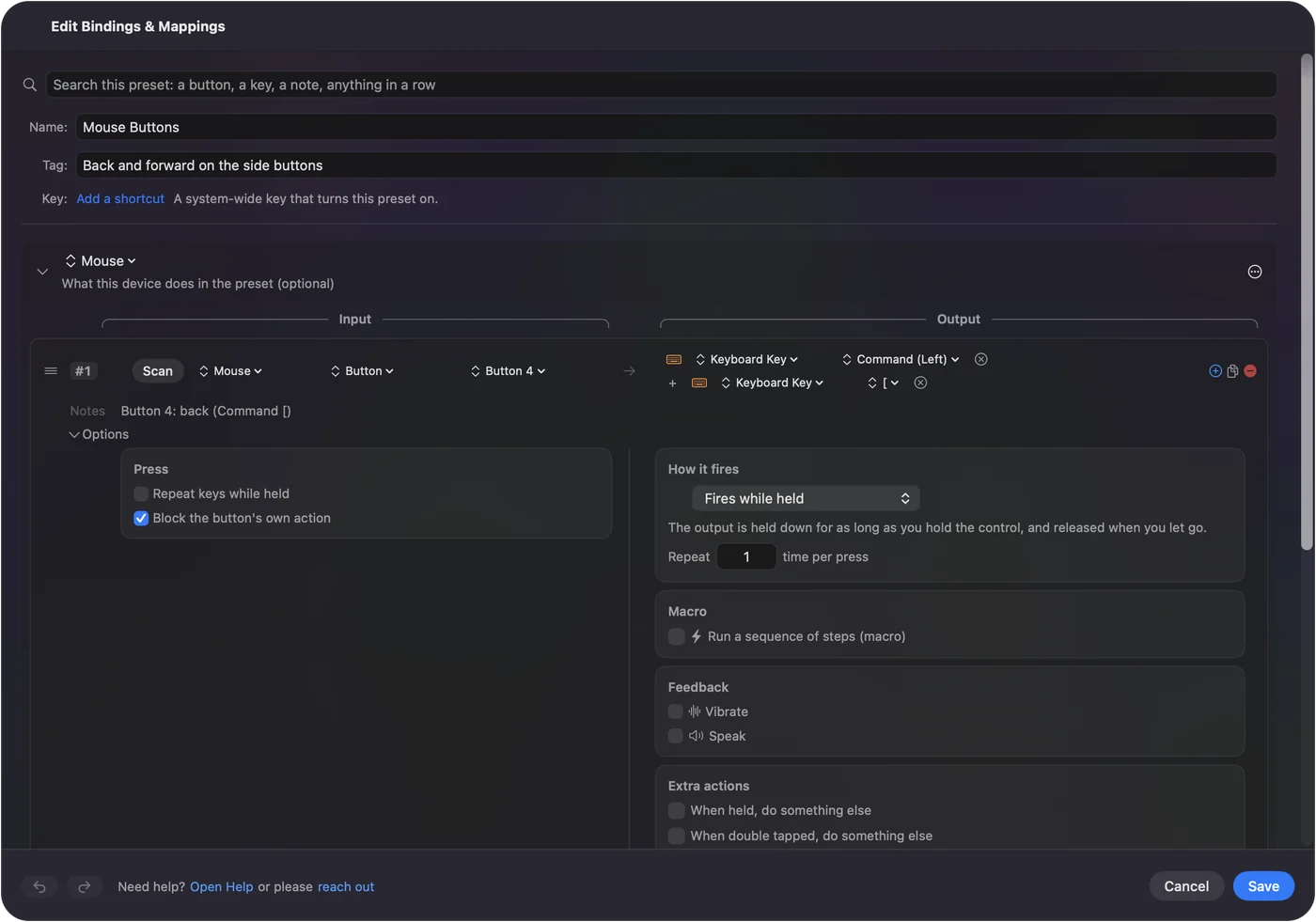
Step 1: A thumb button that pans
- You: Add a row, set the device to This Mac's mouse or trackpad, the input to Mouse and the kind to Button, then press Scan and click the side button. Set the output to Keyboard Key and pick Space.
- InputConfig: Holds Space for as long as you hold the button, which is how the key behaves by default.
- Check: In Figma, hold the button and drag with the left button. The canvas moves.
Step 2: A thumb button that zooms with the wheel
- You: On a second side button, set the output to Keyboard Key and pick Command under Modifier Keys. Tick Block the button's own action on both rows.
- InputConfig: Holds Command while the button is down.
- Check: Hold the button and roll the wheel. The canvas zooms, and releasing the button returns the wheel to normal scrolling.
Step 3: Jump keys
| Job | Figma key | Good home |
|---|---|---|
| Pan | Space, held | Button 4 |
| Zoom with the wheel | Command, held | Button 5 |
| Zoom to fit | Shift 1 | Wheel press |
| Zoom to selection | Shift 2 | A thumb button |
| Zoom in and out | Shift plus and Shift minus | Two thumb buttons |
| Hand tool | H | A thumb button |
| Undo and redo | Command Z and Shift Command Z | Two thumb buttons |
Space does not pan while you are typing in a text layer, because the key types a space there. That is a Figma rule, not a mapper limit, and the same is true in Photoshop.
Macros and multi-step jobs
Figma's zoom keys are single presses, so macros are for two small chains:
- Fit, then select. Shift 1 to fit the page, a short wait, then Shift 2 to zoom to whatever is selected. Press it again to step between the two views.
- Undo twice. Command Z, a wait, Command Z. I would rather give the hold action the second undo, so a tap undoes once.
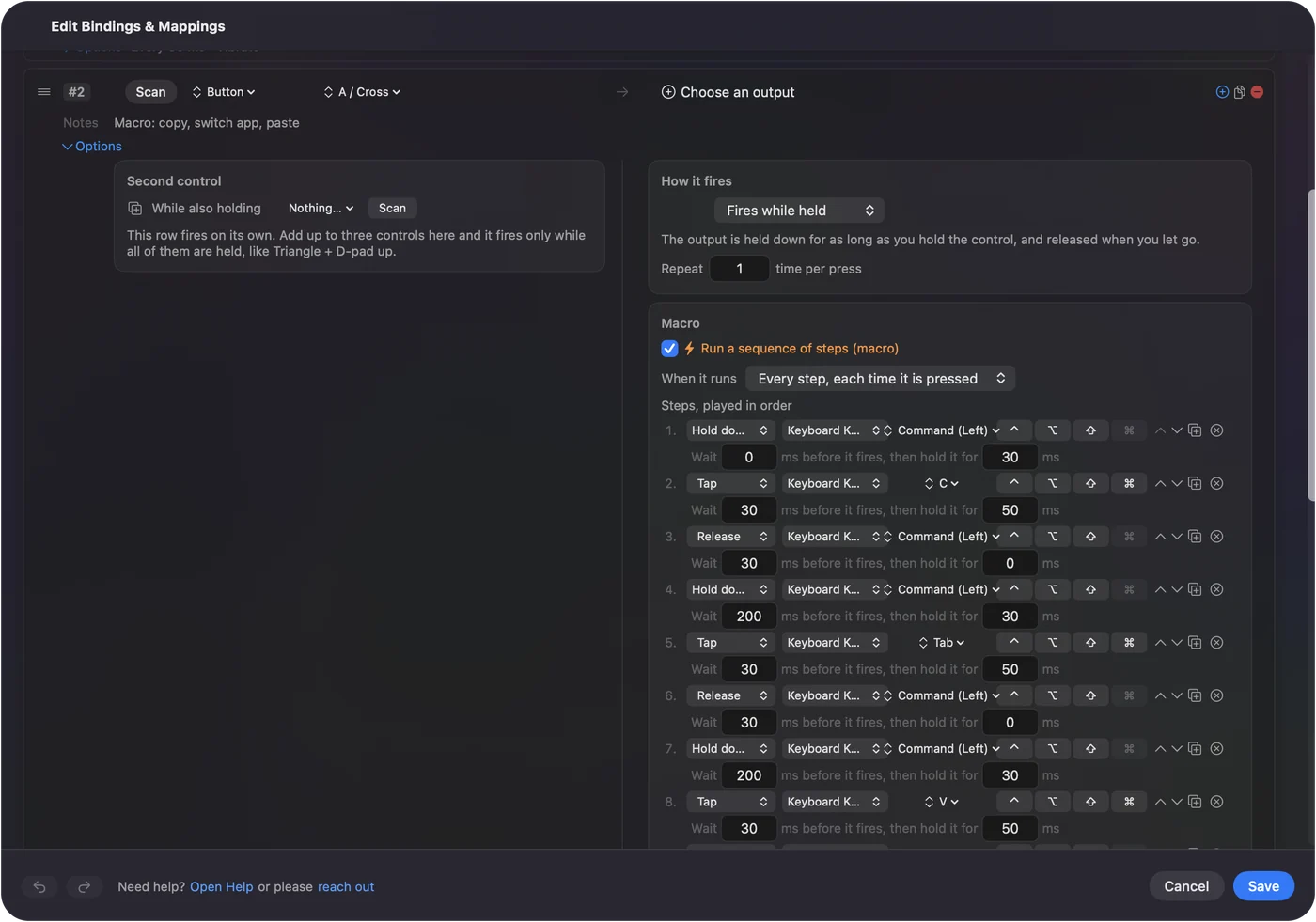
I have not run these in Figma myself. Keep Figma macros to two steps, because the canvas redraws between them.
Hold, repeat, tap twice and switch by app
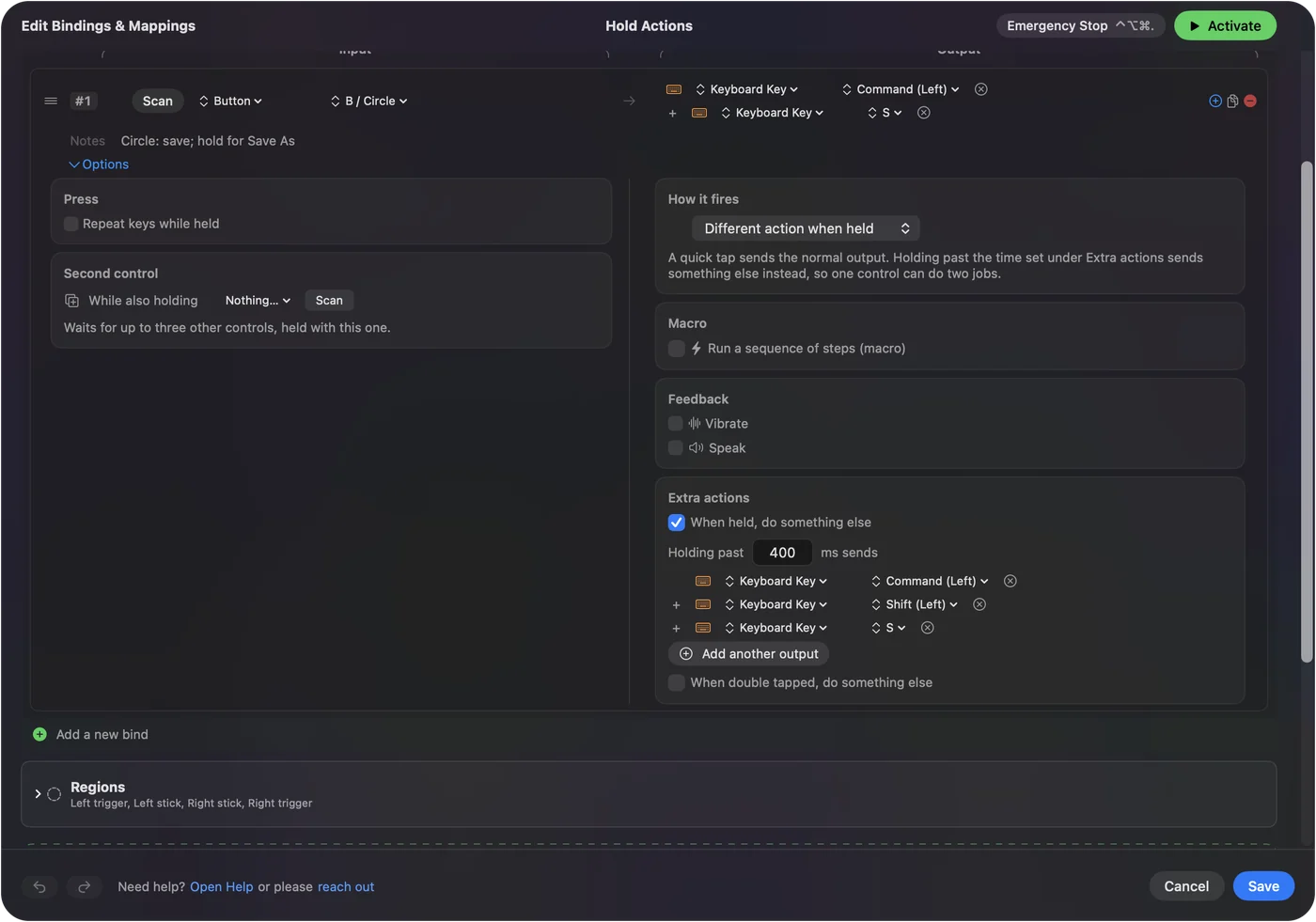
- A tap and a hold. A tap on a thumb button can be zoom to fit, and a hold can be zoom to selection. A quick tap sends the normal output, and holding past a time you set sends something else.
- Repeat keys while held. For Shift plus and Shift minus, this makes a held button keep zooming.
- Block the button's own action. Available for the middle button and the side buttons.
To keep the layout in Figma, open the preset's Automation & Gaming Utilities section, add Figma under Activate when these apps are in front, and in Settings, Advanced, turn on Switch presets when the front app changes. The browser version of Figma is the browser, so the preset follows Chrome or Safari, not Figma, and that matters. Only one preset runs at a time. The emergency stop is Control Option Command period. In the browser, a Space button is also live in every other tab, so I would use the desktop app.
Layouts for the mouse you have
- A mouse with two side buttons. Space on one and Command on the other. That alone is a design mouse.
- A thumb grid mouse. Pan, zoom, fit, selection, Hand, Undo and Redo, all on the grid, with the wheel left alone.
- A trackball. The ball is the pointer. The big button is Space, which makes the ball pan the canvas.
- A vertical mouse. Two thumb buttons, so Space and Command, with the fit and selection keys on holds.
Pan first, then zoom.
If a button does nothing in Figma
Climb this ladder, smallest step first:
- Check the preset is on. Click Activate, and make sure the app that is in front is the one the preset follows.
- Check Accessibility. In System Settings, Privacy & Security, Accessibility.
- Click the canvas. Figma needs focus on the canvas, not a text field or a panel, for Space to pan.
- Check the Scan. If the button scans as a key, set it to F13 to F20 in the maker's software first.
- Quit the maker's software. Logi Options+ and similar apps can take a button over, and the Figma thread I read blames one.
- Test in a plain app. Press the button in TextEdit. A Space row types a space, which proves the row fires.
What it cannot do
- Add a middle button to Figma. InputConfig can hold a middle click, but Figma does not seem to use it, so I would use Space.
- Tell two mice apart. Every mouse connected counts as one device.
- Change pointer speed. Use the Mac's settings, the maker's app, or LinearMouse, Mac Mouse Fix or SteerMouse.
- Replace a trackpad. A trackpad pinches and pans with two fingers. A mouse needs held keys for the same.
The short version
- Hold a key. A thumb button on Space pans, and one on Command makes the wheel zoom.
- Fit and selection. Shift 1 and Shift 2 are zoom to fit and zoom to selection.
- Follow the app. Use the desktop app, and add it under Activate when these apps are in front.
Space on one thumb button is the single change that makes a plain mouse feel right in Figma.
Questions
How do I pan in Figma with a mouse?
Hold Space and drag, according to Figma's help. A thumb button set to the Space key in InputConfig holds it for you.
How do I zoom in Figma with a mouse wheel?
Hold Command and scroll the wheel, up to zoom in and down to zoom out. A button that holds Command lets you do it with one hand.
Does Figma support the middle mouse button?
I did not find it in Figma's help, and a community thread asks for it. Space and drag is the documented way.
Why does my side button not work in Figma?
A maker's app such as Logitech's can take the button over. Scan it in InputConfig, and if it scans, bind your own key.
What is the Figma shortcut to zoom to fit?
Shift 1 zooms to fit and Shift 2 zooms to the selection. Shift plus and Shift minus zoom in and out.
Related
This page in other languages: العربية, Čeština, Dansk, Deutsch, Español, Suomi, Français, עברית, Magyar, Bahasa Indonesia, Italiano, 日本語, 한국어, Norsk, Nederlands, Polski, Português, Русский, Slovenčina, ไทย, Türkçe, Українська, Tiếng Việt, 繁體中文, 简体中文
Completely free. You don't have to make an account, there are no subscriptions, and nothing is locked. Optimized for Apple silicon. Open source on GitHub.
Updated